

![[Nota]](https://webapi.partcommunity.com/service/help/latest/pages/it/installation_ecatalogsolutions/doc/images/note.png)
Di seguito sono riportati alcuni esempi di queste 3 procedure:
Tutte le superfici selezionate in un unico passaggio
Vengono selezionate 5 superfici in un'unica fase.
Dopo aver utilizzato il comando Crea nuovo smusso/arrotondamento [New Chamfer/Fillet...]..., le 5 superfici intersecanti vengono visualizzate nella finestra di dialogo Smusso/arrotondamento [Chamfer/Fillet] sotto la voce Superfici (intersec.) [Faces (intersect.)].
Figura 7.252. Sotto "Superfici (intersec.) [Faces (intersect.)]". Visualizzazione delle 5 superfici intersecanti
I bordi di taglio comuni di tutte le superfici sono arrotondati (o smussati).
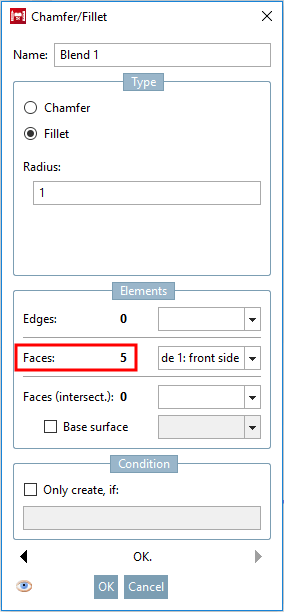
Creare UNA superficie per impostazione predefinita con Crea nuovo smusso/arrotondamento [New Chamfer/Fillet...]... e quindi selezionare UNA superficie aggiuntiva per ogni fase di ripetizione e utilizzare il comando Aggiungi superficie/i a 'Sfumatura xy'... comando.
Il numero totale di superfici selezionate viene visualizzato sotto la voce Superfici [Faces] nella finestra di dialogo Smusso/arrotondamento [Chamfer/Fillet]. (Per l'ultima fase di ripetizione, in questo esempio è 5).
Tutti i bordi delle singole superfici sono arrotondati (o smussati).
Selezionare tutte le superfici in un unico passaggio + definire la superficie di base [Base surface]
Come nel primo caso, selezionare le 5 superfici desiderate e richiamare la finestra di dialogo Smusso/arrotondamento [Chamfer/Fillet] facendo clic su Crea nuovo smusso/arrotondamento.... [New Chamfer/Fillet...]
Tuttavia, a differenza del primo caso, attivare la casella di controllo Area di base [Base surface].
Solo i bordi adiacenti alla superficie di base sono arrotondati (o smussati). A differenza dell'applicazione senza superficie di base (vedi sopra ), gli spigoli verticali del cubo piccolo, ad esempio, non sono arrotondati.


![Sotto "Superfici (intersec.) [Faces (intersect.)]". Visualizzazione delle 5 superfici intersecanti](https://webapi.partcommunity.com/service/help/latest/pages/it/installation_ecatalogsolutions/doc/resources/img/img_2d48af81f32549599a48209feef5e0be.png)




Ancora una volta i risultati dei 3 casi a confronto diretto:
Selezionare tutte le superfici [Select all surfaces] in un unico passaggio e poi utilizzare il comando Crea nuovo smusso/arrotondamento [New Chamfer/Fillet...]...
-> I bordi di taglio comuni di tutte le superfici sono arrotondati (o smussati).
Creare UNA superficie per impostazione predefinita con Crea nuovo smusso/arrotondamento [New Chamfer/Fillet...]... e quindi selezionare UNA superficie aggiuntiva per ogni fase di ripetizione e utilizzare il comando Aggiungi superficie/i a 'Sfumatura xy'... comando.
-> I bordi di tutte le superfici selezionate vengono arrotondati (o smussati).
Selezionare tutte le superfici in un unico passaggio + definire la superficie di base [Base surface]
-> I bordi adiacenti alla superficie di base sono arrotondati (o smussati).