
1.6. Riferimento completo al CAD di tutti i comandi del menu
1.6.4.
Inserire il modello (2D) dalla libreria di parti standard e acquistate
|  |
| Indietro | Avanti |

Di seguito viene descritto come inserire nel sistema CAD i singoli pezzi 2D della libreria di pezzi standard e acquistati [Standard and supplier parts library].
Nel menu 3Dfindit, fare clic su
 Inserisci
modello [Insert model]. [11]
Inserisci
modello [Insert model]. [11]
Selezionare il componente desiderato nella selezione dei pezzi [Part selection]. [12]
Specificare la caratteristica desiderata nella vista dei pezzi [Part view].
Creazione della derivazione 2D [2D derivation]
Sono disponibili le seguenti opzioni:
Fare clic sul pulsante Derivazione 2D [2D derivation]
 .
.
-> Si apre la finestra di aggancio della derivazione 2D [2D derivation].
Selezionare una vista.[13]
In alternativa, puoi Richiamo della vista 2D [2D view] e vai direttamente al CAD Trasferisci [Transfer to CAD]
 clic.
clic.
Si apre [Choose view to pass...] quindi la finestra di dialogo Seleziona la vista da trasferire.... [Choose view to pass...]
Selezionare la vista desiderata.
Nella finestra di dialogo Seleziona vista da trasferire [Choose view to pass...] sono disponibili le seguenti viste... finestra di dialogo:
Clicca sul pulsante
(opzione a) o confermare con (opzione b)È possibile utilizzare
[14]-> La vista torna alla
Sistema CAD.
Inserire il componente o l'assieme utilizzando il metodo di posizionamento del sistema CAD.
![PARTdataManager - Selezione delle parti [Part selection]](https://webapi.partcommunity.com/service/help/latest/pages/it/partsolutions_user/doc/resources/img/img_5cdccfed0ae9495b8a52dc3c2c1aa915.png)
![PARTdataManager - Vista delle parti [Part view]](https://webapi.partcommunity.com/service/help/latest/pages/it/partsolutions_user/doc/resources/img/img_4cd5ece61ba7412aa8bf60158046e920.png)
![PARTdataManager - Vista 2D [2D view]](https://webapi.partcommunity.com/service/help/latest/pages/it/partsolutions_user/doc/resources/img/img_4112393cc4f74dfeac87b0800faa1223.png)
![Selezionare la vista da trasferire [Choose view to pass...]...](https://webapi.partcommunity.com/service/help/latest/pages/it/partsolutions_user/doc/resources/img/img_cd4d4323100b4b879fa964891af9e08a.png)
![[Nota]](https://webapi.partcommunity.com/service/help/latest/pages/it/partsolutions_user/doc/images/note.png)
![PARTdataManager -> Menu Extra [Extras] -> Impostazioni [Settings...]...](https://webapi.partcommunity.com/service/help/latest/pages/it/partsolutions_user/doc/resources/img/img_31ff1e8842334a2ca0cb0762d1778222.png)
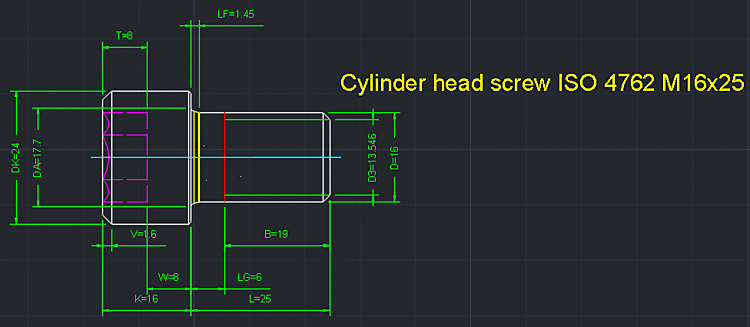
[11] Con AutoCAD, ad esempio, Inserisci per impostazione predefinita modello [Insert model] visualizzato. Sia che venga utilizzato in modalità CAD 2D o 3D dipende dal fatto che la derivata 2D sia stata precedentemente creata in PSOL Divenne. La configurazione può essere utilizzata per passare alla visualizzazione dei pulsanti su Inserisci 2D [Insert 2D].
Notare anche l'impostazione sotto PARTdataManager -> Menu Extra [Extras] -> Impostazioni... [Settings...] -> Trasferisci su CAD. [Export to CAD]
[12] Una descrizione dettagliata del PARTdataManager è disponibile in Sezione 2.1, “ Gestore dei dati delle parti ”.
[13] Per informazioni dettagliate sulla vista 2D, consultare la sezione Sezione 2.1.10, “ Creare una derivazione 2D ”.
[14] anche Esporta Esporta su file [Export in file]. Per informazioni dettagliate, vedere Sezione 2.1.9, “ Esportazione in vari formati di file (senza interfaccia 3Dfindit) ”.