

- 1.4.5.8.3.1.1. Opzioni generali per il recupero dei dati
- 1.4.5.8.3.1.2. Interrogazione dei dati tramite dashboard
- 1.4.5.8.3.1.3. Elaborazione dei dati durante il login
- 1.4.5.8.3.1.4. Elaborazione dei dati durante l'accesso al database ERP
- 1.4.5.8.3.1.5. Aggiornamento del catalogo online
- 1.4.5.8.3.1.6. Registrazione
- 1.4.5.8.3.1.7. Server licenze
Il GDPR contiene disposizioni sulla protezione delle persone fisiche in relazione al trattamento dei dati personali.
CADENAS elabora i dati relativi all'utente come il nome, il nome del computer, l'ora, ecc. in base ai processi e alle funzioni del software utilizzato.
Di seguito vengono fornite informazioni dettagliate, suddivise per categorie in base alle singole applicazioni.
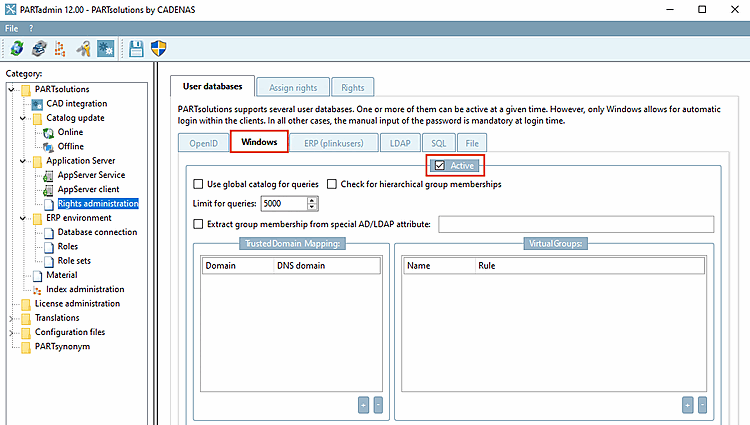
In generale, tutti gli utenti e i gruppi di Windows possono essere visualizzati nella pagina PARTadmin -> categoria Gestione dei diritti [Rights administration] -> scheda Database utenti [User databases] della scheda Windows. Di norma, il modulo PARTadmin è disponibile solo per l'amministrazione e l'accesso ai file rilevanti per il GDPR è regolato dalla gestione dei diritti di Windows.
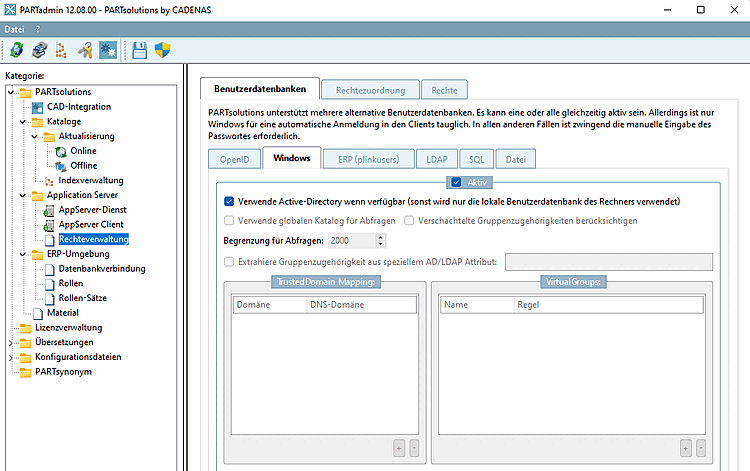
Anche altri attributi AD possono essere interrogati in PARTadmin -> categoria Gestione dei diritti [Rights administration] -> scheda Database utenti [User databases] -> scheda LDAP. Tuttavia, i filtri devono essere configurati di conseguenza.
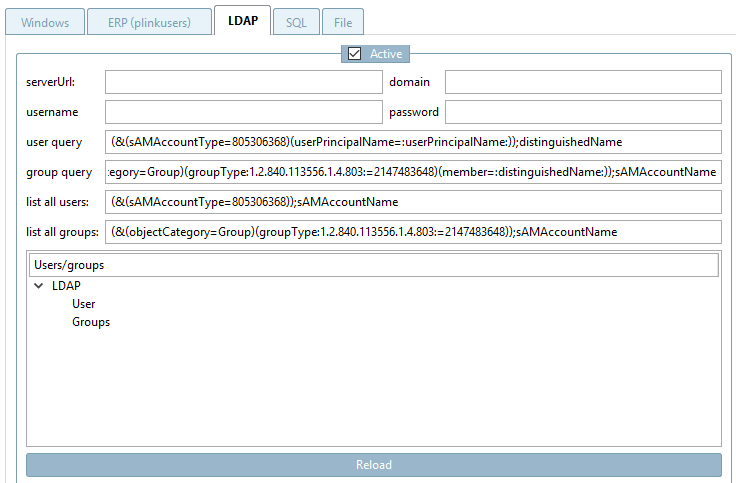
Per l' amministrazione dell'AppServer, il cruscotto PARTapplicationServer può essere aperto tramite PARTadmin -> categoria AppServer Client [AppServer client] -> area di dialogo Diagnostica [Diagnostic], facendo clic su .
![Mostra lo stato del server [Show server state] Mostra lo stato del server](https://webapi.partcommunity.com/service/help/latest/pages/it/partwarehouse/doc/resources/img/img_d2bcc7e1059247a29929e38c60b32279.png)
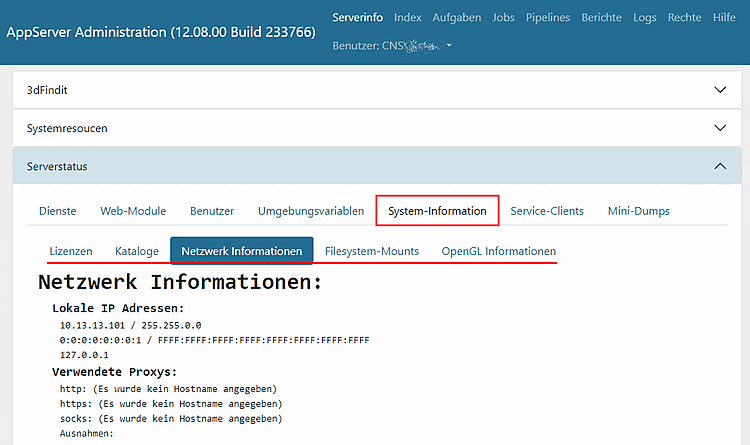
Nella pagina della scheda Informazioni sul sistema sono presenti le seguenti sottocategorie:
![[Nota]](https://webapi.partcommunity.com/service/help/latest/pages/it/partwarehouse/doc/images/note.png)
![Profili [Profiles] Profili](https://webapi.partcommunity.com/service/help/latest/pages/it/partwarehouse/doc/resources/img/img_9e8770e2e47d47b2b59a87a679816ddc.png)
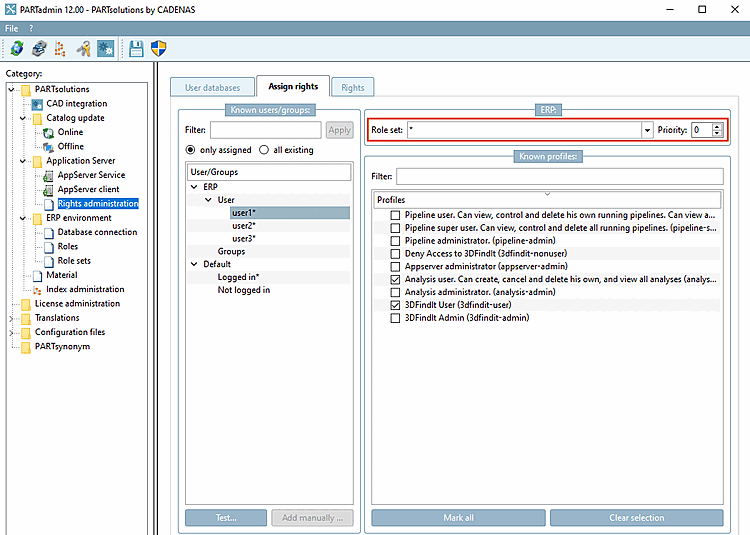
I dati vengono salvati in base alla configurazione nella pagina PARTadmin -> Categoria gestione diritti [Rights administration] -> Scheda assegnazione diritti [Assign rights]:
![ERP -> Set di rotoli [Role set]](https://webapi.partcommunity.com/service/help/latest/pages/it/partwarehouse/doc/resources/img/img_633b3f00786e498d9ae58d01fbd12adb.png)
Assegnazione dell'ID utente al ruolo e al profilo di 3Dfindit ERP
Assegnazione dell'ID del gruppo al ruolo e al profilo di 3Dfindit ERP
Neanche se tutti gli utenti hanno lo stesso ruolo e lo stesso profilo.
Nessuno dei precedenti se gli utenti hanno ruoli e profili diversi (vedi esempio sotto )
Di seguito è riportato un esempio di come possono apparire un login legato all'utente e un login neutro.
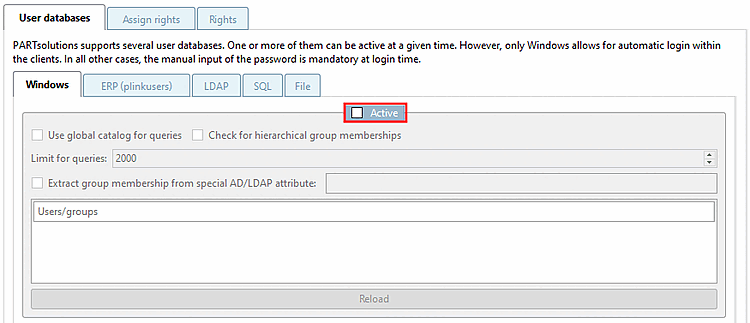
Non appena l'opzione Attivo [Active] è attivata nella pagina della scheda Windows in PARTadmin -> categoria Gestione dei diritti [Rights administration] -> pagina della scheda Database utenti [User databases], è possibile effettuare un login relativo all'utente.
-> Quando si accede con l'utente Windows, vengono registrati l'ID utente, il gruppo, l'affiliazione al gruppo e il dominio.
-> Il nome utente di Windows viene visualizzato in vari punti del software, ad esempio nella barra di stato.
Il login dell'utente può essere effettuato manualmente o automaticamente.
Il seguente scenario mostra un esempio di come impostare un login neutro, cioè non legato all'utente:
Disattivare l' opzione Windows in PARTadmin -> categoria Gestione dei diritti [Rights administration] -> pagina della scheda Database utenti [User databases]
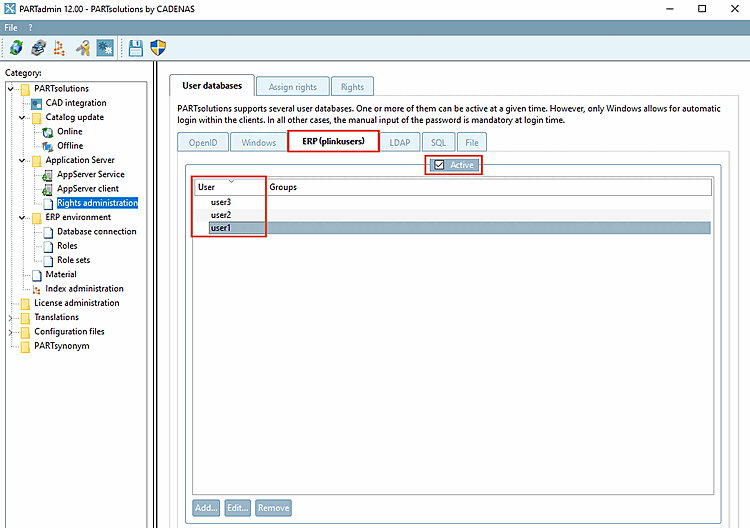
Attivare l'opzione ERP (plinkusers) in PARTadmin -> categoria Gestione dei diritti [Rights administration] -> pagina della scheda Database utenti [User databases] e creare gli utenti.
A questi utenti deve essere assegnato un set di ruoli.
-> Quando si richiama un'applicazione (ad esempio PARTdataManager), l'autenticazione dell'utente può ora essere effettuata con un utente e una password ERP creati.
Figura 1.292. Utilizzare l'utente del sistema operativo corrente [Use currently logged in operating system user]
Se viene inserita una voce errata, viene visualizzato un messaggio corrispondente.
-> In PARTdataManager il record di ruolo (con ruolo) viene visualizzato nella barra di stato (nessun utente Windows).
Una soluzione alternativa per lavorare con un accesso neutro al database è quella di utilizzare il nome di un nome di come accesso a Windows. (Questa soluzione è conforme al GDPR solo se il gruppo ha più di un utente).
Un'altra alternativa, oltre al nome del gruppo, è quella di assegnare la configurazione "Default/Logged in". Questo vale per tutti gli utenti che non sono stati assegnati in altro modo.

![Accesso al database [Database login]](https://webapi.partcommunity.com/service/help/latest/pages/it/partwarehouse/doc/resources/img/img_dc825c65c8da4deda8afc5dc579afe07.png)
![Utilizzare l'utente del sistema operativo corrente [Use currently logged in operating system user]](https://webapi.partcommunity.com/service/help/latest/pages/it/partwarehouse/doc/resources/img/img_5c23cc555f1c42209823527116ba8fe8.png)
![Nome utente o password non validi! [Invalid username or password!]](https://webapi.partcommunity.com/service/help/latest/pages/it/partwarehouse/doc/resources/img/img_e095e6f18ef64ed09fcc592f5768ba39.png)

Per accedere al database ERP è necessario salvare una password del database.
La voce si trova in PARTadmin -> Categoria ambiente ERP [ERP environment] -> Connessione al database [Database connection].
L' utente [DB Password] DB [DB User] e [DB Password] la password [DB User] DB [DB Password] o l' utente [DBO user] DBO [DBO Password] e [DBO user] la password DBO [DBO user] sono memorizzati in forma criptata.
Quella
La password è memorizzata nel file di configurazione plinkusers.cfg .
![Categoria "Connessione al database [Database connection]" -> area di dialogo "Connessioni al database disponibili [Available database connections]".](https://webapi.partcommunity.com/service/help/latest/pages/it/partwarehouse/doc/resources/img/img_24fb8959dafd45efbb0c9d91794b6c3b.png)
Figura 1.295. Categoria "Connessione al database [Database connection]" -> area di dialogo "Connessioni al database disponibili [Available database connections]".
I dati relativi agli utenti possono essere salvati anche durante l'elaborazione dei dati, come la creazione di un numero ERP o la modifica di ruoli e diritti.
Quando viene aggiunto un numero ERP, nella LOGTABLE vengono impostate, tra le altre, le seguenti voci:
Figura 1.296. Richiamo tramite PARTlinkManager -> scheda "Extra [Extras]" -> "Database [Database]" -> "Modifica tabelle aggiuntive [Edit additional tables]".
Ambiente CAD: generazione di dati nell'ambiente CAD (attributi CAD)
Degli attributi trasferiti al CAD, CADENAS non memorizza altri dati oltre a quelli scritti nella LOGTABLE.
![Richiamo tramite PARTlinkManager -> scheda "Extra [Extras]" -> "Database [Database]" -> "Modifica tabelle aggiuntive [Edit additional tables]".](https://webapi.partcommunity.com/service/help/latest/pages/it/partwarehouse/doc/resources/img/img_f241f9f1973a42da88a208b20cac5663.png)
PARTADMIN -> Aggiornamento del catalogo [Catalog update] di categoria -> Online
Smalto
e la password sono memorizzati nel partupdate.cfg .
Ogni download CIP è assegnato a un utente. Vengono salvati anche il nome dell'utente e l'IP.
![Aggiornamento [Online update] del catalogo [Catalog] online [Online update]](https://webapi.partcommunity.com/service/help/latest/pages/it/partwarehouse/doc/resources/img/img_664b9a67e5284297af93fb871d8c1c71.png)
![Autenticare l'utente [Authenticate user]](https://webapi.partcommunity.com/service/help/latest/pages/it/partwarehouse/doc/resources/img/img_cd1f4d7f3f4440149185f599f944b8d7.png)
La registrazione può essere utilizzata a scopo di analisi.
Nella finestra di dialogo Impostazioni di registrazione [Log settings], parte della pagina di dialogo Impostazioni [Settings], richiamabile dai moduli ENTERPRISE 3Dfindit tramite il menu Strumenti [Extras] -> Impostazioni [Preferences], è possibile specificare il livello di registrazione. Il nome dell'utente, ad esempio, viene registrato anche durante il processo di login nei moduli.
![Impostazioni di registrazione [Log settings] Impostazioni di registrazione](https://webapi.partcommunity.com/service/help/latest/pages/it/partwarehouse/doc/resources/img/img_f257cb5480e24e2f9e4c9211659e8dce.png)
Le
L'output dei dati di registrazione viene eseguito nel file di output in $Temp\psol_logs\cadenas_error.log.
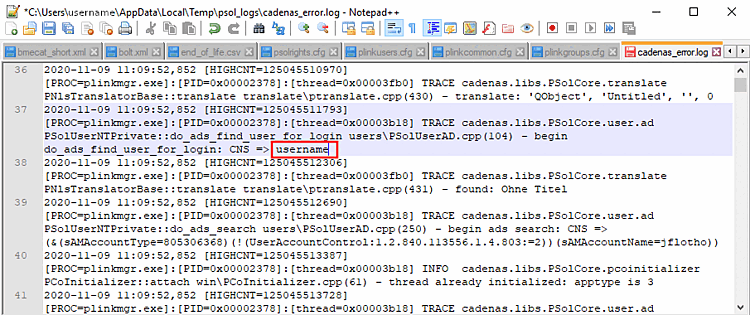
La visualizzazione nella GUI avviene nella finestra di log [Log window] del rispettivo modulo.
![Esempio PARTdataManager: finestra di registro [Log window] Finestra del registro](https://webapi.partcommunity.com/service/help/latest/pages/it/partwarehouse/doc/resources/img/img_c2d40b4505254bc889bdec26351b8bb5.png)
Le informazioni rilevanti per il GDPR relative ai server di licenza sono disponibili nella Sezione 1.5.4.4, “Pagina della scheda "Sicurezza ”. Questo punto è rilevante anche senza ERP.