

L'area di dialogo Filtro [Filter] offre una serie di sfaccettature (cataloghi, parole chiave, classificazioni, certificati, paesi fornitori, ecc.) Selezionando le opzioni, è possibile accedere rapidamente ai componenti adatti.
Subito dopo l'avvio di PARTdataManager, l'area di dialogo Filtro [Filter] non viene ancora visualizzata.
Non appena si seleziona un catalogo o una sottodirectory nella struttura ad albero, vengono visualizzati i filtri/facce in base al rispettivo catalogo (directory). Se si esegue una ricerca full-text [Full-text search] con un asterisco "*", vengono visualizzate le possibili categorie comuni a tutti i cataloghi installati.
Dopo ogni azione di filtro, i restanti filtri possibili vengono ricalcolati e visualizzati insieme al nuovo risultato della ricerca.
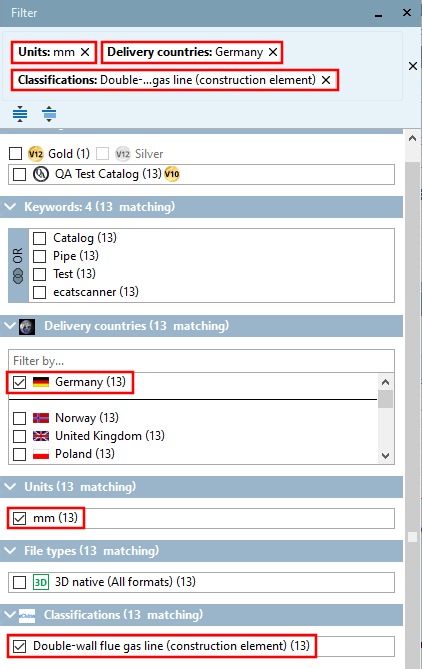
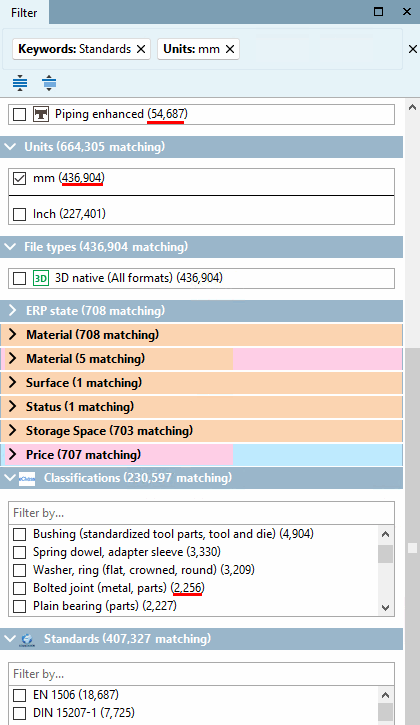
Le due illustrazioni seguenti mostrano un elenco di tutte le sfaccettature:
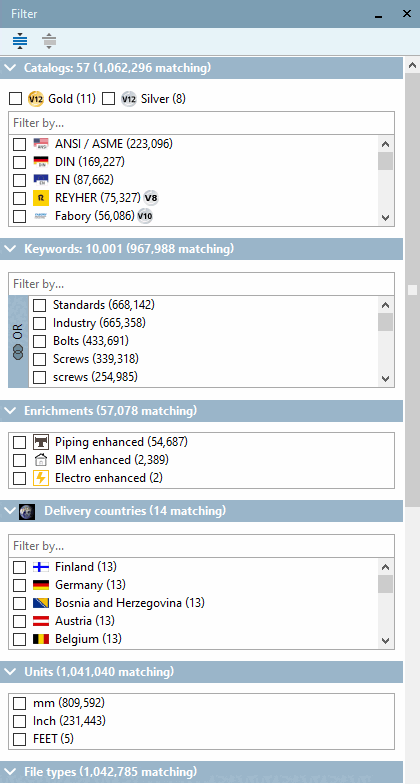
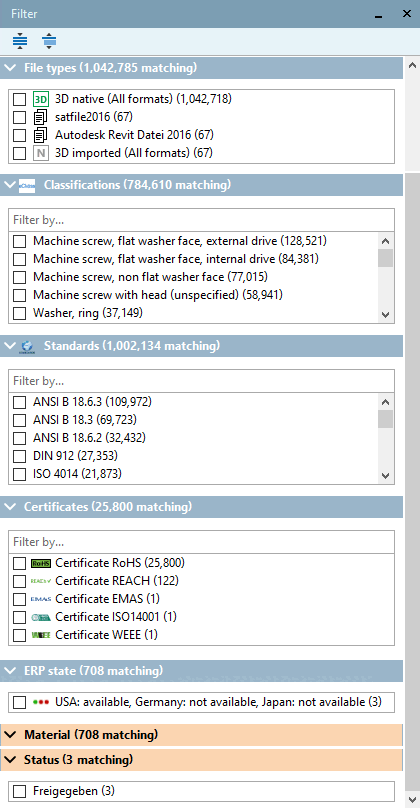
Le opzioni vengono visualizzate in un elenco con caselle di selezione.
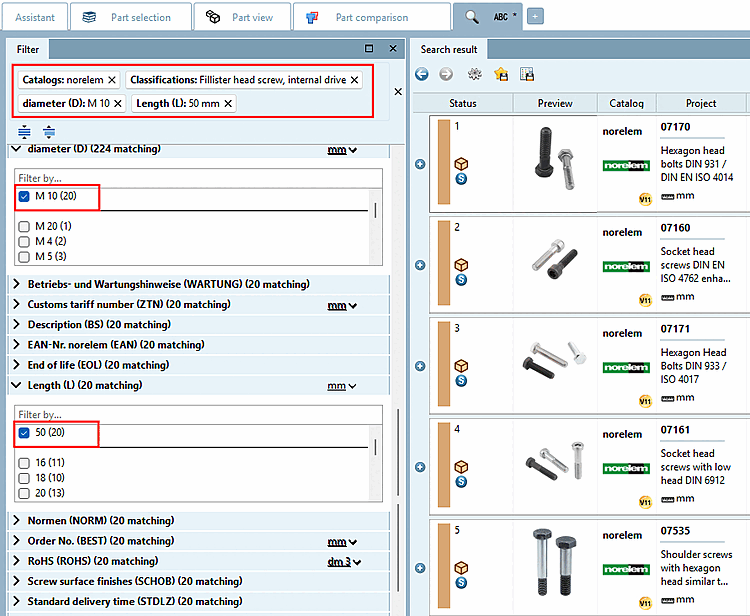
Tutti i filtri selezionati sono visualizzati nell'area superiore per una rapida rimozione e per saltare alla rispettiva categoria.
Inoltre, un filtro selezionato viene ordinato verso l'alto nella rispettiva categoria.
Per eliminare singoli filtri, fare clic sulla croce del filtro desiderato o per eliminare tutti i filtri, fare clic sulla croce a destra.
Il numero di risultati rimanenti dopo ogni regolazione dinamica è indicato tra parentesi. (Il numero effettivo può differire leggermente a causa di intervalli di valori complessi nelle tabelle).
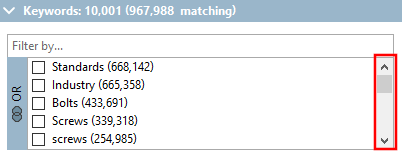

Le parole chiave possono essere collegate a AND
 o a OR
  . Per attivare/disattivare, fare clic su
bottone.
. Per attivare/disattivare, fare clic su
bottone.Stato dell'ERP (ad es. materiale, stato di utilizzo, ecc.)
Le variabili ERP sono visualizzate in tutti i cataloghi.
I filtri LinkDB funzionano come gli altri, ma sono colorati.
I filtri di LinkDB devono essere configurati tramite consultazione, poiché alcuni campi di LinkDB potrebbero non avere senso come filtri.
![Parole chiave [Keywords]](https://webapi.partcommunity.com/service/help/latest/pages/it/partwarehouse/doc/resources/img/img_cdf2da892c3e41c5badbc76cc2421388.png)


![Stato dell'ERP [ERP state]](https://webapi.partcommunity.com/service/help/latest/pages/it/partwarehouse/doc/resources/img/img_b9f23a66f7a5405d8f671e11fb791d97.png)
Le variabili comuni dei risultati attuali sono visualizzate sotto le sfaccettature sopra menzionate.
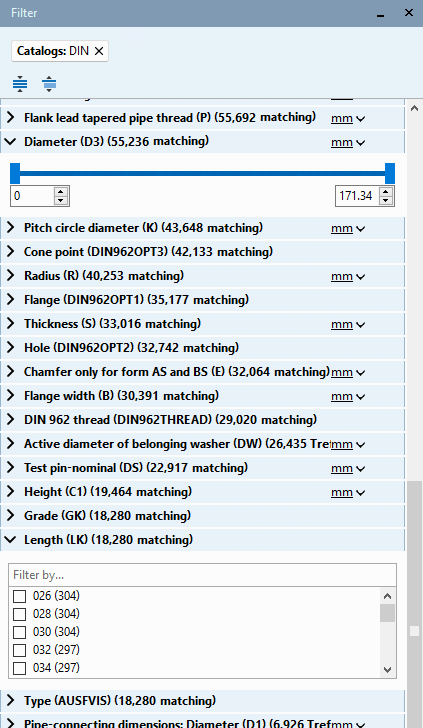
Figura 2.109. Filtro per le variabili della tabella (selezione tramite cursore o casella di selezione)
Vengono visualizzate barre di scorrimento o caselle di selezione per i numeri e caselle di selezione per i testi.
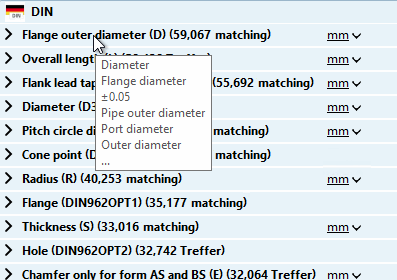
I parametri sono visualizzati in base alla frequenza. Possono essere impostati anche tramite la corrispondente modellazione del catalogo (aggiunta esplicitamente[39]).
I testi di descrizione delle variabili possono anche essere diversi all'interno di un catalogo, in modo che le variabili più frequenti vengano visualizzate direttamente e le altre in un tooltip.
[39] Vedere Sezione 5.9.2.1.18, “Determinazione delle variabili di ricerca ” in eCATALOG 3Dfindit ).