The Filter dialog area provides a variety of facets (catalogs, keywords, classifications, certificates, supplier countries, etc.). By selecting options, you can quickly access suitable components.
Immediately after starting PARTdataManager, the Filter dialog area is not yet displayed.
As soon as you select a catalog or a subdirectory in the structure tree, the filters/facets are displayed according to the respective catalog (directory). If you perform a full-text search [Full-text search] with an asterisk "*", the possible common categories of all installed catalogs are displayed.
After each filter action the still possible filters are calculated anew and shown together with the new search result.
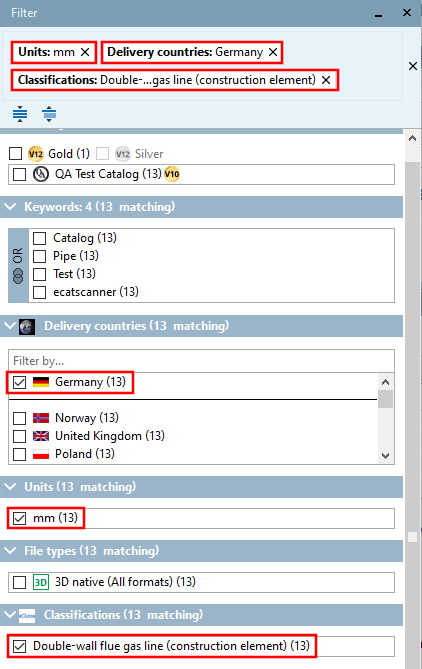
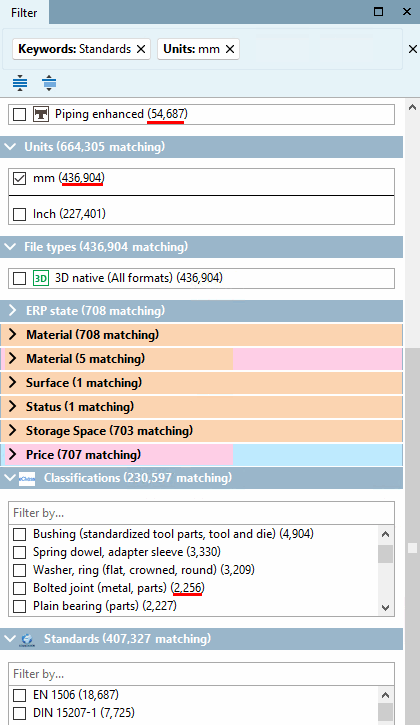
The two following figures show the list of all facets:
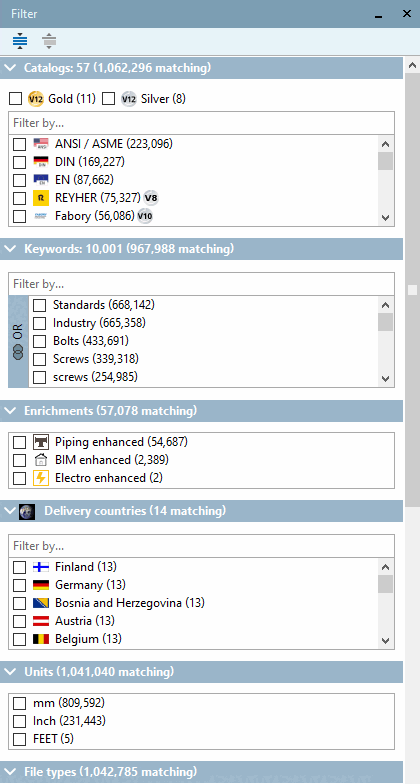
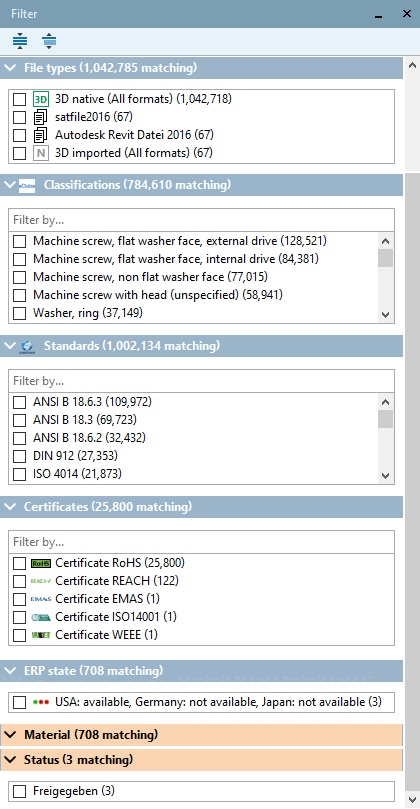
The options are shown in a list with checkboxes.
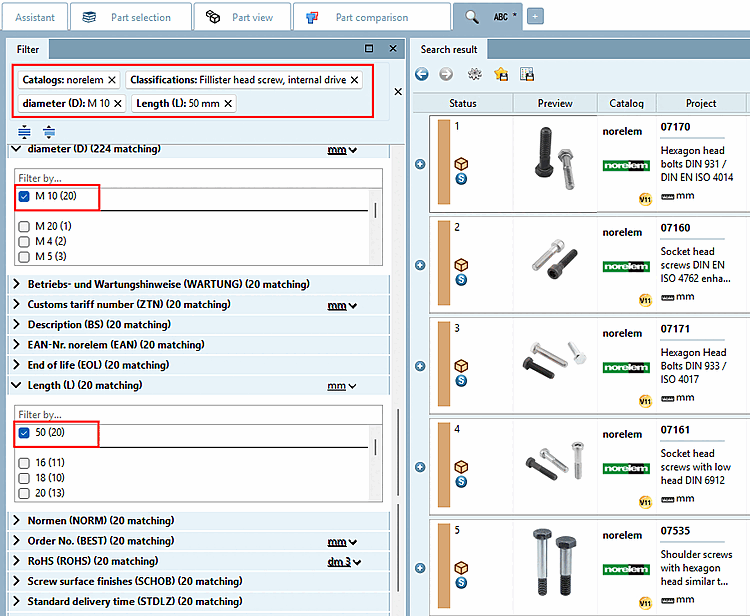
All selected filters are shown in an overview on top for quick removal or jumping into the respective category.
Furthermore a selected filter is shown on top in its respective category.
In order to delete a single filter, click on the desired filter's x-mark or in order to remove all filters on the x-mark on the right.
The number of remaining results after each dynamical adjustment is shown in brackets. (The real number could slightly differ due to complex value ranges in tables.)
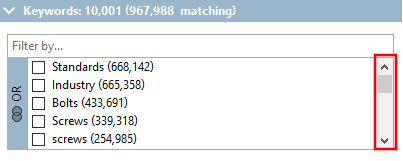

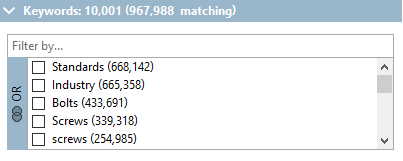
Keywords can be connected with AND
 or OR
or OR  . In order to switch click on the button.
RoHS certificate (restriction of hazardous substances in electrical and electronic equipment)
REACH certificate (Registration, Evaluation, Authorization and Restriction of Chemicals)
EMAS certificate (Environmental Management and Audit Schemes)
WEEE (Waste of Electrical and Electronic Equipment) certificate
ERP status (e.g. material, usage status, etc.)
ERP variables are displayed over all catalogs.
LinkDB filters work like others, but are colored.
LinkDB filters should be configured by Consulting, as some LinkDB fields could not make sense possibly.


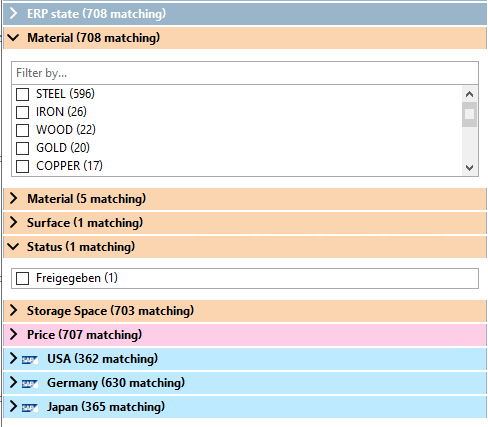
The common variables of the current results are displayed below the facets mentioned above.
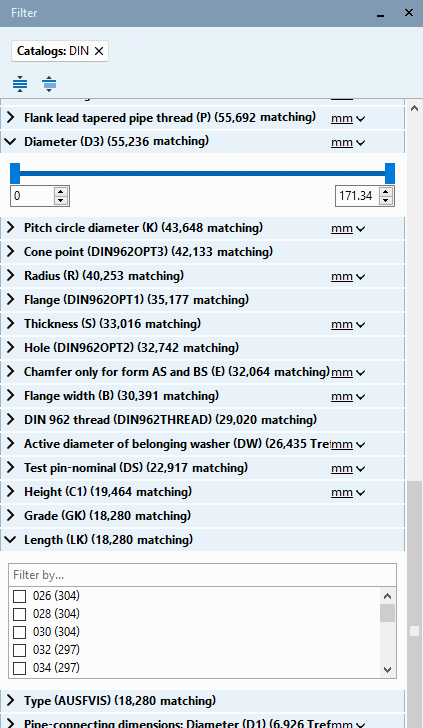
For numbers sliders or checkboxes are used, for text checkboxes are used.
Parameters are displayed according to the frequency of occurrence in the catalog. However, they can also have been set by catalog modeling (explicitly added).[39]).
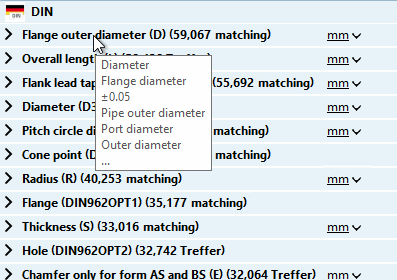
Description texts of variables can be different even inside a catalog, so the most frequent are directly shown and the rest in a tooltip.