If problems occur, check the single points of this list.
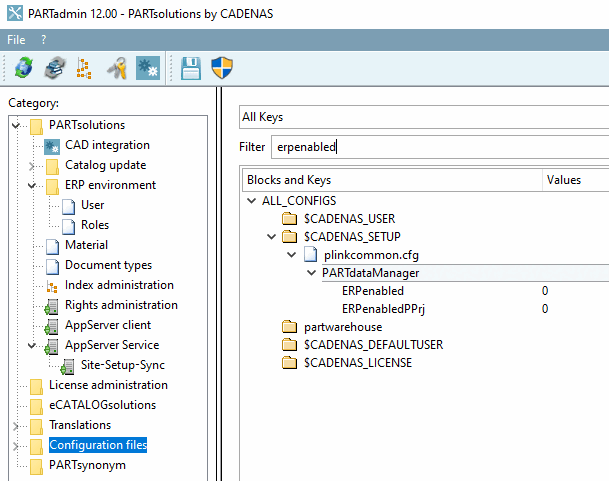
ERP enabled on 3Dfindit Server?
At least the key ERPenabled has to be set on 1.
Missing ERP columns could be a hint on this.
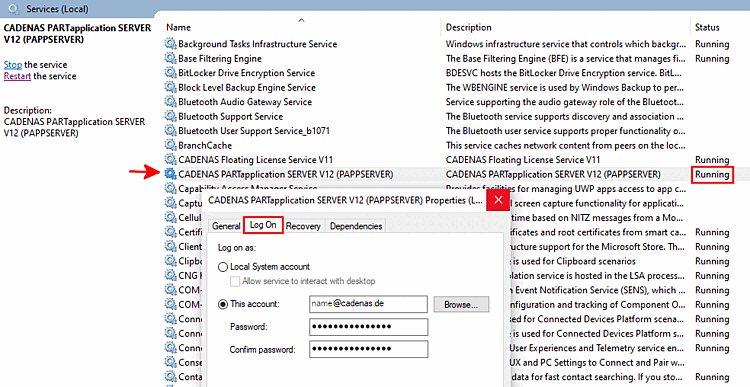
CADENAS PARTapplication SERVER installed and service running?
Always when a central PARTapplicationServer is in use, it has to be started as service.
After central changes the service has to be restarted.
Keep in mind with which user the AppServer has been set up. For more details see Abschnitt 5.24.3.4.3, „AppServer Configuration “.
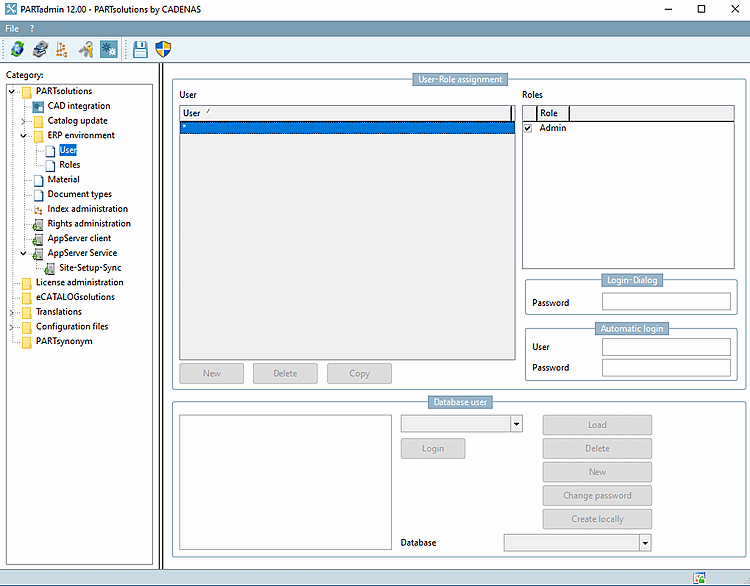
Only with valid ERP license the setting options under ERP environment -> User will be enabled.
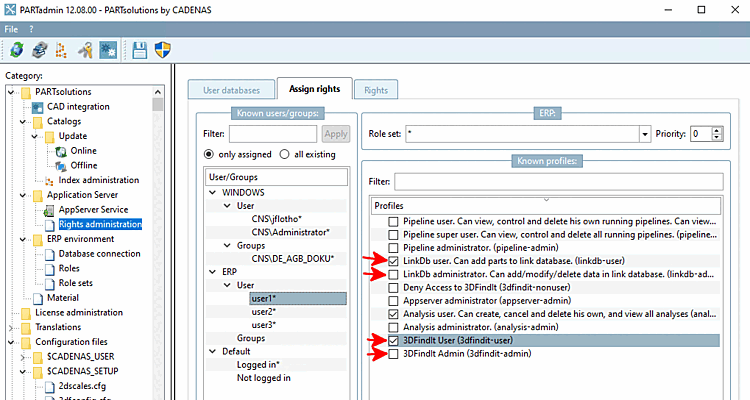
Explicitly added ERP user (optionally):
If a user (here "user1") shall use 3Dfindit, make sure that under Known profiles "3DFindit User" is enabled.
Check the need for further special rights:
If in 3Dfindit, the function Add to link database (also variants) shall be usable, under Profiles, the profile LinkDb user. Can add parts to link database. (linkdb-user) has to be activated.
If existing datasets shall be edited, under Profiles, the profile LinkDb administrator. Can add/modify/delete data in link database. (linkdb-admin) has to be activated.
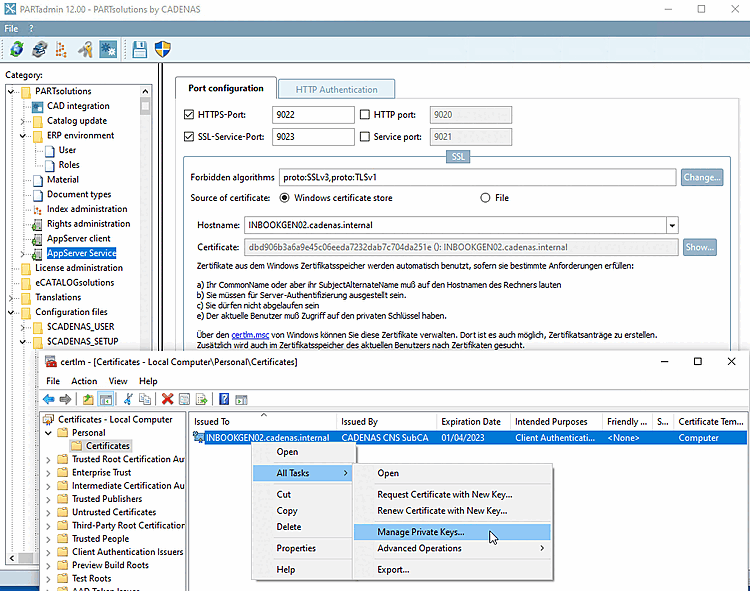
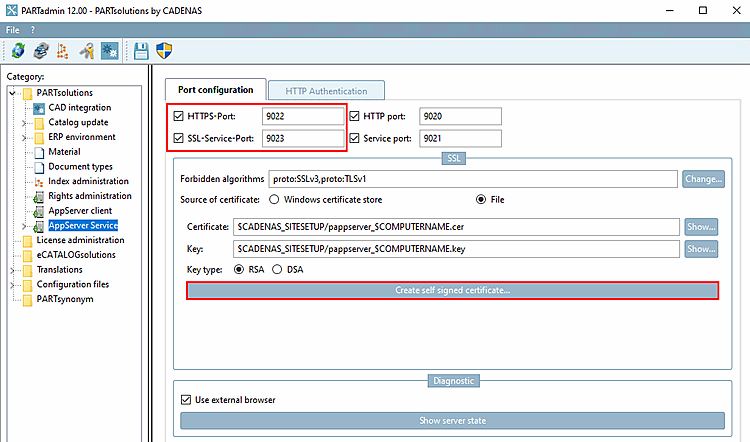
Certificates are needed to work with HTTPS over SSL.
Check if the chain of trust is ensured.
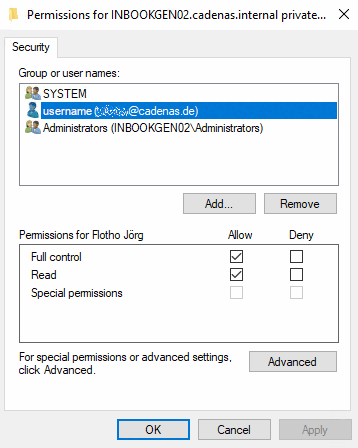
Make sure that the user accessing the AppServer has permissions for the used certificate.
For details see Abschnitt 5.24.3.4, „SSL-Verschlüsselung “.
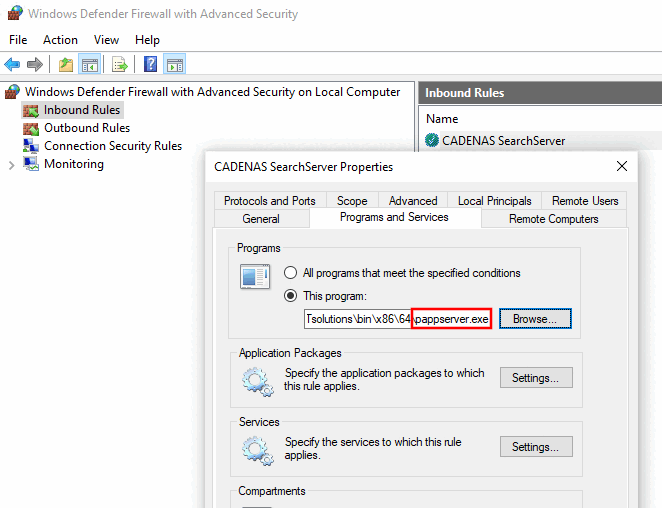
Make sure that desired access to the AppServer is not blocked by a Firewall.
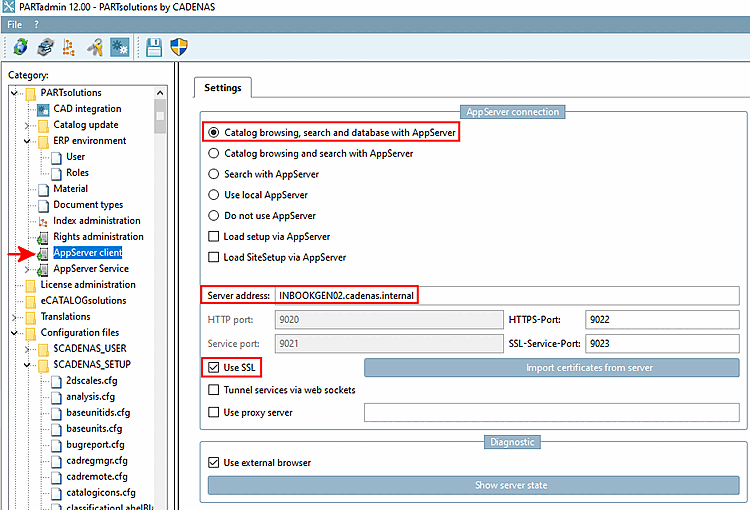
Check if the Port configuration corresponds with the entry in the
start.env.[ENVIRONS] CADENAS=%DirOfThisFile% CADENAS_APPSERVER=https://servername.cadenas.internal?sslport=9022 CADENAS_USER=%UserAppData%/PARTsolutions/user CADENAS_SETUP=$CADENAS_USER/../setup CADENAS_DEFAULTUSER=$CADENAS_SETUP/user/default_user CADENAS_SITESETUP=$CADENAS_USER/../site CADENAS_LICENSE=$CADENAS_SITESETUP/lic CADENAS_POOL=C:\ProgramData\PARTsolutions\pool\
To avoid possible problems, pay attention to correct settings under AppServer client.
pappclient.cfg: The value of key FullLocalMode must be "false" which is the case by default.
Enable maximal search support: See Abschnitt 1.8, „Weitere administrative Anpassungen“.