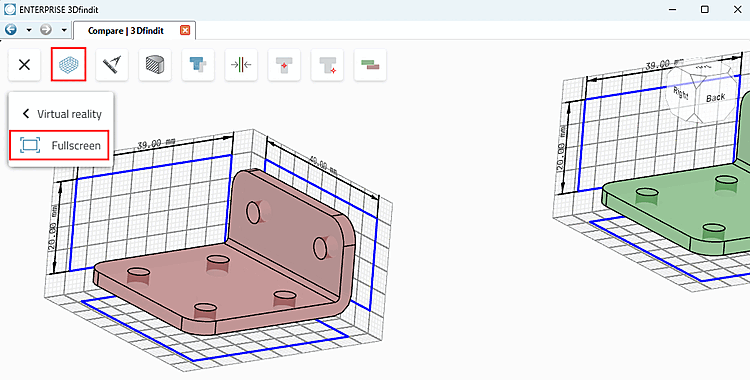
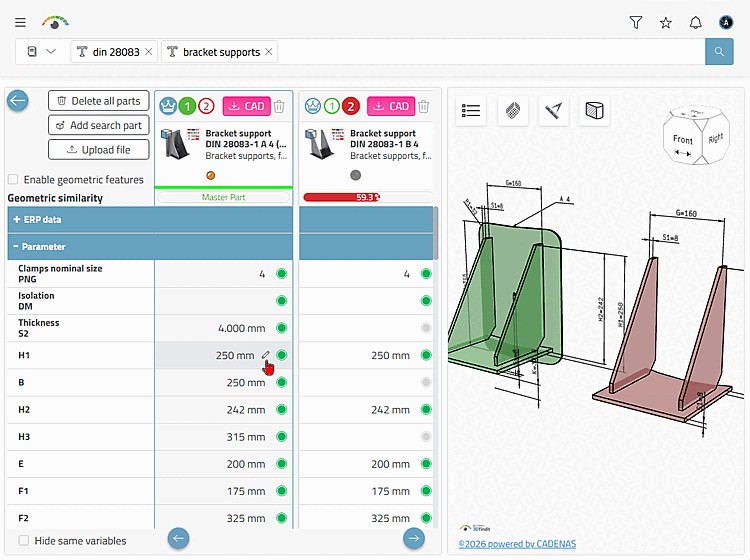
In the comparison [Compare], you can compare product parameters in tabular form and also examine products in detail in 3D.
Access to the
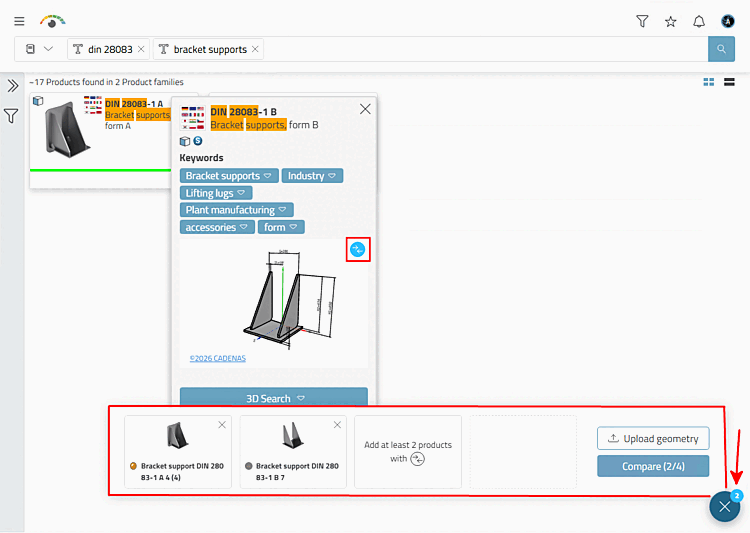
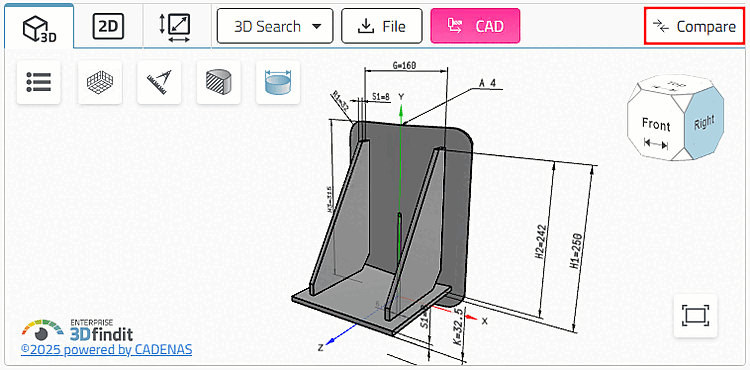
You can compare at any time via the button  the bottom right (tooltip "Compare several parts [Compare multiple parts]"), which shows the number of
of the loaded products.
the bottom right (tooltip "Compare several parts [Compare multiple parts]"), which shows the number of
of the loaded products.
The following example explains the details:
Load product families or individual products into the comparison.
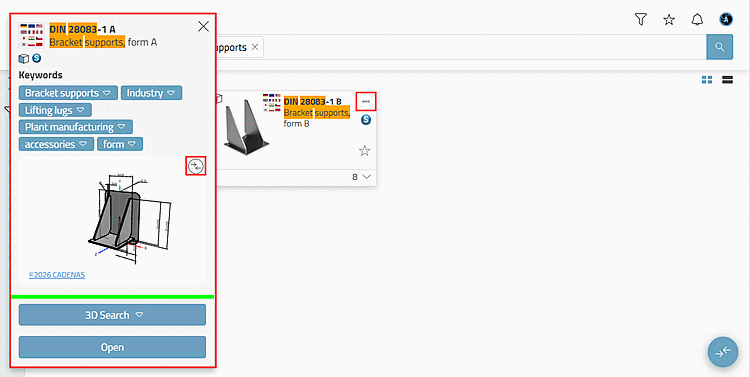
Product Family [Product family]: For each product family, there is a button
 that leads to the product details. Click
in the dialog on the icon
that leads to the product details. Click
in the dialog on the icon  part for comparison
Add [Add part to compare] (
part for comparison
Add [Add part to compare] ( part of the comparison
remove [Remove part from compare] ).
part of the comparison
remove [Remove part from compare] ).
Product: Once a single product is loaded in the preview, the icon
 or
or  part for comparison
Add [Add part to compare]. (Will the icon be in blue color
displayed, you can remove the product from the comparison
remove.)
part for comparison
Add [Add part to compare]. (Will the icon be in blue color
displayed, you can remove the product from the comparison
remove.)
As soon as products have been loaded into the comparison button, the button
the bottom right (tooltip "Compare multiple parts") indicates the number of
loaded products.Click on the button to open the comparison bar. (It can be closed again by clicking on X).
→ The displayed parts are loaded in the comparison dialog.
: All parts are removed from the comparison.
Add search part: The button is only displayed if a 3D search was previously carried out.
: Upload any file in neutral format (stl, stp, step, sat, x_t, x_b, lwo, lws, ase, 3ds, fbx, dae, ply, obj, jt).
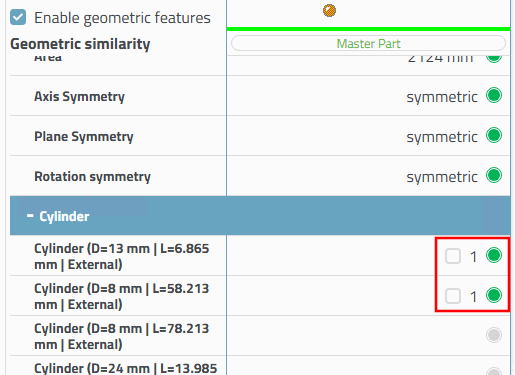
Activate geometric features [Enable geometric features]: This option activates/deactivates the checkboxes in the Geometric features table section. When deactivated, the associated features in the 3D view are no longer highlighted in color on mouseover.
Export products on demand using Export to CAD Button
 directly from here.

The comparison functions enable various overlay methods, manual alignment and Boolean comparison operations.
The different overlay methods may not show any differences.
 components
Overlay [Overlay parts] /
components
Overlay [Overlay parts] /  components
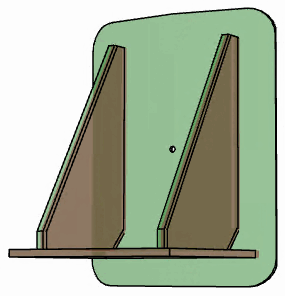
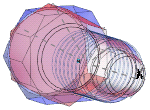
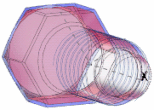
The [Show opposed] components are either superimposed
or contrasted in two different colors.
components
The [Show opposed] components are either superimposed
or contrasted in two different colors.
 Automatic
Align: [Automatic alignment] Rotation and position automatically align with each other
align
Automatic
Align: [Automatic alignment] Rotation and position automatically align with each other
align
 Original Rotation and
Component center position [Original rotation and centered position]: Best fit
Original Rotation and
Component center position [Original rotation and centered position]: Best fit
 Original Rotation and
Position [Original rotation and position]: Zero Points Overlaid
Original Rotation and
Position [Original rotation and position]: Zero Points Overlaid
Click the command
 rotation and position
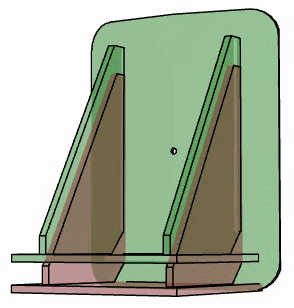
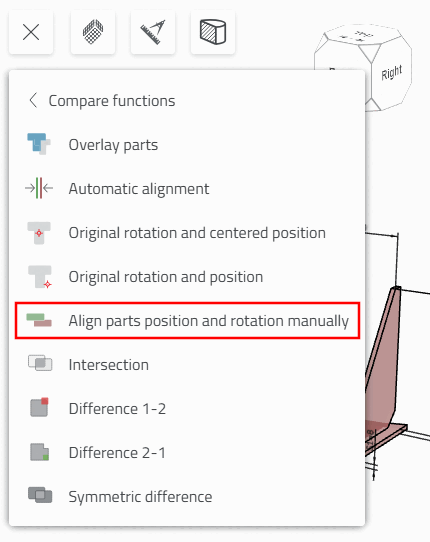
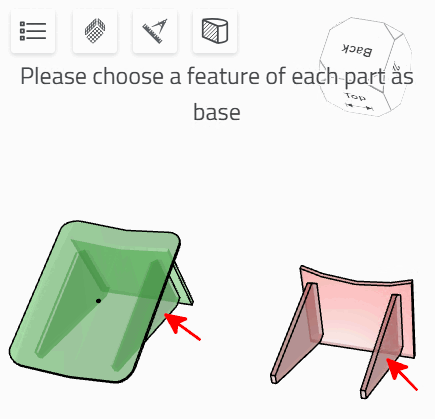
Align with each other manually [Align parts position and rotation manually].
rotation and position
Align with each other manually [Align parts position and rotation manually].
Please select one feature each as a basis [Please choose as base a feature of each part]
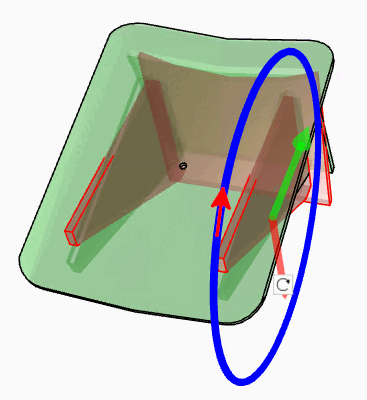
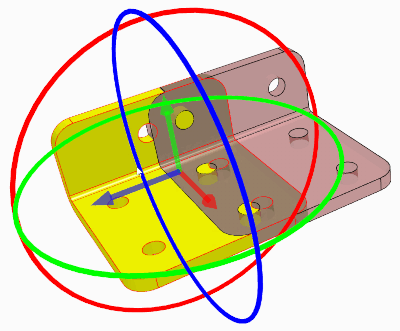
-> Possible rotational movements and movement axes are displayed.
Click on an axis or a rotation circle. You can then make the desired change to the orientation in space.
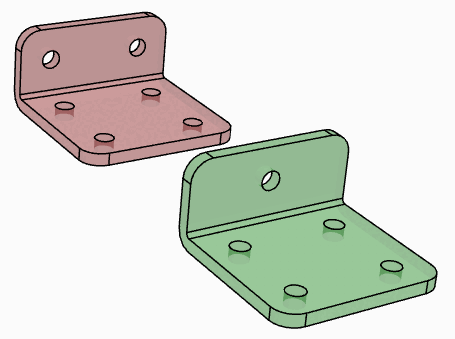
 Difference 1-2:
Difference: Component 1 minus component 2
Difference 1-2:
Difference: Component 1 minus component 2
 difference 2-1 [Difference 2-1]:
Difference: Component 2 minus component 1
difference 2-1 [Difference 2-1]:
Difference: Component 2 minus component 1
 Symmetrical
Difference [Symmetric difference]:
Symmetrical
Difference [Symmetric difference]:
Sum of the differences between component 1 and component 2
Unification quantity-Intersection quantity
Shows the component areas in which the parts differ.
 intersection [Intersection]:
Displays the part areas where the parts are identical.
intersection [Intersection]:
Displays the part areas where the parts are identical.
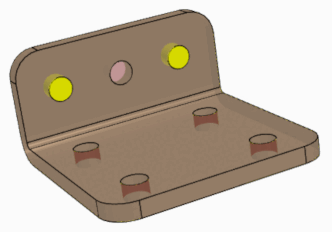
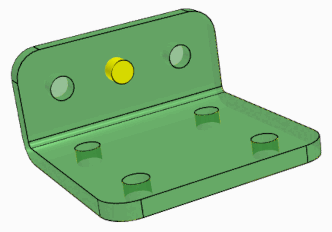
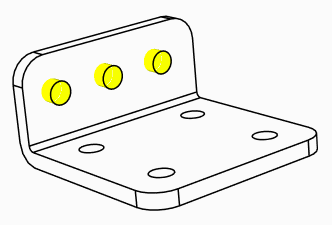
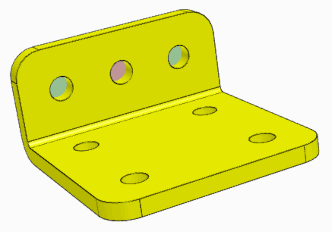
Click on the superimposed parts to display displacement axes and rotation circles. You can now view the results of the Boolean comparison functions in real time in movement mode.
Other practical additional functions in combination with the comparison functions