

In the Copy/Cut [Copy/Cut] submenu, you'll find the following four copy and cut functions:
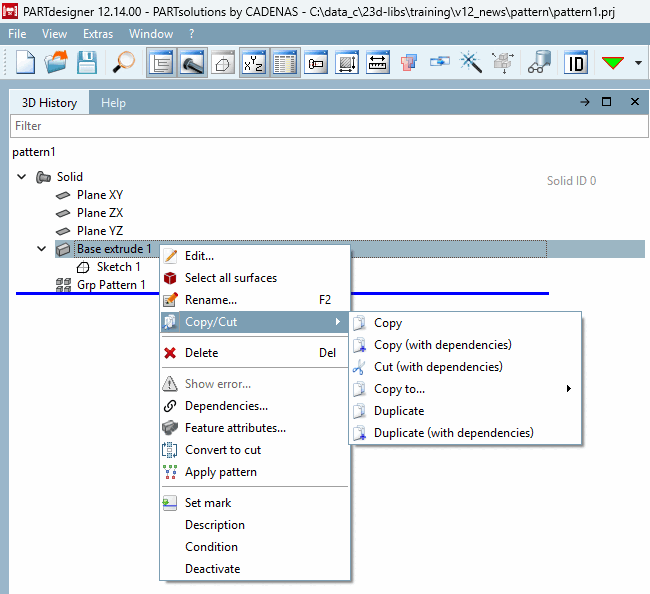
Copy: Copies the selected element without its dependencies. Right-click a layer in the history tree or a surface in the 3D view, then select " Insert Copied Element [Paste copied Item] " to insert a copy of the element at that location.
Copy (with dependencies): Copies not only the selected feature, but also all elements attached to it.
Example: If you copy a base extrusion on whose surface another sketch has been created, that sketch is also copied. To insert it, use the context menu of a layer in the history tree or a surface in the 3D viewport.
Cut (with dependencies): Works like "Cut Sketch" in earlier versions, but now also supports element types other than just sketches. When cutting, the associated dependencies are always taken into account.
Copy to...: Opens another menu with all available layers. After selecting a layer, the feature is copied to that layer. This is equivalent to first selecting Copy (see step 1) and then right-clicking the desired layer in the history tree to select Paste [Insert].
Elements that support "Copy/Cut"
The following items now display the Copy/Cut submenu in the context menu:
Elements that do not support "Copy/Cut" [Copy/Cut]
The following elements do not currently support copy or cut functions:
Special Considerations for Fillet Rounding
Fillets (Blends) behave in a special way. A fillet cannot be selected directly and then copied. However, if an extrusion is copied along with its dependencies, the associated fillets are automatically copied as well.