5.12.3. How can I directly integrate selected CAD model into CAD system (PART2cad)?

PART2cad (direct integration) simplifies the download of CAD models. They are loaded quickly and directly into the CAD system. Temporarily saving of parts is not necessary.

[Note]Note

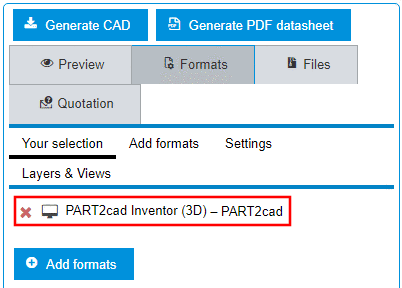
Precondition : Under FormatsAdd formatsCAD Direct Integration with PART2cad a format had been chosen which is displayed under Your selection.

Example: Selection of "PART2cad Inventor (3D)"

Example: Selection of "PART2cad Inventor (3D)"

Proceed as follows:

  1. Make sure that the desired part is specified in the Table view (and in the Variable view if there are value range fields).

  2. Generate the part by clicking on the button CAD or Generate CAD.

    Button "Generate CAD"

    Button "Generate CAD"

    ➝ Once the generation finished, the part is displayed on the tabbed page Files.

  3. Click on the link PART2cad.

    Call direct integration "PART2cad"

    Call direct integration "PART2cad"

    The direct integration is starting and a respective message appears.

    "PART2CAD" dialog

    "PART2CAD" dialog

    If the application component PART2cad is already installed, you can ignore the following installation note. Otherwise follow the instructions.

    [Note]Note

    Following dialogs may slightly differ depending on used Browser (here showing Edge).

    1. In the PART2CAD dialog, click on the link PART2CAD Client.

      Dialog "PART2CAD"

      Dialog "PART2CAD"

      ➝ The download of the part2cad_xxx.msi package immediately starts.

      Downloads

      Downloads

    2. Open the msi file.

      ➝ Welcome to the PART2cad Client Setup Wizard.

    3. Click Next.

      Welcome

      Welcome

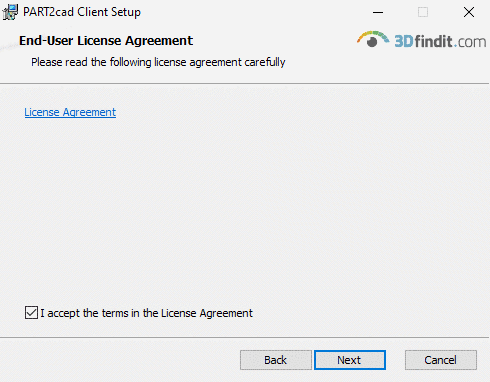
    4. Accept the terms in the License Agreement and click Next.

      License Agreement

      License Agreement

    5. Click Install.

      Start installation

      Start installation

    6. Please wait while the Setup Wizard installs PART2cad Client.

      Installation

      Installation

    7. Click Finish.

    8. Click on "here".

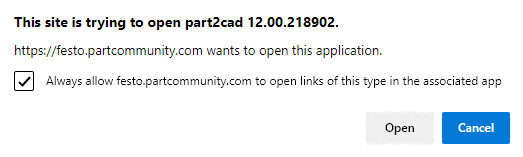
      If you don't like this dialog to be displayed at each import to CAD, allow the website to open links of this type in the associated app (here exemplarily Edge Browser, other Browsers analogously).

      Dialog exemplarily in Edge Browser

      Dialog exemplarily in Edge Browser

  4. Open the list field and select the CAD version where the model is to be transferred. Confirm your selection by clicking on Choose.

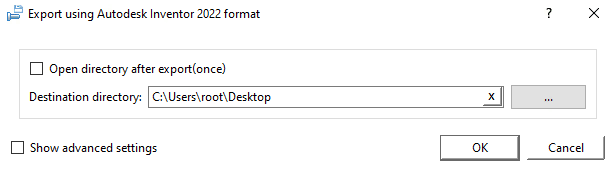
    Exemplarily the respective dialog for Autodesk Inventor 2022

    Exemplarily the respective dialog for Autodesk Inventor 2022

    [Note]Note

    Keep in mind that the CAD system has to be started.

    ➝ The export dialog is opened.

    Exemplarily the respective dialog for Autodesk Inventor 2022

    Exemplarily the respective dialog for Autodesk Inventor 2022

  5. Select the preferred destination directory. Use ... to browse. Confirm your entries by clicking OK.

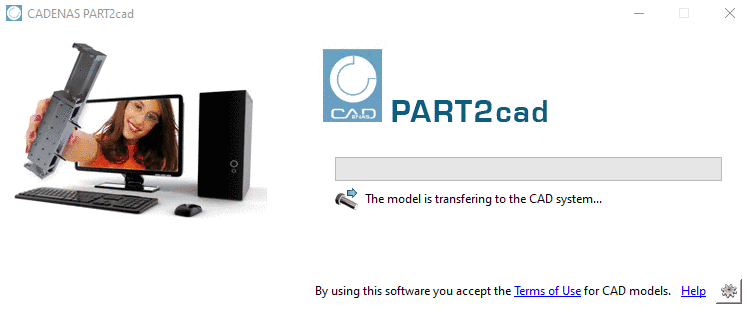
    ➝ The model is transferring to the CAD system.

    Model is transferring

    Model is transferring

    [Note]Note

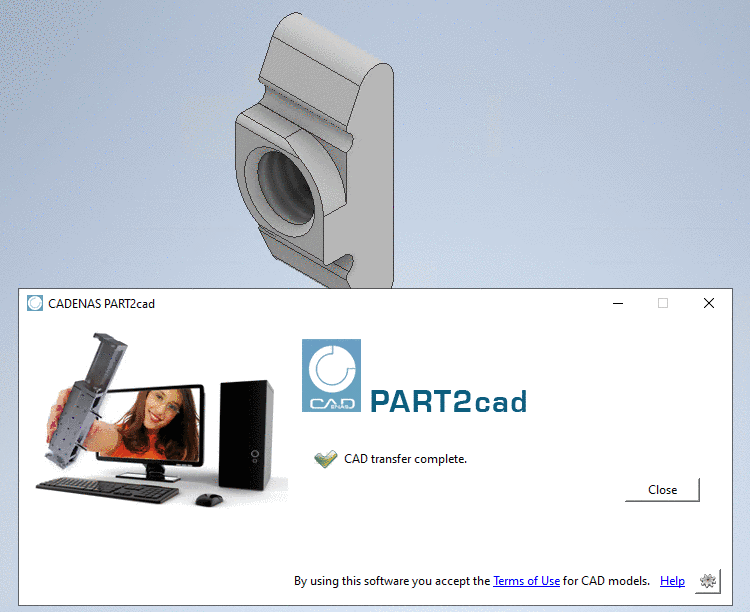
    Once the transfer to the CAD system is finished a message will be shown.

    CAD transfer complete.

    CAD transfer complete.