If you want to actively execute an ERP mapping (either before or after an SVN checkin), use the commands Add ERP mapping. [Add ERP-Mapping...].. and Edit ERP mapping.... [Edit ERP-Mapping...]
![[Note]](https://webapi.partcommunity.com/service/help/latest/pages/en/partsolutions_user/doc/images/note.png)
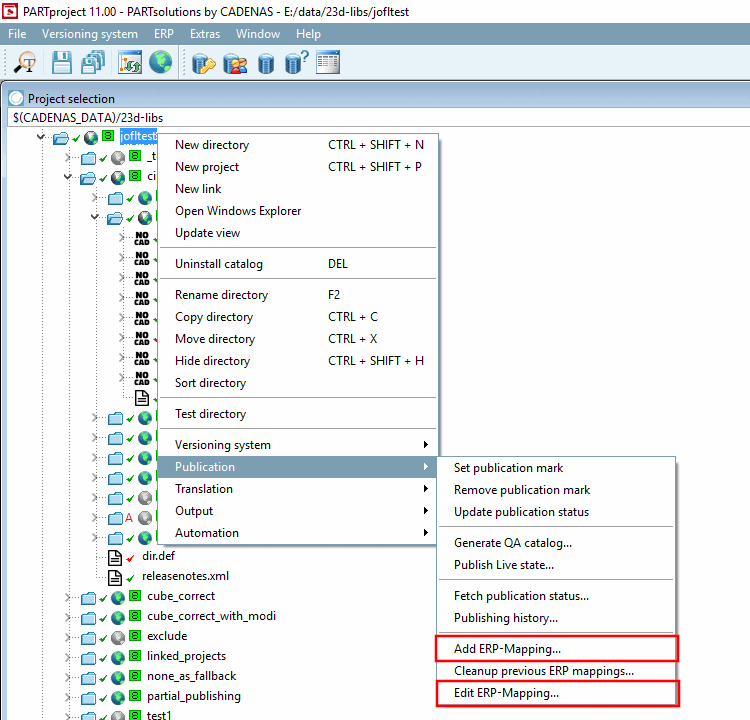
Execute the context menu command Add ERP mapping [Add ERP-Mapping...]... command.
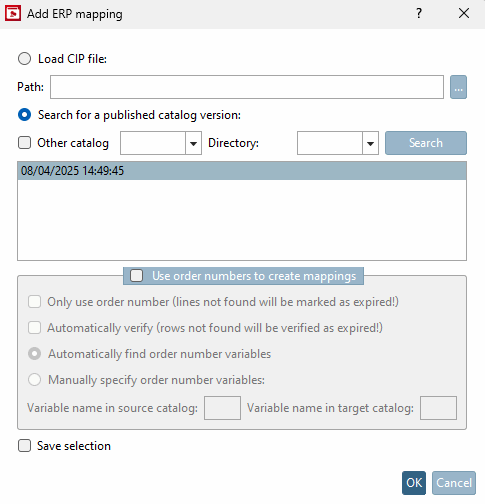
→ The dialog window of the same name opens.
Check the automatically loaded catalog status and confirm with .
→ Click on Search to display further publications.
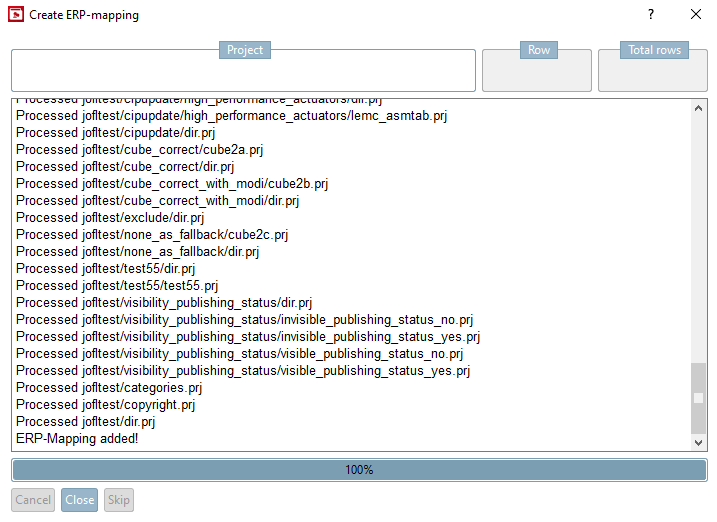
→ The Create ERP mapping [Create ERP-mapping] dialog box opens.
Close the dialog when ERP mapping has been added! [ERP-Mapping added!] is displayed.
Execute the context menu command Edit ERP mapping [Edit ERP-Mapping...]... command.
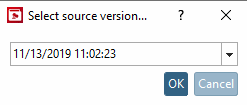
→ If several mappings have been created, the Select source version dialog box appears. Select here which mapping you would like to edit and confirm with .
The Select source version [Select source version...]... dialog box opens.
The Edit ERP mapping for the source catalog from ... dialog box opens. Compare above.