

![Modify -> Crop [Trim] grouped (part 2)](https://webapi.partcommunity.com/service/help/latest/pages/en/partsolutions_user/doc/resources/img/img_5d5996c4845f43beb4614f57d8683209.png)
![[Note]](https://webapi.partcommunity.com/service/help/latest/pages/en/partsolutions_user/doc/images/note.png)
Create fillets

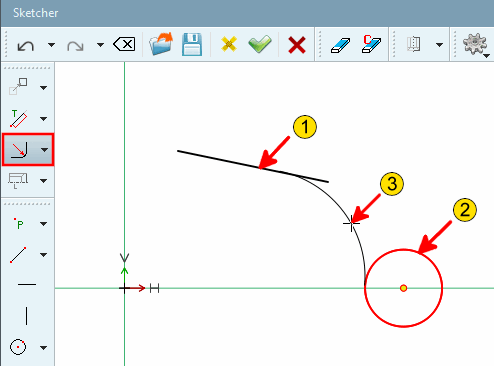
![Radius with 2 elements [Radius with 2 elements]](https://webapi.partcommunity.com/service/help/latest/pages/en/partsolutions_user/doc/resources/img/img_5ddfec644cd24248aaf4686107135767.png)
![Rounding on 2 elements [Radius with 2 elements] - Radius: 3](https://webapi.partcommunity.com/service/help/latest/pages/en/partsolutions_user/doc/resources/img/img_789694b56b0b426db59f5bcf13795dce.png)
| ||||
 Chamfer at 2 lines defined by angle at distance from
intersection [Chamfer at 2 lines defined by angle at distance from intersection]
Chamfer at 2 lines defined by angle at distance from
intersection [Chamfer at 2 lines defined by angle at distance from intersection]
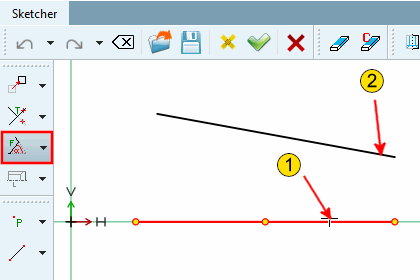
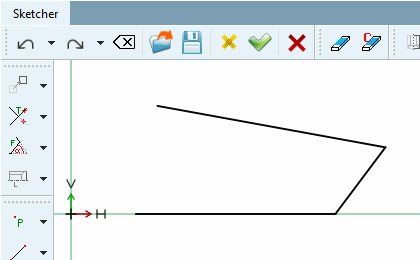
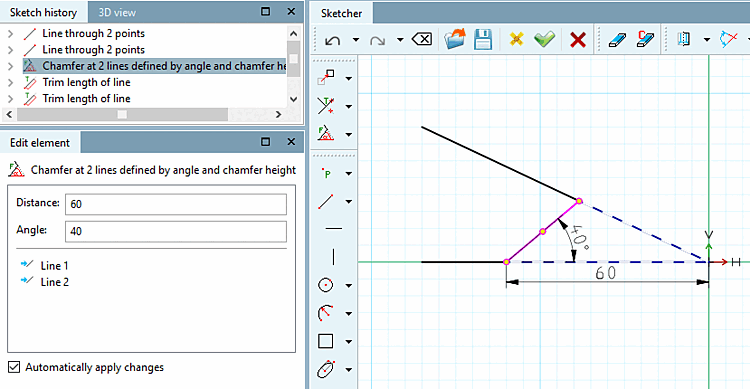
Chamfer between 2 lines, adjustable via the angle [Angle] to the first selected line or a distance [Distance] defined as shown in the figure below.
Chamfer at 2 lines defined by angle at distance from intersection [Chamfer at 2 lines defined by angle at distance from intersection]
 Chamfer at 2 lines defined by angle and chamfer
length [Chamfer at 2 lines defined by angle and chamfer length]
Chamfer at 2 lines defined by angle and chamfer
length [Chamfer at 2 lines defined by angle and chamfer length]
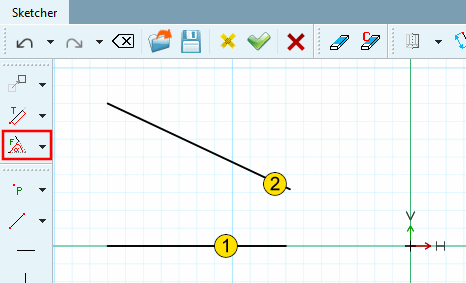
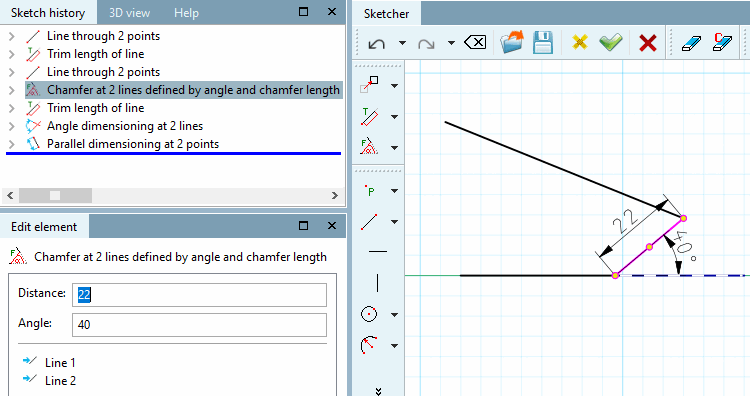
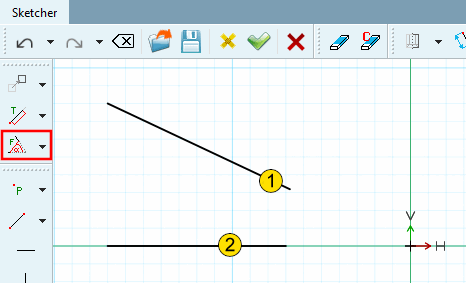
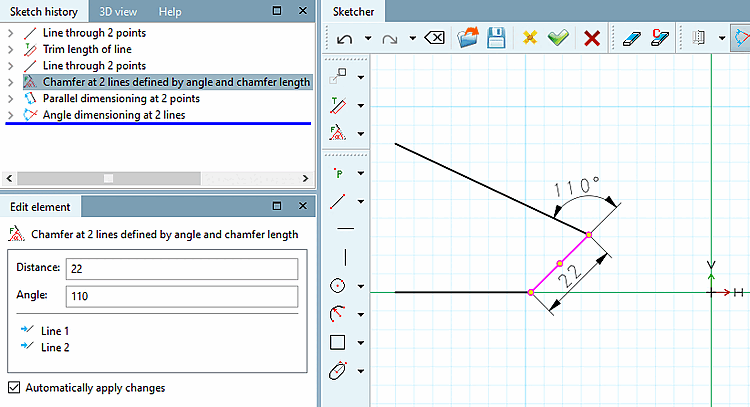
Chamfer between 2 lines, adjustable via angle on first selected line (counterclockwise) and length of chamfer.
 Chamfer at 2 lines defined by angle and chamfer
height [Chamfer at 2 lines defined by angle and chamfer height]
Chamfer at 2 lines defined by angle and chamfer
height [Chamfer at 2 lines defined by angle and chamfer height]
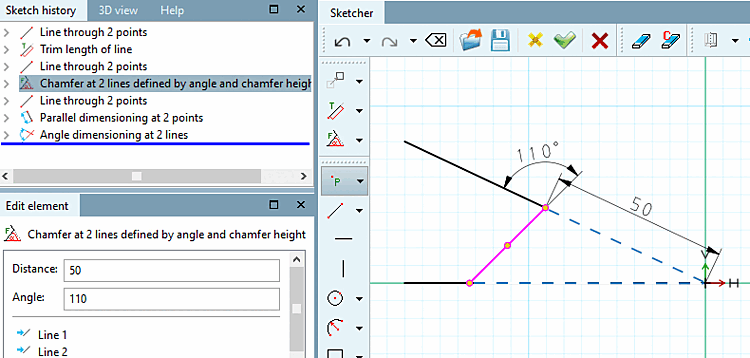
Chamfer between 2 lines adjustable via angle on first selected line (counterclockwise) and distance between chamfer and intersection of both lines.
 Chamfer centered at 2 lines defined by distance to
intersection [Chamfer centered at 2 lines defined by distance to intersection]
Chamfer centered at 2 lines defined by distance to
intersection [Chamfer centered at 2 lines defined by distance to intersection]
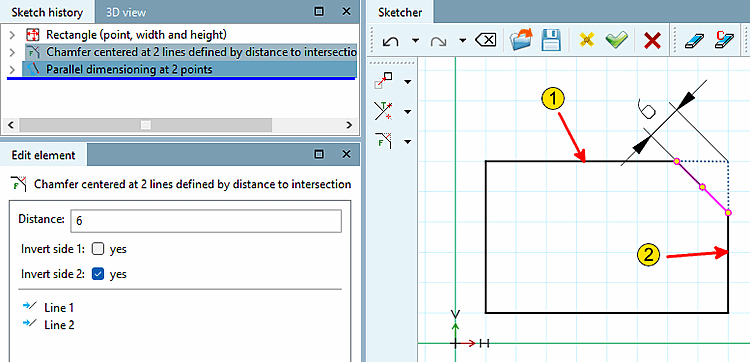
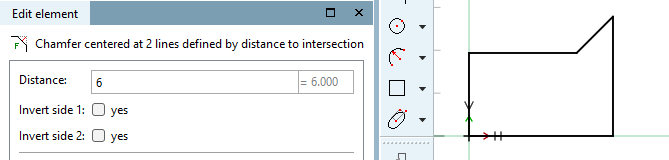
45° chamfer between 2 lines, adjustable via the chamfer's distance to the (imaginary) intersection of both lines.
Select distance above point [Select distance by point]: Click anywhere in the area of the chamfer to be created.
In the input field under Spacing [Distance], adjust the desired spacing in the Edit element docking window.
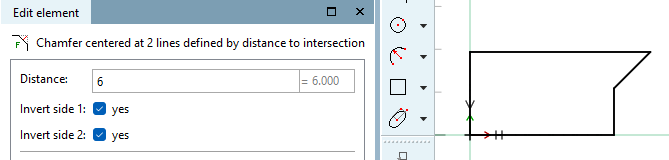
Optional: It is also possible to place the chamfer outside the outlined body:
Activate or deactivate the checkboxes under Invert page 1 [Invert side 1] and Invert page 2 [Invert side 2] accordingly.
 Chamfer centered at 2 lines defined by chamfer
length [Chamfer centered at 2 lines defined by chamfer length]
Chamfer centered at 2 lines defined by chamfer
length [Chamfer centered at 2 lines defined by chamfer length]
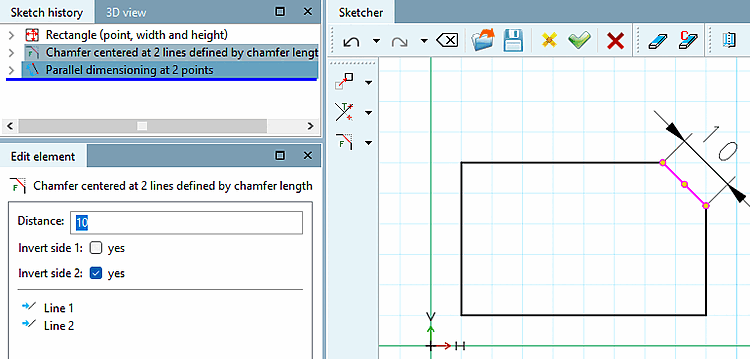
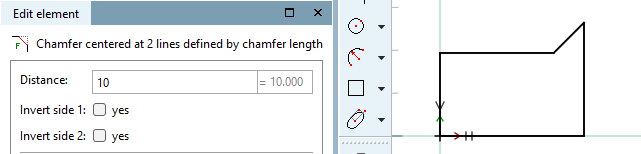
45° chamfer between 2 lines, adjustable via the length of the chamfer.
Select distance above point [Select distance by point]: Click anywhere in the area of the chamfer to be created.
Determine the exact length of the chamfer in the Edit element window.
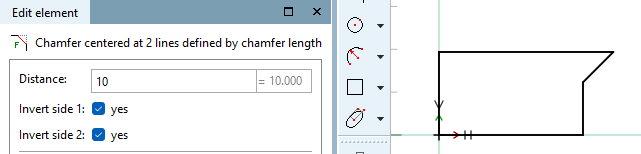
Optional: It is also possible to place the chamfer outside the outlined body:
Activate or deactivate the checkboxes under Invert page 1 [Invert side 1] and Invert page 2 [Invert side 2] accordingly.
 Chamfer centered at 2 lines defined by chamfer
height [Chamfer centered at 2 lines defined by chamfer height]
Chamfer centered at 2 lines defined by chamfer
height [Chamfer centered at 2 lines defined by chamfer height]
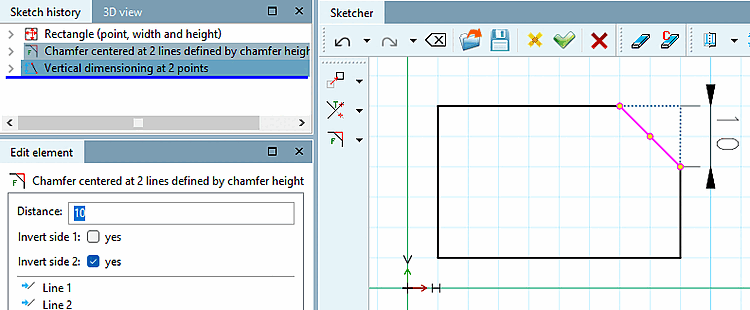
45° chamfer between 2 lines, adjustable via the chamfer's length of indentation.
Select distance above point [Select distance by point]: Click anywhere in the area of the chamfer to be created.
Determine the exact feed length in the Edit element docking window.
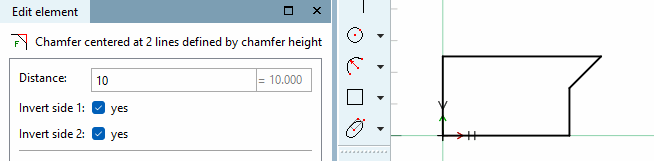
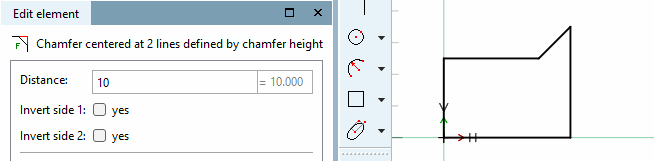
Optional: It is also possible to place the chamfer outside the outlined body:
Activate or deactivate the checkboxes under Invert page 1 [Invert side 1] and Invert page 2 [Invert side 2] accordingly.
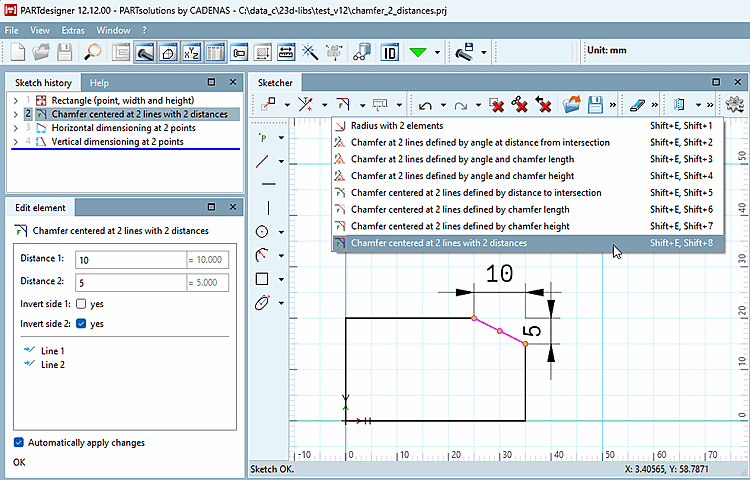
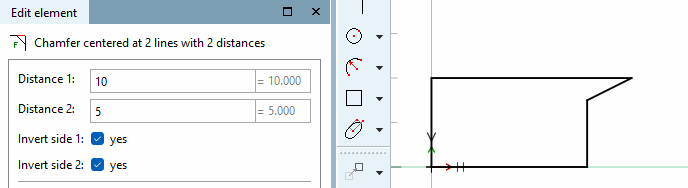
 chamfer in the middle of 2 lines across
2 feed lengths [Chamfer centered at 2 lines with 2 distances]:
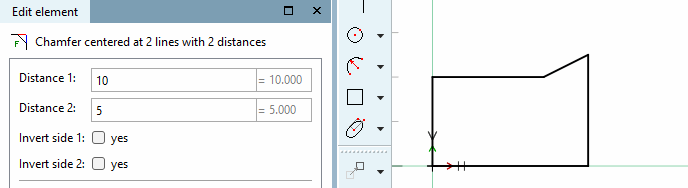
chamfer in the middle of 2 lines across
2 feed lengths [Chamfer centered at 2 lines with 2 distances]:
Select the feature chamfer centered on 2 lines over 2 feed lengths [Chamfer centered at 2 lines with 2 distances].
Select distance via point [Select distance by point]: Determine the distance 1 [Distance 1] and distance 2 [Distance 2] in the Edit element docking window.
Optional: It is also possible to place the chamfer outside the outlined body:
Activate or deactivate the checkboxes under Invert page 1 [Invert side 1] and Invert page 2 [Invert side 2] accordingly.
![Chamfer at 2 lines defined by angle at distance from intersection [Chamfer at 2 lines defined by angle at distance from intersection]](https://webapi.partcommunity.com/service/help/latest/pages/en/partsolutions_user/doc/resources/img/img_a4ab09ba571d4689b3fd977091f3f5ae.png)
| ||||