|
Do you want to structure or classify your own parts and then publish as PARTsolutions catalog?
Then use PARTdataCenter with the Structure/classify products function.
In the following a short summary of an automatic classification process shall be given:
Data import and data enrichment
Two different starting situations are possible:
Independent of the chosen variant the data can be enriched with preview images and fingerprints after the import.
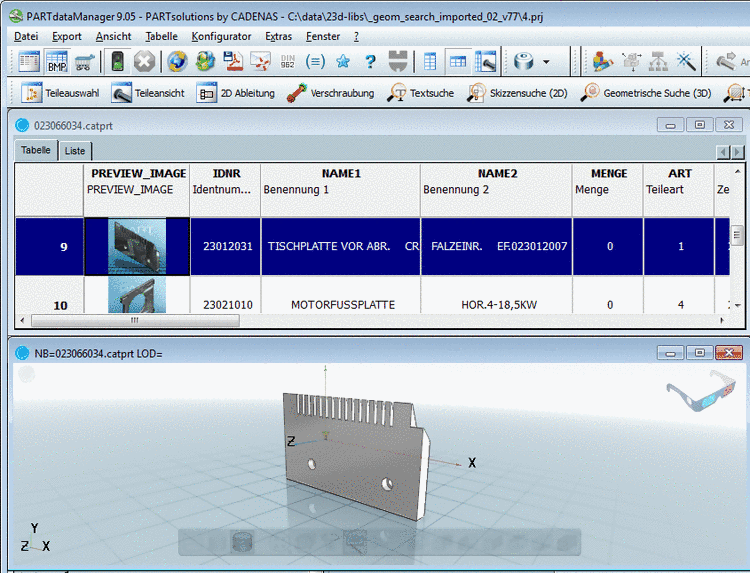
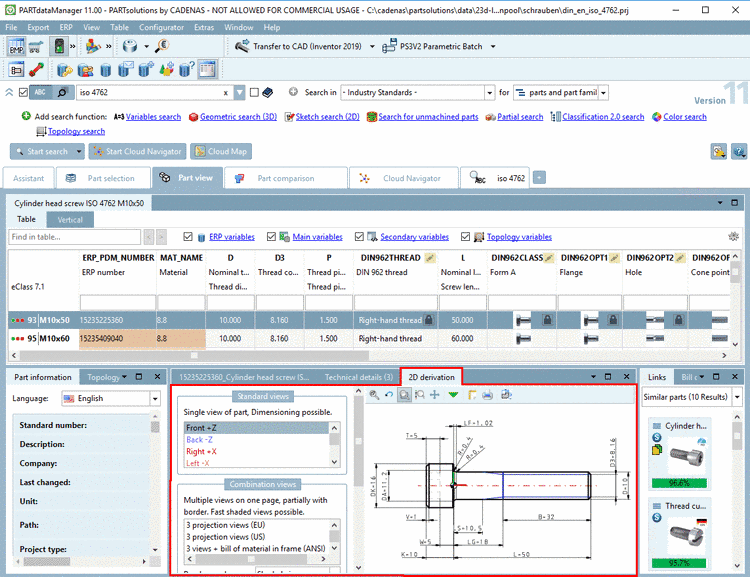
In the next step the product data are analysed by textual criteria (if respective information is available in the original data) and with the aid of line preview images, enlarged views and 3D view/comparison.
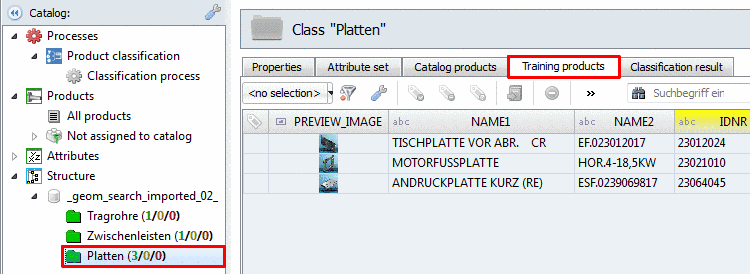
Classes with training products are created
Now you can create the desired classes. These contain one or more training products, which are good representatives of the respective class. Based on the training products the automatic classification process will perform assignments.
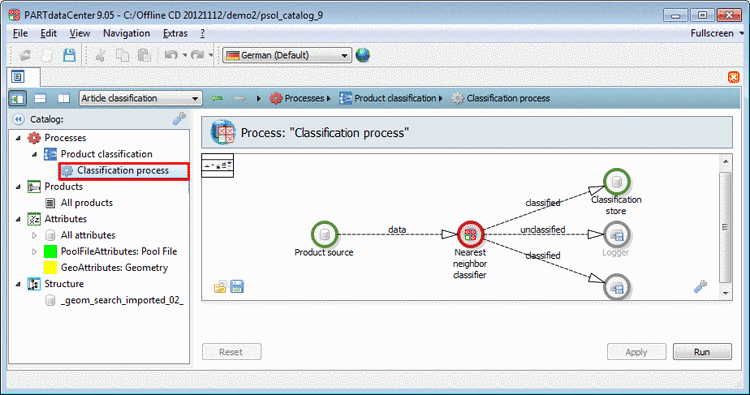
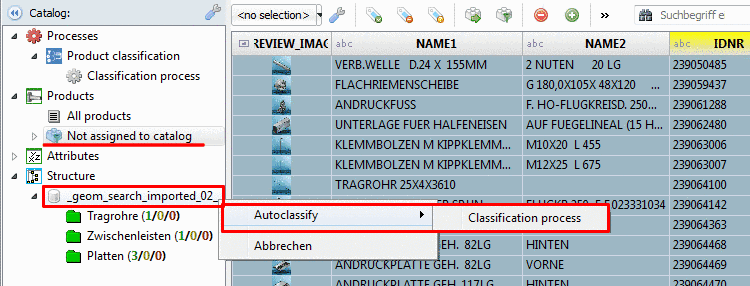
In the "Classification process" area you can define, which criteria the classification (product assignment to classes) has to follow.
Perform automatic classification process
Based on the defined classification rules and the applied training products now the automatic classification process can be performed.
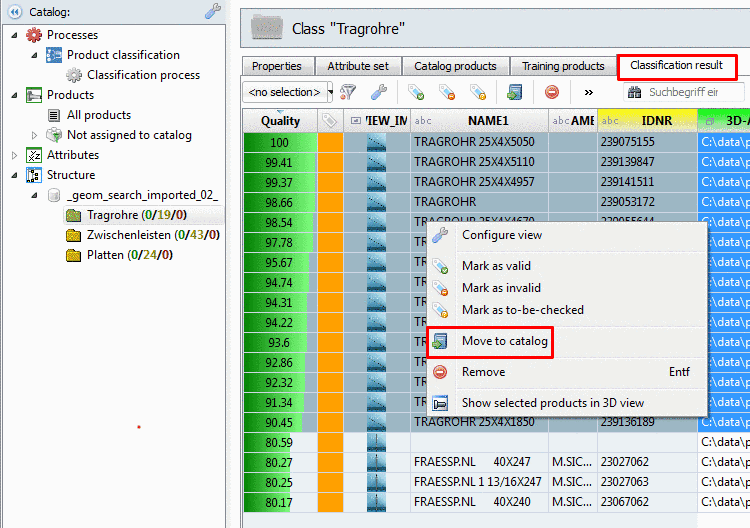
Results are displayed on the Klassifizierungsergebnis index page. You can easily realize the correct lines (result quality, text information, image information, possibly 3d view/comparison). Mark the verified lines and then click the context menu command
 In Katalog verschieben.
After the movement the data is displayed on the Katalogprodukte index page. Products which are displayed on this page are exported as PARTsolutions catalog in the next step.
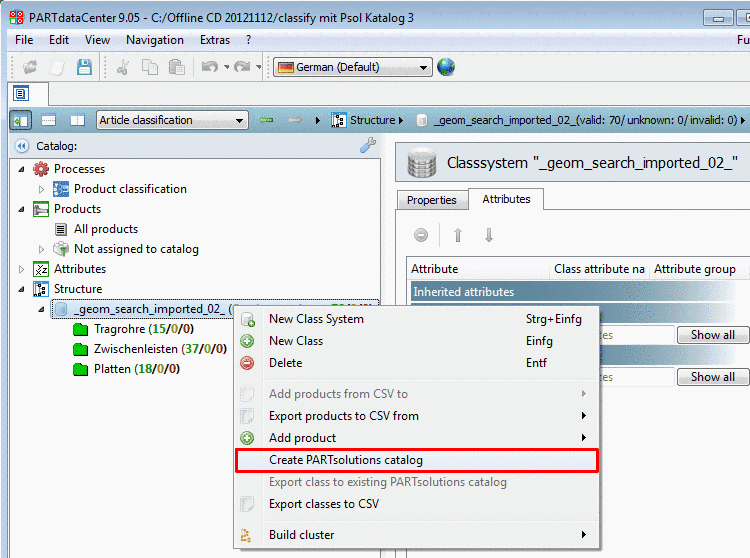
Export as PARTsolutions catalog
Finally the complete structure is exported as PARTsolutions catalog.
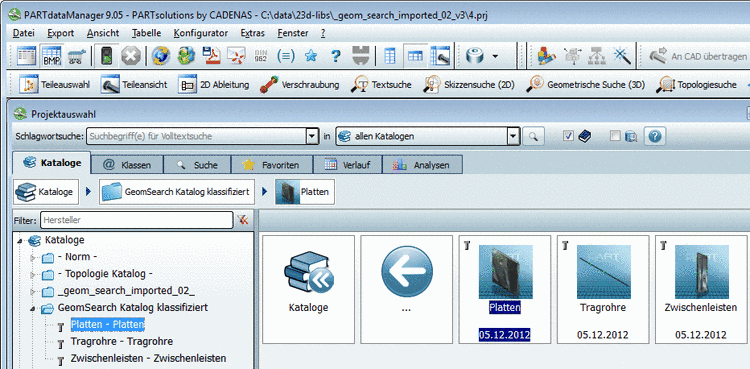
Catalog name and created class structure are now displayed in PARTdataManager according to the specification in PARTdataCenter.