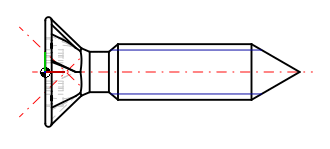
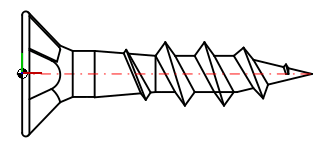
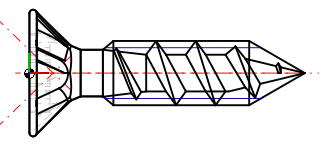
5.10.2.
2D deriv ation: Extend standard views
5.10.2.2.
Allocate 2D derivation in PARTproject |  |
| Prev | Next |
In PARTproject -> tab page Views -> 2D derivation dialog area, the corresponding assignments are made.
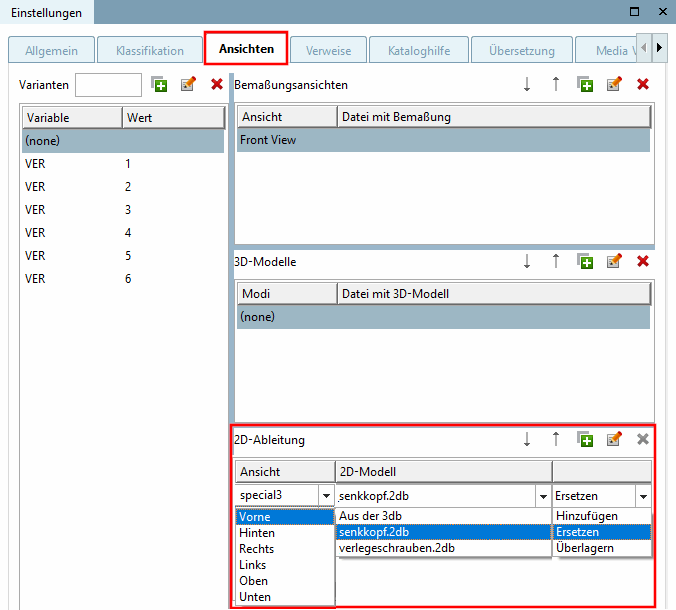
Under View, select a standard view if you want to replace it with a modified view
if you want to add a self created view, enter it with free text input.
From the 3db [From 3db file], if you have created an internally saved 2D drawing in the Sketcher.
One of your models created in the sketcher, which you saved into the respective directory.
This is displayed in the list field if it is available as a .2db file in the project directory (in above figure exemplarily "senkkopf.2db)
![[Note]](https://webapi.partcommunity.com/service/help/latest/pages/en/partsolutions_user/doc/images/note.png)