

- 2.1.6.4.3.2.1. Search with one single term
- 2.1.6.4.3.2.2. Singular - Plural
- 2.1.6.4.3.2.3. Multiple terms
- 2.1.6.4.3.2.4. Search with combination of terms and variable values
- 2.1.6.4.3.2.5. Search only with variable values
- 2.1.6.4.3.2.6. Exact search {}
- 2.1.6.4.3.2.7. Strict search!
- 2.1.6.4.3.2.8. Phrase search "" (specific order of terms)
- 2.1.6.4.3.2.9. Wildcard search *
- 2.1.6.4.3.2.10. Leading zeros in part numbers
- 2.1.6.4.3.2.11. Search for negative values
- 2.1.6.4.3.2.12. Number search for a range
- 2.1.6.4.3.2.13. Number search with units (explicitly and implicitly)
- 2.1.6.4.3.2.14. Logical operators
- 2.1.6.4.3.2.15. Mixture of AND and OR - Parentheses
- 2.1.6.4.3.2.16. Topological measures of length
- 2.1.6.4.3.2.17. Search options with ERP integration
- 2.1.6.4.3.2.18. Wildcard query for a whole directory
- 2.1.6.4.3.2.19. Background information
- 2.1.6.4.3.2.19.1. Automatic splitting of search terms
- 2.1.6.4.3.2.19.2. Toleration of wrong divisions in strings
- 2.1.6.4.3.2.19.3. Ranking
- 2.1.6.4.3.2.19.4. Find order numbers with empty spaces and special characters
- 2.1.6.4.3.2.19.5. Extraction of zeros from search terms
- 2.1.6.4.3.2.19.6. Search for values of value range fields
You can perform a full-text search [Full-text search] using terms alone, numbers alone or a combination of both.
If no variables are specified, then you can also do this ...
... in the list of search results [Search results] (For details see Section 2.1.6.7, “ Search results ”. )
... in the parts view [Part view]. (For details see Section 2.1.7, “ Part view ”. )
Define the search area under Search in.
For details see Section 2.1.6.1.1, “ Search in...: Where? ”.
Under Search for, specify whether you want to search for individual parts or part families. For details, see Section 2.1.6.3, “ Search for Parts | Part families and Parts ”.
Schraube
The term "Bolt" can occur anywhere, also as substring. Some examples:
Search with exact type designation
DNC
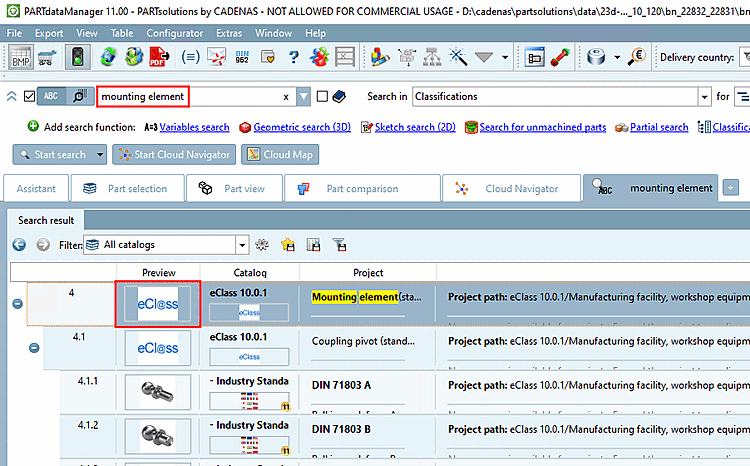
befestigungselement
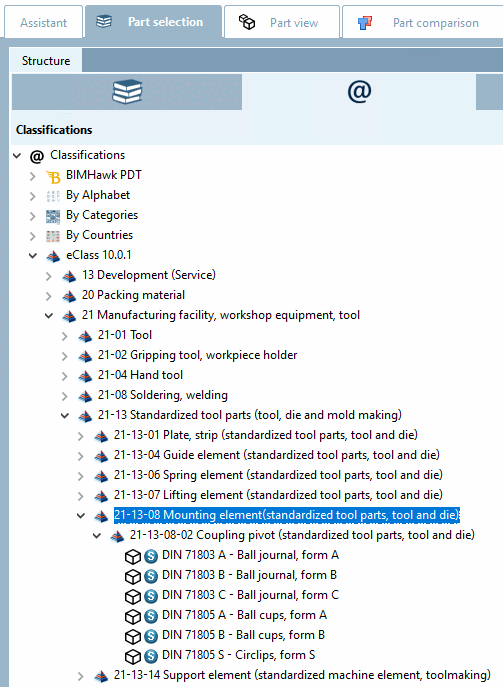
If you get hits inside a classification, this is signalized by the respective icon in the hit list.
After double-clicking on a hit you can see all parts classified in the same way.
![[Tip]](https://webapi.partcommunity.com/service/help/latest/pages/en/partwarehouse/doc/images/tip.png)
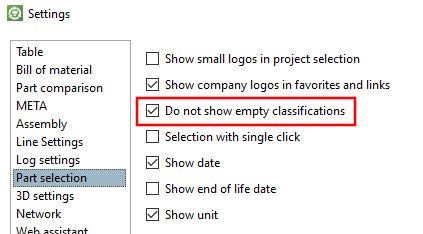
Tip If necessary, activate the setting option Do not display [Do not show empty classifications] empty classifications.
![[Note]](https://webapi.partcommunity.com/service/help/latest/pages/en/partwarehouse/doc/images/note.png)
Each term has to exist anywhere in the project.
Schraube mit Schaft
Schaft Schraube
The sequence plays a certain role, because exact accordances are higher ranked.
Zylinder Herstellername
Simply add the manufacturer name into the input field in addition
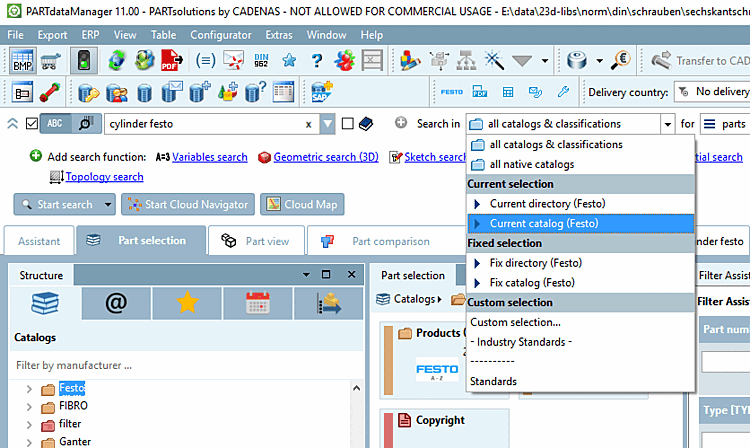
or alternatively select a manufacturer under Search in
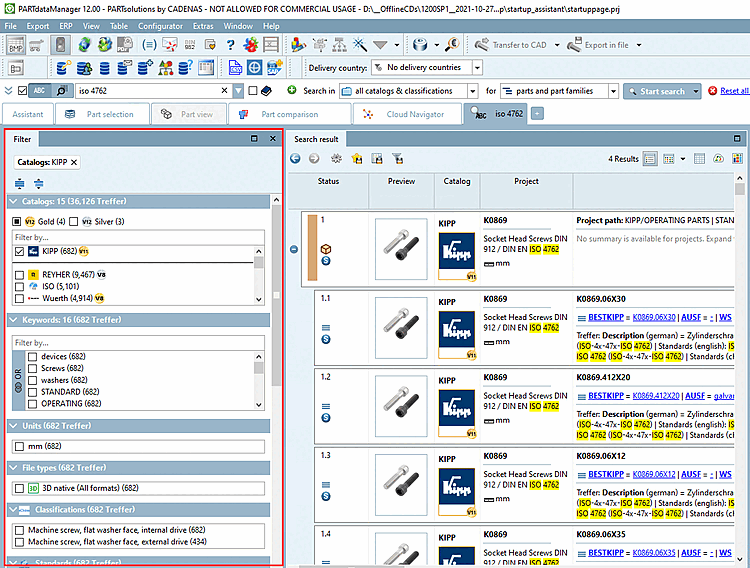
or use the manufacturer filter [Manufacturer filter] in the Filter docking window.
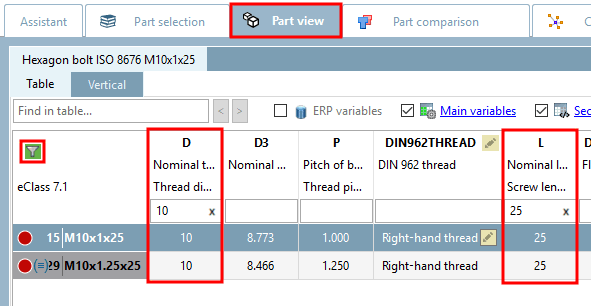
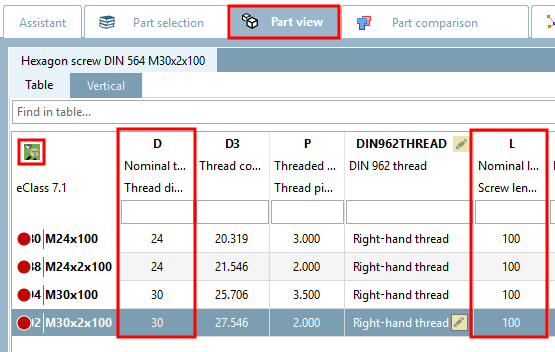
When filtering with variable values, a corresponding icon appears in the top left of the parts view [Part view] table. Click on the icon to remove the table filter and you will see all rows.
A combination of several values may be so specific that stating of terms is dispensable.
63 320 10 75
For an exact search, place the search term in curly brackets {}.
Condition: The searched term must appear in the result in exactly the same way. However, other terms may also appear in the result. The exact search does not tolerate Stemming or word splitting.
{Schraube}
will find "Screw" or "Lever with screw", but not "Screws" or "Screwdriver".
The syntax has been changed compared to V11.
For a better understanding, two important differences between phrase search and exact search should be mentioned:
Stemming:[44]
"mit gebördelt Rohr"
finds "flared couplings" (stemming tolerated)
{mit gebördelt Rohr}Compound words (mainly relevant in German):
"Schraube mit Mutter"
also finds "Zylinderschraube mit Mutter". (The compound word "Zylinderschraube" has been treated split in its subparts.)
{Schraube mit Mutter}
For a strict search [Strict search], place an exclamation mark (!) at the end of the desired term.
Condition: The result may only contain what was entered (apart from spaces or a separator such as a period). The strict search [Strict search] tolerates Stemming [Strict search] [45].
Execute the strict search [Strict search] as a variable search only.
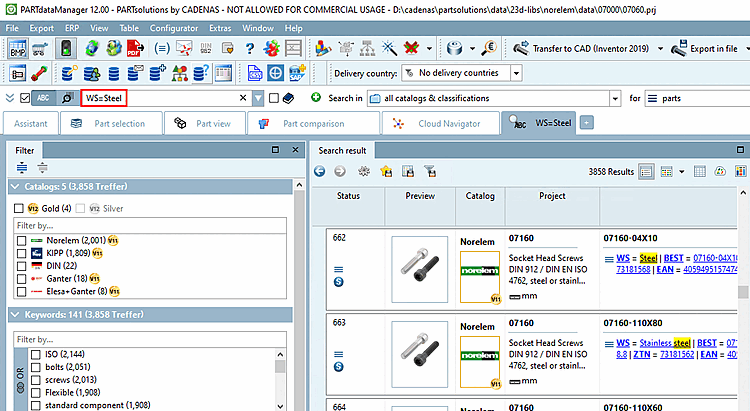
WS=Steel
for example, also finds "Stainless steel".
If you only want to find "Steel", use the strict search [Strict search].
WS=Steel!
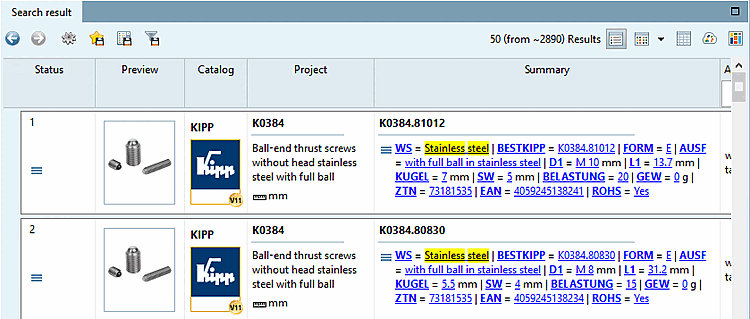
If, on the other hand, you only want hits with "Stainless steel", e.g. you want to exclude hits with "Steel" alone, then combine Phrase search and Strict search.
WS="Stainless Steel"!
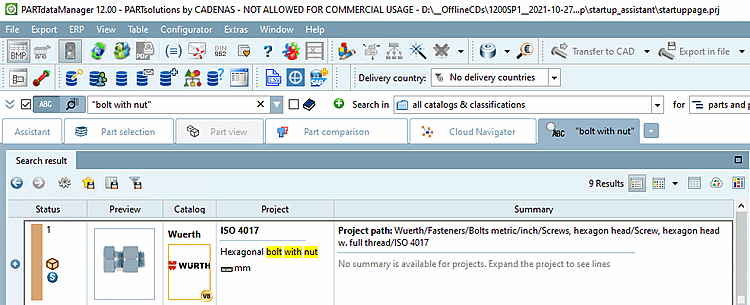
For a phrase search (specific sequence of terms), place the entire search term in quotation marks.
Condition: All search terms must be found. There must be neither anything missing nor anything in between. There may be other terms outside the search term. The phrase search tolerates Stemming[46] and decomposition of compound words.
"Schraube mit Mutter"
Sechskantschrauben mit
Muttern
For a better understanding, two important differences between phrase search and exact search should be mentioned:
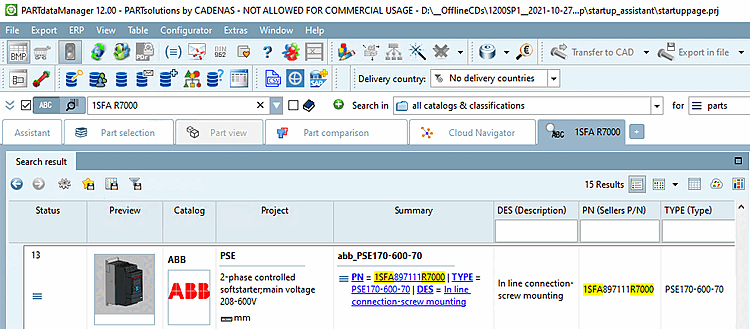
If you only know subparts of a string of numbers, characters or combined numbers and characters, you can use the wildcard search. The searched part may occur at any place.
*A89*
is found, for example, 1SF A89 7102R7000.
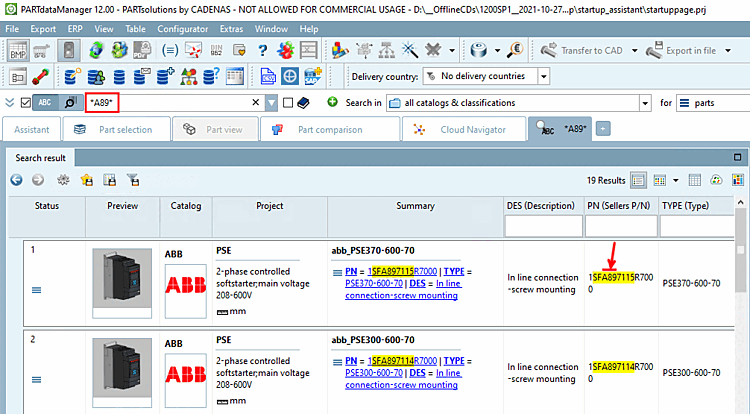
If the unknown places do occur at the beginning, at the end or in the middle, doesn't matter. Also the number of used placeholders is arbitrary.[47]
1SF*7102R70001SFA8*102R*000
In V11, single positions could be replaced by the placeholder (?). This placeholder also works in V12, however, much more easier and flexible is the placeholder (*), as it may stand for no, one or multiple characters.
1SFA8?
?102R?000
If the unknown part is delimited by spaces, separators such as periods or characters of a different type (numeric/alphanumeric), the placeholder is not required.
By default, terms are fragmented in meaningful minor terms (substrings according to dictionaries).
With table you can also find table top without using the placeholder *.
However, you cannot find what you are looking for with Tisc. In this case, you must use the wildcard search and search with Tisc *.
A wildcard search does not use Stemming[48] is executed. * chraube only finds schraube and not schrauben. If you want to find both, you must specify *chraube*.
A wildcard search is always associated with a certain loss of performance, but it depends on how many hits there are. For example, a search for s* is significantly slower than a search for *screw. If a search for s* is carried out across a large number of catalogs, it can happen that the PARTapplicationServer aborts the search because it would cost too much performance. In this case, an error message such as: Placeholder search too general. [Wildcard search too general. Narrow down the search by specifying additional letters or numbers.] Restrict the search further by entering additional letters or numbers. [Wildcard search too general. Narrow down the search by specifying additional letters or numbers.]
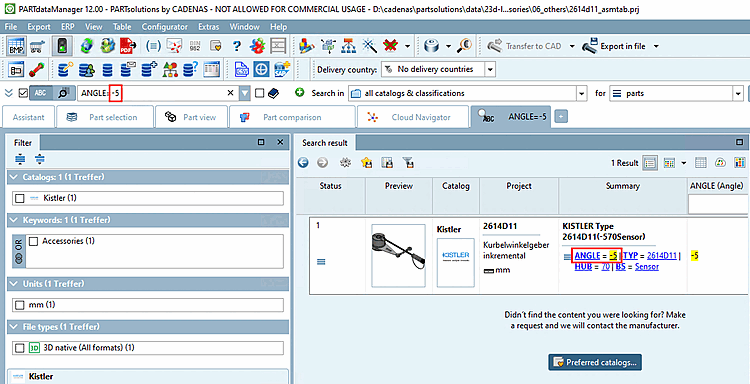
You can explicitly search for negative values.
-5 oder WINKEL=-5
Simply enter the negative value. In this way the search for negative values is performed with the highest priority.
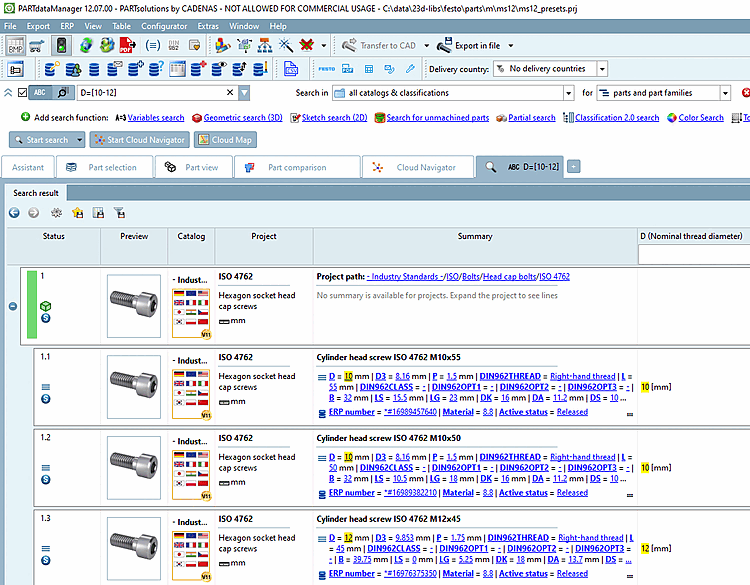
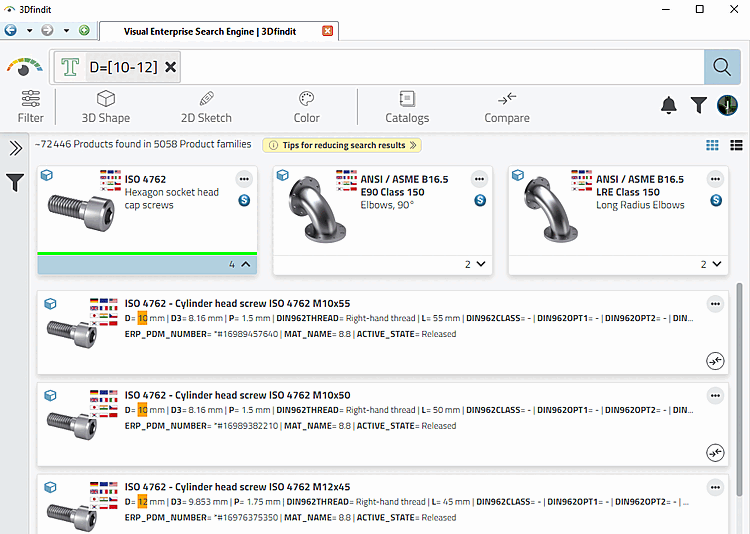
If you are searching for a range of numbers and the search is actually to be carried out as a number search, you must enclose the search string in square brackets, e.g. D=[10-14]. If you omit the brackets, a textual search will be carried out.
D=[10-12]
[10-20]
Square brackets are already used in the number search with units, so the two options can also be combined.
D=[1-2 inch]
PARTdataManager: Result in mm (a conversion to mm is automatically performed, so that also here appropriate result will be found)
PARTdataManager: Result in mm (a conversion to mm is automatically performed, so that also here appropriate results will be found)
[10-20 mm]
30[mm]
[10 mm]

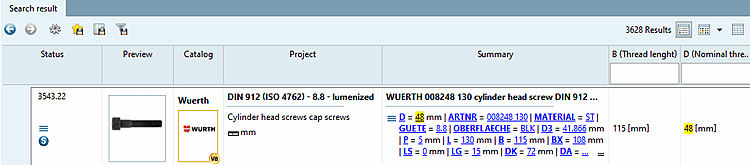
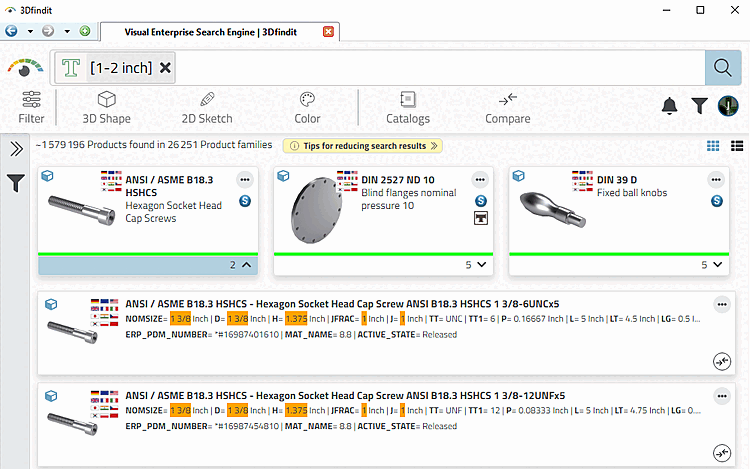
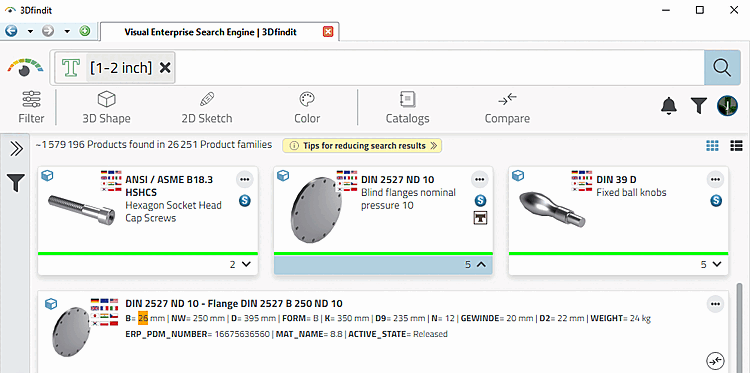
Numerical values are indexed in their base unit. They can also be searched for by specifying a desired unit as a search operator in square brackets [].[49]
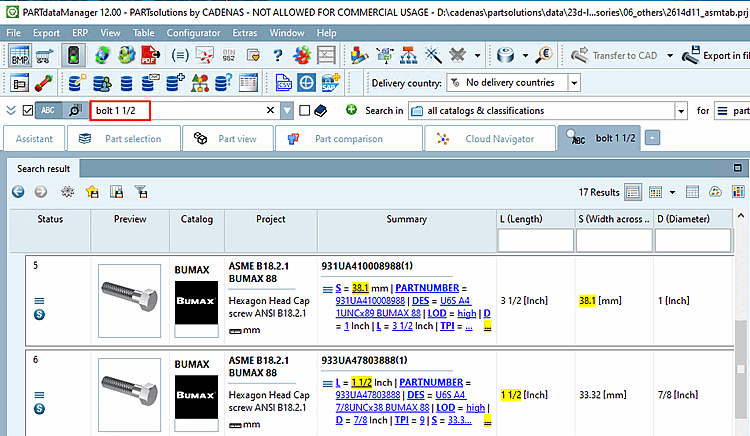
Values can be searched for in inch notation (e.g. 3 1/2 )
A fractional representation is evaluated as inches by default and a conversion to mm takes place automatically in the background so that mm values are also found.
1/2
1 1/2
If you want to search for "mm" with a fraction, you have to add "mm" in square brackets.
1/2 [mm]
When wanting to explicitly search for Inch you have to add "inch" in square brackets.
0.5 [inch]
Also with inch, you can search "from-to".
1/2 - 3/4
1 1/2 - 1 3/4
Also when using from-to statements the unit can be added behind.
1 1/2 [inch] - 1.75 [inch]
If there is no explicit statement, the last token defines the unit.
The following search leads to Inch results, because the fraction is automatically interpreted as Inch.
1.5 - 1 3/4
Inch values could also be part of order numbers, for example.
When searching with variables, you can use logical operators, not only "equal" (=), but all usual mathematical operators.
Sechskantschaube L>200
Furthermore you can combine terms and numerical values with "AND" or "OR" and exclude certain terms with "NOT".
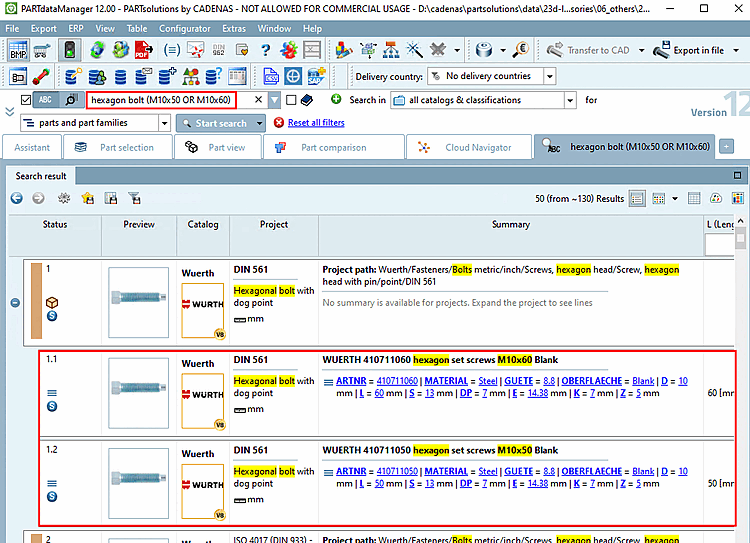
Searched: A hexagon bolt with either M10x50 or M10x60
Sechskantschraube (M10x50 OR M10x60)
Sechskantschraube M10x50 OR Sechskantschraube M10x60
If you would omit the brackets in the first case, you would receive much more unclear results.
In English sometimes the term "bolt" and sometimes "screw" is used.
head cap (bolt OR screw)
Searched ISO 4762 or ISO 12474
ISO (4762 OR 12474)
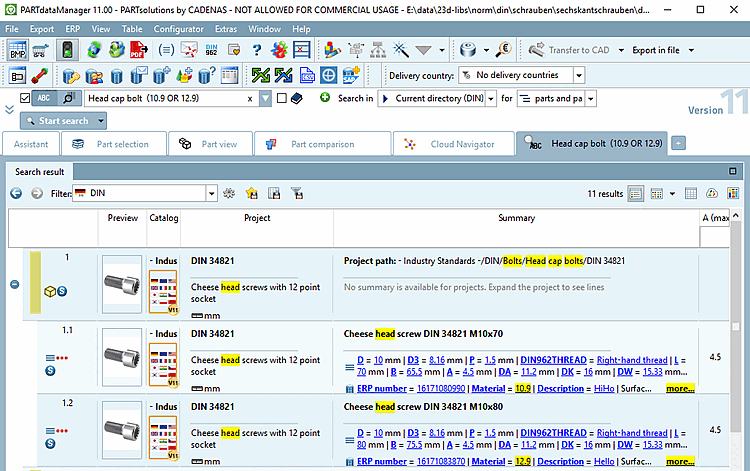
Searched: Head cap bolt with strength class 10.9 or 12.9 (If the values for strength are found in the link database or in the characteristic attribute table doesn't matter.)
Zylinderschraube (10.9 OR 12.9)
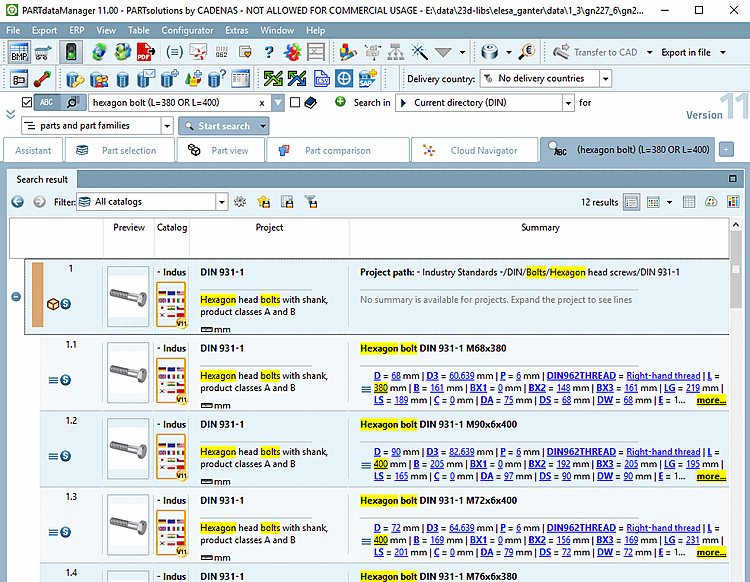
Searching for a part with two options in length
Sechskantschraube (L=380 OR L=400)
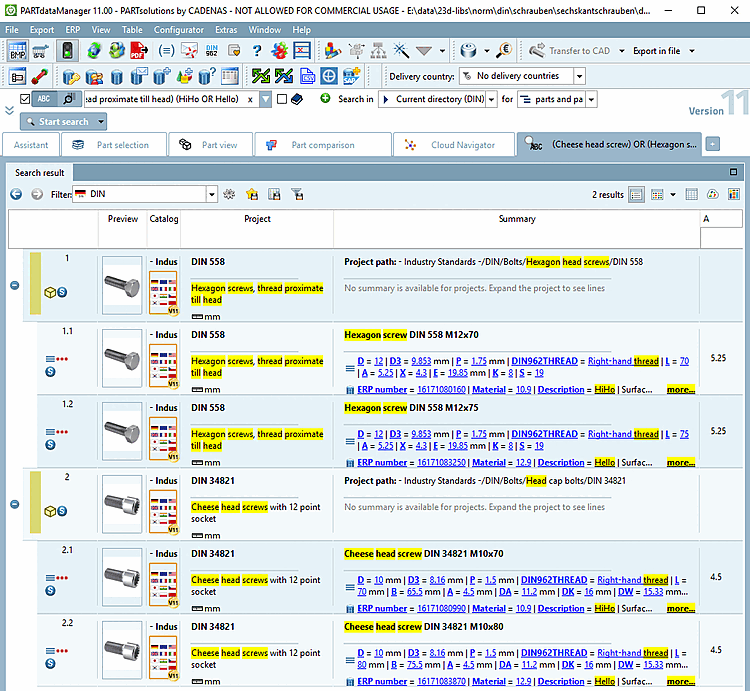
Searching for a cheese head screw or a hexagon screw with thread proximate till head and at the same time an entry "HiHo" or "Hello" (in the link database).
(Zylinderschrauben mit Innenvielzahn) OR (Sechskantschraube Gewinde annähernd
 bis Kopf) (HiHo OR Hello)
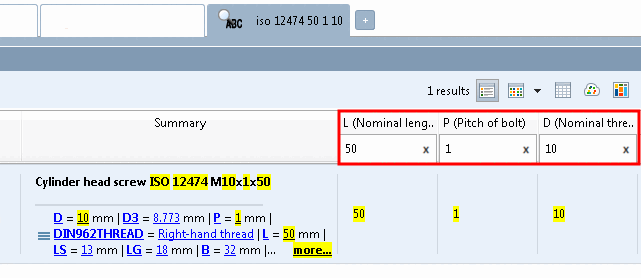
A full-text search [Full-text search] not only searches table values, but also topological linear dimensions, which is particularly advantageous for own parts catalogs, as these often lack a detailed characteristic table.
Hits from the topology are displayed in a separate Topology column and are highlighted in yellow.
(Alternatively, topology search [Topology search] and geometric search (3D) [Geometric search (3D)] are also available)
The use of this feature requires an updated full-text search index plus a correspondingly set configuration entry.
In the configuration file partsol.cfg, block INDEX:LUCENE, key TopologyCatalogs insert the desired catalog path in the following form:[50]
cat/<catalog_name>
For details, see Section 1.4.3.6.6.15, “ Update full text search index (and geo search index ) for finding topological values via full text search ” in ENTERPRISE 3Dfindit (Professional) - Administration.
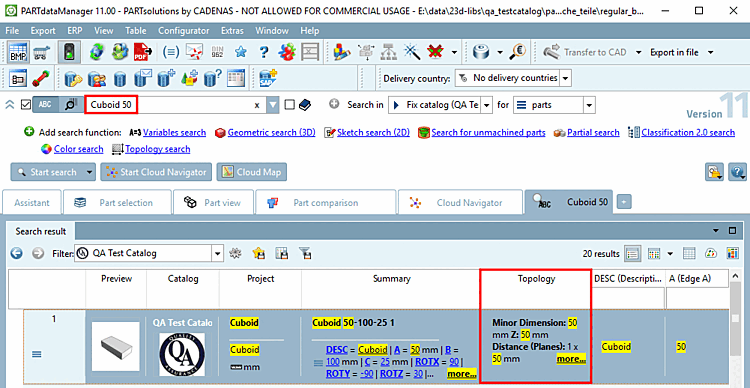
In the parts view [Part view], you will also find the Topology information docking window with a detailed list, which also contains the number of respective occurrences. See Section 2.1.7.9, “Docking window "Topology information " ”.
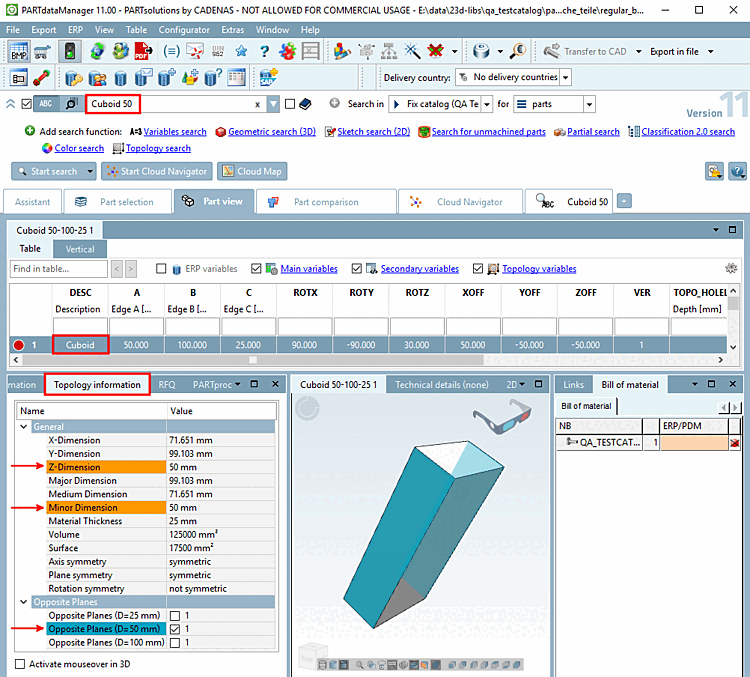
Example: Search for "Cuboid 50". "Cuboid" is found in the table, "50" via topological information (even if there are no table values).
Use an explicit topology search when searching for details.
For example, if you are looking for "3 holes with a diameter of 5", switch on the topology search [Topology search].
It doesn't matter where the search term is contained. The link database is searched as well. So you can search for ERP numbers, material, release state, stock, etc.
12345 Stahl released
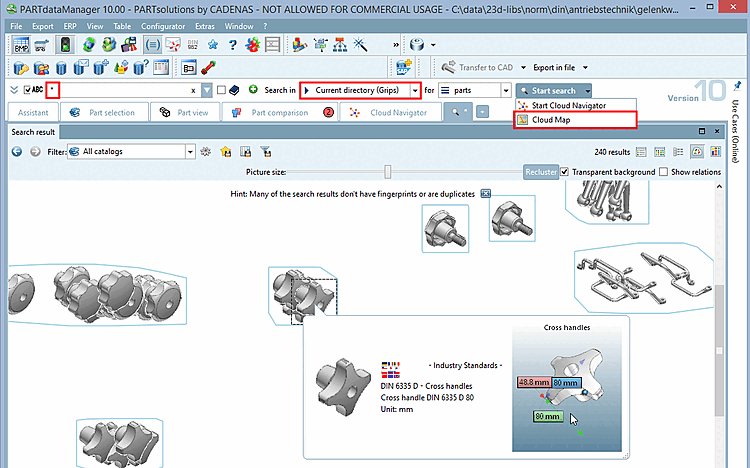
With a wildcard search (*) in the Full text search [Full-text search] input field, all projects in the directory set under Search in are displayed.
This is interesting, for example, for a cloud map [Cloud Map] search or exporting the search result list of an entire directory.
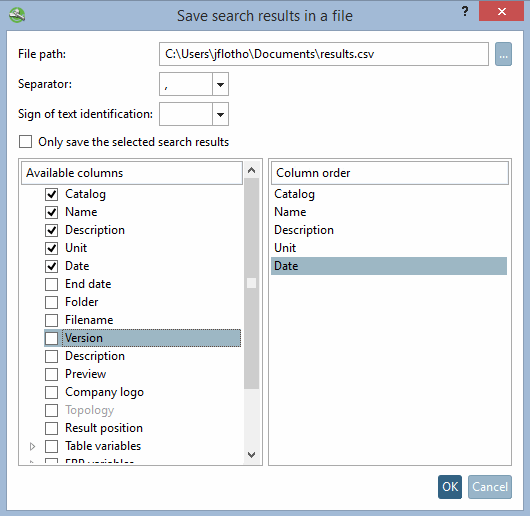
Save search results in a file
 :
:
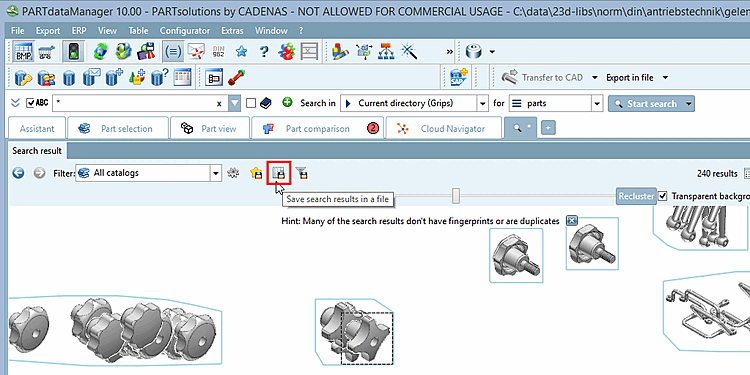
The respective dialog box opens. Here you can specify the columns to be exported. You can save all search results or only the selected ones.
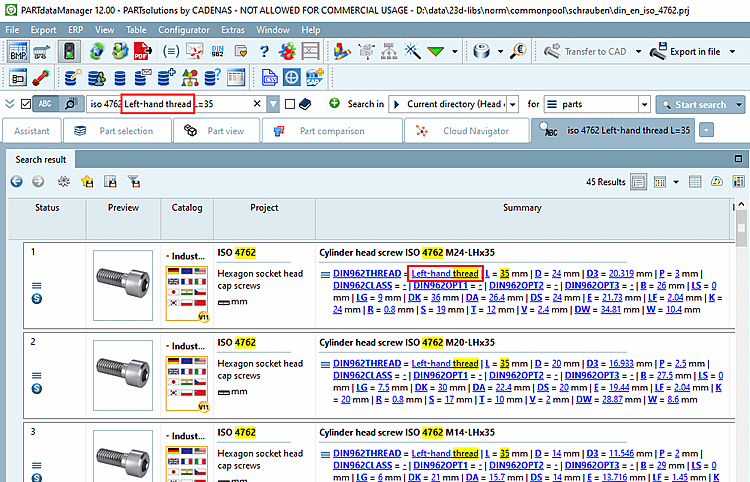
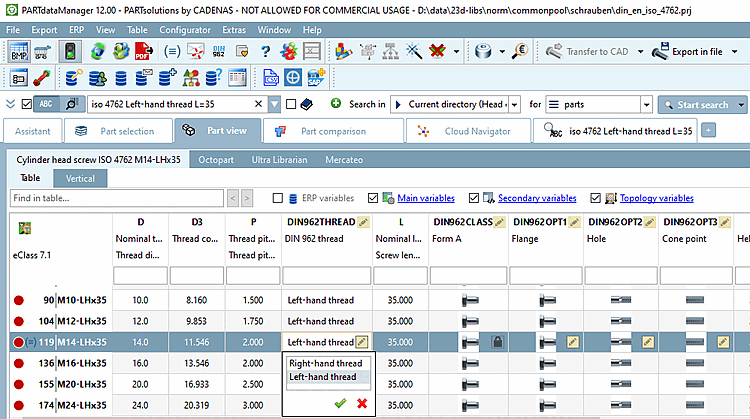
In V12 the search term is automatically split into single subterms what can be useful especially in German with its many compound words.
For example, radial shaft seal ring in radial-shaft-seal-ring
For all resulting combinations, searches are performed, and in this case it really makes sense because there are different spellings over all catalogs.
Also a turn of single parts leads to desired results.
With correct sequence even a phrase search would lead to the desired results, so for example:
In V11 there were only hits with exact accordance compared to the search term.
A combination of characters, numbers and signs is automatically fragmented in its subparts internally at empty spaces, separators and transitions between different types of characters (numerical/alphanumerical), so that at these places also divergent separations will be tolerated.
89AB123.567
In this case the following search would be successful as well:
123 567
ABC1234DEF
ABC-1234-DEF
ABC 1234 DEF
is also found.[51]
Words in the beginning of a field are ranked higher (NN, NT and NB)
In compound words (only concerns German), the last component has a higher rank.
For example, when searching for screw, the result hexagon screw is weighted higher than screwdriver.
When searching for multiple words, results where these words are in the same order are ranked higher.
Exact word matches receive a higher rank.
A search for screw prioritizes the word screw over cylinder screw.
This means that hits with the word screw are listed in the search results before hits with cylinder screw.
In V11, an accumulation of same words reduced the rank. This is removed in V12.
In V12, order numbers with empty spaces and special characters are also found even if the spelling is not quite correct.
The following order number contains empty spaces.
XVEWO NW 10 HL
It is even found when searching without empty spaces.
XVEWONW10HL
[44] Stem form reduction, normal form reduction of languages, e.g. singular and plural
[45] Stem form reduction, normal form reduction of languages, e.g. singular and plural
[46] Stem reduction, normal form reduction of languages, e.g. singular and plural
[47] In V11 the placeholder (*) was only allowed either at the beginning or at the end of a search string.
[48] Stem form reduction, normal form reduction of languages, e.g. singular and plural
[49] Works for all units contained in the configuration file unitbase.cfg.
[50] The tolerance is set in the configuration file and generally cannot be changed. See $CADENAS_SETUP/partsol.cfg -> Block [FULLTEXTSEARCH] -> Key TopologyTolerance.
[51] Special characters other than the hyphen are also treated in this way.