1.4.3.6.6.6.  Geometrical search index

Geosearch index [Geometrical search index] ( Geosearch indices [Geometrical indexes] )

The geo search index [Geometrical search index] is required for all search methods except full text search and variable search.

"3D Form [3D Shape]" in 3Dfindit

"3D Form [3D Shape]" in 3Dfindit

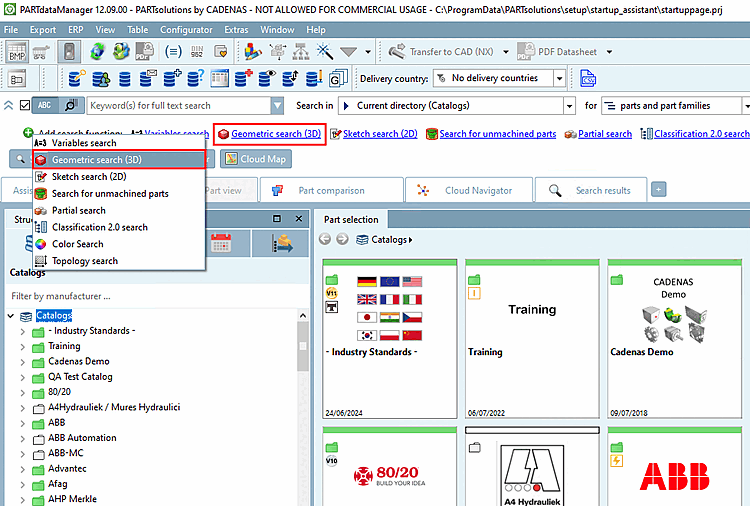
Geometric search (3D) in PARTdataManager

Geometric search (3D) in PARTdataManager

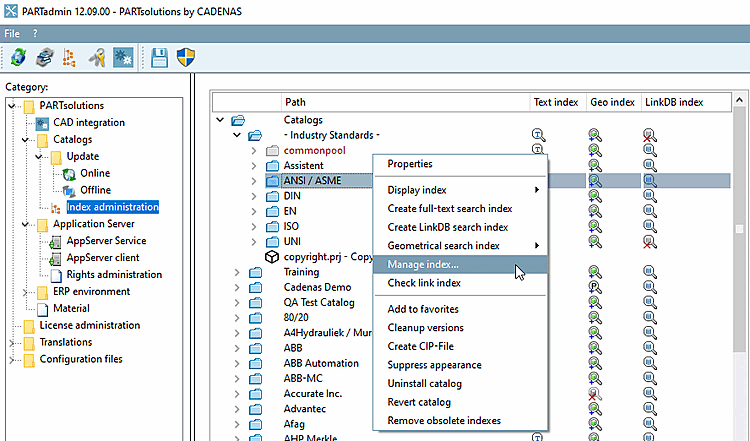
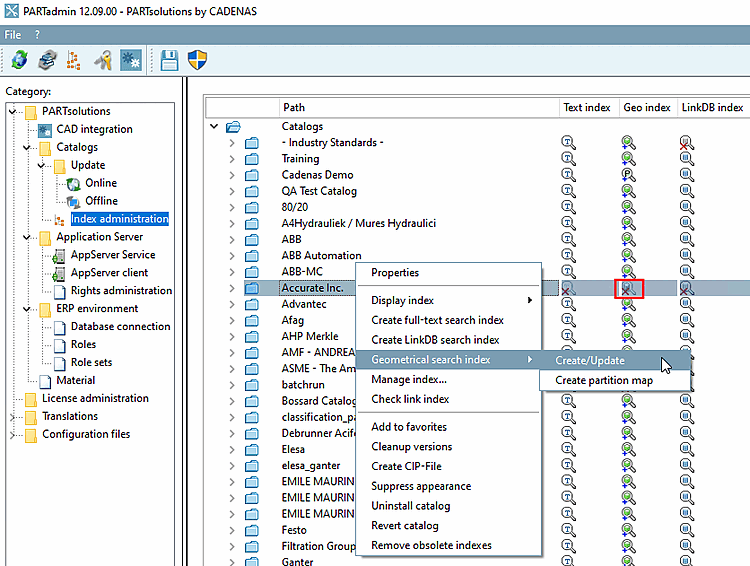
Geosearch index [Geometrical search index] -> Create/Update

If needed open the index tree at the desired position in order to see the icons:
[Note]Note

The Index Icon is made up of different elements depending on the case. . Accordingly, the displayed Tooltip.

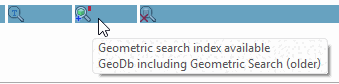
Example: "Index for geometric search exists" (old GeoIndex) and "GeoDb" exists (new GeoIndex), but is outdated

Example: "Index for geometric search exists" (old GeoIndex) and "GeoDb" exists (new GeoIndex), but is outdated

  • Green Fill: Geo-Index Available

  • Plus sign: GeoDb index exists

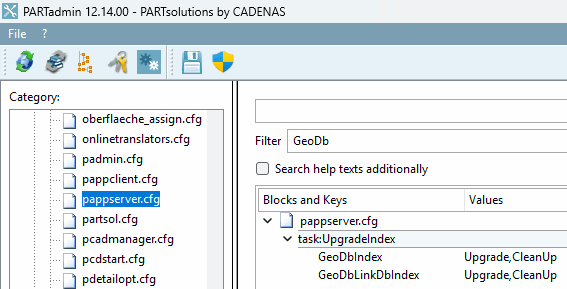
  • Red rectangle: The index is outdated and should be upgraded. If the key in the configuration file pappserver.cfg > task:UpgradeIndex has the value "Upgrade," this will occur automatically during the catalog installation.

  • "P": Index for partial search Available

Meaning of the icons:

Geometric search index missing

Use the context menu command Geo search index [Geometrical search index] -> Create/Update.

Geometric search index available

They have limited search speed and result quality.

Geometric search index available,Partial search

User information on Partial search can be found at:

You have the best possible search speed and quality of results.

Geometric search index available (older)

The disadvantages of an outdated index are a) slower search speed and b) lower quality of results.

Use the context menu command Geo search index [Geometrical search index] -> Create/Update.

Geometric search index available
GeoDb including Geometric Search

You have the best possible search speed and quality of results.

Geometric search index available
GeoDb including Geometric Search, Partial search

You can find user information about partial search [Partial search] at:

You get the best possible search speed and result quality.

Geometric search index available
GeoDb including Geometric Search (older)

A catalog whose GeoDb was created using a software version older than 12.14 is marked as outdated.

[Note]Note

If, in the configuration file pappserver.cfg > task:UpgradeIndex, the key has the value "Upgrade " (default), an upgrade will occur automatically during catalog installation.

The disadvantages of an outdated index are a) slower search speed and b) lower quality of results.

If a catalog is marked as outdated, use the context menu command Geosuchindex [Geometrical search index] -> Create/Update.

Click on the context menu command Geosearch index [Geometrical search index] -> Create/Update to open the settings dialog for the geometric search index.
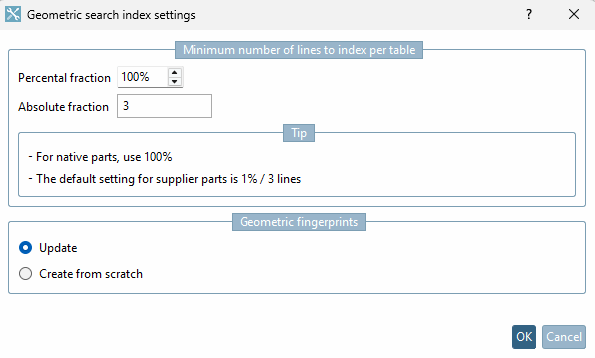
Geometric search index settings Search index, geometricsettings

Geometric search index settings

  • Minimum number of lines to index per table

    • Percental fraction

      A high percentage value lengthens calculation time for large tables.

      [Note]Note

      For in-house parts catalogs, the recommendation is to index at 100%.

      If you are regenerating the geometric index for standard and manufacturer catalogs, set the value to 1%, or be aware that generation at 100% can take some time (even hours, depending on the catalog size). The hit quality increases in any case with a higher percentage.

    • Absolute fraction

      So that for small tables there are enough rows indexed, enter the absolute number.

    Calculation example 1: 10 lines, percentage share [Percental fraction]: 10, absolute share [Absolute fraction]: 3 -> 3 lines are generated

    Calculation example 2: 10 lines, percentage share [Percental fraction]: 20, absolute share [Absolute fraction]: 1 -> 2 lines are generated

    The larger of the two values is therefore always used. The time for generating and the storage space for the fingerprints on the hard disk is roughly proportional to the number of lines.

  • Geometric fingerprints

    • Update

      If only new components have been added and no components have been changed, Update is sufficient.

      In fingerprints the date of change is saved so that a fingerprint can be overwritten when the project has been changed. In other words it is not necessary to recreate the fingerprints.

    • Create from scratch

      For a CIP installation it is not necessary to create the geometric fingerprints again. These are always available with catalogs delivered by CADENAS.

      Use this command, if you want to index own parts.

    • Always recreate fingerprints for outdated algorithms

      If there are changes concerning an algorithm and this option is activated, then the fingerprints for this algorithm are created anew. If this option is deactivated, then the search works, however possible enhancements are missing.

[Note]Note

Problem: If files cannot be loaded for any reason (e.g. failed mesh reduction or defective file), an attempt is made to regenerate the missing fingerprints during the next update.

This may slow down the fingerprint generation considerably.

Solution: Save files with failed fingerprint generation in a CSV file named ignore.csv and do not include them in the process for further generations as long as the STL date does not change.

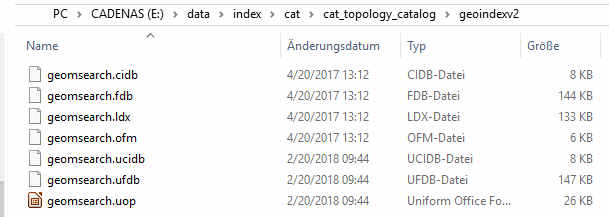
The file has to be stored in the geo index directory of catalog.

Example

Example

At least the two columns PROJECT and LINEID have to exist. All other columns are ignored. Fields are separated by semicolon and quoted by double quotes. The PROJECT field must contain the path relative to the catalog root using slashes.

In order to create the respective CSV file do the following:

  1. Call up the Manage index [Manage index...]... dialog.

    Manage index...

    Manage index...

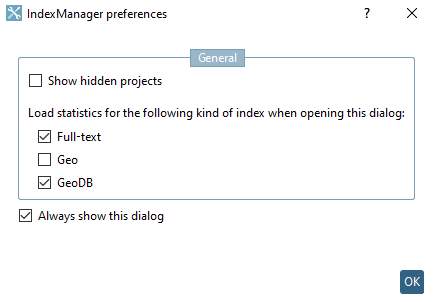
    -> The IndexManager settings [IndexManager preferences] dialog box opens.

  2. Activate either only Geo and GeoDB or optionally also Full-text (loading will then take a little longer).

    Confirm with OK.

    -> The Manage index dialog box opens.

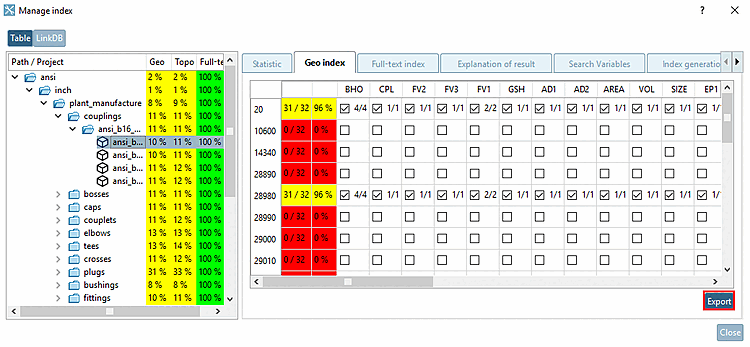
  3. Select the Geoindex [Geo index] tab page.

  4. Click on Export to open the Export options [Export Options] dialog and activate the Fingerprints not available option.

    Export " button

    Export " button

    Export options [Export Options] -> Fingerprints not available

    Export options [Export Options] -> Fingerprints not available

  5. Confirm with OK.

    -> Independently of the selection in index tree, always the whole catalog is exported.

[Note]Note

The standard creation of the geo search index [Geometrical search index] is not sufficient for the partial search [Partial search]!

On this see under Section 1.4.3.6.6.16, “ Geo search index for partial search ”.

[Note]Note

For the full text search for topological linear dimensions, the geo search index [Geometrical search index] must be updated after a software update (then the full text search index ).

On this see under Section 1.4.3.6.6.15, “ Update full text search index (and geo search index ) for finding topological values via full text search ”.

[Note]Note

The function Geo search index [Geometrical search index] -> Create/update [Create/Update] is similar to Manage index.... [Manage index...]

However, here you can only generate on catalog level; there also for subfolders, single projects and even for single lines.

A statistical evaluation is only displayed when the index [Manage index] is managed [Manage index]. However, this can take a long time for large catalogs.

Especially for own part catalogs the geometrical search index can be generated afterwards. At supplier catalogs the geometrical search index is already pregenerated, however, not with the current software version, which results in functional losses. Also see ???.

1.4.3.6.6.6.1.  Geosuchindex: Configurable Thread Priority for App Server Tasks

If an application server running version 12.14 is operated on a CADENAS_DATA instance with version <= 12.13, the Geo-Index is automatically upgraded, which is a CPU-intensive background task. This can be executed at a lower priority and thus has less of an impact on the operation of other processes on the server .

For long-running and CPU-intensive tasks of the PARTapplicationServer, the thread priority can be configured. This allows you to specifically throttle the execution of such background processes in order to minimize the impact on system responsiveness and the execution of other applications. to

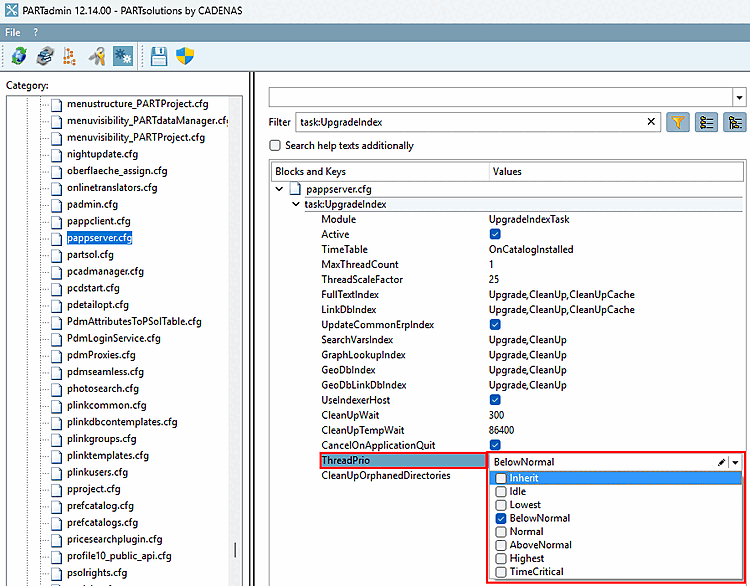
The setting of the Priority is given via configuration file pappserver.cfg > block task:UpgradeIndex > key ThreadPrio.

The following priority levels are supported, ranging from Idle to TimeCritical.

Below "Normal" is the default setting. By default, no changes are necessary. In exceptional cases, you have the option to make adjustments.
1.4.3.6.6.6.2.  Create partition map

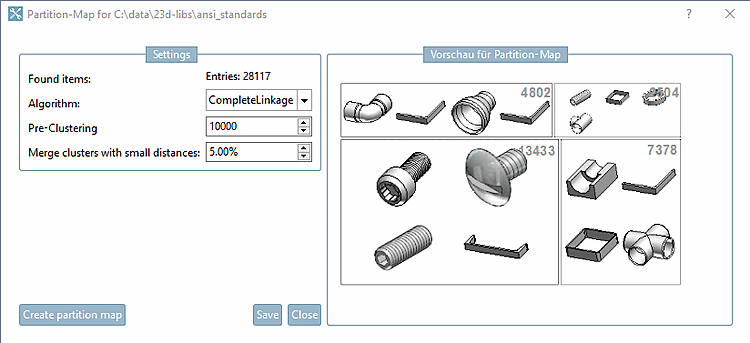
Geo search index [Geometrical search index] -> Create partition map

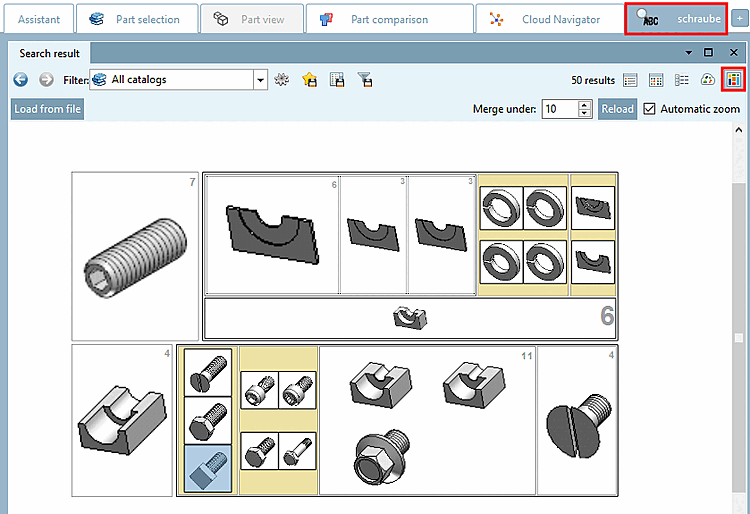
For the search result display in PARTdataManager in partition assignment [Partition Map] display mode this special index generation is required.

Create partition map

Create partition map

Display mode "Partition Map" in PARTdataManager

Display mode "Partition Map" in PARTdataManager