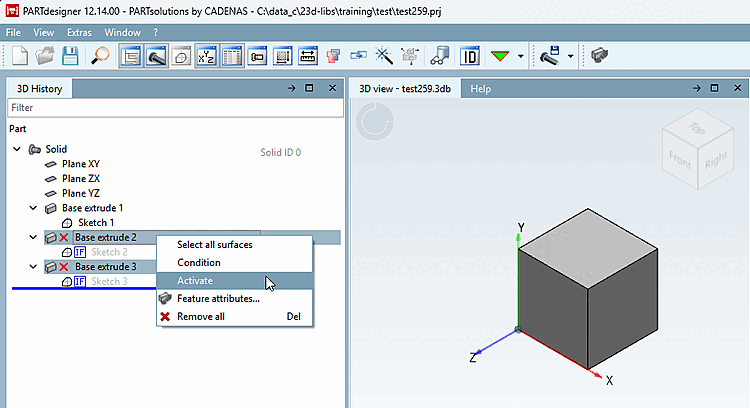
Sometimes it makes sense to temporarily disable one or several sketches (Base extrude / Cut extrude) (e.g. for testing purposes).
Use the Deactivate / Activate function for this. You can apply this to a single sketch as well as to several at the same time.
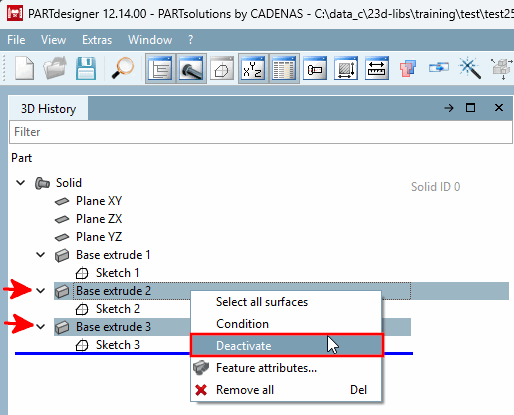
There are two options when using Deactivate:
In order to activate proceed the other way around.
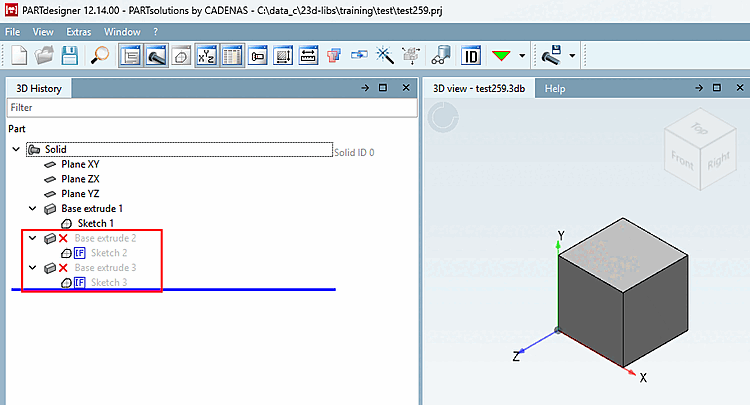
Hidden "Base
extrudes" are marked with a respective icon  .
.
Sketches
with condition are marked with the IF icon  by default.
![[Note]](https://webapi.partcommunity.com/service/help/latest/pages/en/partwarehouse/doc/images/note.png) | Note |
|---|---|
The new
feature is fully compatible with older versions, just the icon
| |
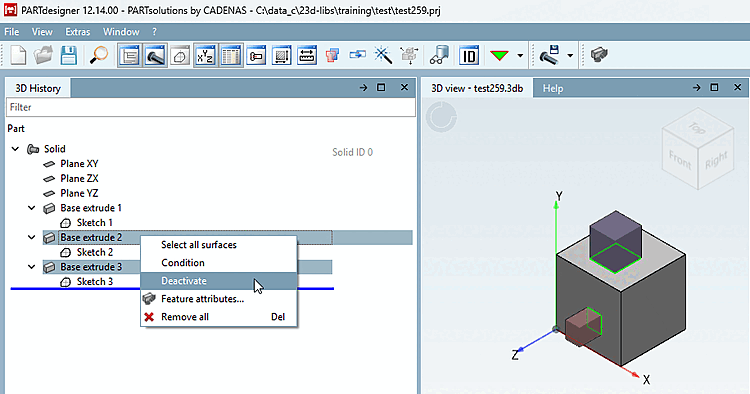
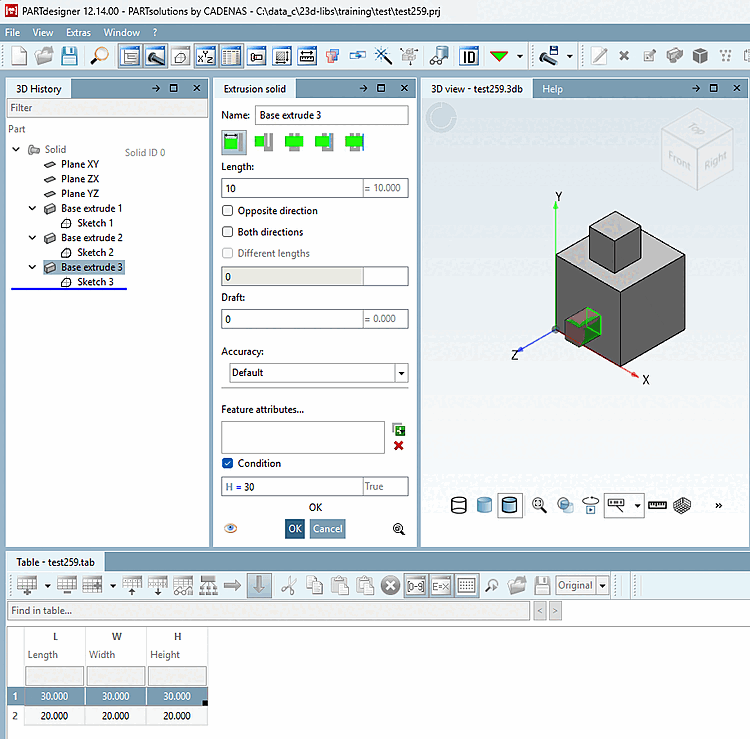
Initial situation: There is a condition for "Base extrude 3," but not for "Base extrude 2." Both should be hidden. "
Select the desired base extrude and click the context menu command Deactivate.
-> Hidden "Base extrudes" are marked with a respective icon
.-> By default, the sketches are created with the if icon
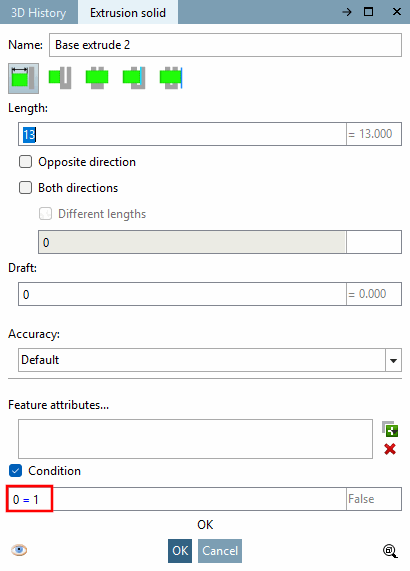
marked.Open "Base extrude 2." The invalid condition "0=1" has been inserted.
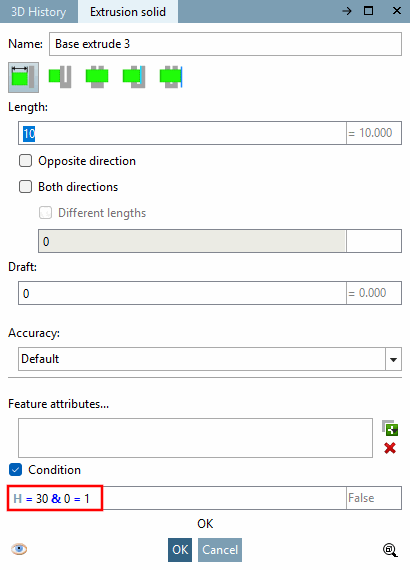
Open "Base extrude 3." Here, the invalid condition "0=1" was appended to the previously existing condition "H=30" using "&".
To reactivate the sketches, click on the Activate context menu command.