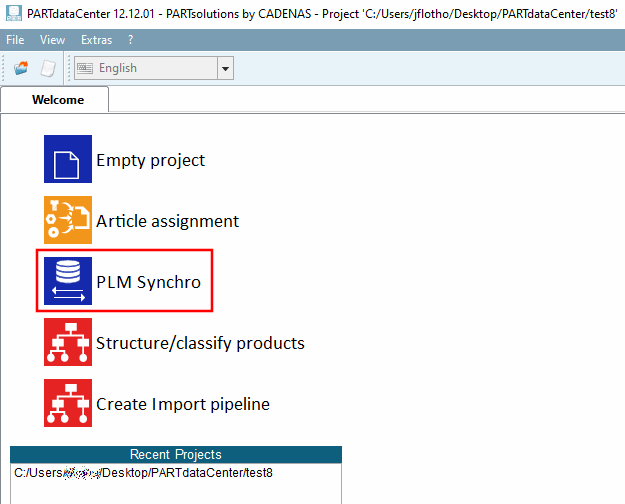
Start PARTdataCenter and click on PLM Synchro.
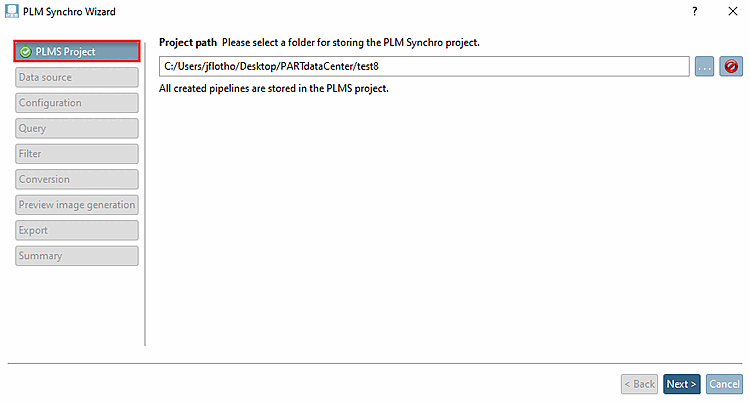
-> The PLM Synchro Wizard opens.
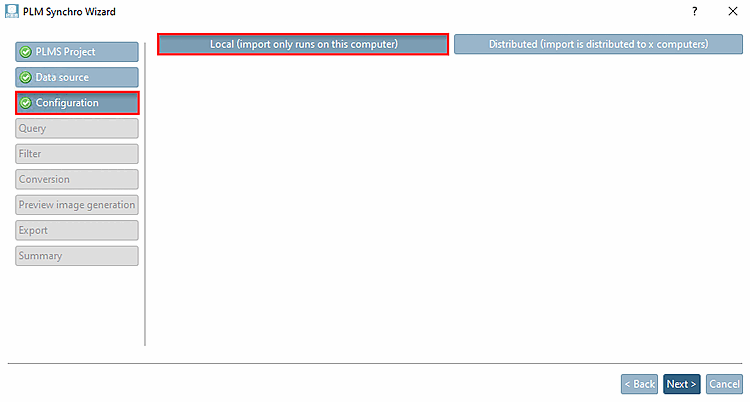
This wizard guides you through the PLM Synchro setup process.
Use Browse to select the desired project path [Project path].
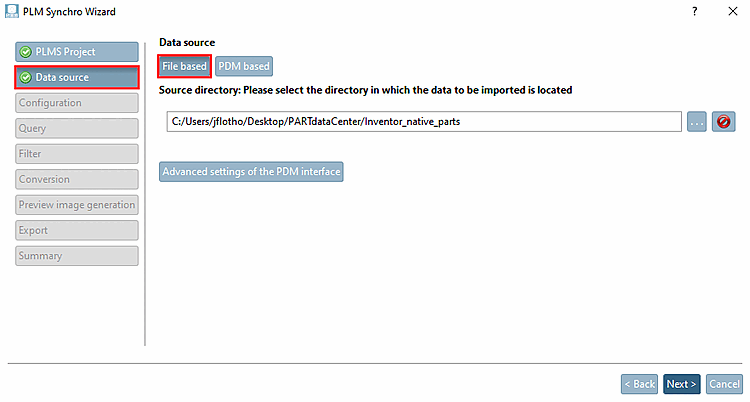
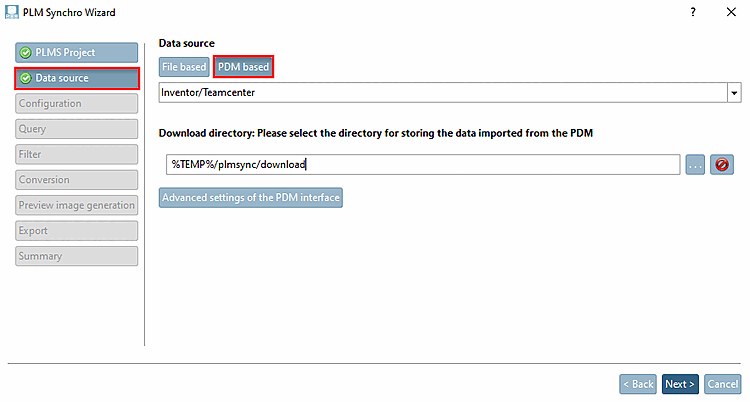
Determine the data source [Data source].
You have the option of creating the process file-based [File based] or PDM-based [PDM based].
Use Browse to select the path to the source directory [Source directory].
Select the desired interface in the list field and select the download directory [Download folder] using Browse .
The PDM interface can be configured directly from the Wizard.
-> PARTadmin opens and the corresponding block in the configuration file is already preselected.
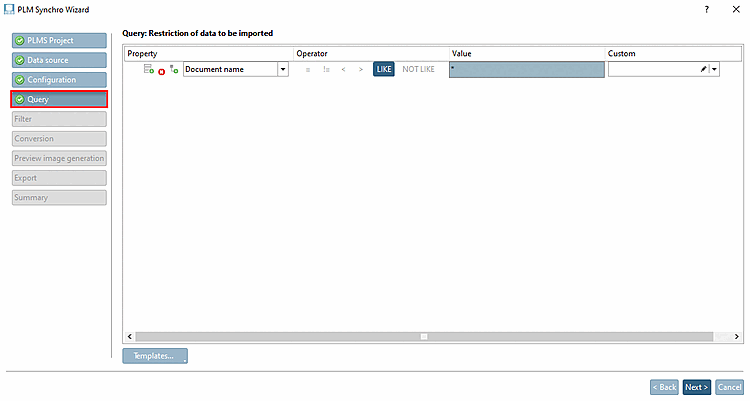
Simple example with only one single condition (see above figure):
In order to import all source files, for example, choose the following setting:
Meaning: "Document name like anything"
Complex example with a combination of queries
When clicking on the respective icon, you can create several queries:
The following figure shows two queries:
Query no. 1: All parts with file extension *.sldprt are imported. The conditions of query 2 are not taken into account here.
Query No. 2: All parts created between 10/05/2017 and 10/10/2017, are imported. The condition of query 1 is not considered here. Query 2 also imports parts with file extension .sldasm in this example.
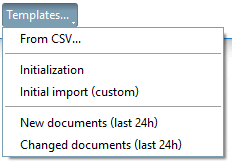
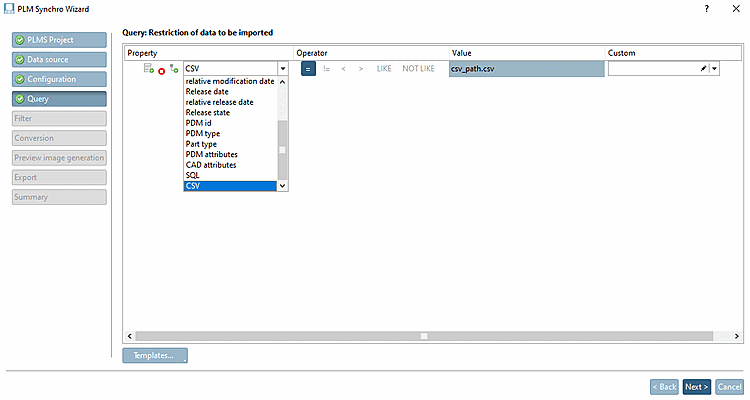
In the Property column, you can also select the CSV option in the list field, for example (regardless of whether the data source is file-based or PDM-based). This option is always used if no search is carried out, but a list (CSV) with the parts to be imported is provided by the customer.
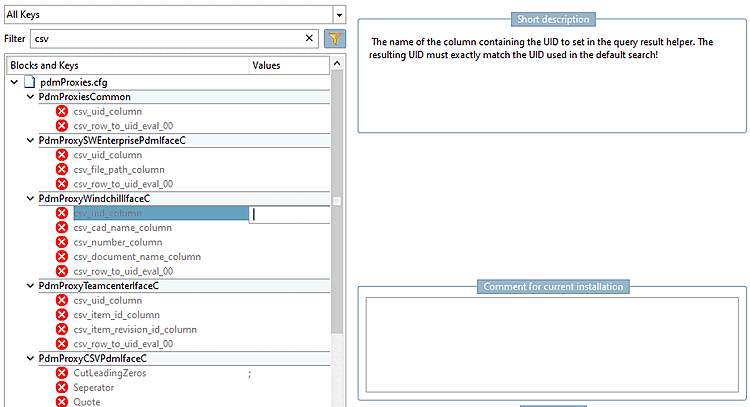
You determine the method for reading the data in the configuration file
pdmproxies.cfg, in the specific PDM block. Activate the appropriate key there and set the corresponding value.
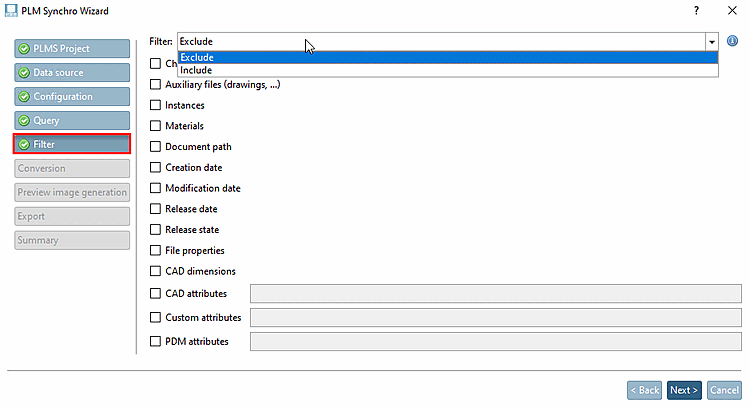
There are two filter modes, Exclude and Include:
The filter can be used both for filtering CAD models and for filtering metadata:
Children: This allows you to include or exclude parts of an assembly.
Input: Determine the type of input data:
![[Note]](https://webapi.partcommunity.com/service/help/latest/pages/en/partwarehouse/doc/images/note.png)
Note It is not only the settings within PLM Synchro that are important, but also settings within Creo. Please refer to the notes under Section 3.3.8.6, “Conversions from Creo to "STEP" format” in ENTERPRISE 3Dfindit (Professional) - Administration.
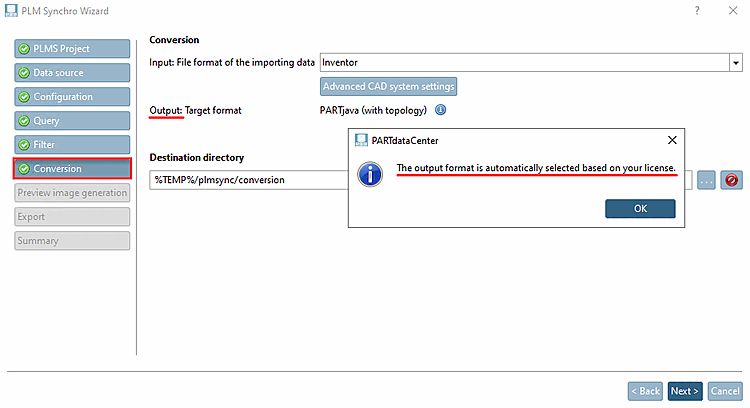
Output: Select the desired output format from the list box.
The PSADDONS*ADVANCEDTOPO license is required for this option. If this is available, extended features/topology information such as sphere [Sphere], torus [Torus] and extended cylinder [Elongated Cylinder] are imported. The other features such as holes [Hole], cylinders [Cylinder], cones [Cone], parallel planes [Opposite Planes], patterns [Pattern], rounding [Fillet], etc. are imported with significantly higher quality.
Use Browse to select the target directory.
Note For distributed services, the path entered under Target directory [Destination directory] must be accessible from all computers.
If locally executed, at the best, leave the entered default path.
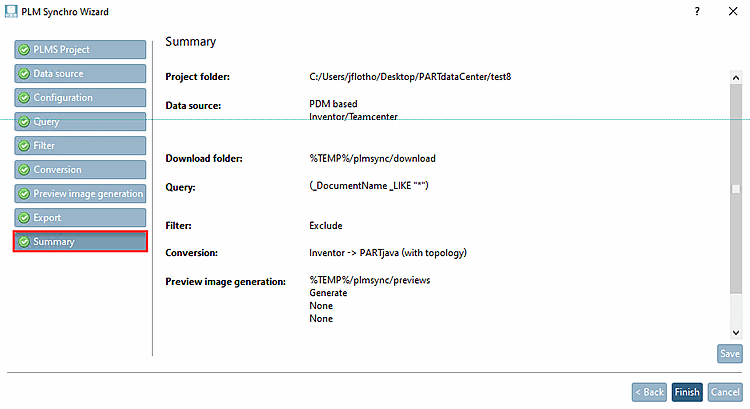
In the summary, check if all settings have been made correctly.
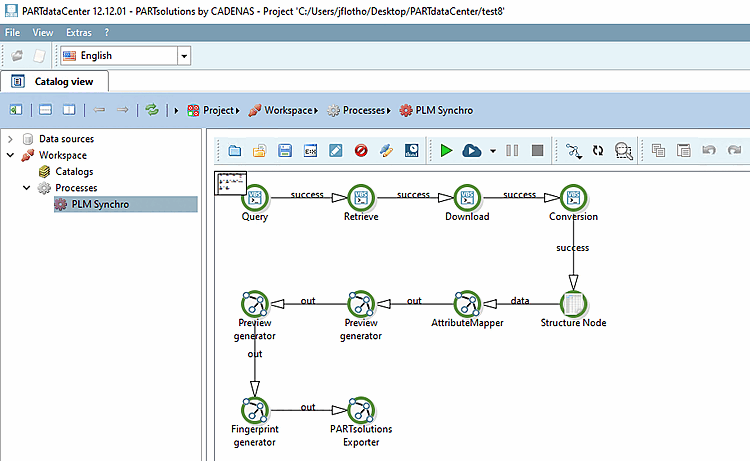
Click on to close the wizard and display the process view with pipeline in PARTdataCenter.
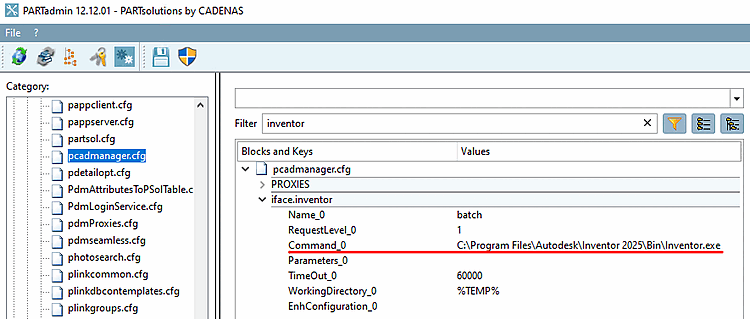
Before you start the PLM Synchro process, please make sure that in the config file
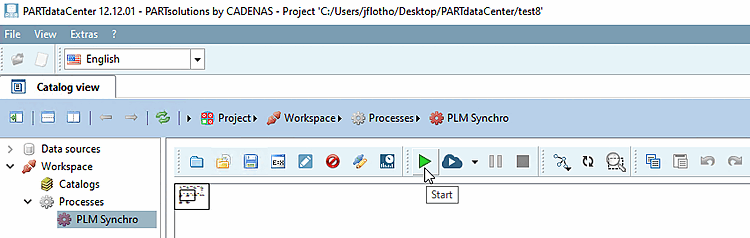
pcadmanager.cfg-> blockiface.<cadname>-> KeyCommand_0the path to the exe file of the CAD system used. Also, make sure that the CAD system has started.Now you can click on the start button
 in order to execute the PLM Synchro
process.
in order to execute the PLM Synchro
process.The process can be paused
 or stopped
  anytime.
Note The dashboard provides you with detailed information on all processes (completed, canceled, running, failed). See Section 1.10.3, “Dashboard”.
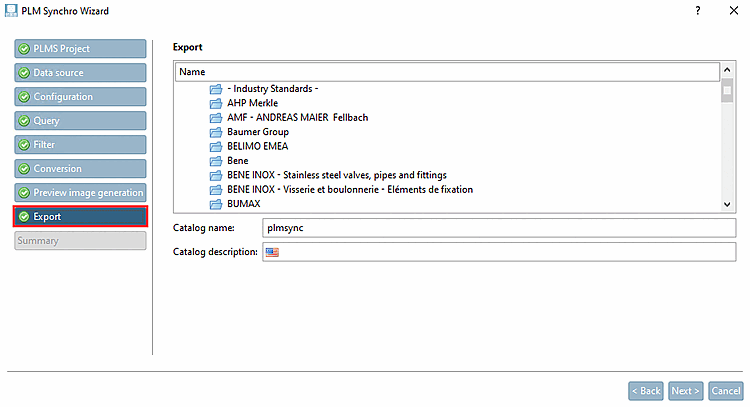
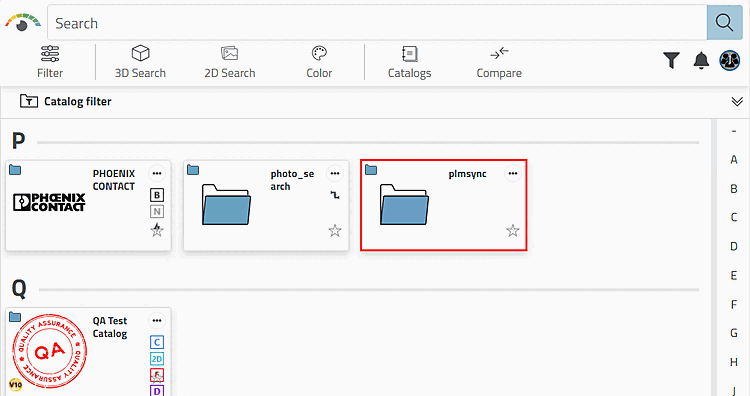
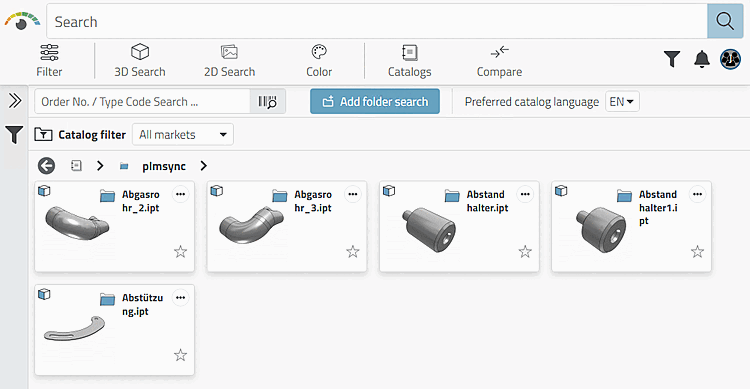
Open 3Dfindit. Your catalog created with PLM Synchro is now displayed in the parts view [Part view].
Open a part in the part view [Part view].
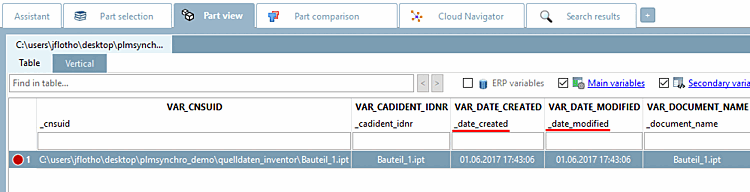
Metadata was transferred to the characteristic attribute table.
The corresponding information is displayed under Geometric features.



![[Tip]](https://webapi.partcommunity.com/service/help/latest/pages/en/partwarehouse/doc/images/tip.png)
![3Dfindit: Catalog "plmsync" > Single part > Geometric [Geometric features] features](https://webapi.partcommunity.com/service/help/latest/pages/en/partwarehouse/doc/resources/img/img_6f06d106eb8449f887664a5f14cb844d.png)
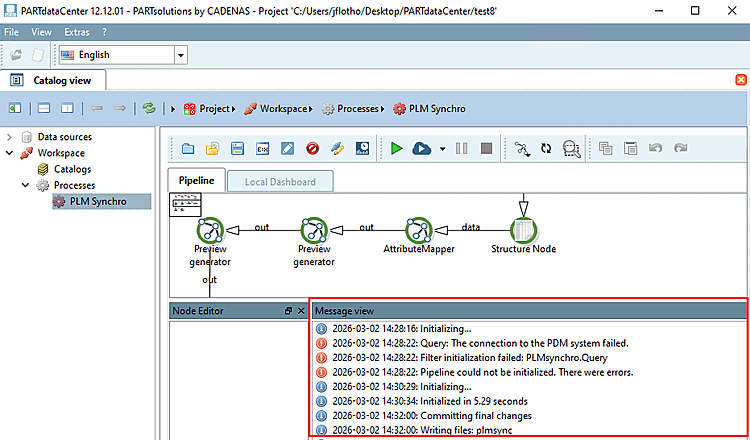
If problems occur, you will receive corresponding information in the Message view docking window.
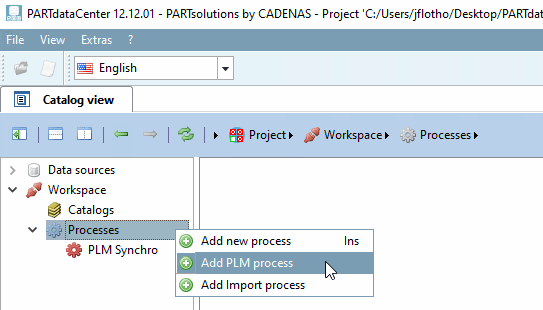
In PARTdataCenter -> Catalog browser [Catalog view] you can open a new wizard window at any time using the context menu command under Workspace -> Processes -> Add PLM process.
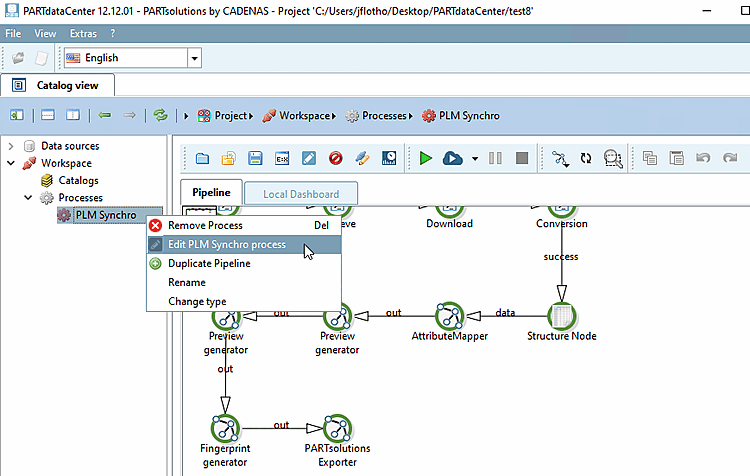
For an existing process, you can call up the wizard again using PLM Synchro Edit process [Edit PLM Synchro process].