|
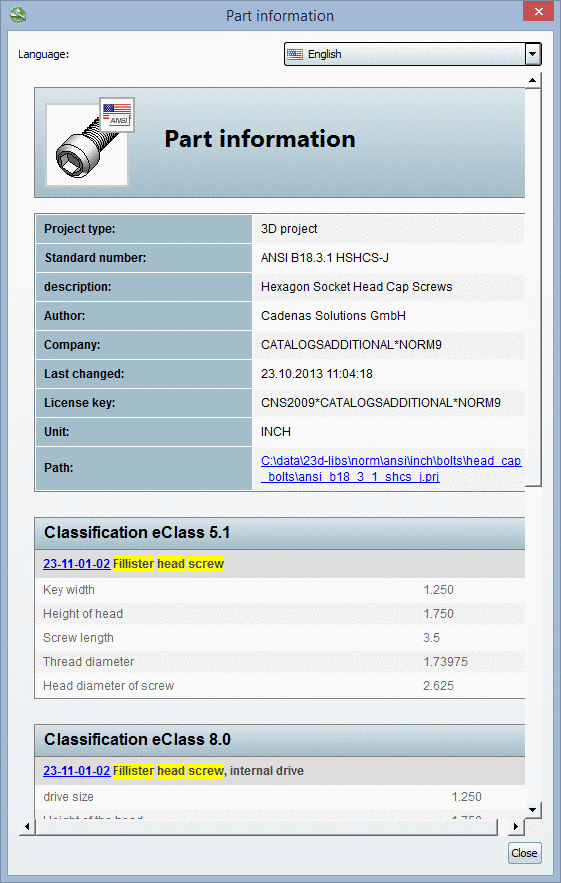
Those search terms and values which got hits, are marked in yellow within the search results.
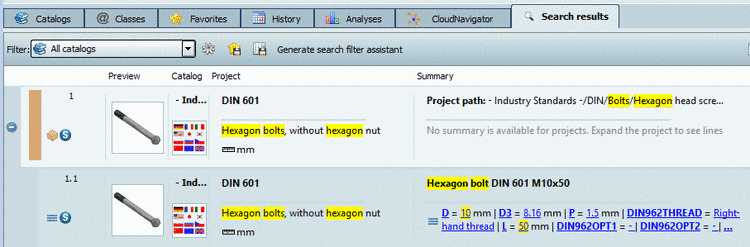
This applies for Project path, Standard text, Standard number, Catalog name, Standard name and Values.
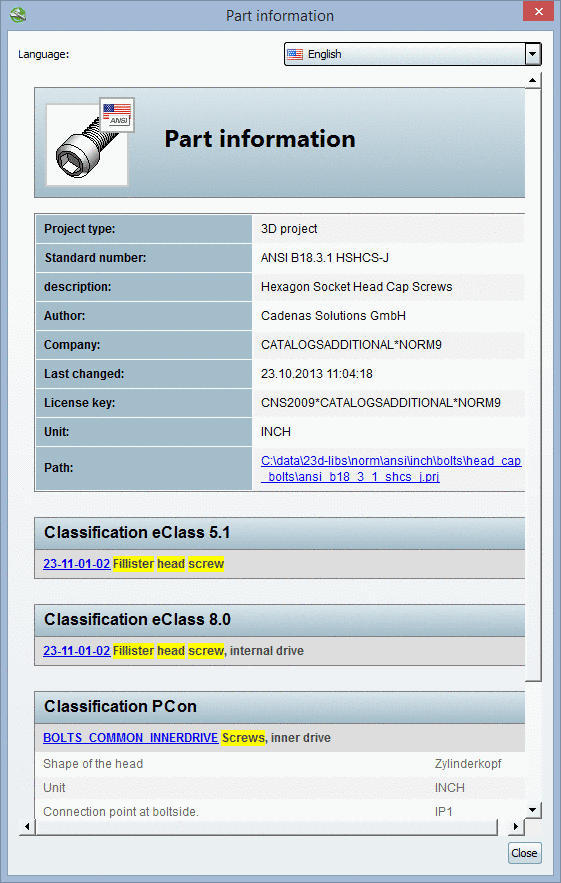
New as of V9.08 SP1 is, that terms from hits by class-name are marked in the dialog box Part information now.
Search with the class-name "Fillister head screw":
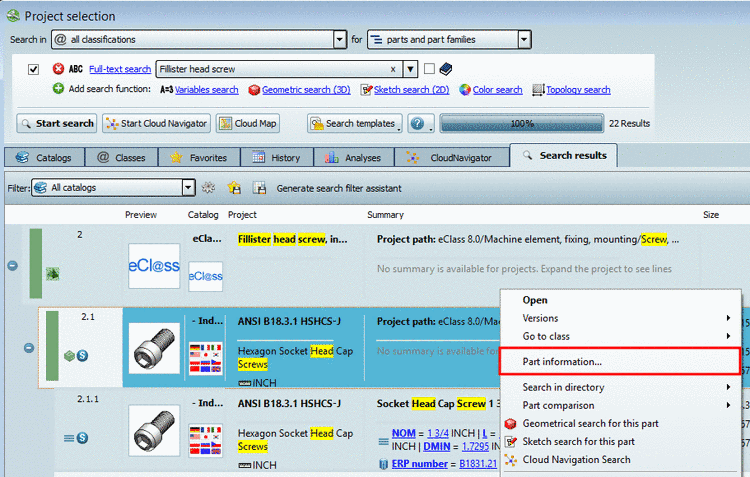
You can open the part information as follows:
In the
 Part selection, on
the tabbed page Search results, on
project
level via context menu command Part information...
Part selection, on
the tabbed page Search results, on
project
level via context menu command Part information...
In the
Part selection, on
the tabbed page Search results, on
line
level via context menu command Part information...
In the
 Part view, with
selected table line via ? menu -> Part information...
Part view, with
selected table line via ? menu -> Part information...
|
|
Line level: When opening the part information on line level, then you can see all class attributes with values in addition.
|
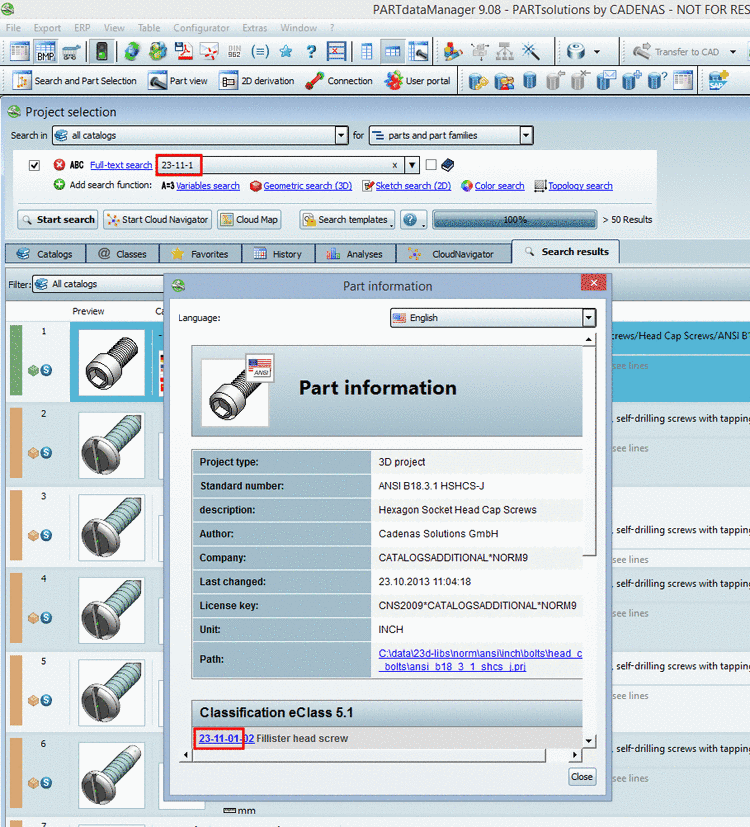
Furthermore you can use class numbers for searching as well (with dash or with empty space).
23-11-01
23 11 01