8.1. Parts management - Preferred series filter 8.1.1. Functionality from the user's perspective |  |
| Prev | Next |
The functionality is explained step by step using an example:
Click on
 catalogues [Catalogs] >
All catalogues (alphabetically). [All Catalogs (Alphabetical)]
catalogues [Catalogs] >
All catalogues (alphabetically). [All Catalogs (Alphabetical)]
-> All installed catalogs are displayed.
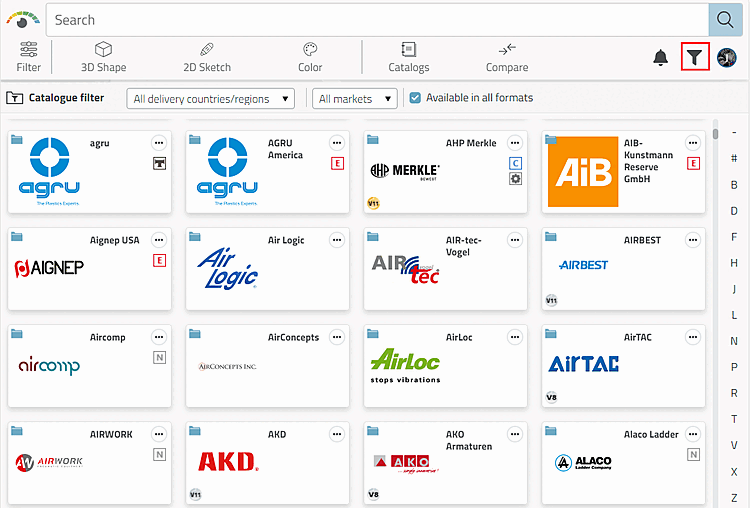
Click to the icon
 (The tooltip currently shows preferred rows from [Preferred rows off] [Default]).
-> The Icon is now displayed in blue
 (The tooltip now shows preferred rows [Peferred rows on].)
-> Only catalogs that contain preferred parts are displayed.
Deactivate the filter again and browse for the desired part or use a search method (e.g. full text search).
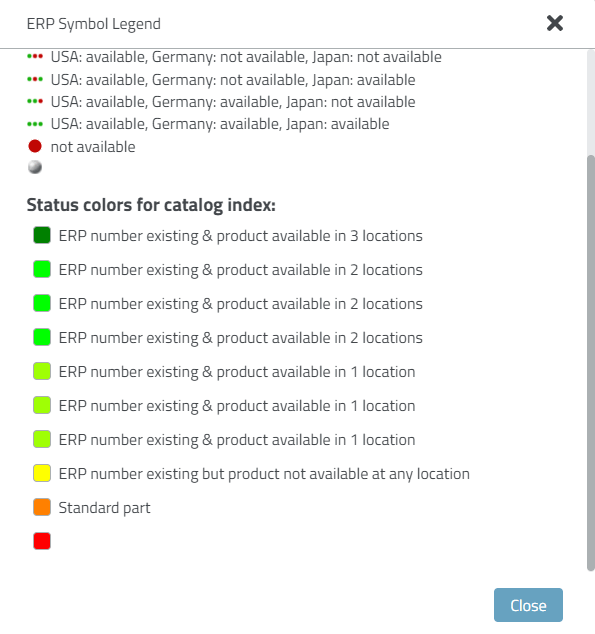
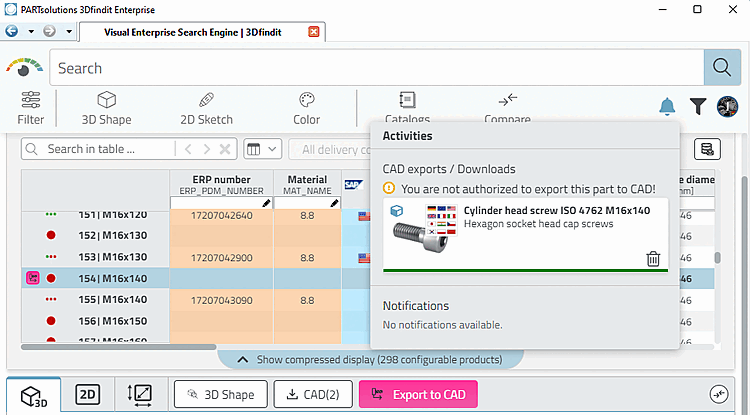
-> Each directory is color-coded.
Click through until you reach the part level or carry out a full text search, for example.
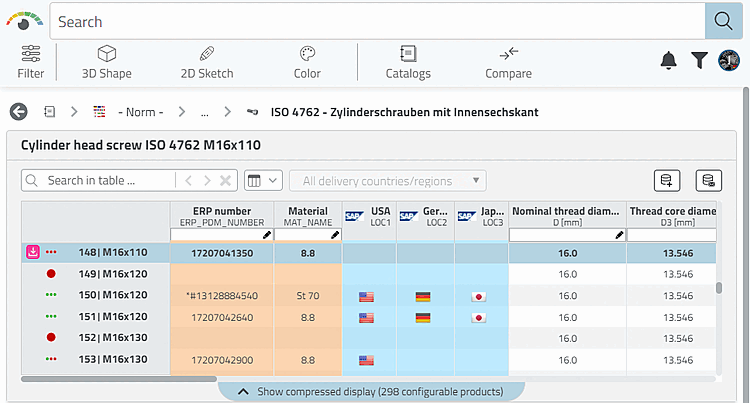
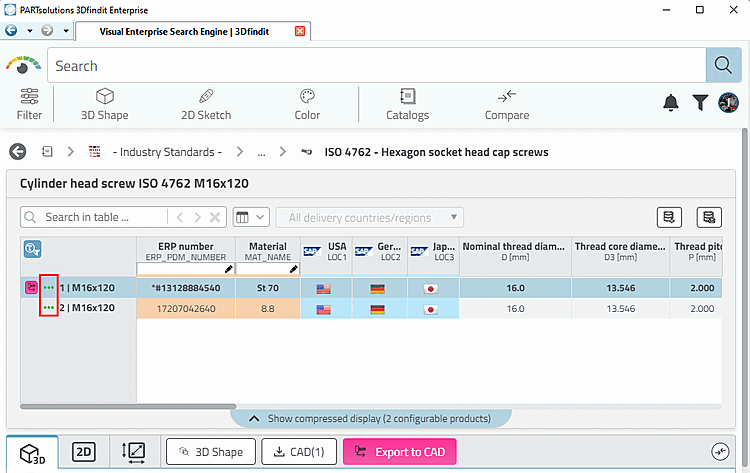
Select Fill a line with (
 ) and click
-> The message You do not have authorization to export the part to CAD [You are not authorized to export this part to CAD!] appears ! [You are not authorized to export this part to CAD!]
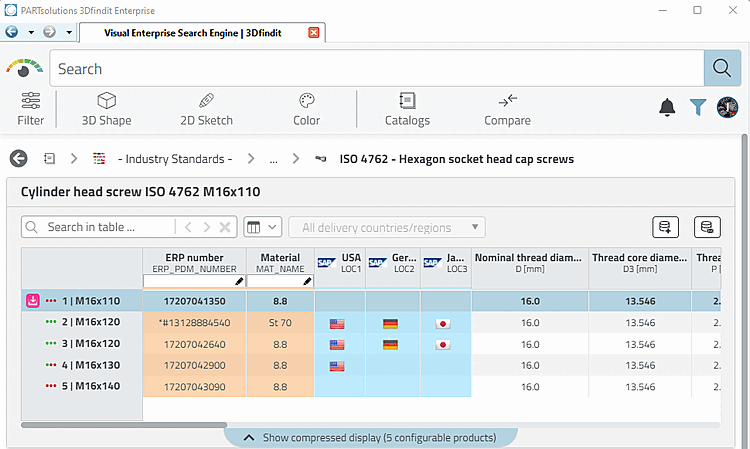
Activate the preferred row filter.
-> parts without an ERP number (
) are no longer displayed.-> Parts that are still displayed can also be exported and installed.
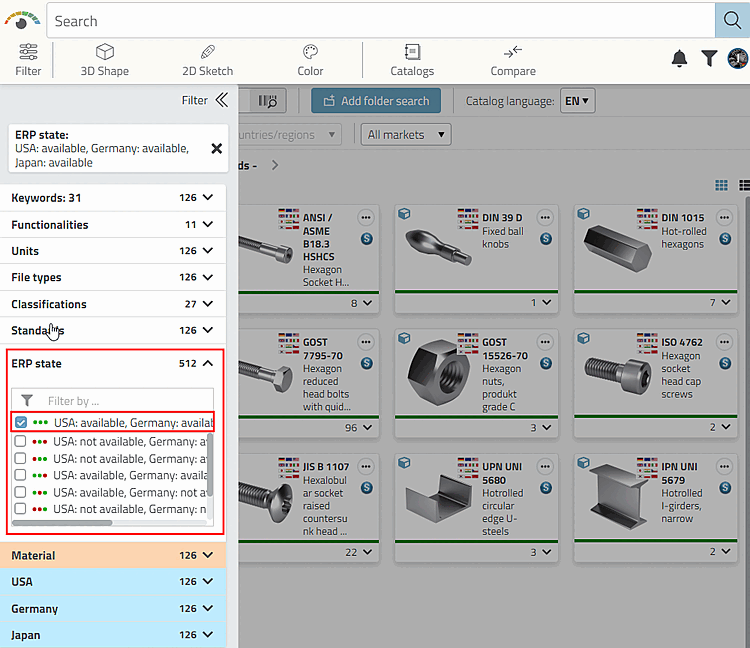
Alternatively, you can also use the facet filter under ERP status [ERP state].
![[Note]](https://webapi.partcommunity.com/service/help/latest/pages/en/partwarehouse/doc/images/note.png)
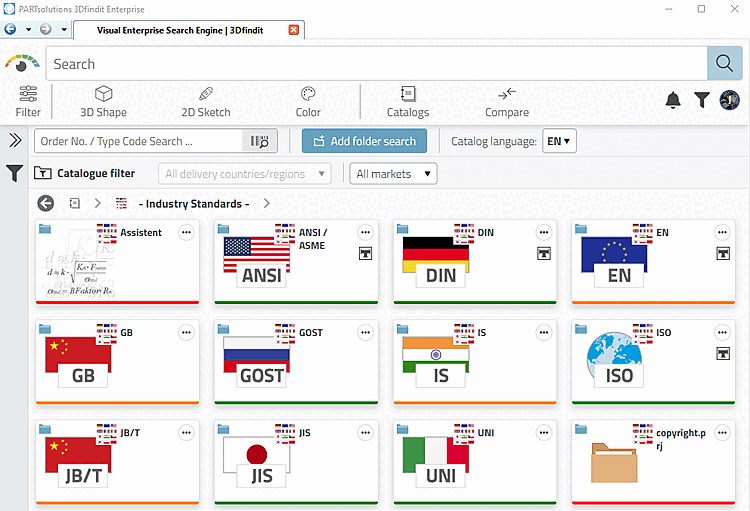
![This example uses the "Norm" ["Industry Standards"] catalog for demonstration purposes.](https://webapi.partcommunity.com/service/help/latest/pages/en/partwarehouse/doc/resources/img/img_1d6c807e2e18443aa88467cfdd46559f.png)

![Calling up the ERP legend [ERP Legend]](https://webapi.partcommunity.com/service/help/latest/pages/en/partwarehouse/doc/resources/img/img_a8727a09afd247e38817c5d5ef882b14.png)