3.4.1.1. Request certificate having auto-enrollment active

If the customer has auto-enrollment active, requesting a certificate is simple:

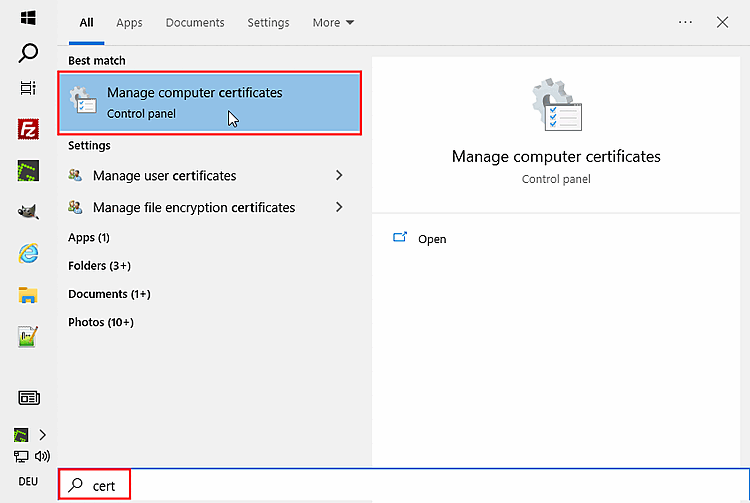
  1. Call "certlm":

    1. Via Windows Start menu -> Manage computer certificates

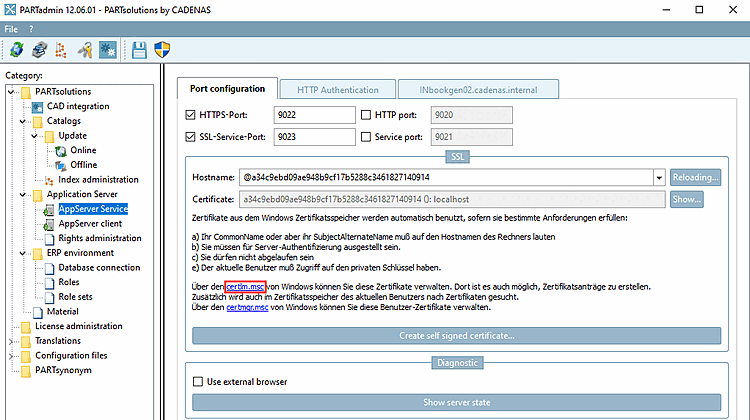
    2. Via PARTadmin -> category Application Server -> AppServer Service -> tabbed page Port configuration -> SSL -> certlm.msc

    Manage computer certificates

    Manage computer certificates

    certlm.msc

    certlm.msc

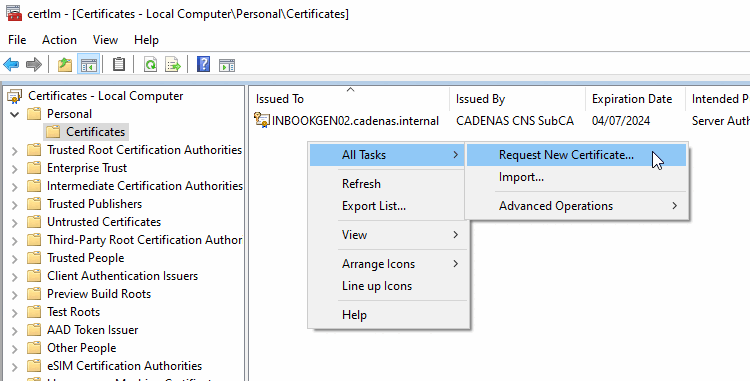
  2. In certlm [Certificates - Local Computer], under Personal -> Certificates -> All Tasks, click on Request New Certificate....

    Request New Certificate...

    Request New Certificate...

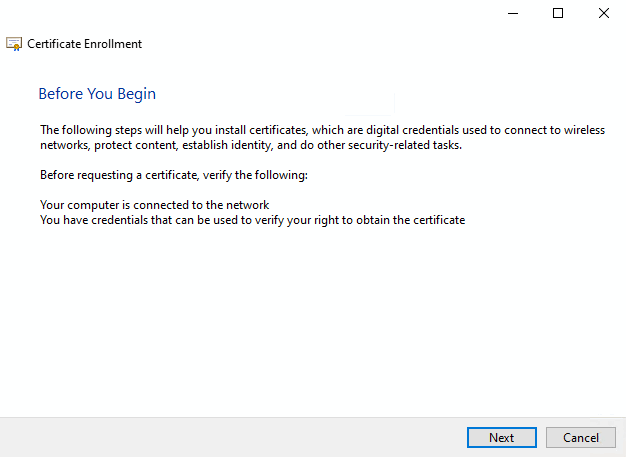
    -> The dialog Certificate Enrollment -> Before You Begin is opened.

  3. Click Next.

    Before You Begin

    Before You Begin

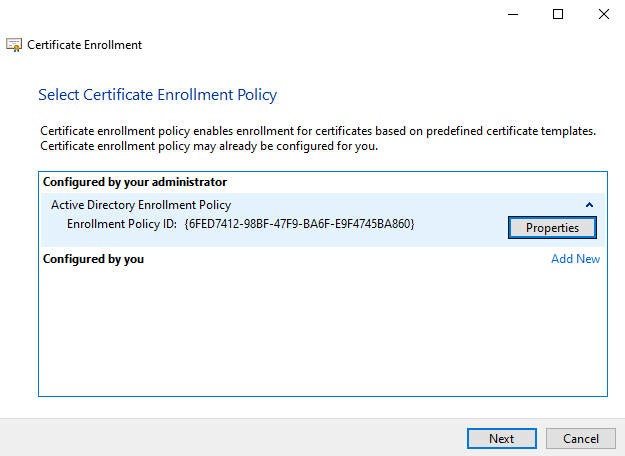
    -> The dialog Certificate Enrollment > Select Certificate Enrollment Policy is opened.

  4. Click Next.

    Select Certificate Enrollment Policy

    Select Certificate Enrollment Policy

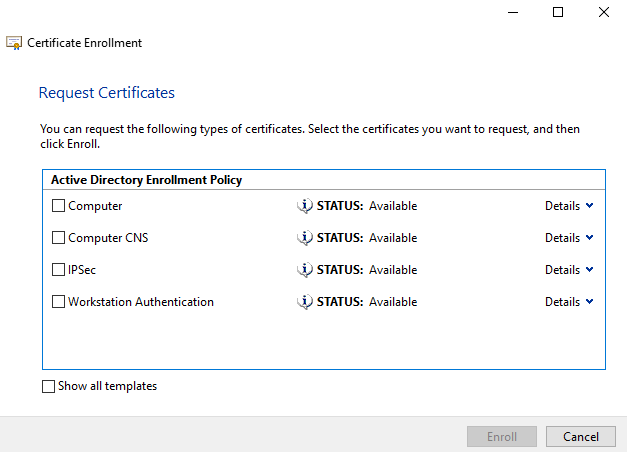
    -> The dialog Certificate Enrollment -> Request Certificates is opened.

    Request certificates

    Request certificates

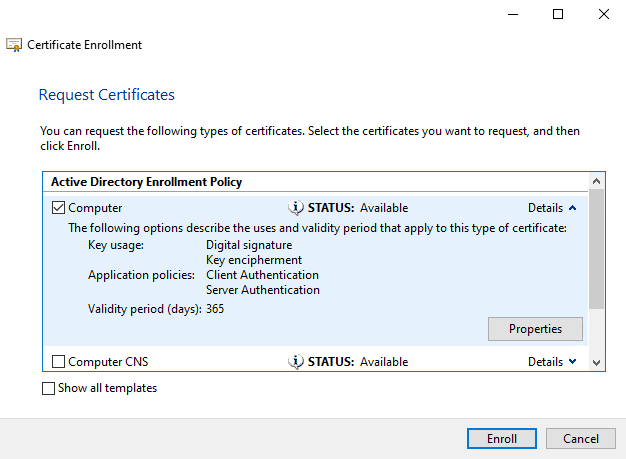
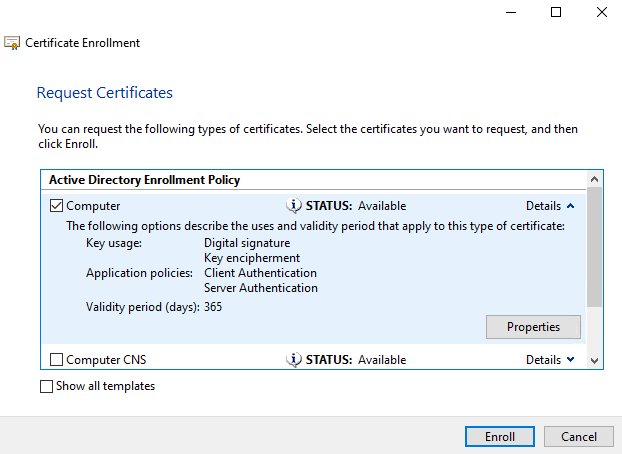
  5. Enable the checkbox under Computer, open Details and click on the button Properties.

    [Important]Important

    The Type of Certificate must include Digital signature, Key encipherment and Server Authentication; Client Authentication is optional.

    Selection "Computer"

    Selection "Computer"

    -> The dialog Certificate Properties is opened.

    Set respective entries on all tabbed pages.

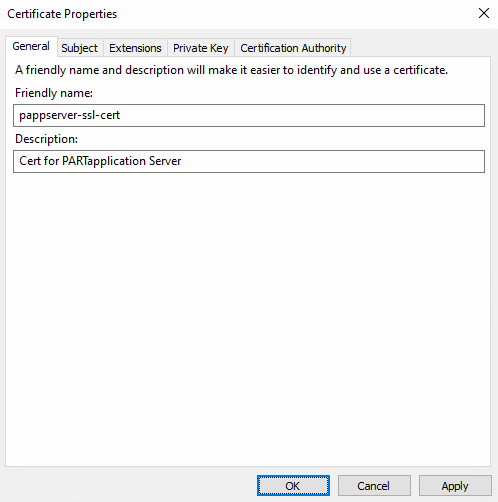
    • Tabbed page General: Determine Friendly name and Description of certificate.

      Certificate Properties > General

      Certificate Properties > General

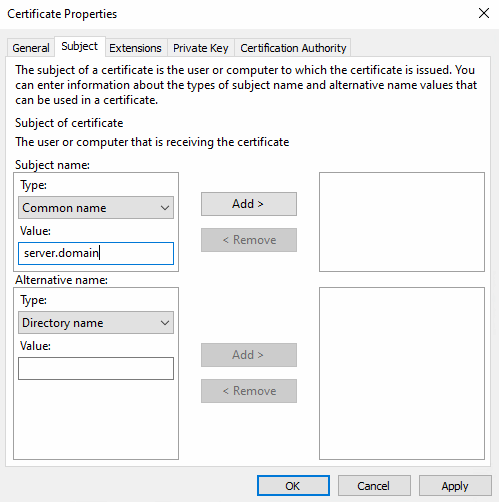
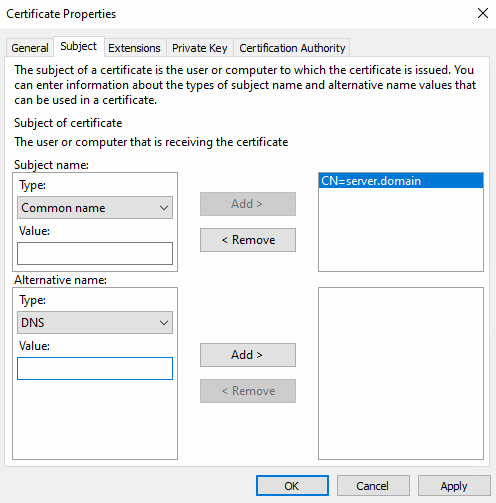
    • Tabbed page Subject:

      Under Subject name -> Type, select the option Common name and under value, enter the following:

      server.domain

      Click Add >.

      Certificate Properties > Subject

      Certificate Properties > Subject

      -> Now on the right side, the value "CN=server.domain" is displayed.

      Certificate Properties > Subject

      Certificate Properties > Subject

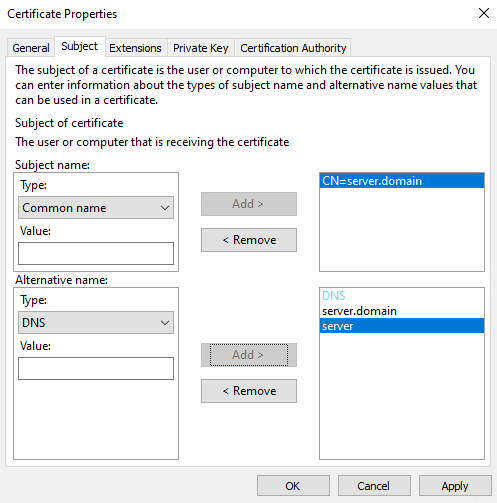
      Under Alternative name with Type "DNS", add all variants of the server hostname and click Add > for each.

      Certificate Properties > Subject

      Certificate Properties > Subject

      -> The values are displayed on the right side.

      Certificate Properties > Subject

      Certificate Properties > Subject

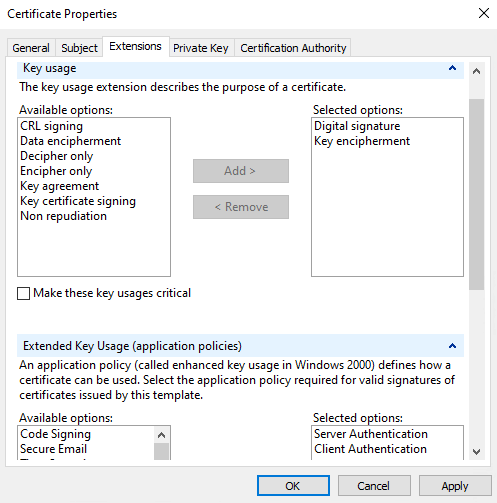
    • Tabbed page Extensions: Verify that the following key usages are selected:

      1. Key usage:

        • Digital signature

        • Key encipherment

      2. Extended key usage (application policies):

        • Server Authentication

      Certificate Properties > Extensions

      Certificate Properties > Extensions

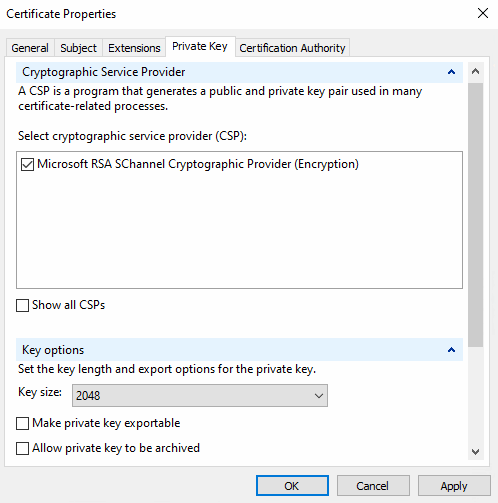
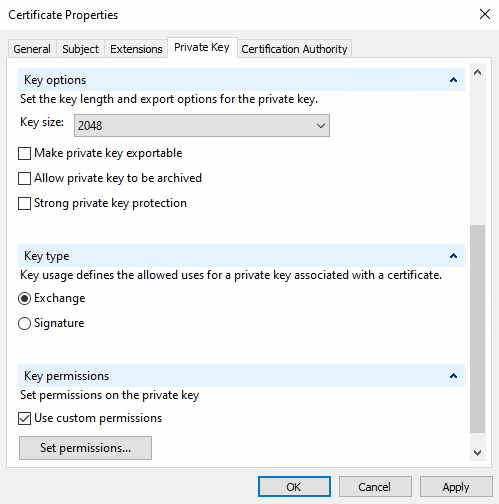
    • Tabbed page Private Key:

      Certificate Properties > Private Key

      Certificate Properties > Private Key

      • Cryptographic Service Provider: Verify the properties.

      • Key size: Minimal 2048

      • Key type: The option Exchange should be selected.

        Certificate Properties > Private Key

        Certificate Properties > Private Key

      • Key permissions: Enable the option Use custom permissions and then click on the button Set permissions.... Set those permissions that the user that runs the appserver has access to the private key.

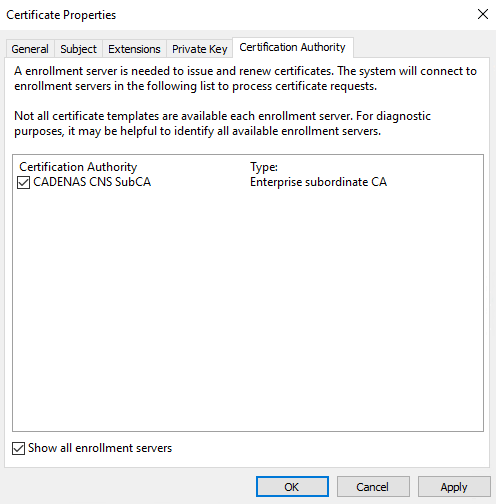
    • Tabbed page Certificate Authority: Choose the certificate authority that shall sign.

      Certificate Properties > Certification Authority

      Certificate Properties > Certification Authority

    Confirm with OK.

    -> The dialog Certificate Properties is closed and now the dialog Certificate Enrollment, Request Certificates is displayed again.

    Request Certificates

    Request Certificates

  6. Click Enroll.

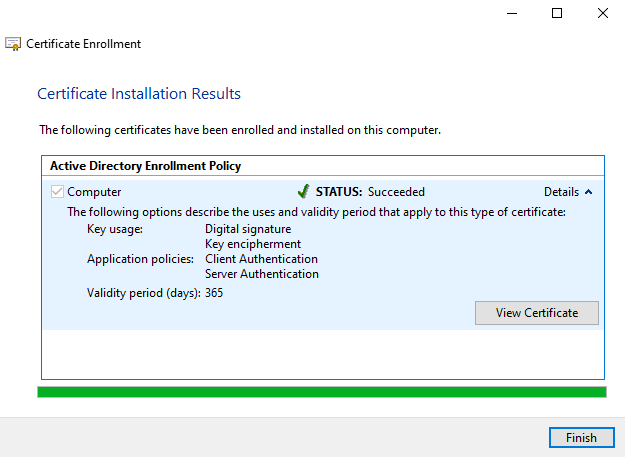
    -> Now you should have your new server certificate already in the store.
    Certificate Installation Results

    Certificate Installation Results

  7. Click Finish.