4.6.1.22. Export format QR Code

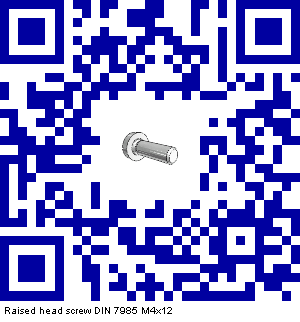
As of v9.05 the QR Code (Quick Response) is available as export format.

Troublesome typing of links and information is no longer required.

The feature can be applied in print catalogs. Thus CAD models can be downloaded from the print catalog in one single step.

In order for a single project to export the QR Code do the following:

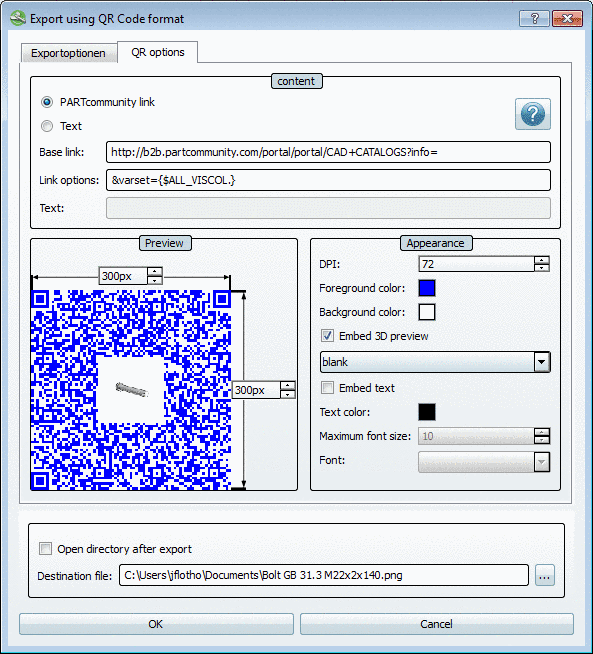
Call up: Export menu -> Export in file -> Others -> QR Code
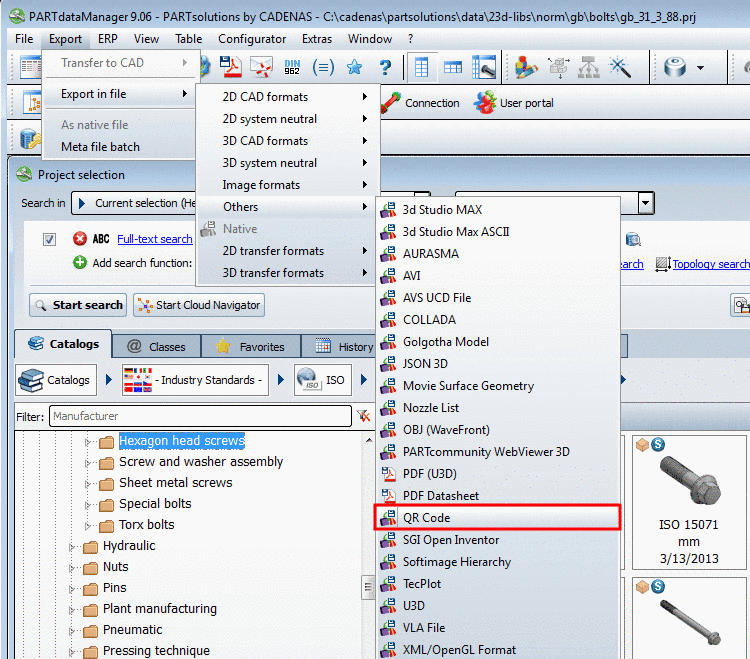
Export format: QR Code

Export format: QR Code

Settings:

Information used in the Base link, Link options and Text input fields are embedded in the code. Part parameters like $NN., $NT., $NB., $ALL_VISCOL. (all visible parameters), $ALL_COL. (all parameters), $ProjectPath. (project path) can be used.

There are two basic settings:

  • PARTcommunity link:

    If PARTcommunity link is selected, then the base link, the project path and the link options are automatically combined.

    Examples:

    • Link PARTcommunity project

      Entry under "Base link":

      http://b2b.partcommunity.com?info=

      No entry under "Link options":

    • Link PARTcommunity project and row

      Entry under "Base link":

      http://b2b.partcommunity.com?info=

      Entry under "Link options":

      &varset={$ALL_VISCOL.}

  • Text:

    If Text is selected, then you can create any combination. This may be links or other texts, which shall be stored in QR.

    Example:

    Link to own supplier web page with order number BNR (from table)

    http://www.my_company.de/showproject.asp?NR=$BNR.

Batch export

You can also export the QR Code for whole directories:
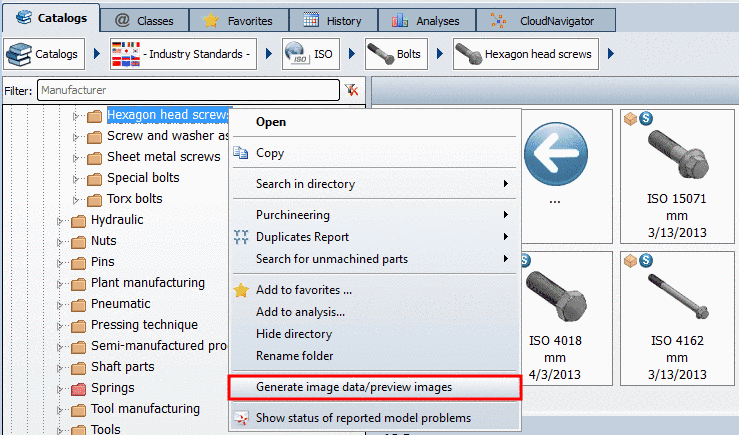
  • Call up in PARTdataManager

    Right click on the index tree -> Generate image data/preview images

  • Call up in PARTproject

    Right-click on the index tree -> Output -> Generate image data/preview images -> Export mode -> Export files

    (The dialog box is the same like in PARTdataManager, but here there is no preview image displayed.)

-> The Export files dialog box opens.

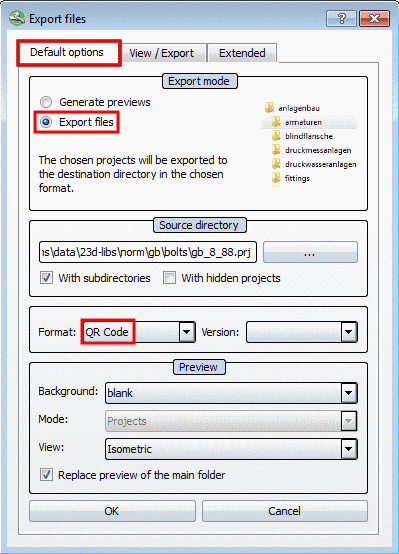
Select the export mode Export files.

Default options index page

Default options index page

Select the QR Code format.

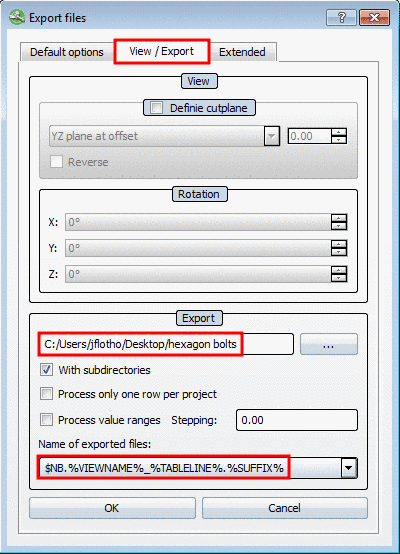
View / Export index page

View / Export index page

In the Export section adjust the storage path and possibly adjust the presettings under Name of exported files.