1.1.1.2.2.3. Docking Window Move to Second Screen

It is now possible to use a second window for a second monitor. Any docks can then be moved there.

There are 2 ways to open the second window:

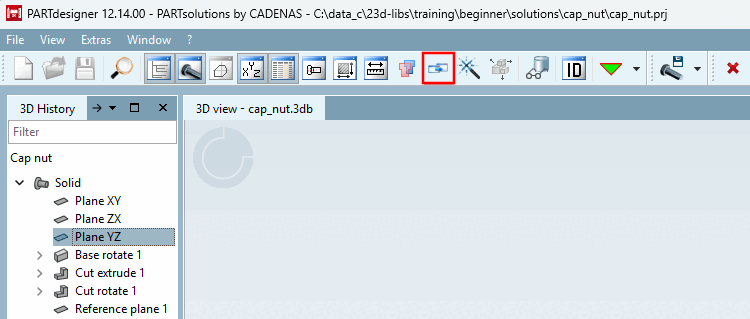
  1. Use the Expand Display [Expand display] button.

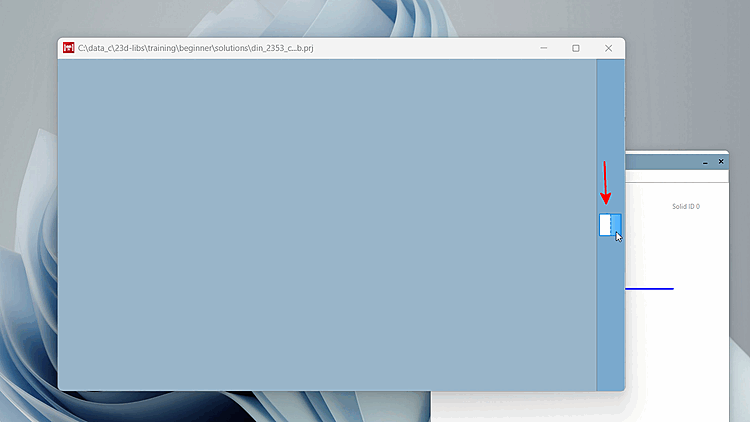
    → The new window opens blank. Now you have two options:

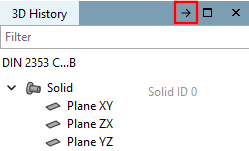
    • In the respective Docking window by clicking on the Move to another Dock [Move to other dock] button any dock to the second window.

    • Drag the desired dock into the second window using drag-and-drop.

      [Note]Note

      Use the placement guide. The first time you drag and drop, it appears on the right edge of the window.

  2. Use Initially, the To Other Dock button move [Move to other dock] to any dock (see above). The second Window opens with the dock where the button is used .

With arrow back move the corresponding dock back again into the main window.
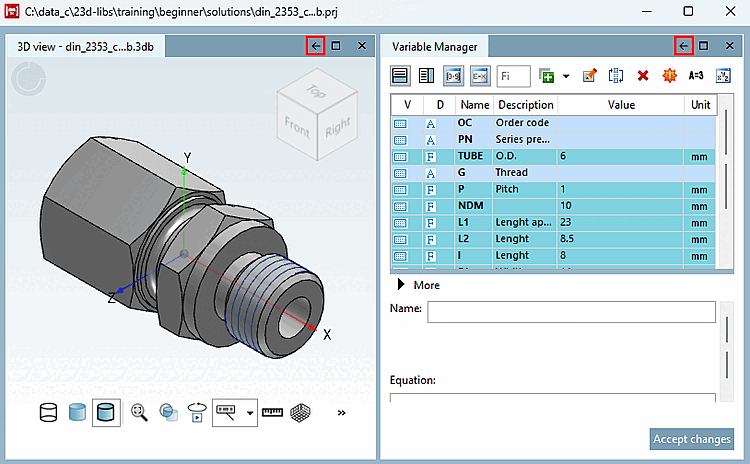
When you close the second window, all the docks it contains are moved back to the main window .