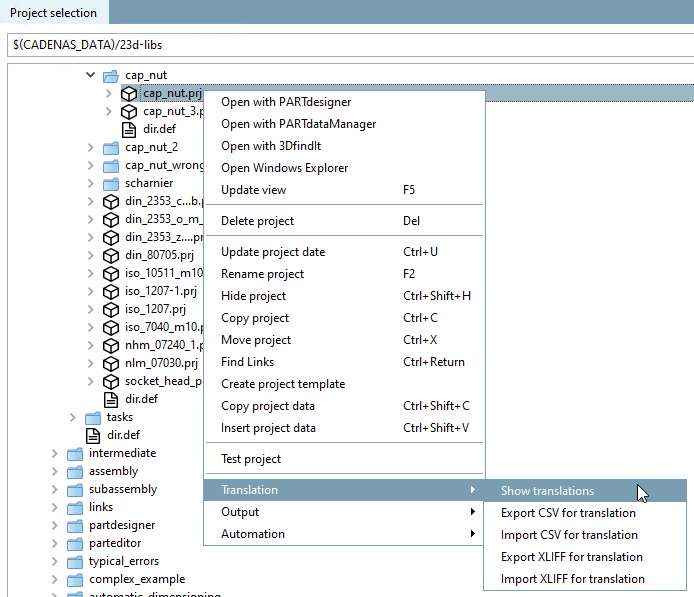
En cliquant sur la commande Afficher les traductions [Show translations] du menu contextuel, toutes les traductions du répertoire ou du projet sélectionné sont listées dans la boîte de dialogue Comparer les fichiers [compare files].
![Afficher les traductions [Show translations]](https://webapi.partcommunity.com/service/help/latest/pages/fr/partwarehouse/doc/resources/img/img_f6722f3c07cd4d029d6245769959ea37.png)
Dans la boîte de dialogue Comparer les fichiers [compare files], vous obtenez des indications sur les termes qui ont été traduits différemment.
![Comparer les fichiers [compare files]](https://webapi.partcommunity.com/service/help/latest/pages/fr/partwarehouse/doc/resources/img/img_db43420574fc442690f995f62d140aec.png)
En cliquant sur , la boîte de dialogue Traduction [Translation] s'ouvre.
![[Astuce]](https://webapi.partcommunity.com/service/help/latest/pages/fr/partwarehouse/doc/images/tip.png) | Astuce |
|---|---|
Triez les termes de la langue source et étirez la largeur des colonnes, vous trouverez ainsi rapidement les différentes traductions. | |
Dès que la comparaison est terminée, la page de dialogue Traduction [Translation] s'affiche.
![Page de dialogue "Traduction [Translation]](https://webapi.partcommunity.com/service/help/latest/pages/fr/partwarehouse/doc/resources/img/img_c3a790bdb8434acd8832a4e54796e2c9.png)
Signification des boutons en haut à droite
 : Correcteur orthographique
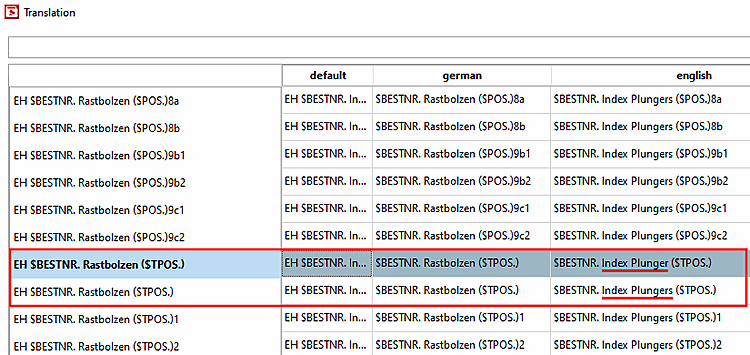
on/off [Spell check on/off] : les mots mal orthographiés sont marqués d’un rouge
ligne, si celles-ci ne sont pas connues du dictionnaire.
Voir aussi Section 5.8.2.1.18.2, « Correcteur orthographique dans l'onglet Traduction
».
: Correcteur orthographique
on/off [Spell check on/off] : les mots mal orthographiés sont marqués d’un rouge
ligne, si celles-ci ne sont pas connues du dictionnaire.
Voir aussi Section 5.8.2.1.18.2, « Correcteur orthographique dans l'onglet Traduction
». : À
Ajouter des suggestions de traduction [Add to translation suggestions] : Le bouton ajoute tous les
traductions de la page actuelle vers le (géré en interne)
suggestions de traduction. Ceux-ci sont ensuite accessibles par
Commande du menu contextuel Appliquer la suggestion / Suggestions
est accessible. [Use suggestions] [Accept suggestion]
: À
Ajouter des suggestions de traduction [Add to translation suggestions] : Le bouton ajoute tous les
traductions de la page actuelle vers le (géré en interne)
suggestions de traduction. Ceux-ci sont ensuite accessibles par
Commande du menu contextuel Appliquer la suggestion / Suggestions
est accessible. [Use suggestions] [Accept suggestion]
 : Source : Voir
sous.
: Source : Voir
sous.
Signification des différentes colonnes
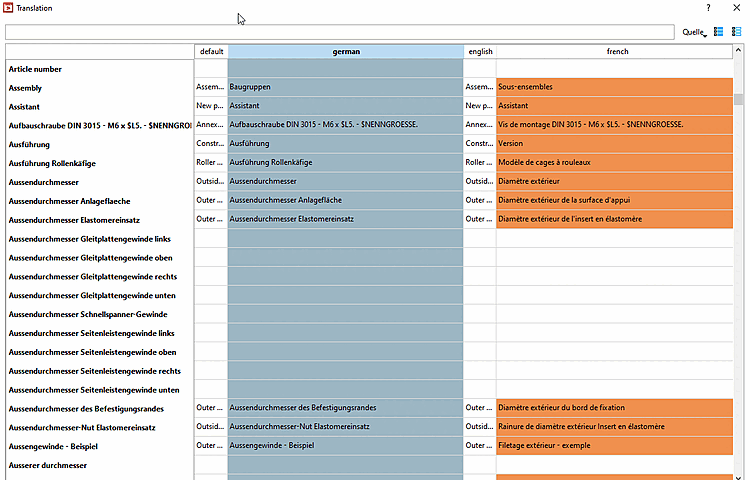
Dans la colonne la plus à gauche , les termes originaux - c'est-à-dire ceux créés lors de la création du projet - sont listés (identifiant interne).
Sous default [english] est indiquée la version linguistique qui sera utilisée si aucune langue n'est sélectionnée (généralement l'anglais).
Dans les colonnes restantes, les termes peuvent être traduits dans d'autres langues.
Le nombre de langues affichées dépend de l'entrée sous l'onglet Général [General] -> Paramètres du catalogue [Settings for the catalog] -> Catalogue disponible dans les langues [Catalog available in the languages]. Voir Section 5.9.2.4, « Option de menu : Paramètres du catalogue (affichage au niveau du catalogue) ».
Tout à droite, la source de [Source] chaque terme est affichée, comme par exemple la désignation de la norme [Standard name], la désignation de la nomenclature [BOM name], la valeur du projet [Project value], etc.
Si vous ouvrez la zone de liste Source en haut à droite, vous pouvez indiquer explicitement les sources souhaitées.
Dans le cas des variables Media, les entrées se trouvent dans la colonne Variable. Dans ce cas, l'entrée dans la colonne Source est "Média(Html) [Media(Html)]" ou "Média(Texte) [Media(Text)]".
Il suffit de glisser-déposer une colonne à l'endroit souhaité.
Modifier la largeur des colonnes
Cliquez sur la poignée entre les colonnes et faites glisser la largeur jusqu'à la position souhaitée.
Remplir manuellement une cellule de tableau:
Il suffit de cliquer dans le champ correspondant et de saisir le terme souhaité.
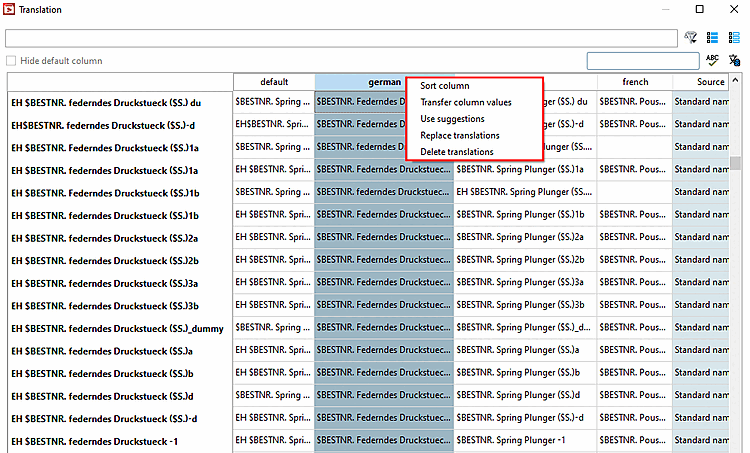
Commandes de menu contextuel dans l'en-tête de colonne:
Trier la colonne [Sort column]: Le tri s'effectue en fonction de la colonne sélectionnée.
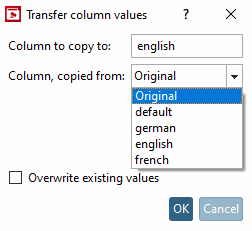
Transférer les valeurs des colonnes [Transfer column values]:
Dans la boîte de dialogue du même nom, sélectionnez la langue source (colonne à partir de laquelle la copie est effectuée [Column, copied from] ), ainsi que la langue cible (colonne vers laquelle la copie est effectuée [Column to copy to] [la langue par défaut est celle de la colonne sélectionnée]).
Si vous souhaitez écraser des valeurs déjà existantes, activez en outre le bouton d'option Écraser les valeurs existantes [Overwrite existing values].
Reprendre les propositions [Use suggestions]:
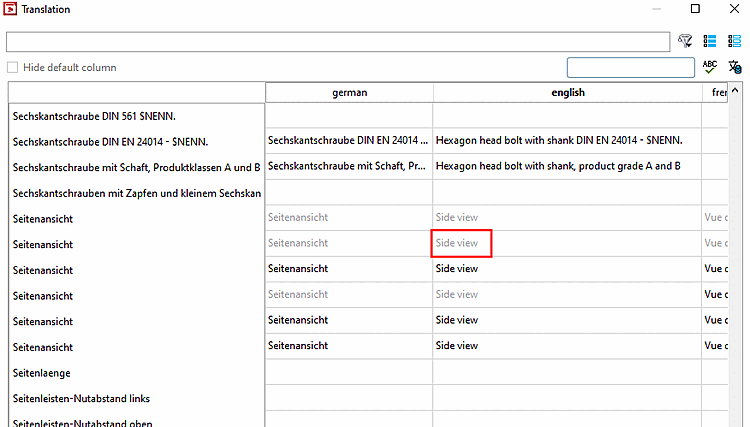
Les expressions grisées sont des traductions déjà créées/existantes qui sont utilisées au sein d'autres répertoires et que PARTproject a "mémorisées". Elles ne sont que des propositions et peuvent être soit écrasées, soit saisies de manière fixe via la commande du menu contextuel Reprendre la proposition [Accept suggestion] (pour un seul champ) ou Reprendre la proposition [Use suggestions] (pour une colonne entière).
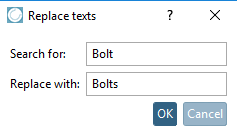
Remplacer les traductions [Replace translations]:
Dans la boîte de dialogue Remplacer les textes [Replace texts], vous pouvez faire rechercher un terme spécifique dans la colonne actuellement sélectionnée et le remplacer par un autre.
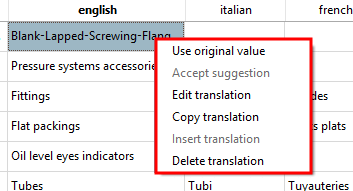
Commandes de menu contextuel dans la cellule individuelle:
Reprendre la valeur originale [Use original value] : La valeur de la "colonne d'origine" (1ère colonne à gauche) est copiée.
Reprendre la proposition [Accept suggestion]:
Si un texte a déjà été traduit (donc dans un autre projet), la proposition apparaît en grisé dans la cellule.
Avec Reprendre la proposition [Accept suggestion], le texte est alors repris dans le projet et affiché en noir.
Modifier la traduction [Edit translation]:
Appelez la commande de menu contextuel au-dessus de la langue cible de la traduction.
Dans le cas de Media Variables "Média(Html) [Media(Html)]", le HTML peut être utilisé et la boîte de dialogue contient les onglets Vue texte [Text view] et Vue HTML [HTML view].
Sélectionnez à gauche sous Langues traduites [Translated languages] la page d'onglet souhaitée.
Traduisez à droite dans le champ de saisie Traduire vers [Translate to]: <Langue cible>.
Copier la traduction [Copy translation]: Copie la valeur actuelle dans le presse-papier.
Coller la traduction [Insert translation]: Colle la valeur copiée dans la cellule souhaitée.
Effacer la traduction [Delete translation]: Supprime le contenu de la cellule.
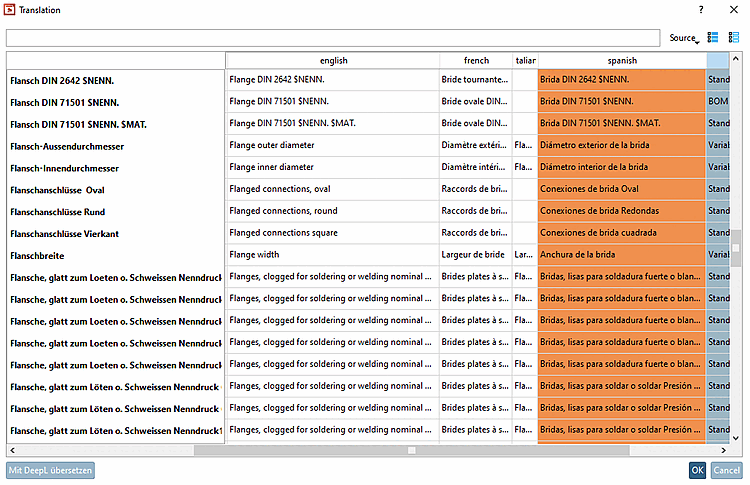
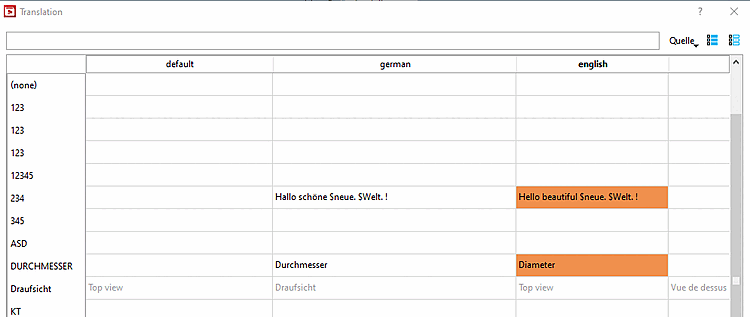
Traduire avec DeepL [Translate with DeepL]: Utiliser le service de traduction intégré.


![Boîte de dialogue "Traduire [Translation]](https://webapi.partcommunity.com/service/help/latest/pages/fr/partwarehouse/doc/resources/img/img_75be4cc61d994b3bafb6ce344bfcb2b6.png)
![Boîte de dialogue "Traduire [Translation]" dans le cas des variables Media](https://webapi.partcommunity.com/service/help/latest/pages/fr/partwarehouse/doc/resources/img/img_b339d538d056488597846448477141ea.png)
La traduction avec DeepL est payante. Vous avez besoin d'une clé d'authentification [Authentication-key].
Sélectionnez le niveau souhaité dans l'arborescence des répertoires (Catalogue | Répertoire | Projet).
Cliquez sur la commande Traduction [Translation] -> Afficher les traductions [Show translations] du menu contextuel.
Cliquez sur le bouton . (Si le bouton est grisé, la zone sélectionnée est en lecture seule).
-> La boîte de dialogue correspondante s'ouvre.
Effectuez les réglages souhaités :
Sélectionner la langue source [Source language] dans la zone de liste
-> La colonne correspondante du tableau est sélectionnée.
Remplacer les champs vides par des identificateurs internes [Replace empty fields with internal identifiers]
Si la langue source sélectionnée est vide, le terme est récupéré dans l'identificateur interne.
Reconnaissance automatique des langues par DeepL (par champ) [Automatic language recognition by DeepL (per field)]
En cas de désactivation, la traduction est définie par la colonne sélectionnée.
Langues cibles [Target languages]: sélectionnez une ou plusieurs langues par le biais d'une case à cocher.
Glossaire (facultatif) [Glossary (optional)]:
Si vous avez créé votre propre glossaire, vous pouvez le mettre à disposition pour la fonctionnalité DeepL. Pour cela, il vous suffit de saisir l' ID du glossaire [Glossary ID].
Les termes qui apparaissent dans le glossaire sont traduits en conséquence. Les termes qui n'y figurent pas continuent d'être traduits à l'aide de la fonctionnalité standard.
Si l'option Reconnaissance automatique de la langue par DeepL (par champ) [Automatic language recognition by DeepL (per field)] est activée, le champ Glossar ID [Glossary ID] apparaît grisé et la traduction s'effectue exclusivement via la fonctionnalité standard.
Limiter les traductions [Restrict translations]: déterminez quels types doivent être traduits.
-> Les termes traduits sont marqués en orange.
-> Les variables $xyz. ne sont pas traduites.
-> Des termes exactement identiques ne sont traduits qu'une seule fois par DeepL et sont ensuite répartis dans les cellules correspondantes.
Vérifiez les différentes traductions. Vous pouvez corriger manuellement à tout moment.
Si des traductions manquent, choisissez éventuellement une autre langue source [Source language] ou l'option Remplacer les champs vides par des identificateurs internes [Replace empty fields with internal identifiers].
Confirmez ensuite en cliquant sur . Ce n'est qu'alors que les termes traduits sont enregistrés.
![Dialogue "Traduire avec DeepL [Translate with DeepL]"](https://webapi.partcommunity.com/service/help/latest/pages/fr/partwarehouse/doc/resources/img/img_6891807c384343d9bffa1b1c50d06350.png)