

La seguente sezione descrive come sostituire le singole parti (parti standard, parti acquistate o parti proprie) con parti alternative.
(Nell'esempio seguente, viene modificata solo la lunghezza di una vite).
Selezionare l'oggetto da sostituire (o più oggetti) e fare clic su Sostituisci [Replace].
-> Viene visualizzata la finestra di dialogo Selezionare la modalità di sostituzione [Select replacement mode].
Se il componente da sostituire fa parte di un modello, le opzioni di selezione sono leggermente diverse.
Sostituire le istanze selezionate [Replace selected instances] (caso standard)
Tutte le istanze del modello [All instances of the pattern] (i modelli sono riconosciuti. In tal caso, appare questa opzione).
Sostituire tutte le istanze [Replace all instances]
Tutti i componenti e gli assiemi di un assieme vengono cercati, sia verso l'alto che verso il basso.
-> Si apre la finestra di dialogo Apri progetto componente? [Open component project?]
Wenn die Anzeige des Dialogs in Zukunft unterbleiben soll, aktivieren Sie Ricorda la mia selezione [Remember my choice].[15]
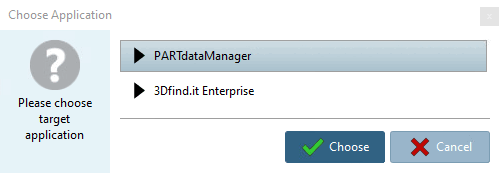
-> Si apre la finestra di dialogo Seleziona applicazione [Choose Application].
Fare clic sul pulsante corrispondente.
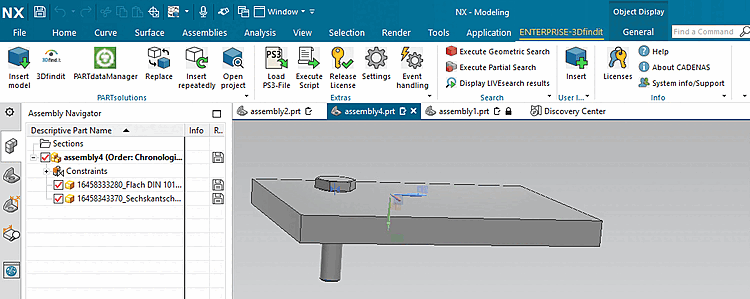
-> La vista torna al sistema CAD e i componenti vengono sostituiti immediatamente senza ulteriori richieste.
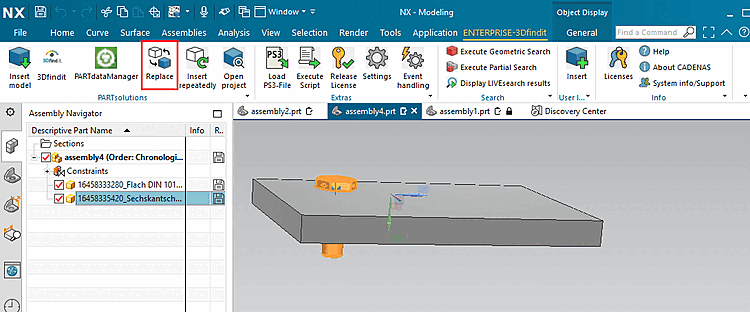
![Selezionare la modalità di sostituzione [Select replacement mode]](https://webapi.partcommunity.com/service/help/latest/pages/it/partsolutions_user/doc/resources/img/img_e30bac5fd42849609c42f63610f3635d.png)
![Selezionare la modalità di sostituzione [Select replacement mode]](https://webapi.partcommunity.com/service/help/latest/pages/it/partsolutions_user/doc/resources/img/img_2ce24130acc94df5848806b45912ba4f.png)
![Progetto di componente aperto? [Open component project?]](https://webapi.partcommunity.com/service/help/latest/pages/it/partsolutions_user/doc/resources/img/img_a82dfb6519b049a39a292161577d6268.png)
![[Nota]](https://webapi.partcommunity.com/service/help/latest/pages/it/partsolutions_user/doc/images/note.png)
![Pulsante "Trasferisci in CAD... [Transfer to CAD...]" in PARTdataManager](https://webapi.partcommunity.com/service/help/latest/pages/it/partsolutions_user/doc/resources/img/img_e9cc662a8b634486b53d16d9b7195a34.png)
[15] Non appena si effettua l'attivazione, viene creata una voce corrispondente in $CADENAS_USER/if<cadname>.cfg.
[Interface]
Replace_QueryOpenProject={0,1}
Replace_OpenProject={0,1}