

Per rendere le tabelle di traduzione di PARTproject disponibili per scopi esterni (ad es. agenzie di traduzione), è possibile salvarle come file *.CSV [19] file.
Il file *.CSV può essere aperto e modificato in un editor di testo o in MS Excel / OpenOffice.org Calc.
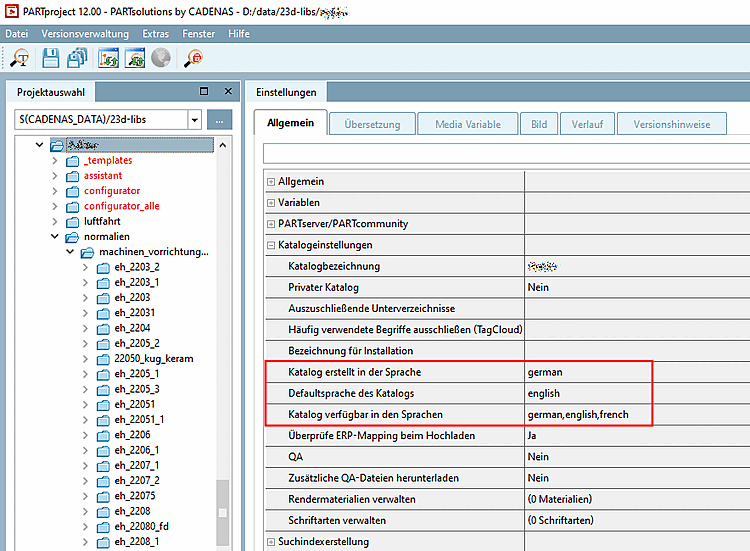
Selezionate il vostro catalogo nell'albero della directory e compilate i campi Catalogo creato nella lingua [Catalog created in the language], Lingua predefinita del catalogo [Default language of catalog] e Catalogo disponibile nelle lingue [Catalog available in the languages] nella pagina della scheda Generale [General].
Nel menu contestuale del catalogo o della directory da tradurre, fare clic su Traduzione [Translation] -> Crea file CSV per le traduzioni [Export CSV for translation].
![Creare un file CSV per le traduzioni [Export CSV for translation]](https://webapi.partcommunity.com/service/help/latest/pages/it/partsolutions_user/doc/resources/img/img_d52038c3391b44d4903f6b956e80b3c7.png)
-> Si apre la finestra di dialogo Crea CSV per le traduzioni [Create CSV for translation].
![Creare CSV per le traduzioni [Create CSV for translation]](https://webapi.partcommunity.com/service/help/latest/pages/it/partsolutions_user/doc/resources/img/img_d919dd578ebd4415a11bdb116488ab60.png)
Effettuare le impostazioni desiderate:
Utilizzare Sfoglia per specificare la directory di destinazione del file CSV [CSV file].
Specificare quali separatori [Separator] per separare i valori delle colonne. Le virgole e le virgolette sono inserite per impostazione predefinita.
Selezionare la lingua di origine e una o più lingue di destinazione.
Tipi [Types]: Vedi sotto.
Aprire il file di traduzione nell'editor desiderato (ad esempio, MS Excel, OpenOffice.org Calc o qualsiasi altro editor CSV).
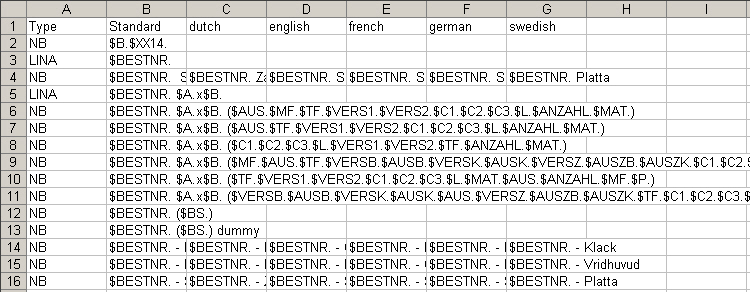
La prima colonna mostra i diversi tipi di termini.
![[Suggerimento]](https://webapi.partcommunity.com/service/help/latest/pages/it/partsolutions_user/doc/images/tip.png) | Suggerimento |
|---|---|
In Excel (ad esempio), selezionare la funzione di filtro e visualizzare solo un tipo alla volta o ordinare per tipo. Modificare solo un tipo alla volta. | |
Quando si traduce si tenga presente quanto segue:
![[Importante]](https://webapi.partcommunity.com/service/help/latest/pages/it/partsolutions_user/doc/images/important.png) | Importante |
|---|---|
| |
| Importante |
|---|---|
Salvare la tabella nello stesso formato in cui si è ricevuto il file e chiuderla. Se necessario, rinominare il tipo di file in *.csv in Esplora risorse. | |
Avviare PARTproject per leggere il file di traduzione tramite file CSV con Evaluate translations [Import CSV for translation].