|
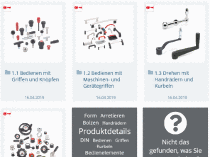
- 5.8.1. How can I select catalogs and product groups?
- 5.8.2. Catalog display: Which filter possibilities are available?
- 5.8.3. Which search functions are available?
- 5.8.3.1. How can I search for specific terms?
- 5.8.3.2. How can I search for specific variables?
- 5.8.3.3. How can the geometric search be carried out (based on an uploaded own part) ?
- 5.8.3.4. How the geometric search can be carried out based on a catalog part?
- 5.8.3.5. How can I search for parts by a self drawn sketch?
- 5.8.3.6. The required catalog is not available - what can I do?
- 5.8.4. How do I recognize my position in directory levels and how can I switch to another?
- 5.8.5. How can I define the characteristic of the part?
- 5.8.6. What additional icons are there?
- 5.8.7. How can I filter for certain variables in the table view?
- 5.8.8. How can I adjust value range fields?
- 5.8.9. How can I compare parts?
- 5.8.10. Where the Related Equipment is displayed?
Process of Part selection at a glance:
|
Specify product in Part selection (see Section 5.8.1, “How can I select catalogs and product groups?”) Alternatively you can use different search methods: Search (Full-text search), Variable search, Sketch search (2D) and Geometric search (3D). |
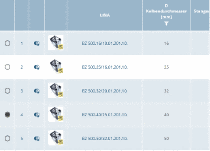
Specify characteristic in Table view (see Section 5.8.5, “How can I define the characteristic of the part?”) (Depending on portal settings the Table view could be skipped and all variable values specified in the Variable view.) |
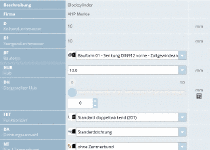
Specify characteristic in Variable view (see Section 5.8.8, “How can I adjust value range fields?”) In order to specify value range fields change into the Variable view. |
|
|
|
|