

- 5.8.1. Directory principale Selezione del progetto
- 5.8.2. Menu contestuali sotto la selezione del progetto
- 5.8.2.1. Menu contestuale del livello della directory
- 5.8.2.1.1. Filtro...
- 5.8.2.1.2. Nuovo elenco
- 5.8.2.1.3. Nuovo progetto
- 5.8.2.1.4. Nuovo link
- 5.8.2.1.5. Aprire l'Explorer
- 5.8.2.1.6. Aggiornamento del display
- 5.8.2.1.7. Cancellare la directory
- 5.8.2.1.8. Elenco di ricerca
- 5.8.2.1.9. Aggiornamento della data della directory
- 5.8.2.1.10. Rinominare la directory
- 5.8.2.1.11. Elenco nascosto / Elenco visibile
- 5.8.2.1.12. Copiare la directory
- 5.8.2.1.13. Spostare la directory
- 5.8.2.1.14. Ordinamento della directory
- 5.8.2.1.15. Copia i dati del progetto / Incolla i dati del progetto
- 5.8.2.1.16. Progetto di prova / directory di prova
- 5.8.2.1.17. Filtro catalogo
- 5.8.2.1.18. Traduzione di
- 5.8.2.1.18.1. Mostra traduzioni
- 5.8.2.1.18.2. Controllo ortografico nella scheda Traduzione
- 5.8.2.1.18.3. Aggiungi ai suggerimenti di traduzione
- 5.8.2.1.18.4. Creare un file CSV per le traduzioni
- 5.8.2.1.18.5. Analizzare il file CSV con le traduzioni
- 5.8.2.1.18.6. Creare file XLIFF con traduzioni / Analizzare file XLIFF con traduzioni
- 5.8.2.1.18.7. Creare file XLSX con traduzioni / Analizzare file XLSX con traduzioni
- 5.8.2.1.19. Problema
- 5.8.2.1.19.1. Catalogo cippen
- 5.8.2.1.19.2. Progetti nella directory cippen
- 5.8.2.1.19.3. Convertire i dettagli del file in minuscolo
- 5.8.2.1.19.4. Generare dati di immagine/anteprime di immagini in esecuzione batch
- 5.8.2.1.19.5. Generare immagini di anteprima per riga
- 5.8.2.1.19.6. Creare collegamenti profondi
- 5.8.2.1.19.7. Creare collegamenti profondi in batch
- 5.8.2.1.19.8. Creare una tabella CSV
- 5.8.2.1.19.9. Scopri i progetti
- 5.8.2.1.19.10. Consulta il catalogo
- 5.8.2.1.19.11. Creare un indice HTML
- 5.8.2.1.19.12. Scrivere il catalogo BME
- 5.8.2.1.19.13. Raccogliere i dati di classificazione...
- 5.8.2.1.19.14. Analizzatore di storia
- 5.8.2.1.19.15. Dipendenze del progetto
- 5.8.2.1.20. Automazione
- 5.8.2.1.20.1. Modifica del progetto nell'esecuzione batch
- 5.8.2.1.20.1.1. Aggiungere una variabile / modificare il valore della variabile
- 5.8.2.1.20.1.2. Modifica del valore della variabile
- 5.8.2.1.20.1.3. Sostituire il valore della variabile
- 5.8.2.1.20.1.4. Cancellare le variabili
- 5.8.2.1.20.1.5. Rinominare la variabile
- 5.8.2.1.20.1.6. Aggiungere variabili da CSV/adottare valori da CSV
- 5.8.2.1.20.1.7. Opzioni di immissione nel campo "Nome della variabile
- 5.8.2.1.20.1.8. Utilizzo di parole chiave
- 5.8.2.1.20.1.9. Inserire il livello/lo schizzo
- 5.8.2.1.20.2.
- 5.8.2.1.20.3. Esecuzione in batch della classificazione con i plugin
- 5.8.2.1.20.4. Classificazione dell'esecuzione in batch con i modelli
- 5.8.2.1.20.5. Generare un sistema di standardizzazione
- 5.8.2.1.20.6. Creare progetti di documenti
- 5.8.2.1.20.7.
- 5.8.2.1.20.8. Gestire le variabili
- 5.8.2.1.20.8.1. Funzioni Panoramica
- 5.8.2.1.20.8.2. Percorsi dei file Visualizza
- 5.8.2.1.20.8.3. Campi della tabella modifica
- 5.8.2.1.20.8.4. Gruppi di variabili
- 5.8.2.1.20.8.5. Funzione di ricerca
- 5.8.2.1.20.8.6. Verifica del contenuto della tabella
- 5.8.2.1.20.8.7. Modalità di sola lettura
- 5.8.2.1.20.8.8. Importazione dell'algoritmo
- 5.8.2.1.20.9. Strumento PARTinfo
- 5.8.2.1.20.10. Eliminare i conflitti di colore
- 5.8.2.1.20.11. Impostare i materiali dai colori
- 5.8.2.1.20.12. Controllare e correggere gli errori strutturali nelle classificazioni
- 5.8.2.1.20.13. Creare un sistema di classi per i filtri
- 5.8.2.1.20.14. Aggiungere le variabili LOD
- 5.8.2.1.20.15. Classificare i progetti nell'esecuzione batch
- 5.8.2.1.20.16. Controllo della classificazione
- 5.8.2.1.20.17. Correzione dell'orientamento dei punti di connessione
- 5.8.2.1.20.18. Procedura guidata per i punti di connessione
- 5.8.2.1.20.19. Impostazione di EndOfLife riga per riga (tramite esecuzione batch)
- 5.8.2.1.20.20. Arricchire il catalogo con informazioni sugli accessori
- 5.8.2.1.20.21. Gestire i dati degli indirizzi
- 5.8.2.1.20.22. Spostare il modulo CNSMASSEXACT da CNSGEOMBASE a CNSPHYPROP
- 5.8.2.1.20.23. Spostare il vecchio ORDERNO a CNSORDERNO
- 5.8.2.1.20.24. Spostare RVT_CP in CNS_CP_PLACE_PC
- 5.8.2.1.20.25. Arricchire il catalogo con informazioni sulla PDT
- 5.8.2.1.20.26. Ricerca inversa - controllo della risoluzione (automatico)
- 5.8.2.1.20.26.1. Controllo della risoluzione - caso d'uso
- 5.8.2.1.20.26.2. Controllo della risoluzione - prerequisiti/preparativi
- 5.8.2.1.20.26.3. Controllo della risoluzione - analisi del catalogo
- 5.8.2.1.20.26.4. Controllo della risoluzione - Attivazione
- 5.8.2.1.20.26.5. Controllo della risoluzione - analisi dopo le modifiche del catalogo
- 5.8.2.1.20.26.6. Ricerca inversa - Ricerca del numero d'ordine del test
- 5.8.2.1.20.26.7. Controllo della risoluzione - Note speciali
- 5.8.2.1.20.26.8. Controllo della risoluzione - Impostazioni di configurazione
- 5.8.2.1.20.26.9. Ricerca inversa - controllo della risoluzione (automatico) - evitare i costrutti problematici
- 5.8.2.1.20.27. Ricerca inversa - Test della ricerca del numero d'ordine
- 5.8.2.1.20.28. Procedura guidata VDI 3805
- 5.8.2.2. Menu contestuale del livello di progetto
- 5.8.2.2.1. Aprire con PARTdesigner
- 5.8.2.2.2. Aprire con PARTdataManager
- 5.8.2.2.3. Aprire con 3Dfindit
- 5.8.2.2.4. Aprire l'Explorer
- 5.8.2.2.5. Cancellare il progetto
- 5.8.2.2.6. Rinominare il progetto
- 5.8.2.2.7. Spostare il progetto
- 5.8.2.2.8. Correggere manualmente i percorsi di assemblaggio errati del progetto
- 5.8.2.2.9. Copia il progetto / Incolla il progetto / Incolla il progetto come link
- 5.8.2.2.10. Progetto nascosto / Progetto visibile
- 5.8.2.2.11. Trova i link
- 5.8.2.2.12. Creare un modello di progetto
- 5.8.2.2.13. Copia i dati del progetto / Incolla i dati del progetto
- 5.8.2.2.14. Progetto di prova
- 5.8.2.2.15. Traduzione di
- 5.8.2.2.16. Problema
- 5.8.2.2.17. Automazione
- 5.8.2.3. Menu contestuale del livello del file
Nell'area di dialogo per la selezione del progetto [Project selection] viene visualizzato un albero di directory, simile a quello di MS Explorer.
Tutte le funzioni dell'area di selezione del progetto [Project selection] sono accessibili tramite i comandi del menu contestuale di ogni livello.
L'illustrazione seguente mostra la norma della cartella aperta, comprese le sottocartelle e i file del progetto.
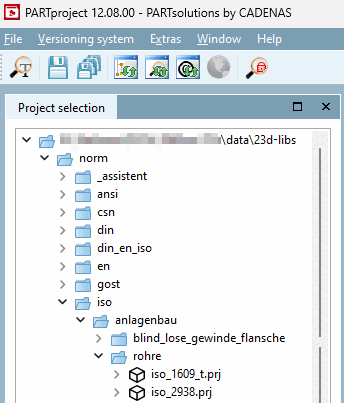
Vari file, come *.pra (anteprima 2D), *.3db/3gb (geometria), *.tac (tabella degli attributi caratteristici) e *.bmp (bitmap dei componenti) sono riassunti a livello di progetto.
![[Nota]](https://webapi.partcommunity.com/service/help/latest/pages/it/partwarehouse/doc/images/note.png) | Nota |
|---|---|
| |

[17] Sezione 5.9.2.1, “Voce di menu: Generale ”Per ulteriori informazioni sui tipi di progetto, consultare .