
7.2.
Rollers: Tabbed page "Display"
7.2.2.
Status colors for catalog index - plinkgroups.cfg -> Block [role name] -> Key "COLORCONDITIONTREE<number>"
|  |
| Prev | Next |
![[Note]](https://webapi.partcommunity.com/service/help/latest/pages/en/ecatalogsolutions/doc/images/note.png) | Note |
|---|---|
Status colors for catalog index is role-dependent and must therefore be set separately for each role. | |
The catalog index is displayed in green/semi-transparent as standard.
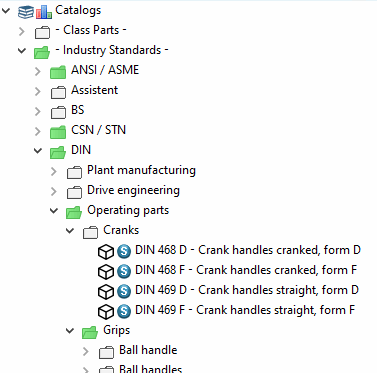
Green is displayed if a project contains at least one line that corresponds to the condition under PARTadmin -> Category Roles -> Tab page General -> Display condition for part selection [Display condition for parts selection] (=Key CONDITIONTREE), or a directory contains at least one project that contains parts that correspond to the condition, otherwise semi-transparent is displayed.
However, directories and projects in the catalog index can convey much more information by using multiple colors: "Contains preferred parts", "Contains standard parts", "Already used at all locations", "Already used at two locations", "Not used at any location, but with ERP number", etc.
Rules are defined under Status colors for catalog index to achieve the corresponding marking.
![Result of status colors for catalog index [Status colors for catalog index] in PARTdataManager](https://webapi.partcommunity.com/service/help/latest/pages/en/ecatalogsolutions/doc/resources/img/img_3b0d495202084f2db264bf3baa191614.png)
Setting via configuration file
$CADENAS_SETUP/plinkgroups.cfg:
Block [<role name>], key COLORCONDITIONTREE<NUMBER>, the first value contains the condition, the second value contains the RGB color, the third value (optional) contains a description that is displayed in the legend dialog box [Legend].
It is best to enter a placeholder term as a description [Description]. This term is automatically entered in the translation table on the Translations tab page. You can enter translations in as many languages as you like PARTdataManager click on the Legend icon, the description or translation text is displayed.

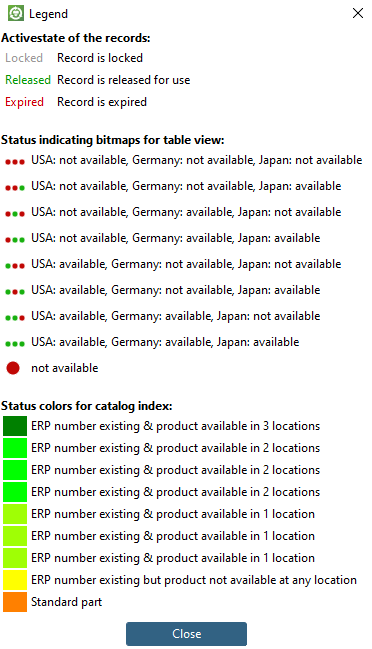
Setting via user interface under PARTadmin -> Category Roles -> Display tab -> Status colors for catalog index
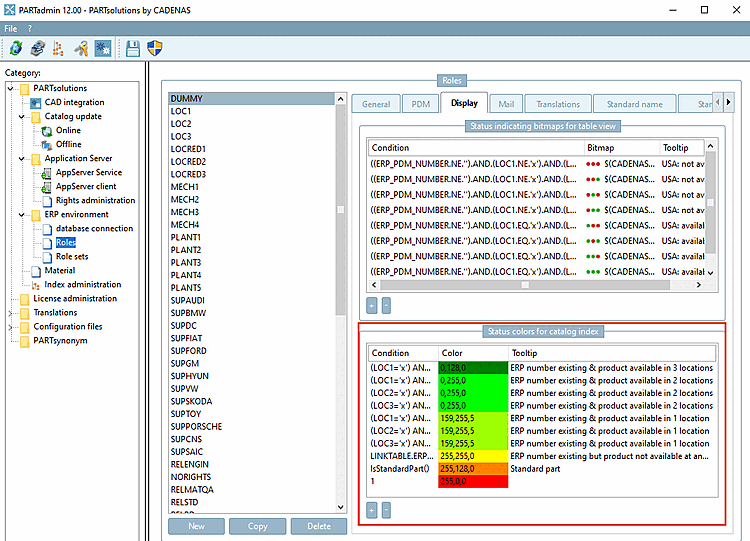

[LOC1] COLORCONDITIONTREE0="(LOC1='x') AND (LOC2='x') AND (LOC3='x')","0","128","0","" COLORCONDITIONTREE1="(LOC1='x') AND (LOC2='x') AND (LOC3<>'x' OR LOC3 IS NULL)",
COLORCONDITIONTREE0="(LOC1='x') AND (LOC2='x') AND (LOC3='x')",
 "0","128","0",""
In this example columns for the location are "LOC1" to "LOC3". If a part is used at a location then the column has the entry "x".
If the column "LOC1" AND the column "LOC2" AND the column "LOC3" each contain an 'x', then the condition is fulfilled, i.e. the part is available at all locations. Projects and directories that fulfill the condition are displayed in dark green ("0", "128", "0").
COLORCONDITIONTREE7="LINKTABLE.ERP_PDM_NUMBER<>''","255","255","0",""
If a part contains an ERP_PDM_NUMBER, then the condition is fulfilled. It is assigned the color yellow ("255", "255", "0").
COLORCONDITIONTREE8="IsStandardPart()","255","128","0",""
If a part is marked according to the standard classification, then the condition is fulfilled. It is assigned the color orange ("255", "128", "0").
COLORCONDITIONTREE9="1","255","0","0",""
Condition "1" is always true. This condition is in the last position and therefore has the lowest priority. All directories/projects for which none of the above conditions are met are assigned the color red ("255", "0", "0").
Example 2 - Green and semi-transparent directories/projects:
If no settings are made under Status colors for catalog index, green and semi-transparent directories are displayed (see above). Green is displayed if a project contains at least one line that meets the condition under Display condition for part selection [Display condition for parts selection] or a directory contains at least one project that contains parts that meet the condition, otherwise semi-transparent is displayed.
Example 3 - Green and red directories/projects:
If you want green/red to be displayed instead of green/semi-transparent, make the following setting under Display tab -> Status colors for catalog index dialog area.
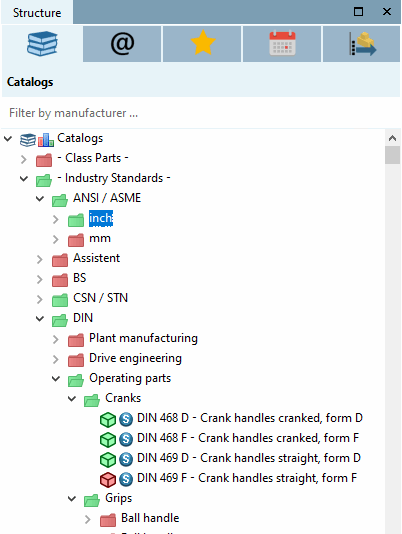
LINKTABLE.ERP_PDM_NUMBER<>'' | Farbe Grün
1                            | Farbe Rot
Meaning: If an ERP_PDM_NUMBER is available then green is displayed. In all other cases red is displayed.
Example 3 - Standard part in combination with other condition
MAT_NAME= IsStandardPart() AND 'STEEL'
![[Tip]](https://webapi.partcommunity.com/service/help/latest/pages/en/ecatalogsolutions/doc/images/tip.png) | Tip |
|---|---|
If you would like to comprehend the examples then please have a look on the settings of the different roles in the PLDBDEMO database instance. | |