5.24.3.3. ENTERPRISE 3Dfindit Client 5.24.3.3.1. Catalog/Classification Setup and
Index Management via the Client
|  |
| Prev | Next |
In a client-server environment, starting with version 12.6.2, catalog installation and index management are possible without a dedicated admin client (without UNC access) .
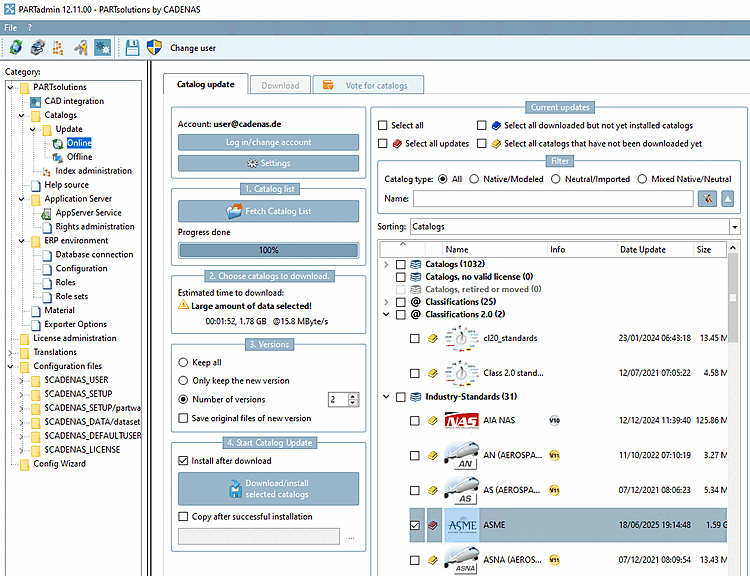
Previously, the problem occurred when the server did not have Internet access for security reasons (network firewall) and the client could access the Internet but was not mapped via UNC.
Download and select catalogs and classifications on the client as before. The CIPs are transferred to the server (HTTPS), and the server installs the CIPs.
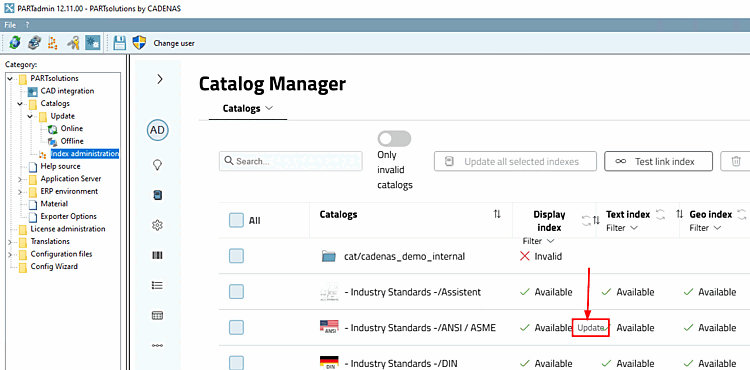
Index Management via Web Access. Updating the Display Index, Full-Text Index, Geo Index, and LinkDB Index
If you cannot access it, please check the server configuration under Services on the Login tab. See Section 5.24.3.4.4, “AppServer Configuration ”.
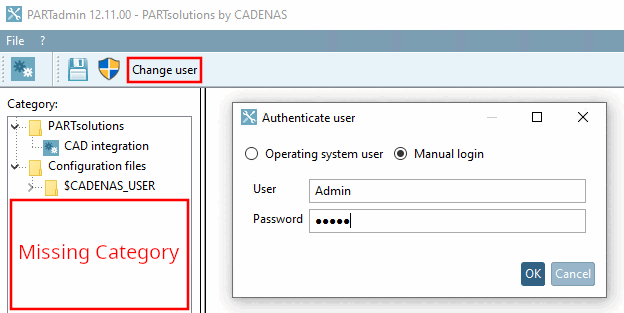
If the "Catalogs" category is not displayed, the current user does not have admin privileges. -> Click "Switch User" in the toolbar and log in with admin privileges.
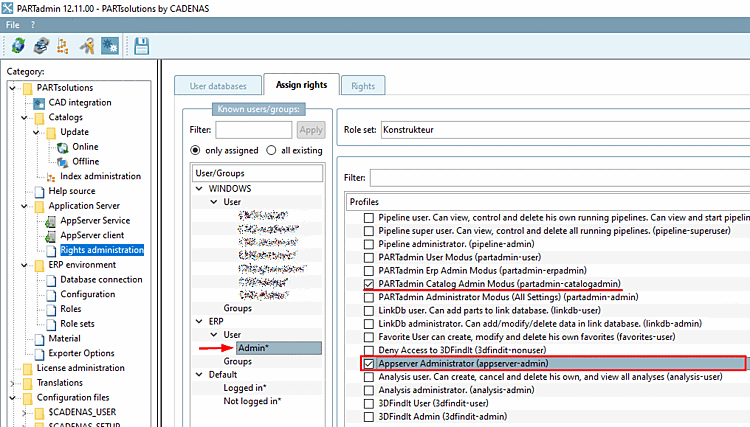
If you do not have admin rights, check this on the server side in PARTadmin under the category Application Server > Rights Management > Tabbed page for Rights Assignment.
The users or groups in question must have the " Appserver administrator " role or at least " PARTadmin Catalog Mode" privileges.