
1.4.5. PARTapplicationServer
installation/configuration 1.4.5.8.
PARTapplicationServer
Set up as a service
|  |
| Prev | Next |
Whenever a central PARTapplicationServer is in use, it must be installed and started as a service. The advantages are that it starts automatically when the server computer boots up and that Windows mechanisms are used to monitor stability, such as restarting after a crash (after one minute—this can be further reduced via the registry).

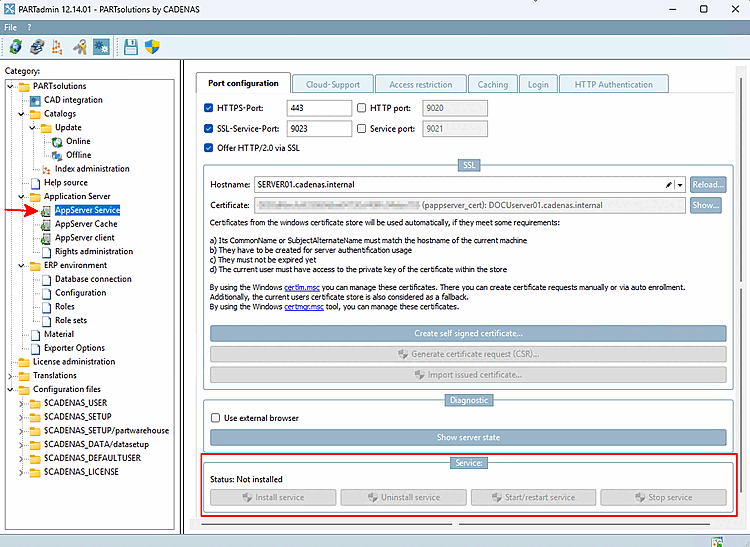
Dialog Box Service [Service]: Status is " Not Installed [Not installed]."
The icon on buttons shows that administrative rights are missing. -> Click so click on the icon at the top
 Start the program with
Administrator privileges new [Restart the program with administrative privileges].
-> The " button is now active.
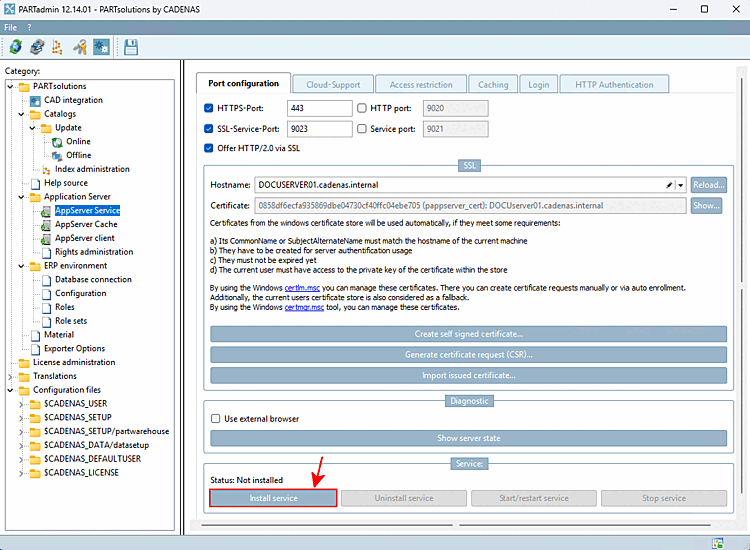
Click on the [15]
-> Now the and " " buttons are displayed as enabled.
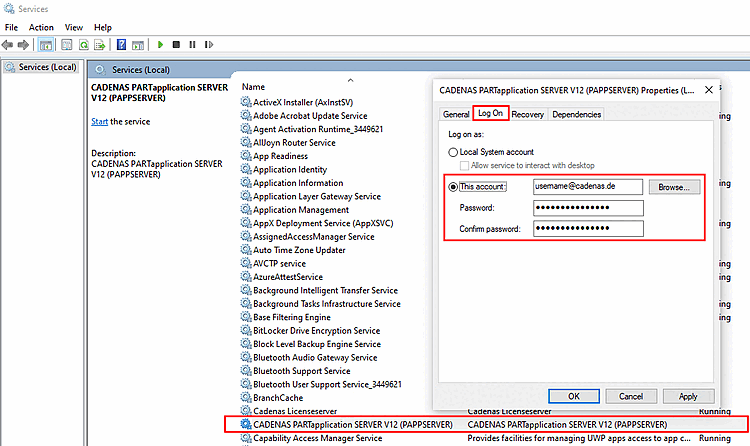
By default, a Local System account is created. If you do not want this, you must make changes under "Services (Local)" > "Log On As."

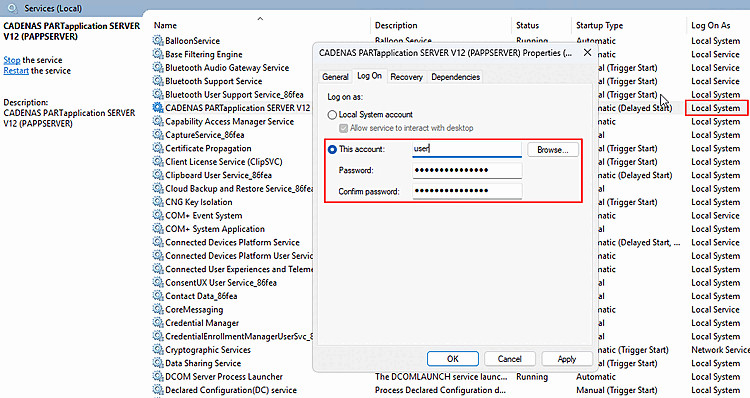
Once the installation is complete, the CADENAS PARTapplication SERVER V12 (PAPPSERVER) service will appear under Windows > Control Panel > Administrative Tools > Services.
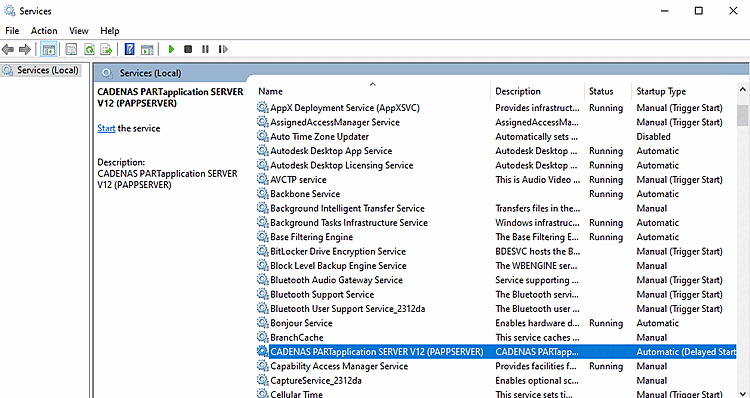
If the service does not respond when it is stopped, this may be because "tasks" are running that cannot be stopped promptly.
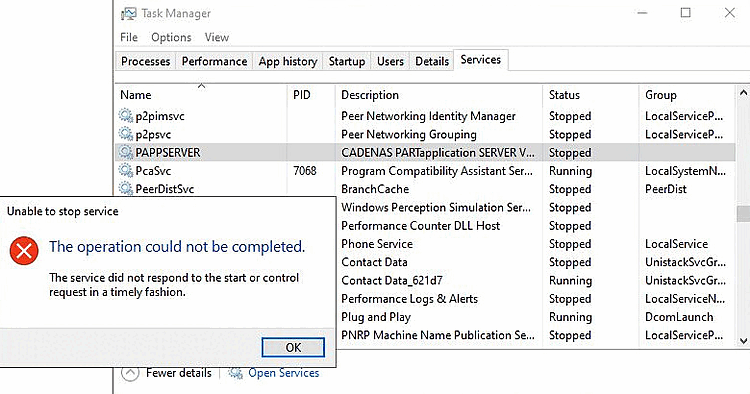
The installer creates a UNC path for the AppServer service. However, this may not yet be available when the service is started.
UNC paths are also slower than shares and local installation paths.
Problem: If you change the operation of the PARTapplicationServer to a specific user, access to certain information may be blocked.
Example:
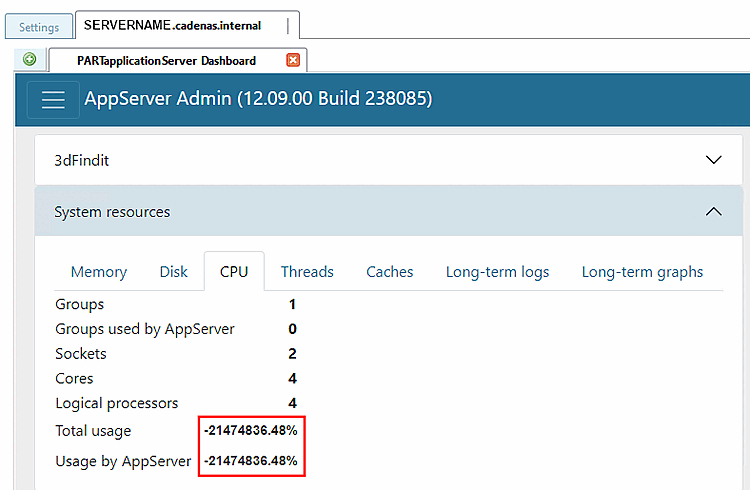
Solution: Add the user under > Computer Management > Local Users and Groups > Groups > Performance Monitor Users.
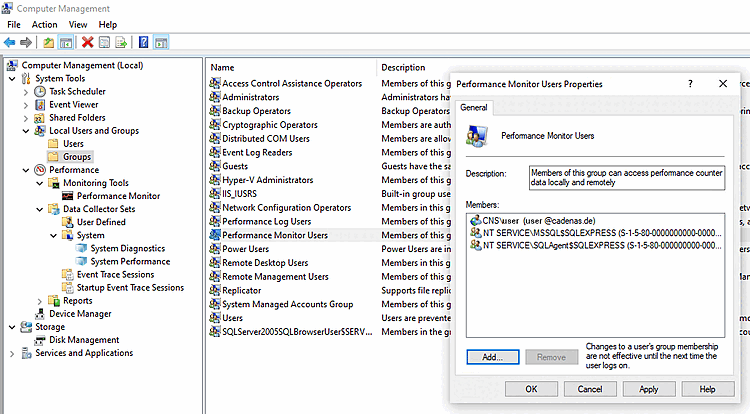
See Section 5.24.3.4.4, “AppServer Configuration ”
[15] Alternatively, you could use the command
pappserver.exe -install the
Set up the service via console. You can find pappserver.exe under $CADENAS/bin/x86/ 64. Start
is done with "pappserver.exe -start".
Uninstall is done with pappserver.exe
-uninstall.