![Mark lines as discontinued [Mark lines as expired]" dialog box > "Groups [Groups]" section](https://webapi.partcommunity.com/service/help/latest/pages/en/ecatalogsolutions/doc/resources/img/img_3da651eddbcc419da8afceae0cf45522.png)
Click on the plus icon to create the settings lines for the individual EOL phases one after the other.
Expiration date: The expiration date [Expiration date] can either be fixed via a calendar selection (date [Date] ) or controlled via a variable value (table variable [Table variables] ).
If you select Date, click on .. and select [Date selection] the date [Date selection] in the dialog box.
If you select Table variable [Table variables], specify the desired variable in the list field where the process data is stored. (The column can optionally be displayed in 3Dfindit/PARTdataManager ).
Note before expiry (in days) [Message before expiration (In days)]: Number of days before the awards (icon, tooltip) are displayed.
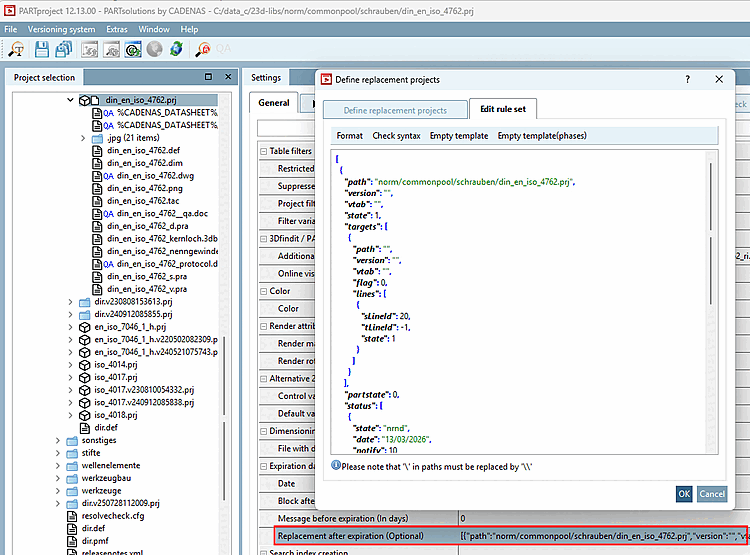
The entries are saved in a Json file. As an alternative to displaying and editing in the user interface, the Json file can be opened after selecting the project file via Tabbed page Settings > Tabbed page General > Menu item Expiry date (End of Life) [Expiration date (End of Life)] > Replacement after expiry (Optional) [Replacement after expiration (Optional)] > Define replacement projects dialog box > Edit rules [Edit rule set] tabbed page. (Very specific settings with the use of conditions can be made here).