

Until now, algorithms had to be imported into PARTdesigner one by one in several steps.
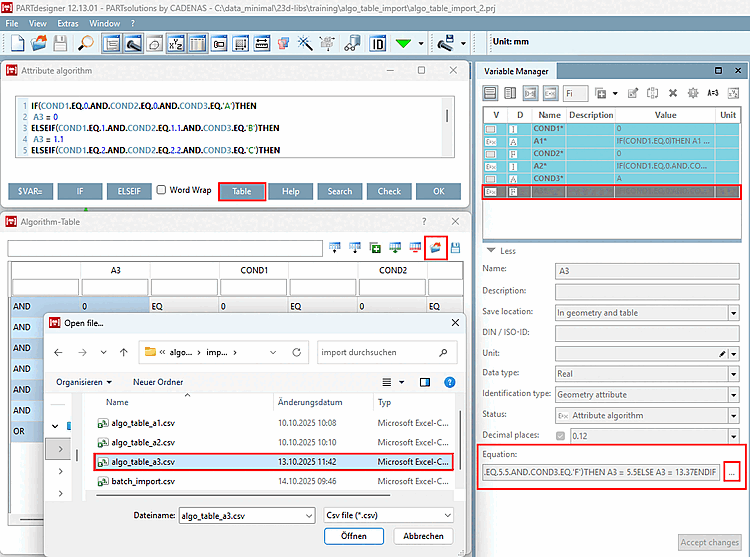
With V12.12, this can now be done in PARTproject using a batch file for an entire catalog, so it no longer has to be done individually for each project.
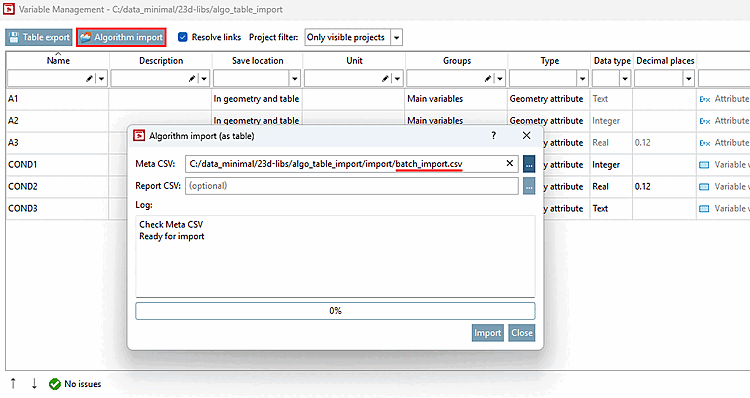
Right-click on the desired catalog > Automation > Manage Variables [Manage variables] to open the Variable Management [Variable Management] dialog box.
Click the "Algorithm Import [Algorithm import]" button there. (This button has nothing to do with the "Export" button next to it.)
-> The " Import Algorithm (as Table) [Algorithm import (as table)] " dialog box opens.
Click on " under "Meta CSV [Meta CSV] " and open the corresponding batch file in the Explorer window
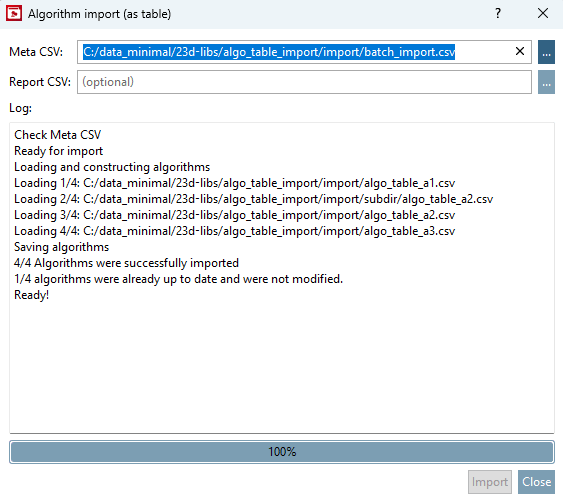
-> Each CSV file is loaded, and the algorithms are checked for validity. Any errors are displayed in the dialog box.
-> All target projects must be checked out.
Structure of the batch file (batch_import.csv):
The header must be included and look like this:
"PRJ_PATH","ALGO_CSV_PATH"
So, each line is associated with a project and the corresponding algorithm .
The project file paths can be absolute or relative to the target catalog. The algorithm CSV file paths can be absolute or relative to the meta CSV file.
"PRJ_PATH","ALGO_CSV_PATH"
"algo_table_import.prj","algo_table_a1.csv"
"algo_table_import.prj","subdir/algo_table_a2.csv"
"algo_table_import_2.prj","algo_table_a2.csv"
"subdir/algo_table_import_3.prj","algo_table_a3.csv"
Structure of the algorithm CSV files:
The structure is identical to that of PARTdesigner (see above ).
-> A dialog box opens, displaying information about the progress .
-> The algorithms are imported and saved in the target projects .
For details, see the " Section 5.8.2.1.20.8.2, “ Algorithm Import ” in eCATALOG 3Dfindit" section.