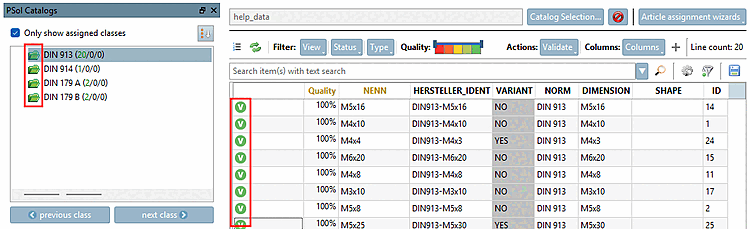
For large projects with thousands of lines, the process is typically carried out step-by-step or selectively . Before exporting (to a CSV file or directly to LinkDB), a validation step is performed. Afterward, it is possible to export only the valid products in stages. See the filter options in the CSV Export dialog.
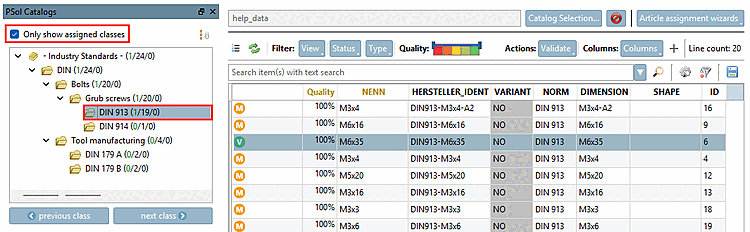
When it comes to validation, there are generally always two options:
Validate a single row using the icon in the Link Editor (see above )
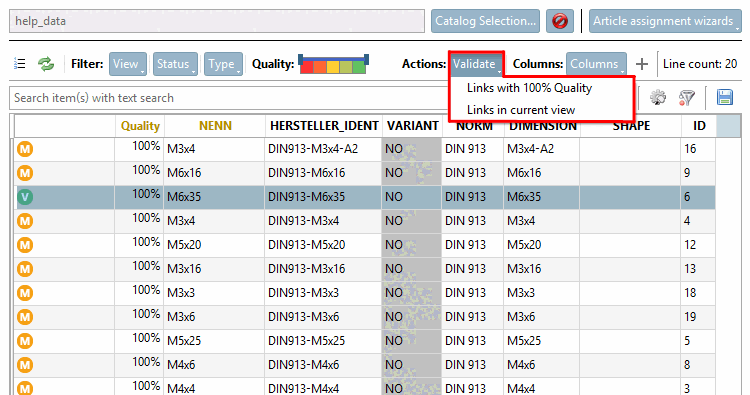
Validate the displayed table using the button
The button offers two options:
Links in the current view [Links in current view]:
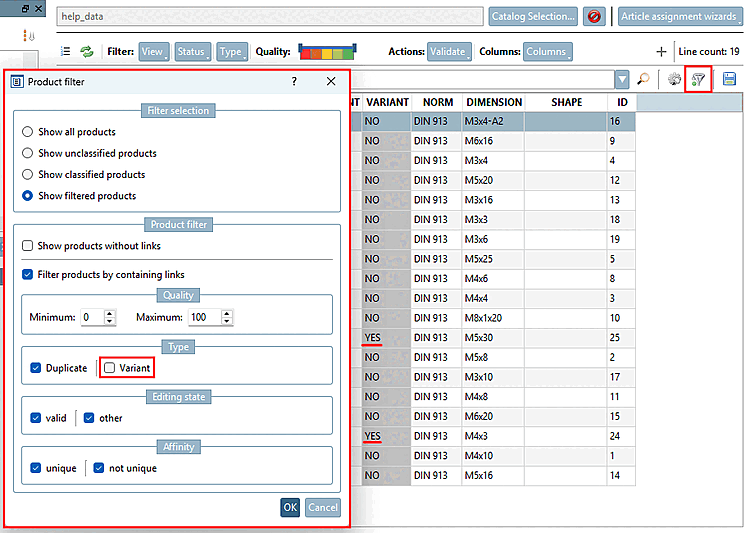
The current view can be filtered. To do this, click on the Filter icon
 .
.-> The " Product Filter [Product filter] " dialog box opens.
The figure shows an example of how variants are filtered out of the table . After clicking "OK," only rows that are not variants are displayed.
If all mappings/links are valid, all table rows display a green "V" and the folders in the PSol Catalogs dialog are also green.
![[Note]](https://webapi.partcommunity.com/service/help/latest/pages/en/installation/doc/images/note.png) | Note |
|---|---|
You don't have to process everything at once. You can just as easily export only the valid links in several steps. | |