1.1.9. Mappings Check

Take a look at the imported CSV catalog[6] ("help_data") now with the mappings created for the DIN catalog (shown here as an example for the DIN catalog).

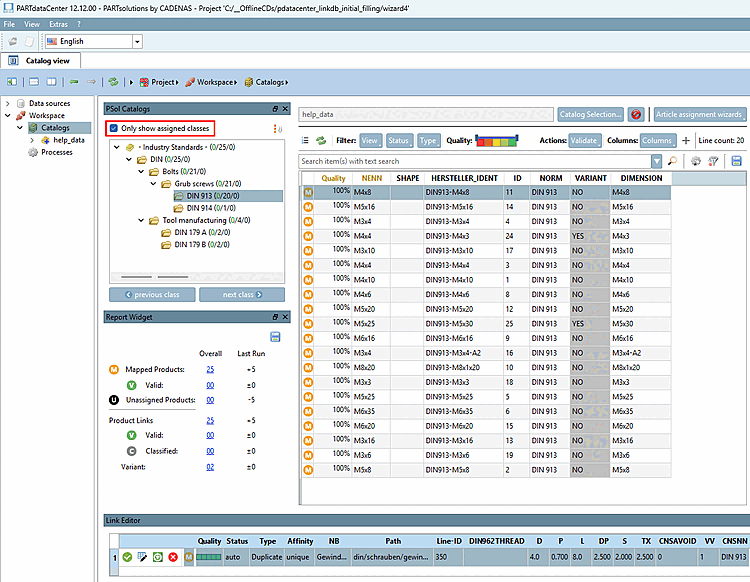
  1. Go to the PSol Catalogs dialog box and select the " Only show assigned classes [Only show assigned classes]" option.

    Select a standard.

    -> You can now see all the mapped classes for the selected standard and have the option to check in detail whether everything is as desired.

  2. Mappings Dialog

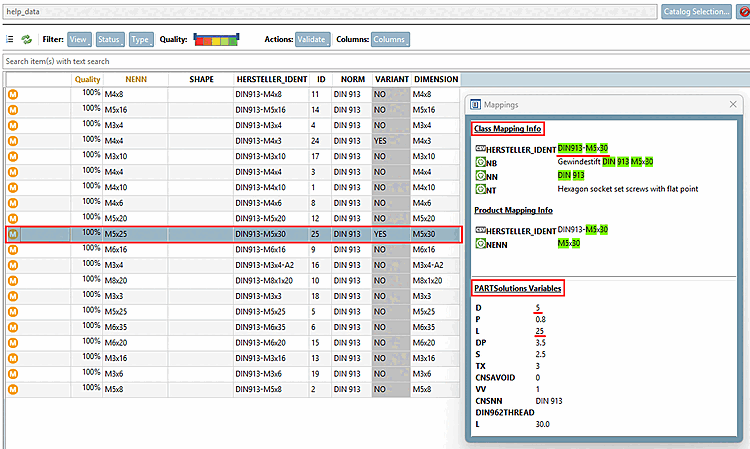
    Select a product line and check in the Mapping dialog to see if the information under " Class Mapping Info " and " PARTsolutions Variables " matches as desired.

  3. Link Editor

    The Link Editor displays the link parameters for the selected table row and offers the following actions:

    Change category to valid (a) [Change category to valid (a)]:

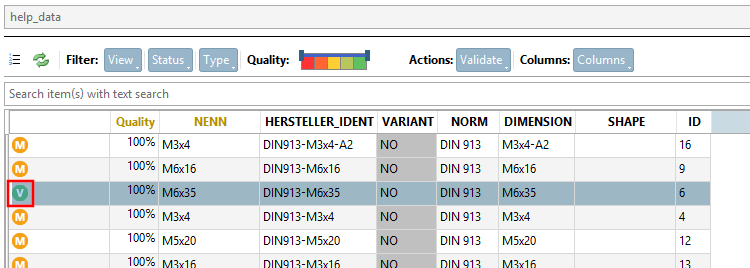
    Click the icon or use the keyboard shortcut "a" to set the selected table row to "Valid."

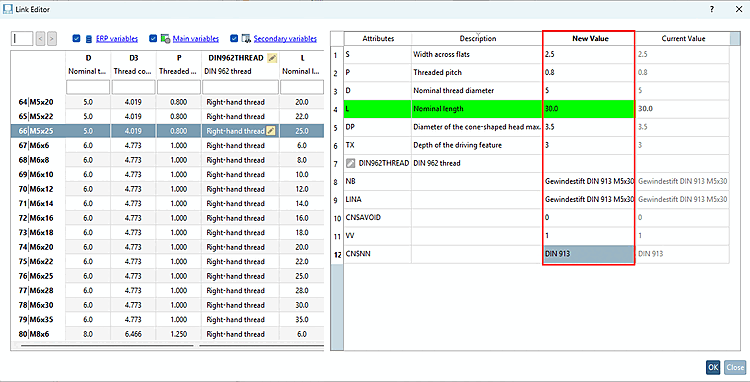
    Modify Link(s) [Modify Link (s)]: Clicking the icon opens the comparison window. On the left, you’ll see the table in the PARTsolutions catalog, and to the right of it, for the selected table row, the parameters of the mapped product. Here, if necessary, you can make adjustments to individual attributes (variables) in the “New Value” [New Value] column.

    Open link (d): The corresponding project row is opened in PARTdataManager .
    Remove link (f): The link will be removed.

    The lowercase letters in parentheses indicate the corresponding keyboard shortcut.


[6] In the Standard Parts Wizard, "help_data" was used; in the Manufacturer Parts Wizard, "".