2.7.3.3. Monitor and manage clustering jobs

Purpose

In the Clustering Overview, you can track submitted jobs for clustering, name generation, or export, and you can pause, retry, or remove them if their status requires action.

Requirements

  • Log in to clustering-view to open the clustering overview .

  • To cancel, retry, or delete a job, clustering-manage is required. Users with read-only access can view the job information but cannot perform lifecycle actions.

  • Resolve any warnings regarding the backend's readiness before you start or repeat backend operations.

Procedure

Track Ongoing Work

The Clustering Overview is the authoritative list of submitted jobs. Use "Filter" [1] to narrow the view to a specific job name, catalog, or identifier. The corresponding active card [2] shows the status, current phase, progress, source catalog, job type, submitted options, and creation time. Leave the filter selected while tracking a long-running job; clear it when you want to view the entire queue again.

The filter keeps track of the active job, while "Phase" and "Progress" show the current pipeline activity .

The filter keeps track of the active job, while "Phase" and "Progress" show the current pipeline activity .

Interfering with ongoing work

Use "More" [1] and "Cancel" [2] if you do not want a pending or running job to continue. If you cancel a job, the entry—including the submitted data—remains under “Failed and Canceled Jobs,” so that the next decision regarding restoration remains traceable. The job entry is not removed.

The menu for the active job displays "Cancel" only while the job is waiting or running and the account has administrative privileges.

The menu for the active job displays "Cancel" only while the job is waiting or running and the account has administrative privileges.

Restore or clean up inactive jobs

Failed and aborted jobs continue to display the status [1], “Retry” [2], and the “More” menu [3]. “Retry” behaves differently depending on the job type: A clustering job opens the form for a new job with the previous values; an export job reopens the export for the associated saved clustering with the corresponding saved target values; a name generation job immediately starts a replacement process for the linked saved clustering. Check the saved context before repeating any work. “Remove” deletes only an inactive history entry and is useful once this history is no longer needed for recovery or operation.
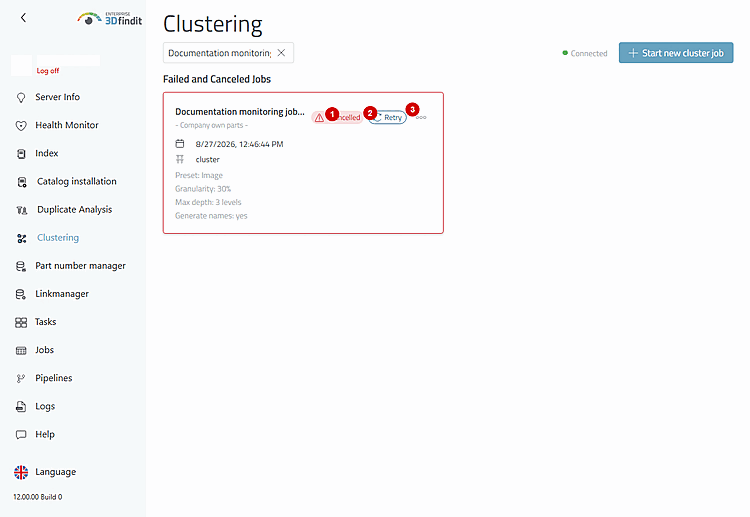
An aborted job is retained along with its submitted settings. This allows the administrator to decide whether to repeat the original job or simply clean up an outdated entry.

An aborted job is retained along with its submitted settings. This allows the administrator to decide whether to repeat the original job or simply clean up an outdated entry.

Manage Export and Name Generation Jobs Manage

Cards of the "export" and "generateNames" types have the same lifecycle actions for active and inactive jobs as clustering jobs. Active cards can be canceled; failed and canceled cards can be re-run or removed. Export cards retain the destination catalog and localized display names. A generateNames card displays “Generate directory names” if the option for this operation was enabled .

Name generation is a separate job type. It does not change the settings displayed in the original clustering job.

Name generation is a separate job type. It does not change the settings displayed in the original clustering job.

In the case of failed or aborted exports, the destination catalog and localized display names indicate whether it makes sense to retry a specific export or whether an outdated request should simply be removed. If a job entry is removed, the associated saved clustering is retained.

The export card retains the information about the destination catalog. This allows you to determine whether the intended export should be repeated or whether only the inactive history entry should be cleared.

The export card retains the information about the destination catalog. This allows you to determine whether the intended export should be repeated or whether only the inactive history entry should be cleared.

Options and Decisions in Operations

Job Monitoring – Overview Sections, Statuses, and Lifecycle Actions

Control element or State

Operating Instructions

"Filter"

Search active, failed/aborted, and completed job cards as well as saved clustering cards by job identifier, catalog, or job name. Use the filter to select a single entry from a full overview; clear the filter to view the complete list again.

"Active Jobs"

Contains jobs in the "Pending" or "Running" state. "Pending" means queued or initialized; "Running" means that the backend has begun processing. Active cards display a progress bar showing the current phase and percentage.

"Failed and Canceled Jobs"

Contains jobs that were not completed . A failed job may display the error message from the backend; an aborted job indicates that the job was paused. Check the saved job options before deciding whether to retry.

"Completed Jobs"

Contains entries for successfully completed jobs for tracking purposes. A completed clustering job is separate from the saved clustering result, which is displayed elsewhere in the overview, but may refer to it.

Job Titles and Catalog

Clustering jobs display their assigned names. Export and name-generation jobs display the name of the associated saved clustering; the catalog below lists the source or target context. Use both pieces of information if multiple runs have similar settings .

Job Type

Specifies whether the card represents a job of the type "cluster," "export," or "generateNames." The behavior of "Retry" depends on this.

Submitted Options

Clustering jobs display the preset, granularity, maximum depth, and enabled options for name generation. Export jobs display the destination directory and each configured localized display name along with its language. Name generation jobs show whether the generation of directory names is enabled. Use these values to check whether a repeat run still aligns with the intended workflow.

"Cancel"

Available via "More" only for pending or running jobs. Pauses the backend job and moves the entry to the failed/canceled jobs section. Use this action if the job is no longer needed or needs to be restarted with different settings.

"Retry"

Available directly on the map for failed or canceled jobs. For a clustering job, it opens the form for a new job, pre-populated with the original request. For an export job, it opens the export form with the appropriate saved destination values. For a name generation job, it immediately starts a new name generation job for the corresponding saved clustering.

"Resume"

Not available in the current version. Although the backend endpoint for failed clustering jobs exists, the overview intentionally hides this action. Use "Retry" instead.

"Remove"

The "More" option is available only for inactive failed, canceled, or completed jobs. Removes the job entry from the overview; a saved clustering result is not deleted in the process. Use this action after a decision has been made regarding a repeat run and the documentation has been completed .

"Show all" / "Show less"

Appears when the section for failed/canceled or completed jobs contains more cards than the collapsed overview shows. Expand it to find older entries, and collapse it again to shorten the list.

Result

The overview always displays the current status of active and inactive jobs. Administrators can pause inappropriate active jobs, retry suitable failed or aborted jobs using the previous settings, and remove inactive history entries without deleting the corresponding clustering result.

Tips and Troubleshooting

  • As long as a job is active, the job cards are updated every 2 seconds; when no jobs are active, they are updated every 15 seconds. Wait for the next update before considering a status change to be final.

  • For export and name-generation jobs, “Retry” requires a suitable saved clustering. If this source result has been removed, the overview reports that the target for the retry cannot be found.

  • Do not use "Remove" for a failed or aborted job as long as you still need its submitted options or its error message to decide whether to restore it.