5.8.2.1.13.3. Export CSV for translation

In order to make the PARTproject Translation tables available for external purposes (e.g. translation agencies), you can save them as *.CSV files [21].

The *:CSV file can then be opened and edited with a text editor or in MS Excel / OpenOffice.org Calc.

5.8.2.1.13.3.1. Preparation - Define catalog language

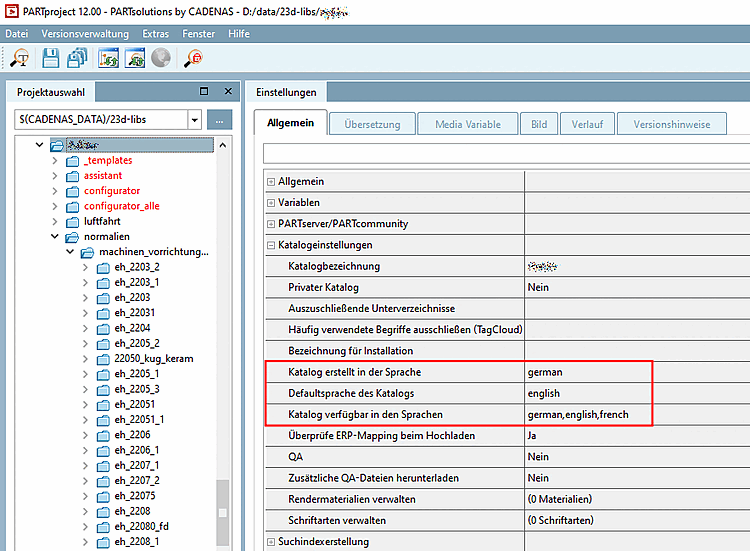
In the index tree, select your catalog and fill out the fields Catalog created in the language, Default language of catalog and Catalog available in the languages on the tabbed page General.

Catalog languages

Catalog languages

5.8.2.1.13.3.2. Export CSV file

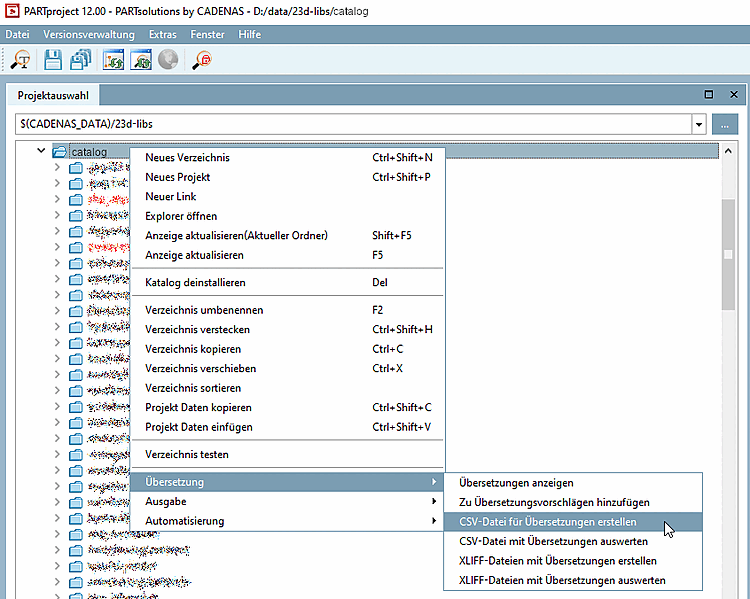
In the context menu of the catalog or directory to be translated, click on Translation -> Export CSV for translation.

Export CSV for translation

Export CSV for translation

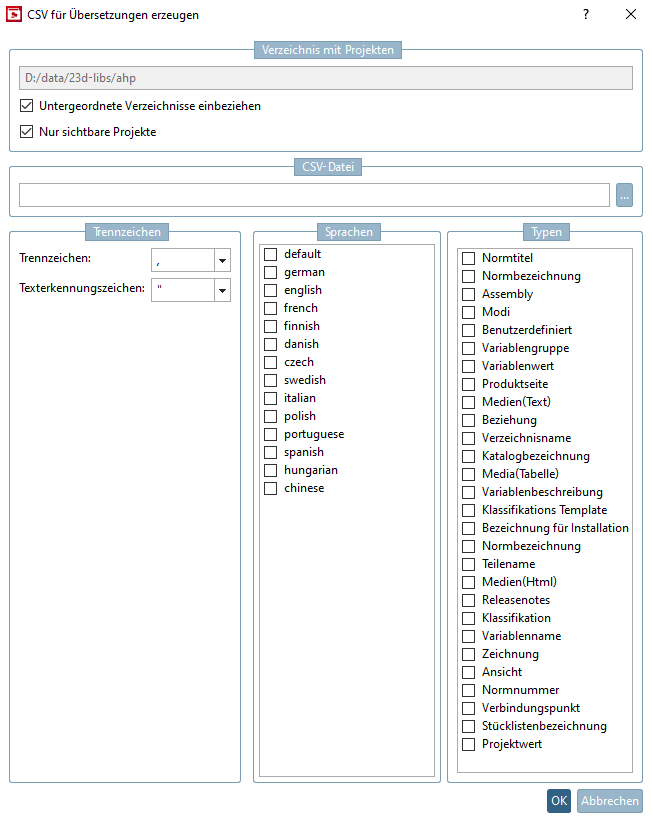
-> The dialog box Create CSV for translation is opened.

Create CSV for translation

Create CSV for translation

Perform the desired settings:

  • Folder with projects

    The marked directory is automatically entered.

  • CSV file

    Via Browse ... determine the target directory for the CSV file.

  • Separator

    Enter which Separator is to be used to separate the column values. As a default, comma and quotation marks have been entered.

  • Languages

    Select the source language and one or more (if all are located on the same code page) target languages.

  • Types: See below.

Confirm the creation of the CSV file with OK.

5.8.2.1.13.3.3. Edit CSV file

Open the translation file in the desired editor (e.g. MS Excel, OpenOffice.org Calc or any CSV editor).
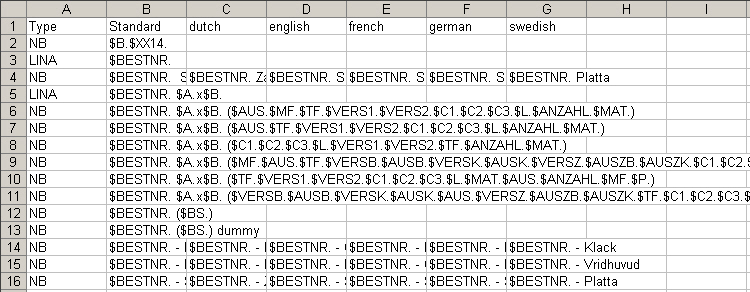
Translation file opened in Excel

Translation file opened in Excel

The first column shows the different Types of terms.

[Tip]Tip

In Excel (for example) choose the filter function and only show one type or sort according to type. Only edit one type.

TypeVisible in (for example)
Standard titleIndex tree in PARTdataManager (e.g. "Hexagon bolt")
Standard namePARTdataManager (Title in 3D window), feature tree of CAD system, CAD system pool, PARTserver
AssemblyMostly does not contain translatable terms and only has to be translated if it makes sense. Terms like "rb_rotary_asm_cfg", for example, don't have to be translated.
ModesCore hole, Nominal thread
CustomIn def file
Variable groupSeparation of characteristic attribute table into groups (e.g. PARTcommunity)
Variable value

Description in value range field

(If value range fields (yellow fields) contain translatable text (e.g. "with" / "without"))

Product page

Product info pages created under PARTproject -> Settings -> tab "General" -> Item "General"

Media(Text)PDF datasheet
Media(Table)PDF datasheet
Media(Html)PDF datasheet
Relation 
Directory nameIndex tree PARTdataManager
Catalog name

Index tree PARTdataManager

Variable descriptionIn the PARTdataManager table header under the variables
Classification templateTranslations of the "_classstore" templates
Name of installationDescription for the cip file
Part nameEntry under PARTdesigner -> Identification details
Release notesPARTadmin -> Category -> Catalogs -> Updates -> Online
ClassificationAttribute description marked as translatable in the classification
Variable nameCharacteristic attribute table
DrawingName of a user-defined drawing
View

Technical view

Standard numberIndex tree in PARTdataManager (e.g. "DIN 933")
Connection pointPARTdesigner 3D view
Bom namePARTdataManager (title in table window), PARTbom, ERP and PDM systems
Project value

NN and NT of a project, in there is no table

Mostly does not contain translatable terms and so only has to be translated if it makes sense.

Index tree in PARTdataManager (e.g. "Copyright")

Note the following during translating:

[Important]Important

  • Never change the header (row 1)

  • Never change columns "Type" and "Standard".

  • Never translate between dollar ($) and period (.), since this is a variable name.

    Correct example:

    LanguageTranslation
    germanGrundplatte $BESTNR.($VERSB.) $AUSFUEHRUNG.
    englishBottom Plate $BESTNR.($VERSB.) $AUSFUEHRUNG.

[Important]Important

Save the table in the same format in which you received the file and close it.

Name the file type if applicable in Windows Explorer to *.csv.

Start PARTproject in order to import the translation file via Import CSV for translation.


[21] CSV = comma separated values