1.1.6.
Part Number Search (using the "Article Assignment
Wizard" for manufacturer parts) 1.1.6.3. Import Data
in the Wizard (Item Number Search) |  |
| Prev | Next |
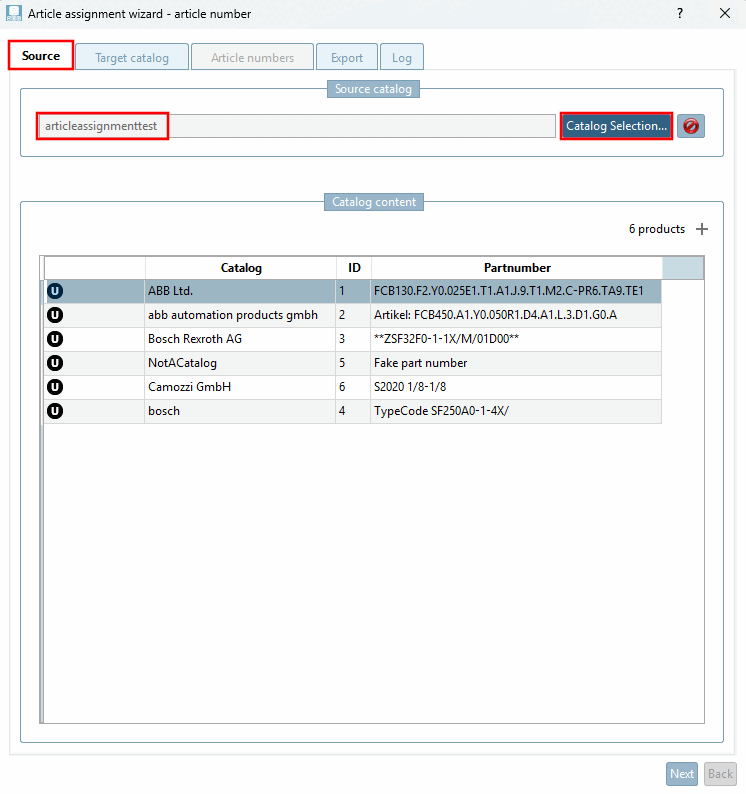
The Wizard ( Article Assignment Wizard [Article assignment wizard - article number] dialog box - article number [Article assignment wizard - article number] ) opens on the Source tabbed page.
You may want to click the " " button and select "articleassignmenttest".)
You will see a preview table with 3 attributes (Catalog, Partnumber, ID) and 6 rows.
For details, see Section 1.1.6.4.1, “Tabbed page "Source"”.
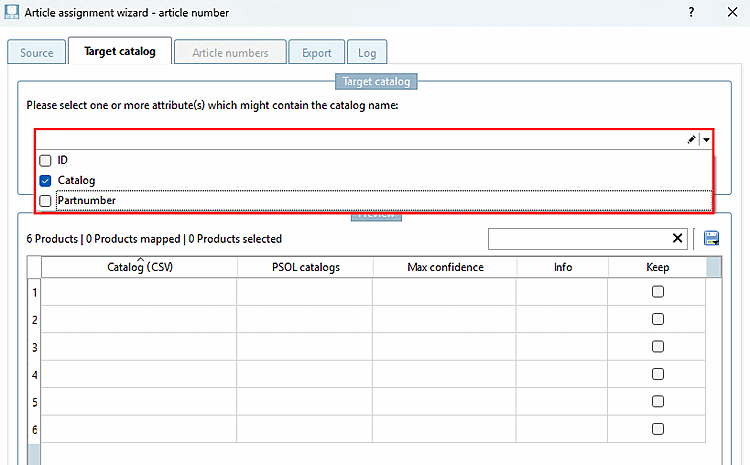
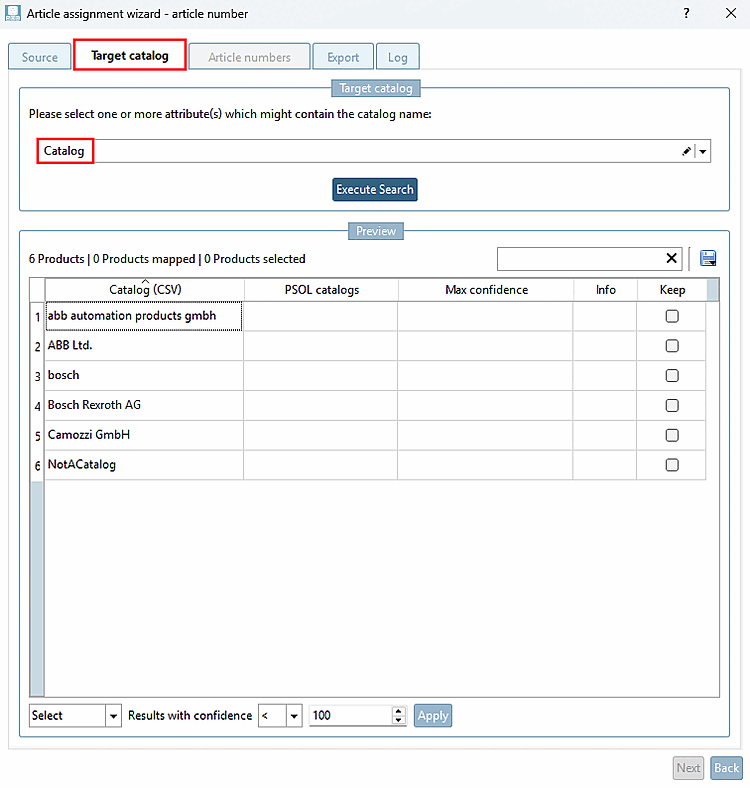
Go to the Target catalog [Target catalog] tabbed page.
Open the list box and select the " Catalog" [Catalog] checkbox, since the catalog name is located here.
Click outside the list box to close it and accept the selection .
-> The table now displays the catalog entries from the CSV file.
-> The header displays the following:
6 Products | 0 Products mapped | 0 Products selected
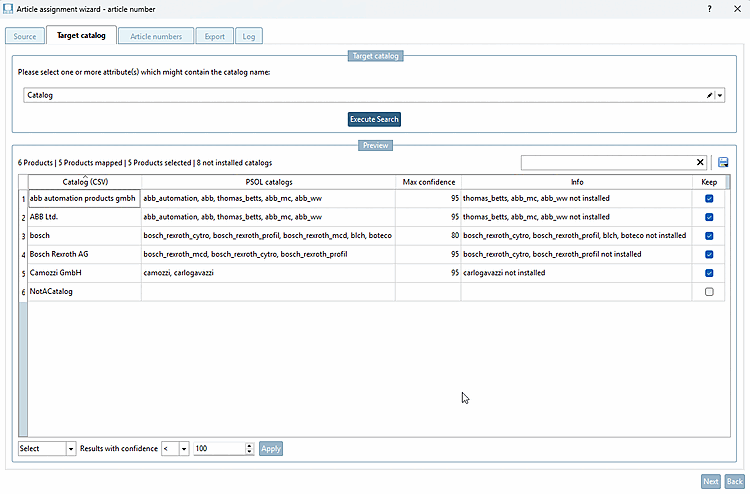
-> The catalog name from the CSV file is compared with all available catalogs (that is, all those that also appear in the PARTadmin online catalog list ).
For details, see Section 1.1.6.4.2, “Tabbed page "Target Catalog"”.
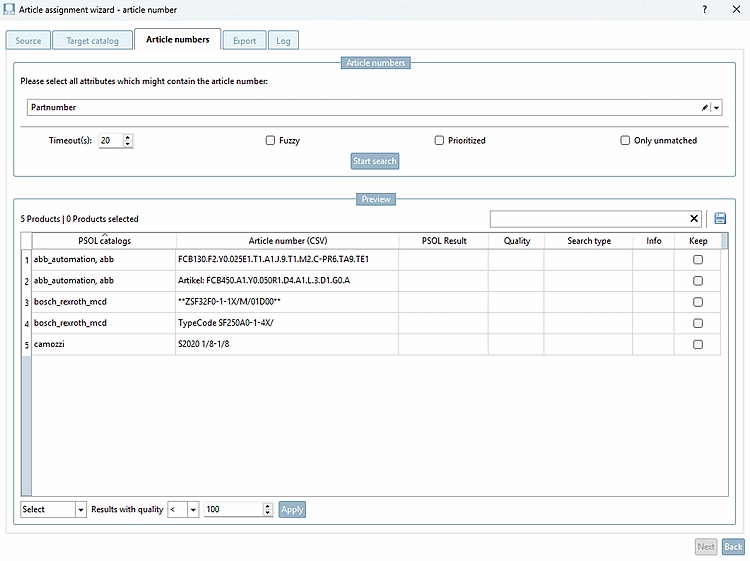
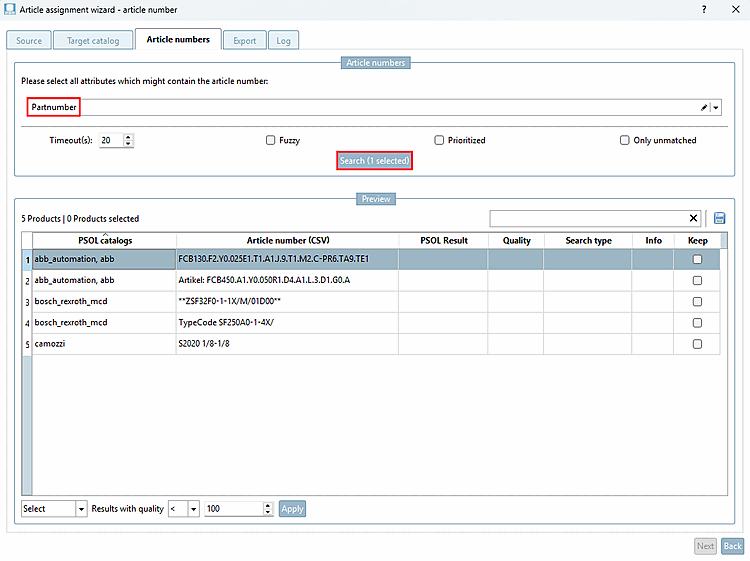
Select from the " Part Number" list box.
-> The preview shows 5 rows with entries in the PSOL catalogs and Article number (CSV) columns.
Select the first row (without checking the " Keep" checkbox).
-> During the search process, a progress bar is displayed.
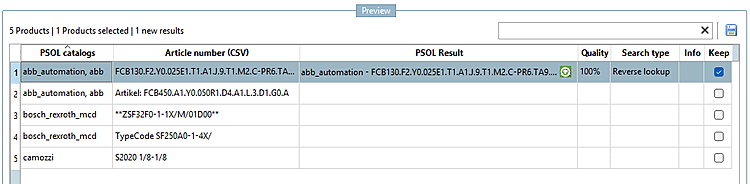
-> Once the search is complete, the table displays the result for the first row.
The " Quality " column shows that there is a 100% match. The " PSOL catalogs / Article number (CSV) " and " PSOL Result " columns confirm this in detail.
Keep: The checkbox was automatically selected because there is a positive search result.
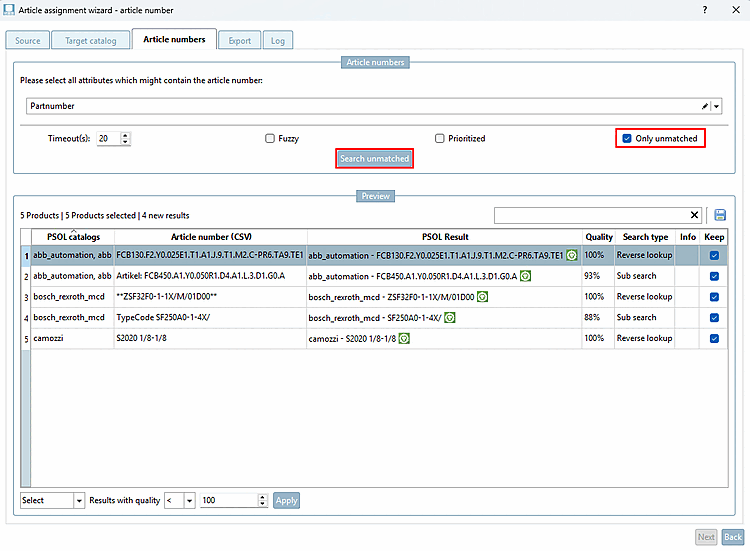
-> After the search is complete, search results are returned for all table rows. The search may take longer, especially the first time it runs, because a user-defined index is generated.
Clicking on a result in the " PSOL Result " column opens it in PARTdataManager.
The checkbox in the "Keep [Keep] " column can be manually checked or unchecked, or selected using the options at the bottom in the list boxes.
For details, see Section 1.1.6.4.3, “Tabbed page "Article Numbers"”.
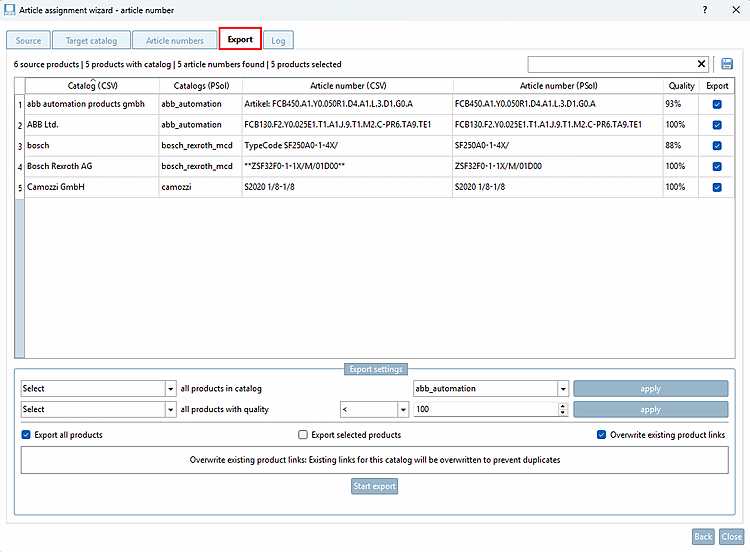
Deselect all rows in the Export column except for one (e.g., "Bosch").
( For illustrative purposes, not all rows are exported at once here.)
Check the " Export selected products [Export selected products]" checkbox.
Run the export again, but this time select the options " Export all products " and " Overwrite existing product links."
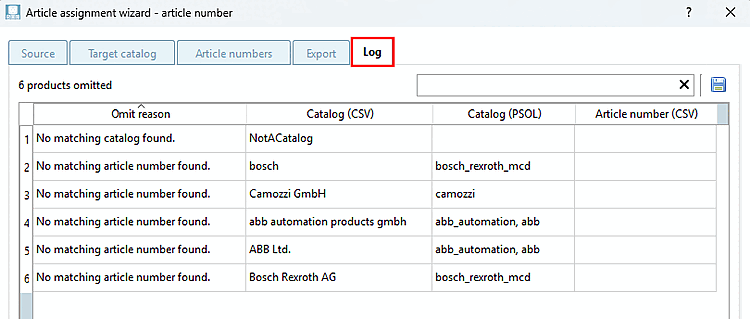
The Tabbed page "Log" [Log] contains all products from the selected CSV catalog for which no match could be found in a PSOL catalog, along with the reason for each. You can switch to this page at any time to review the information.
For details, see Section 1.1.6.4.5, “Tabbed page "Log"”.
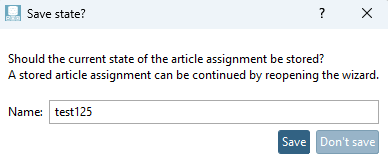
Click the X or the button to close the dialog box.
-> The " Save state? " dialog box opens.
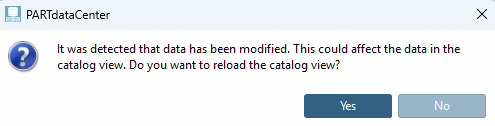
-> The " Reload? " dialog box opens.
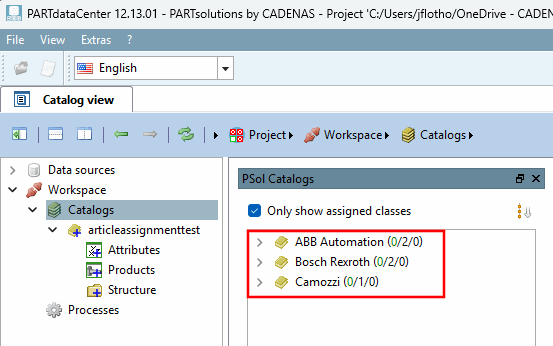
-> In the PSol Catalogs [PSol Catalogs] docking window, if the " Only show assigned classes [Only show assigned classes] " option is enabled, all catalogs for which assignments have been made are displayed.
Navigate to the lowest level of a catalog.
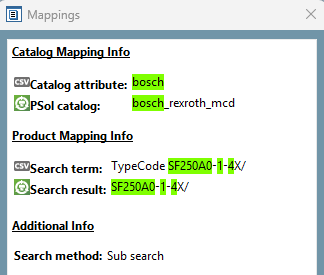
Here is the exported product link.
Mappings Check: See Section 1.1.9, “Mappings Check”.
Validating mappings: See Section 1.1.10, “Validate Mappings”.
Links Export to a CSV file: See Section 1.1.11, “Links Export to CSV file”.
Exporting data in a link : See Section 1.1.14, “LinkDB export (directly or via CSV file)”.
![[Note]](https://webapi.partcommunity.com/service/help/latest/pages/en/partsolutions_admin/doc/images/note.png)