

- 7.12.1. Add row
- 7.12.2. Delete row
- 7.12.3. Duplicate row
- 7.12.4. Move row up
- 7.12.5. Move row down
- 7.12.6. Debugger
- 7.12.7. Show variable dependencies
- 7.12.8. Cursor movement up or down
- 7.12.9. Cut
- 7.12.10. Copy
- 7.12.11. Insert
- 7.12.12. Overwrite
- 7.12.13. Delete
- 7.12.14. Show/hide value range columns
- 7.12.15. Show/hide columns with attribute algorithms
- 7.12.16. Show/hide column with fixed values
- 7.12.17. Save as CSV file
- 7.12.18. Import CSV file
- 7.12.19. Display translated data / language selection
- 7.12.20. Sort
- 7.12.21. Display the variable unit next to the variable
- 7.12.22. Adjust column width
- 7.12.23. Fill columns
- 7.12.24. Fill column with thread information
![[Note]](https://webapi.partcommunity.com/service/help/latest/pages/en/partsolutions_user/doc/images/note.png) | Note |
|---|---|
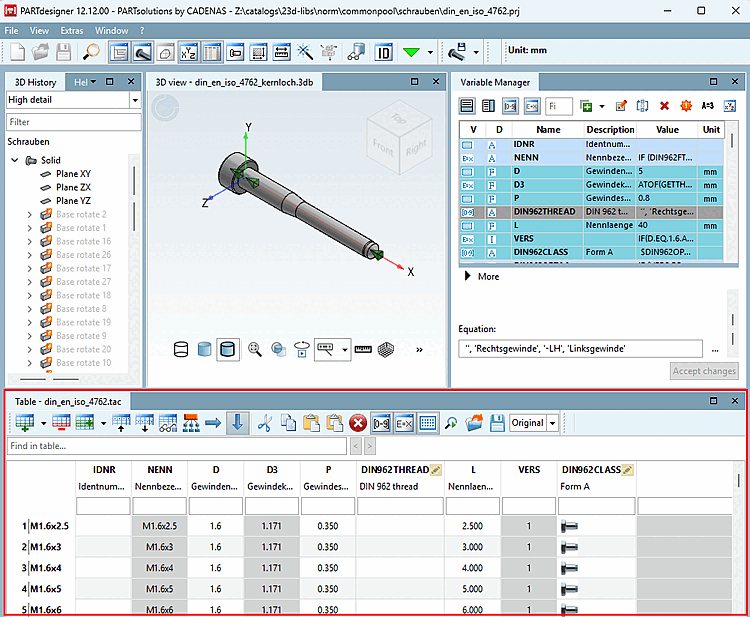
The illustration above shows the "Table" docking window. Not all workspaces are required at the same time. Design the user interface as desired.
| |
![Standard toolbar [Default]](https://webapi.partcommunity.com/service/help/latest/pages/en/partsolutions_user/doc/resources/img/img_4f9b7aba5729417c9b5882f593dde379.png)


![View menu [View]](https://webapi.partcommunity.com/service/help/latest/pages/en/partsolutions_user/doc/resources/img/img_69c10156eb4a45eb99c949ce22a6e617.png)
If you open the PARTdesigner in the File menu [File] or load a tab/tac file via Open, the Table docking area (next to the variable manager [Variable Manager] ) automatically receives an enlarged workspace. Further docking windows are generally not required here.
You can perform a full-text search in the table using the Search in table [Find in table...]... input field. (Values "hidden" in value range fields are not found)
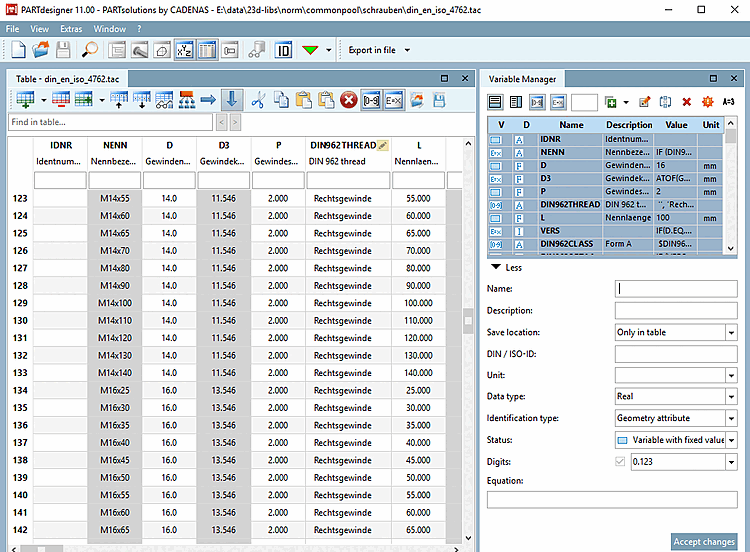
A small example on this can be found under Section 7.5, “Create table: Small example from A to Z ”.
In the table, you can find the following commands as buttons.