
 |
PARTadmin -> Category "Index administration" -> Command "Geometry import"
|
Via Geometry import you can import geometry files across entire directories and display as catalog in the PARTdataManager. |
|
Already in V8.1 this button existed in PARTproject. However, only STL files could be used for the geometric search. With V9.02 the option of importing native CAD parts in the batch run to PARTsolutions has been added.
![[Note]](https://webapi.partcommunity.com/service/help/latest/pages/en/partsolutions_user/doc/images/note.png) | Note |
|---|---|
No special batch tools needed. The CAD system must be started. Only one CAD format can be selected at the same time. | |
All files of the indicated source directory are saved in your own catalog (either relative to 23d libs or relative to 23d natives).
For a first test please be guided by the following figure when setting the options.

When all settings are done click .
In PARTadmin, below in the Index update area you see the progress during the data generation.
Under Windows 7 you can see the progress in the task bar as well.
The following image shows imported SolidWorks geometry files in PARTdataManager, in the directory tree under Catalogs -> sw_import -> assemblymates.
During the import a log file is written into the import directory, stating which files are already imported. So if you start the dialog again with the same settings, nothing will happen, as it knows, that everything is already imported. If you change a file (date) or add a file, then it will be added/changed to/in the catalog. So this is also good for updating a catalog with additional/changed parts.
| Note |
|---|---|
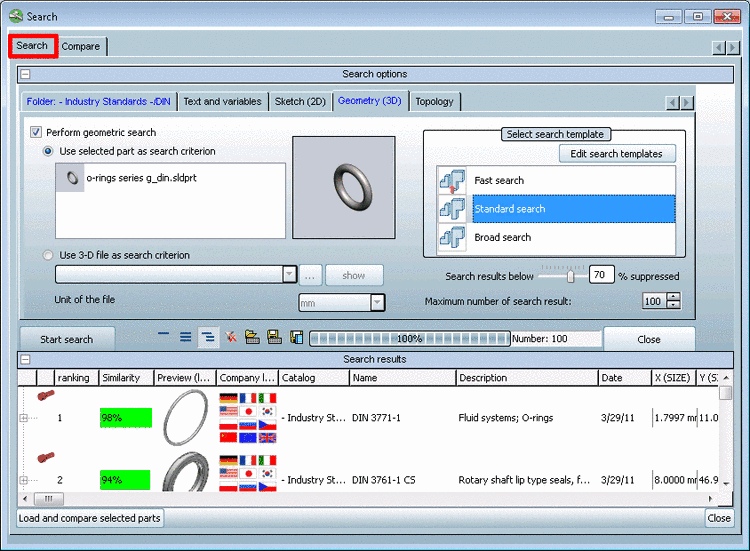
If the index for the geometric search has been created, the imported parts can be used directly for the geometric search. | |
When you want to pass along your own catalog to other colleagues e.g. then simple do the following:

You can find detailed information under Import von Geometrie-Dateien.