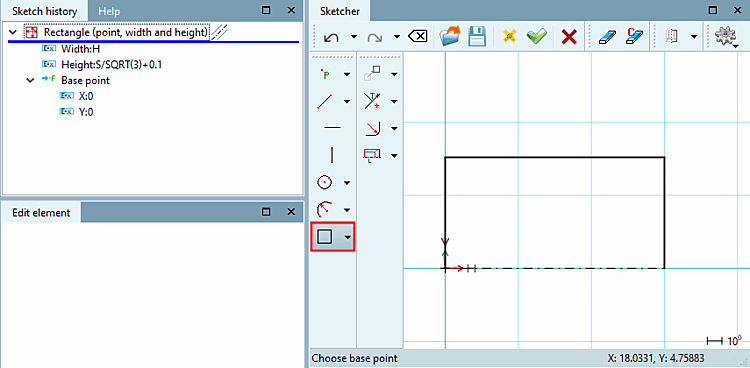
Click on the Insert rectangle button. The width of the rectangle will later be the height of the cap nut and the height of the rectangle represents the blank for the half hexagon (note: this refers to the outer diameter of the hexagon, not the width across flats).
Raw body due to the fact that the hexagon has to be cut from it via sketch 2. The height has to be a little bit wider than the hexagon's outer radius.
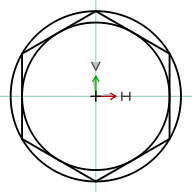
Hexagon with inner circle = width across flats and outer radius (width across flats ~ 0.866 * hexagon's outer radius)
Starting from the zero point, draw a rectangle with width = H and height = S/SQRT(3) + 0.1. (The height is therefore slightly greater than the outer radius of the hexagon)
Determine the base line as the axis of rotation [Rotation axis].
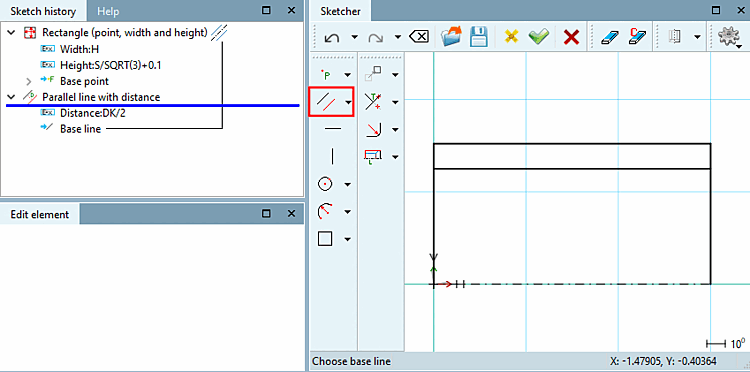
Click on the Insert parallel [Create parallel line] button.
Select the base line and position the parallel at a distance of DK/2 (DK = hat diameter).
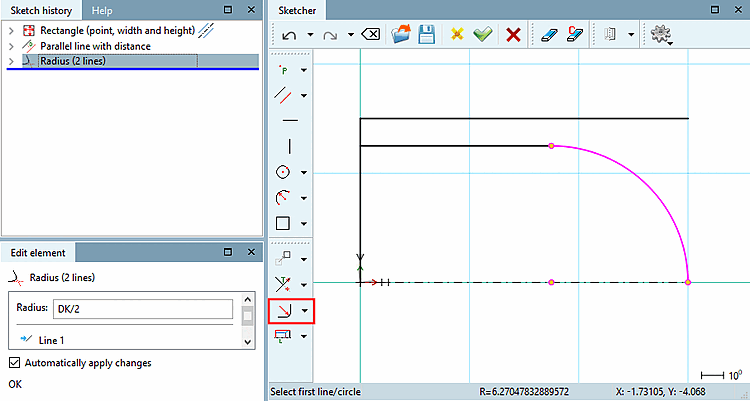
Click on the Rounding to 2 elements [Radius with 2 elements] button.
Determine the first and second line and then the rough position of the circle segment. Specify the radius in the dialog with DK/2 (DK = hat diameter).
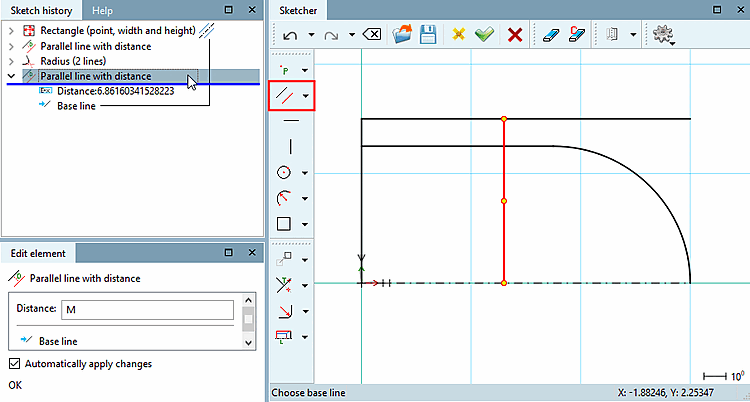
Click on the Insert parallel [Create parallel line] button.
Select the left-hand side as the base line and position the parallel at a distance M (M = hexagon height).
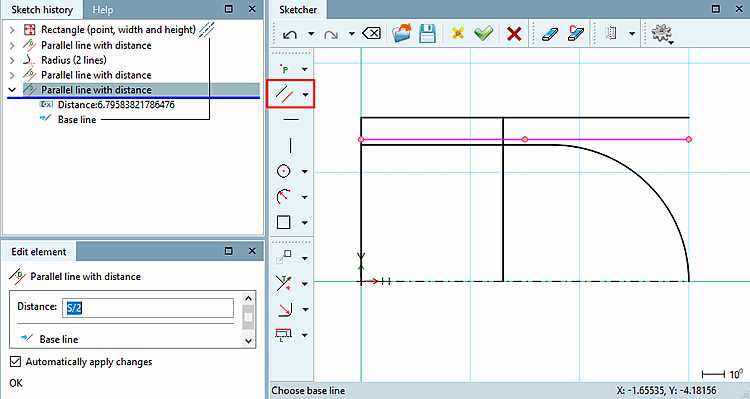
Click on the Insert parallel [Create parallel line] button.
Select the rotation axis as the base line and position the parallel line at a distance of S/2 (S = width across flats).
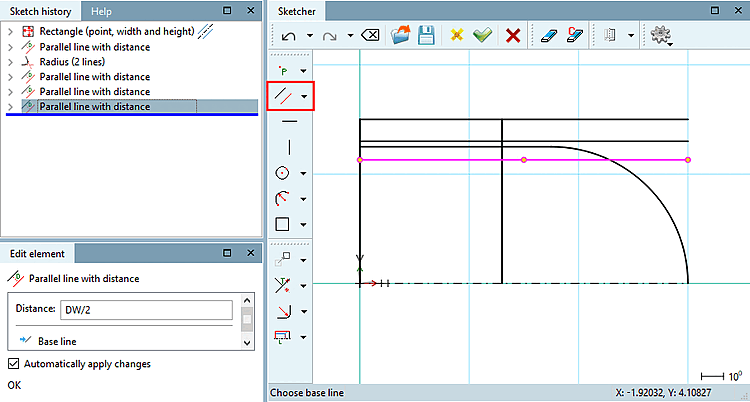
Click on the Insert parallel [Create parallel line] button.
Select the rotation axis as the base line and position the parallel at a distance DW/2 (DW = outer diameter of the contact surface).
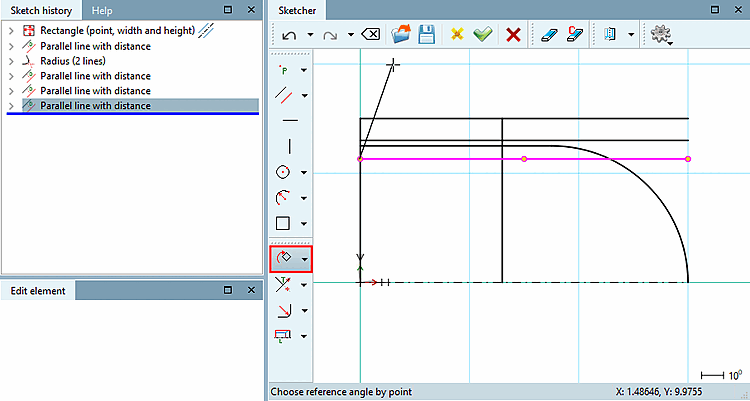
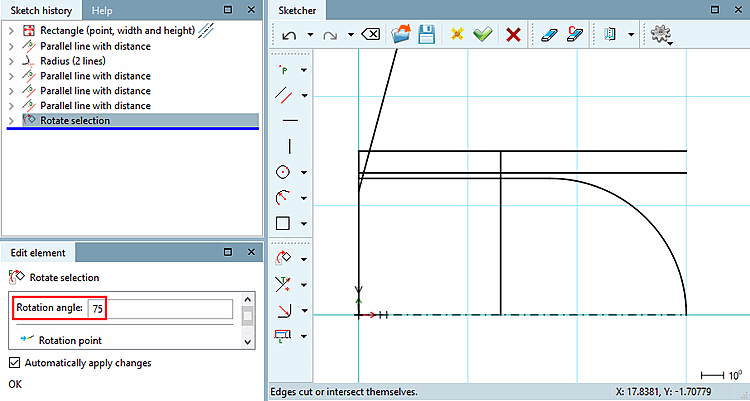
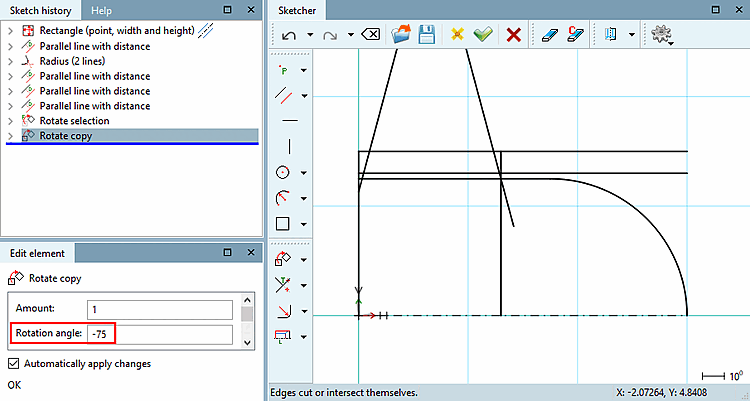
Create external chamfer on hexagon: Copy and rotate selection
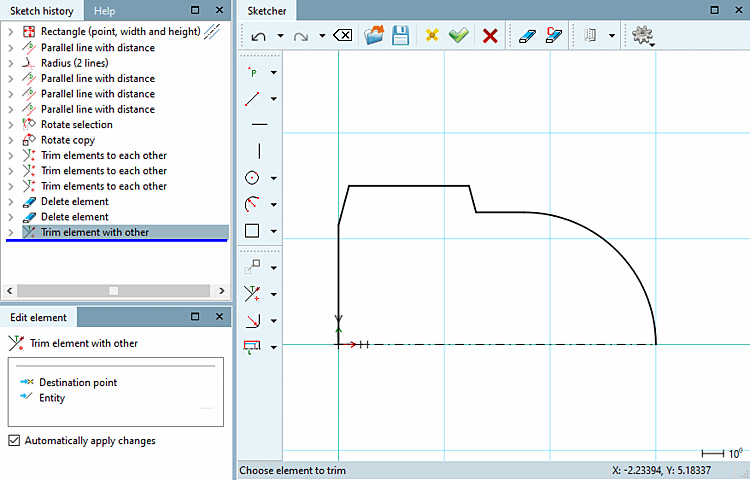
Remove all superfluous lines using the functions Trim elements to each other, Delete element and Trim element to another [Trim element with other].