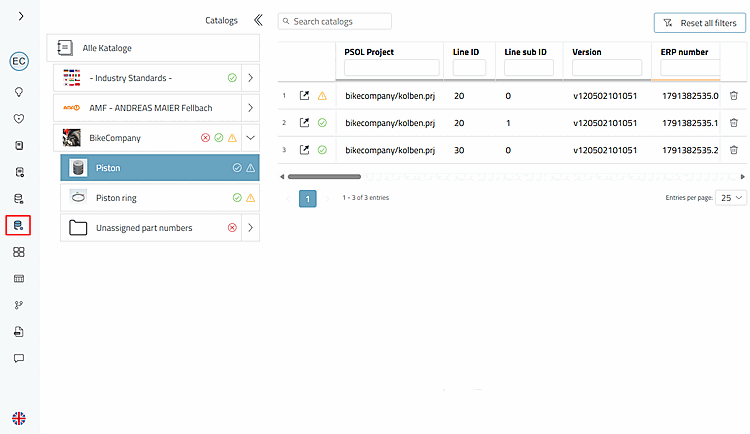
Open the Link Manager in the dashboard.
A prerequisite is the granting of the necessary authority.
PARTadmin > Rights Management [Rights administration] > Rights Assignment [Assign rights] > Profiles > LinkDb administrator
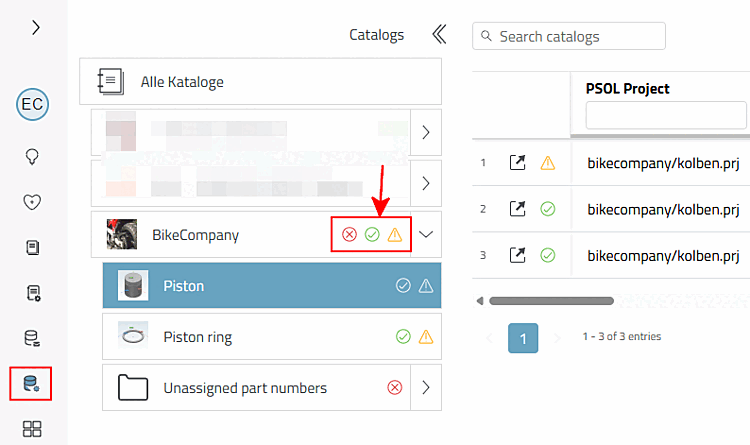
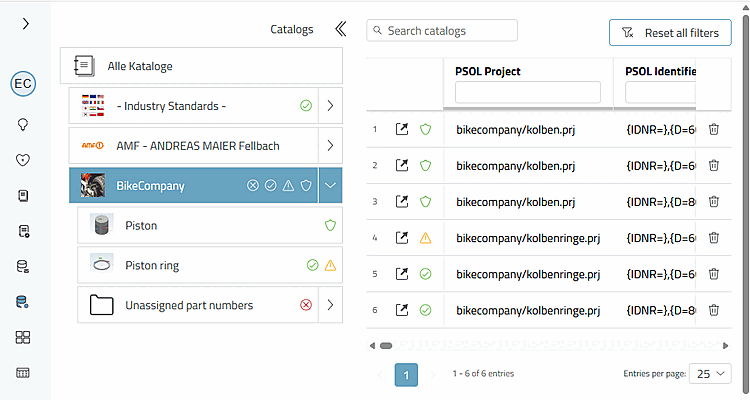
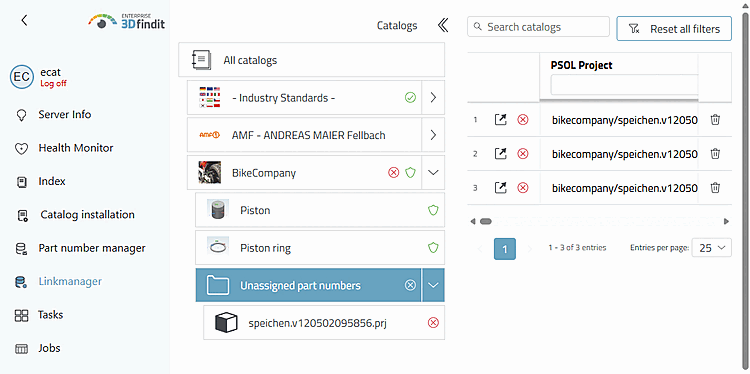
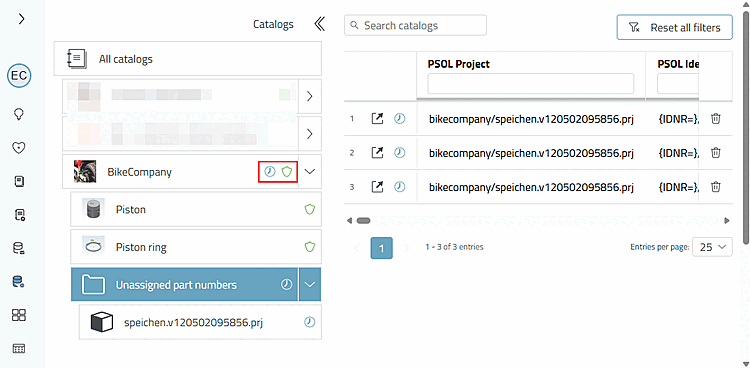
LinkManager displays the following statuses in the catalog root directory:
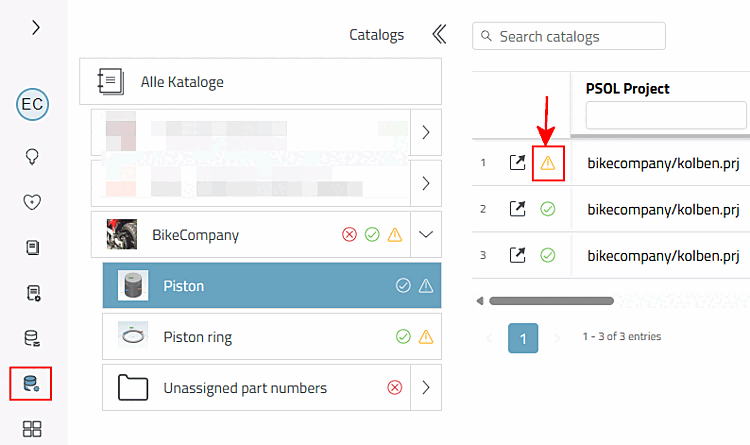
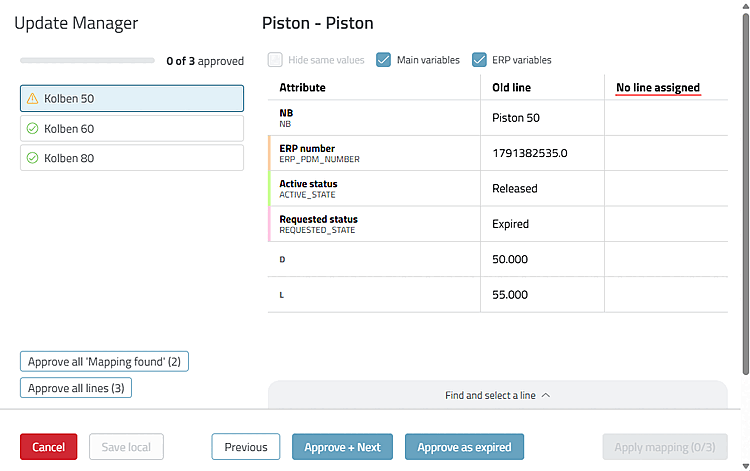
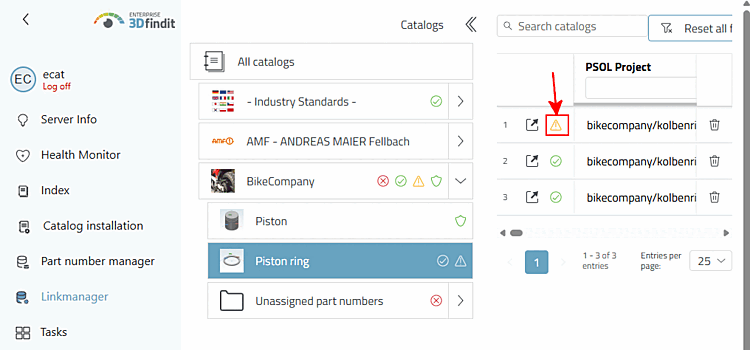
Open the Update Manager for the product piston by clicking on the icon
 assignment must be
to be verified [Mapping needs verification].
assignment must be
to be verified [Mapping needs verification].
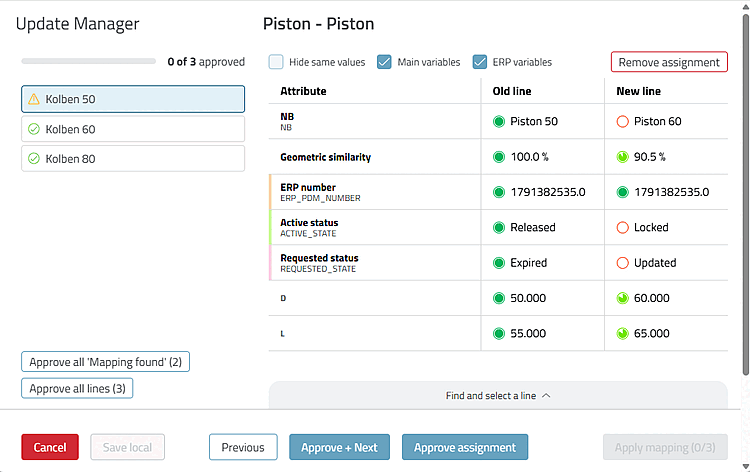
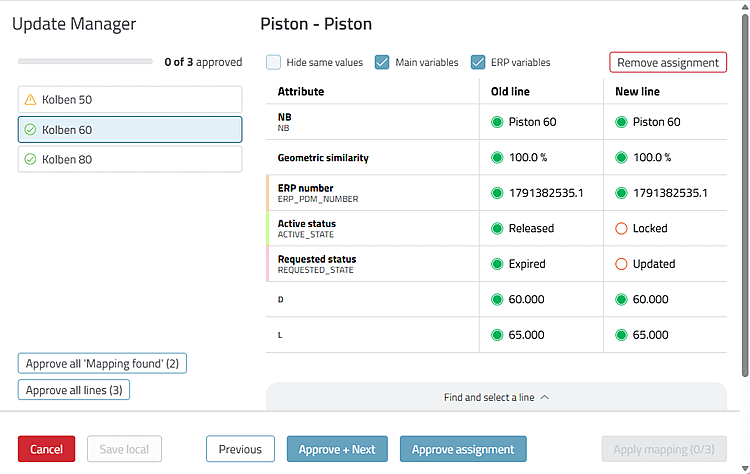
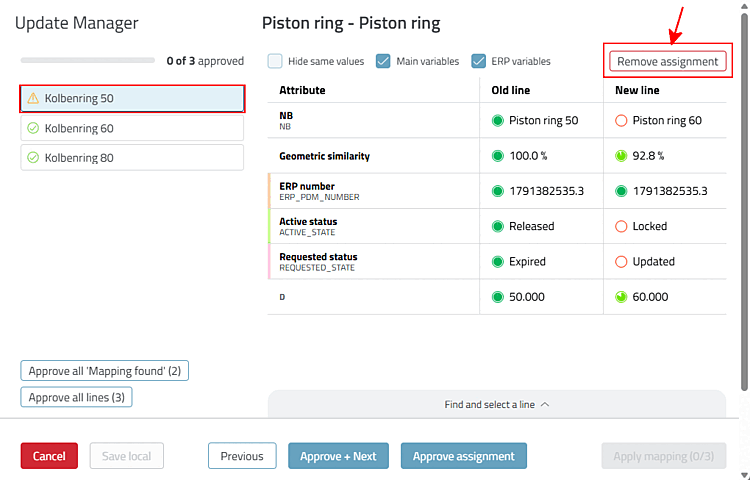
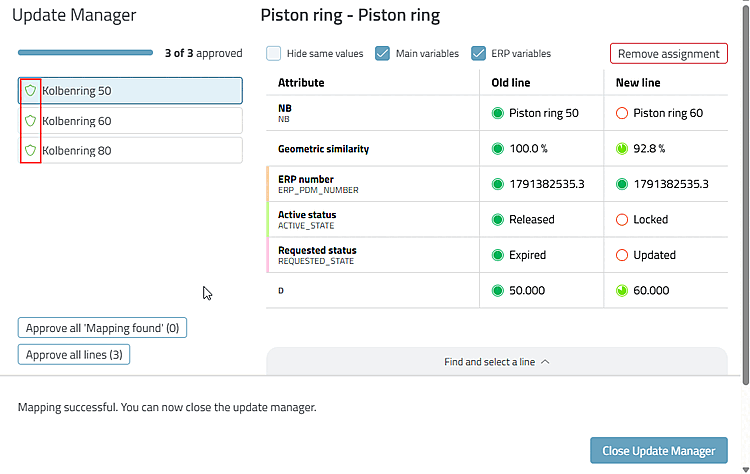
Check in each case whether the mapping from Old line to New line is correct. To do this, select the desired product.
Piston 50: The icon
mapping must be
already [Mapping needs verification] shows that it is likely that
an incorrect line has been assigned. The deviating geometric similarity
confirms this. -> Therefore, click on the button
.
-> Where " New line " used to appear, " No line assigned" is now displayed.
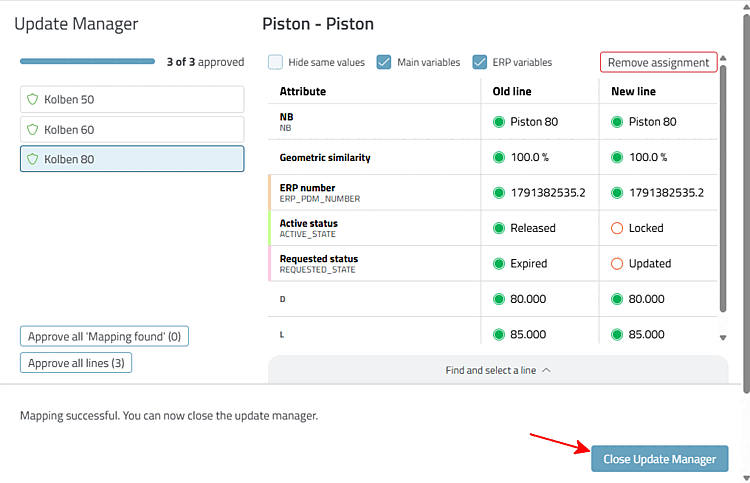
Piston 60 and piston 80: Using the icon
 Assignment
you [Mapping found] can already see that the mapping
. Geometric similarity 100%
confirms this. The exactly matching line of the
new version.
Assignment
you [Mapping found] can already see that the mapping
. Geometric similarity 100%
confirms this. The exactly matching line of the
new version.
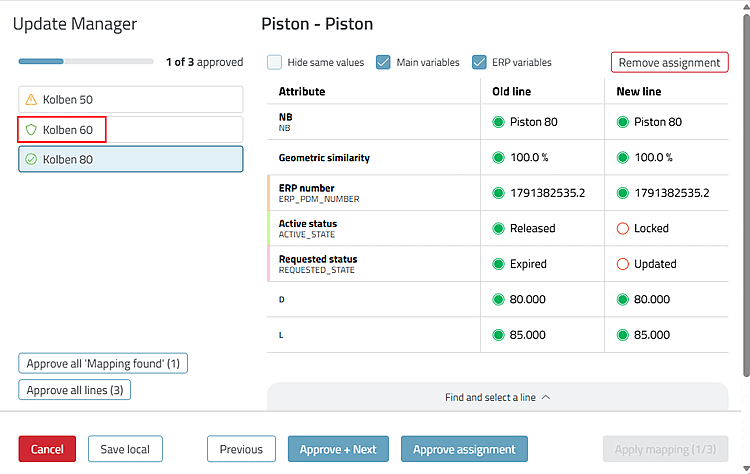
Click either the "Approve all 'Mapping found'" button (2) to verify pistons 60 and 80 in a single step.
Or click the " " button. -> Cylinder 60 is certified, and the selection moves to the next row.
-> For piston 60, the Verified
 icon is now displayed.
Select Kolben 80 and click the " " button.
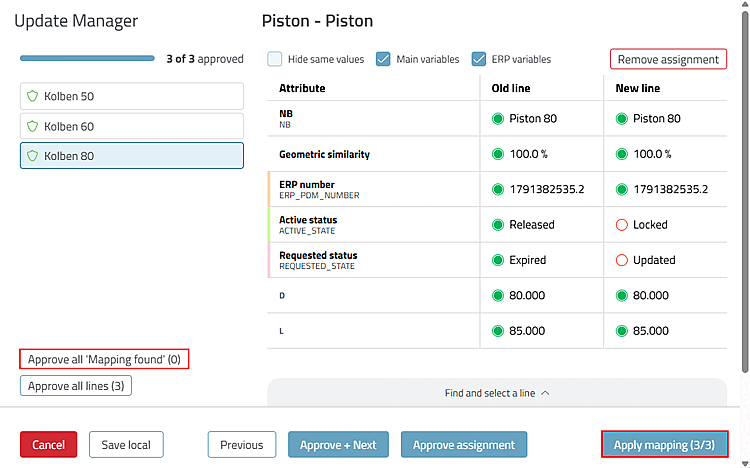
All the lines have now been processed.
Only once all rows have been edited, click the " " button .
The Project Kolben now shows for all Lines
Verified.
Select the " Piston ring " catalog directory and right-click on the " Assignment must be certified [Mapping needs verification]" icon.
Select Kobenring 50 and click " ."
Continue editing according to the procedure described in detail above and then click . Afterward, close the Update Manager.
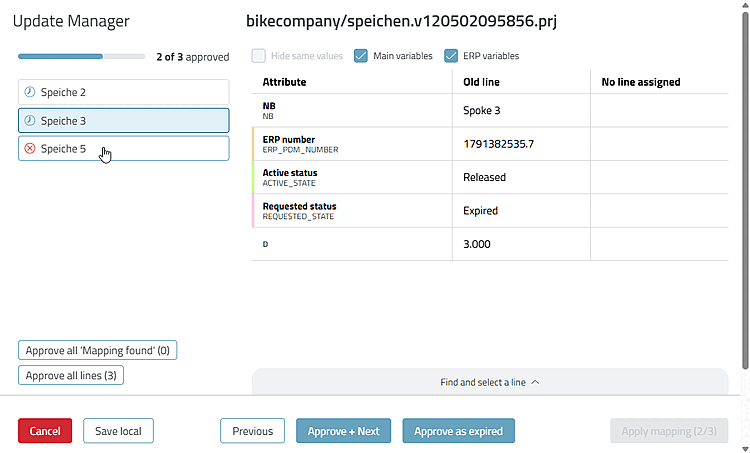
Click Click the Unassigned folder Part numbers [Unassigned part numbers]. You can see for spokes:
 product has not been
found [Product not found]
product has not been
found [Product not found]
Click Click on the icon on the right side of a line
product was not
. [Product not found]
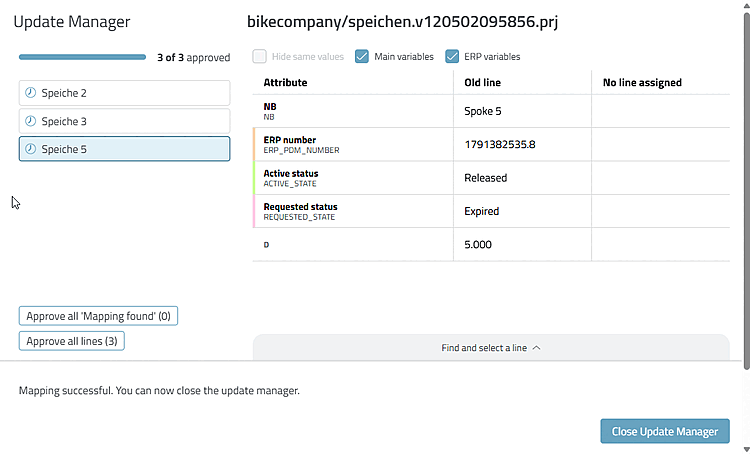
Select the products one by one and click the " " button each time.
The Product is indicated with the icon
 product is
Leaked [Product expired] excellent.
product is
Leaked [Product expired] excellent.
-> It in the "Bikecompany" catalogue, only discontinued
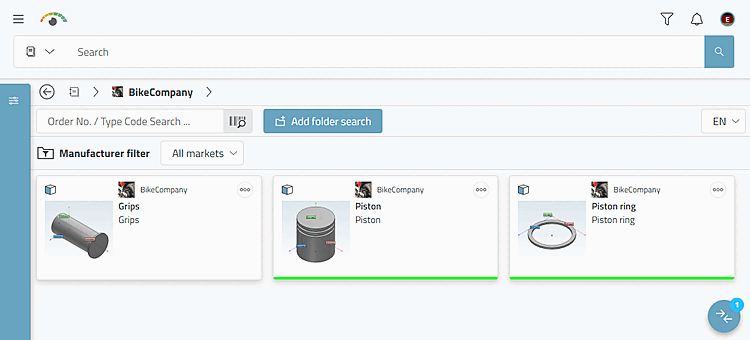
or verified products.Open Download the "Bikecompany" catalog in 3Dfindit by clicking on the "Bikecompany" catalog in a Line on the icon
 open part [Open part]
and then go to the catalog level to view all products.
.
open part [Open part]
and then go to the catalog level to view all products.
.
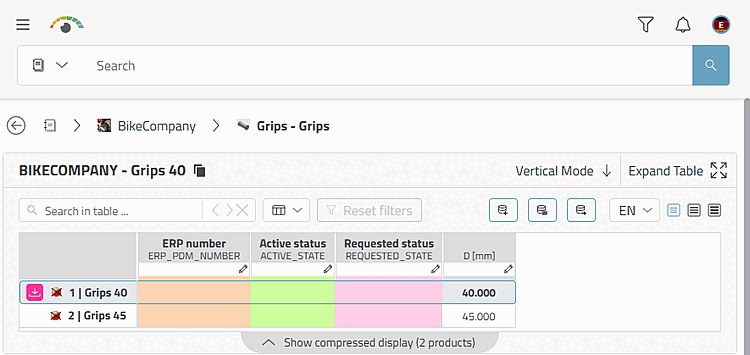
The comparison with Version 1 shows that the " Spokes " project no longer exists, but the " Handles" project is there instead.
Take a look at each product in detail.
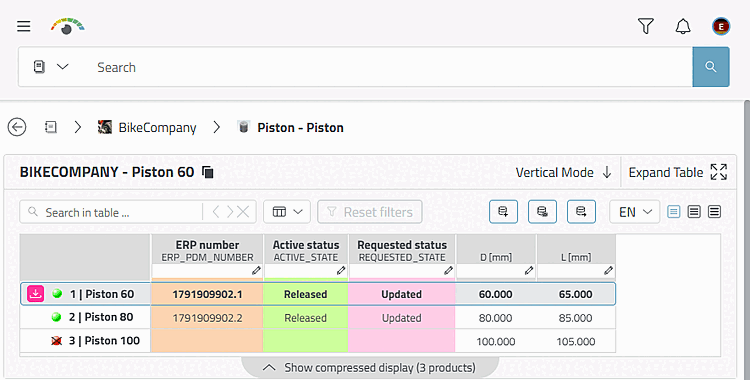
Pistons - The 50 variant has been discontinued; the 100 variant has been added (red, because it does not have an ERP number)
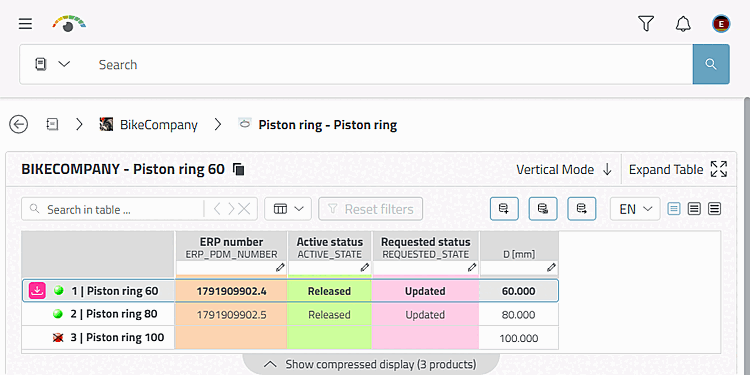
Piston ring - Part number 50 has been discontinued, and 100 has been added (shown in red because it does not have an ERP number)
![PARTadmin > Rights Management [Rights administration] > Rights Assignment [Assign rights] > Profiles > LinkDb administrator](https://webapi.partcommunity.com/service/help/latest/pages/en/partsolutions_user/doc/resources/img/img_aa3e8f06f8a8417caf9217e60b3fda5c.png)