|
Display of topological values on the tabbed page Search results especially only at Topology search.
Now you can enable any topological values for every search in the Properties dialog box. For all search results these are displayed independent from the used search method. May be you want to see how many holes a part has for example, because this is not visible in the preview or you want to see Largest dimension, Middle dimension and Shortest dimension by default for example.[149]
In the dialog box all properties are grouped by categories.
Furthermore you can display desired ERP values, independent from the used search method as well. Namely all ERP values are listed in the column Summary, but may be it is more comfortable to display the ERP number for example separately.
Call up the Properties dialog box by right-clicking on the column header of any table column of the Search results. Open the tree and select the checkbox at desired topological values.
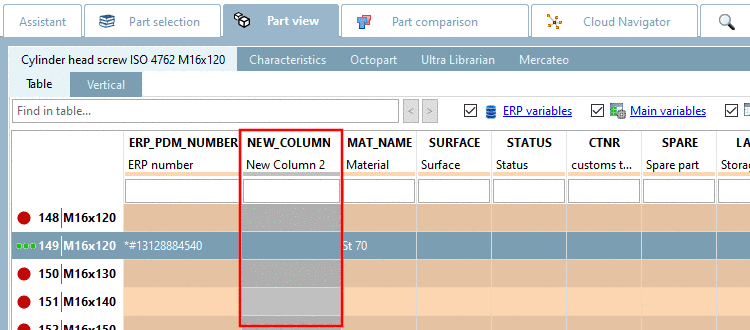
May be it is interesting in Consulting projects in addition to define columns with own combinations of topological values:
Therefor add an
own xml file under $CADENAS_USER/columns (e.g.
topo.xml). (All xml
files stored there are evaluated.)
<?xml version="1.0" encoding="UTF-8"?> <columns> <!-- topo properties column --> <column name="TopoProperties" views="search" type="topoColumn" title="my special topo values"topoAttributes="holeCountWithDiam2,xextension" generateMissing="true" /> </columns>
In this way you can mix any properties in a column, also with properties from different categories (e.g. if only ONE column is desired).