1.7.4.1. 3Dtoolbar.cfg - Configure toolbar of 3D views

Via setting options in the block [DEFAULT], you can show or hide the individual buttons of the 3D view.

Settings in the block [DEFAULT] concern the 3D view of all modules and features (PARTdataManager [standard 3D view, part comparison], PARTdesigner [part and assembly] PARTproject [standard view, edit render material, classifications]).

Examples:

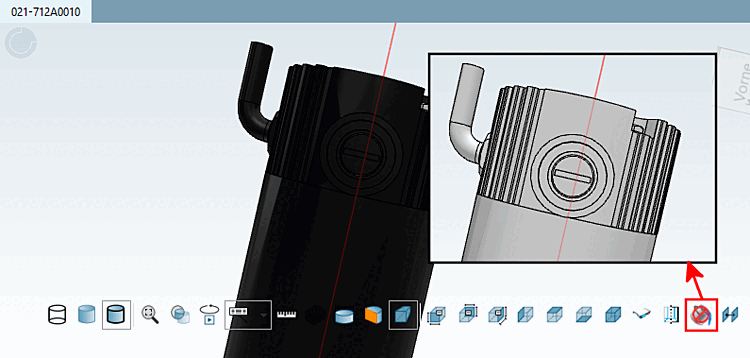
  • The button Disable colors is hidden by default. If, for example, the function Measure shall be used, especially for black parts, it is very helpful to disable colors.

    For this, enable the key "PANEL3D_NOCOLOR". Now you can disable colors anytime.

    PANEL3D_NOCOLOR=1 -> button shown

    Disable colors

    Disable colors

  • If certain standard functions are not needed at all, they can be hidden.
Configure specific panes

In order to configure a specific pane, preparations on file level are required.

  1. Comment in the block for the needed pane.

    Example: PARTdataManager standard toolbar

    #[DatamanagerMainPane] -> [DatamanagerMainPane]

  2. Example: PARTdataManager standard toolbar

    Default configuration

    [DEFAULT]
    PANEL3D_LINE=1
    PANEL3D_SHADE=1
    PANEL3D_SHADE_LINE=1
    PANEL3D_ZOOM=1
    PANEL3D_MAG_GLASS=1
    PANEL3D_ANIMATION=1
    PANEL3D_TEXT=1
    PANEL3D_MEASURE=1
    PANEL3D_DIMENSIONGRID=1
    PANEL3D_CUSTOMDIMEN=1
    PANEL3D_CUT=1
    PANEL3D_FREE_CUT=1
    PANEL3D_PERSPECTIVE=1
    PANEL3D_FRONT=1
    PANEL3D_BACK=1
    PANEL3D_RIGHT=1
    PANEL3D_LEFT=1
    PANEL3D_TOP=1
    PANEL3D_BOTTOM=1
    PANEL3D_ISOMETRIC=1
    PANEL3D_REDGREEN=1
    PANEL3D_COSMETICS=1
    PANEL3D_NOCOLOR=1
    PANEL3D_RULEBOUNDARIES=1

    Example: PARTdataManager standard toolbar

    [DatamanagerMainPane]
    PANEL3D_LINE=1
    PANEL3D_SHADE=1
    PANEL3D_SHADE_LINE=1
    PANEL3D_ZOOM=1
    PANEL3D_MAG_GLASS=1
    PANEL3D_ANIMATION=1
    PANEL3D_TEXT=1
    PANEL3D_MEASURE=1
    PANEL3D_DIMENSIONGRID=1
    PANEL3D_CUSTOMDIMEN=1
    PANEL3D_CUT=1
    PANEL3D_FREE_CUT=1
    PANEL3D_PERSPECTIVE=1
    PANEL3D_FRONT=1
    PANEL3D_BACK=1
    PANEL3D_RIGHT=1
    PANEL3D_LEFT=1
    PANEL3D_TOP=1
    PANEL3D_BOTTOM=1
    PANEL3D_ISOMETRIC=1
    PANEL3D_REDGREEN=1
    PANEL3D_COSMETICS=1
    PANEL3D_NOCOLOR=1
    PANEL3D_RULEBOUNDARIES=1

  3. Now you can access via PARTadmin user interface. Changes should always be performed here and not on file level.

    Change individual entries as desired.

Available disabled blocks:

  • PARTdataManager

    #[DatamanagerMainPane] -> Standard view

    #[ComparePane] -> Part comparison

  • PARTdesigner

    #[DesignerMainPane] -> Part

    #[DesignerAssemblyPane] -> Assembly

  • PARTproject

    #[Preview3DPane] -> Standard view

    #[MaterialLibraryPane] -> Maxwell Import

    #[MaterialEditPane] -> Edit render material

    #[ClassificationPane] -> Classification