|
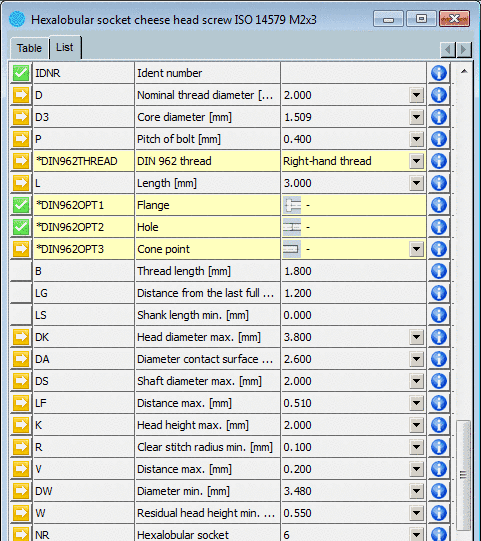
The part variables can also be shown and operated in a list view in addition to the vertical view.
The list display contains the following columns:
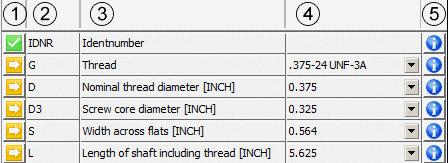
Meaning 

Several values available in list field / Changeable value:
When you select a value in the list field, then automatically depending variables are changed as well.
The following two possibilities can occur:
At a depending variable only one value is still possible. Then the variable is marked with
 .
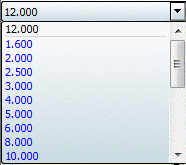
.In the opened list field you see a black value (the set and the others in blue font color.
There are restrictions at a depending variable, but still several values are possible.
Then the variable is marked with
further on.In the opened list field you see black values. These are not affected by the current selection.
Furthermore you see blue values. These have been filtered by the current selection.
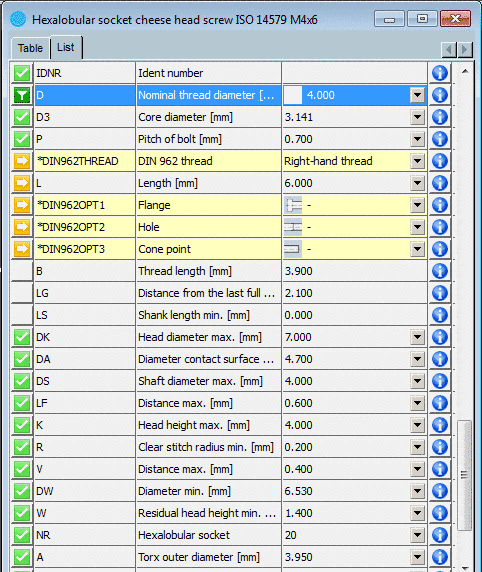
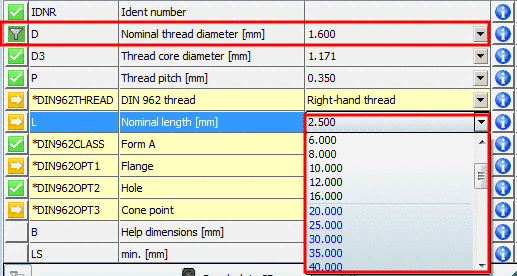
Example: D has been set to the value 1.6. Thereby at L values greater than 20 are not possible anymore. These now are displayed in blue font color.

The value has been pinned by clicking on
or or by direct selection.Actively filtered variable (by selection in the list field or by clicking on the symbol)
In the related list field all values are blue, except the set one. This is black.
Filtered variables restrict depending variables. There values, not available anymore, are also colored in blue.
Variables unaffected by the filtering are still displayed in black.
Compare Fig. „Example: D has been set to the value 1.6. Thereby at L values greater than 20 are not possible anymore. These now are displayed in blue font color.“.
Yellow and orange variables (value range fields) can not be filtered. (These are set via
 .)
.)
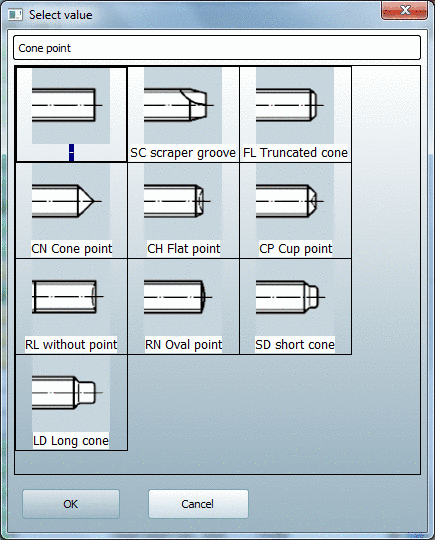
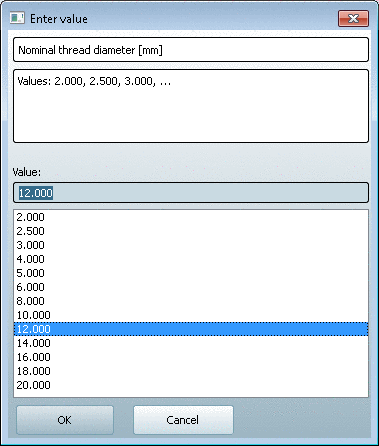
By clic5king on this symbol the Enter value window opens. For value ranges (yellow and orange fields) you may make a selection here.
The value can be changed via the list field (if possible at all).
By clicking on
 the value range selection dialog
is opened. Here the variable value can be changed as
well.
the value range selection dialog
is opened. Here the variable value can be changed as
well.
![[Note]](https://webapi.partcommunity.com/service/help/latest/pages/en/partwarehouse/doc/images/note.png)
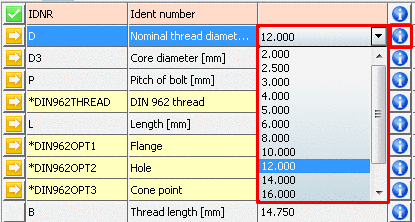
Example - Quick restriction to desired values:
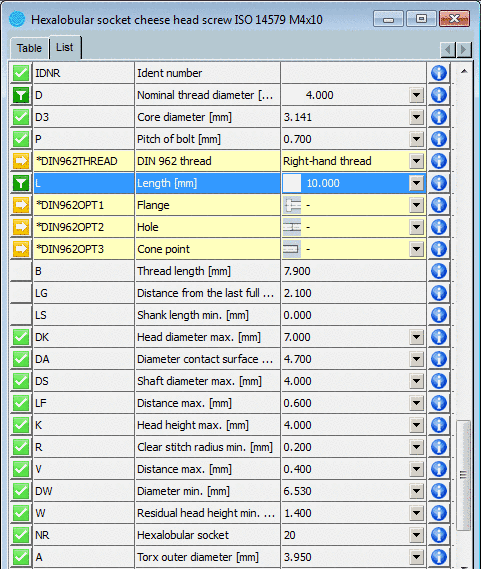
Variable L can still be defined as desired.
-> Now the filter symbol is displayed here too.
-> The two DIN962 options flange and hole are now also pinned.