1.1.6.
Part Number Search (using the "Article Assignment
Wizard" for manufacturer parts) 1.1.6.2. Import CSV
(Search by Item Number) |  |
| Prev | Next |
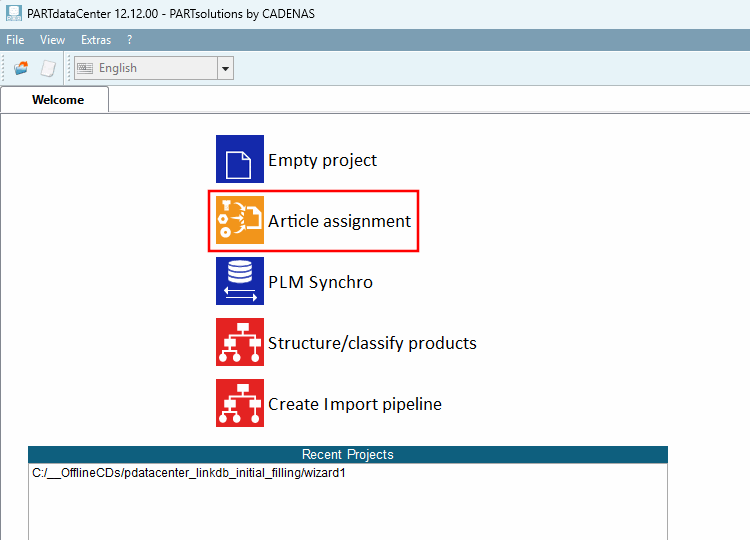
In the PARTdataCenter startup screen (the "Welcome" tab), click on " Article assignment" to create a new project.
(Alternatively, you can also do this via the File menu > Create new project [Create new project].)
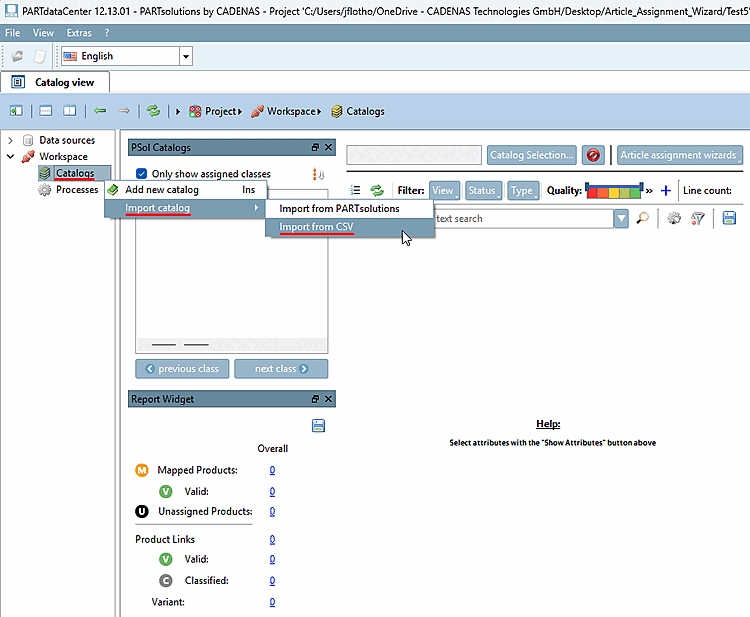
Select the context menu command "Import catalog [Import catalog] > Import from CSV" under Workspace > Catalogs:
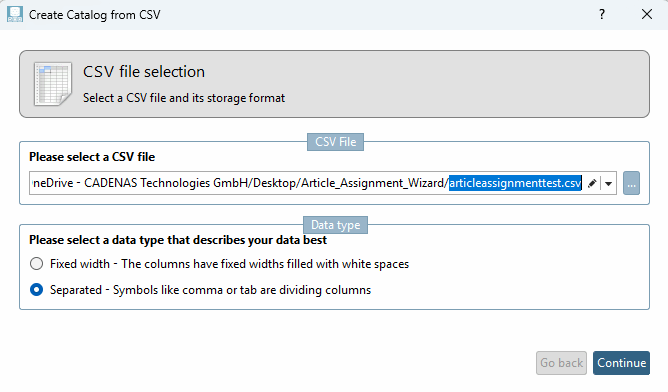
-> The " Create Catalog from CSV [Create Catalog from CSV] " dialog box opens.
Import Download the sample file "
articleassignmenttest.csv" and go through the individual steps. Details on the import can be found under Section 1.1.3, “Create catalog from CSV file”.Select a column as the identifier that actually contains a unique value . In this example, that is "ID".
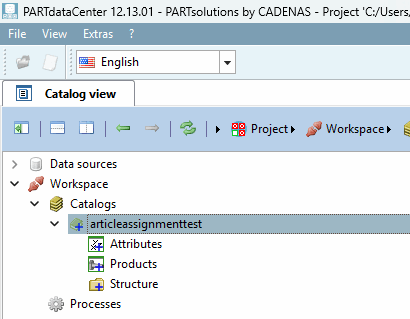
-> Under Catalogs [Catalogs], the entry "articleassignmenttest" is displayed.
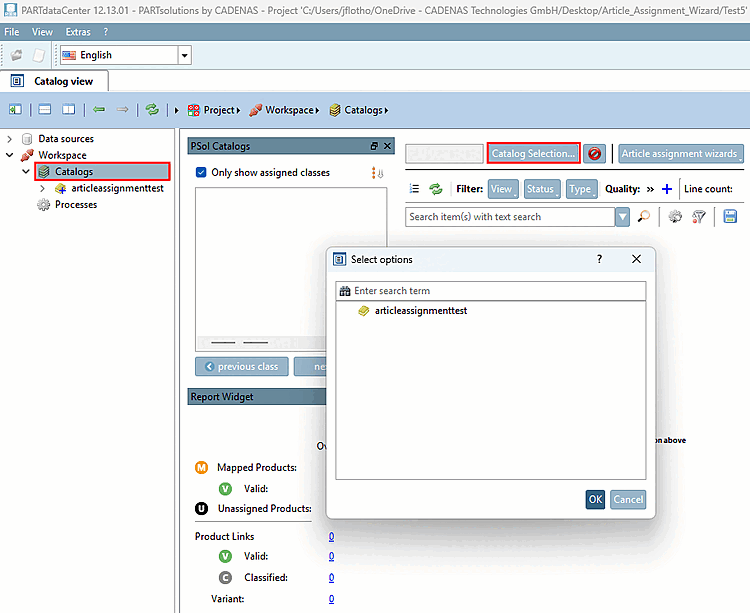
Select the " Catalogs" item in the tree to view the "ArticleAssignment view."
Click the button, then click "articleassignmenttest" in the dialog box.
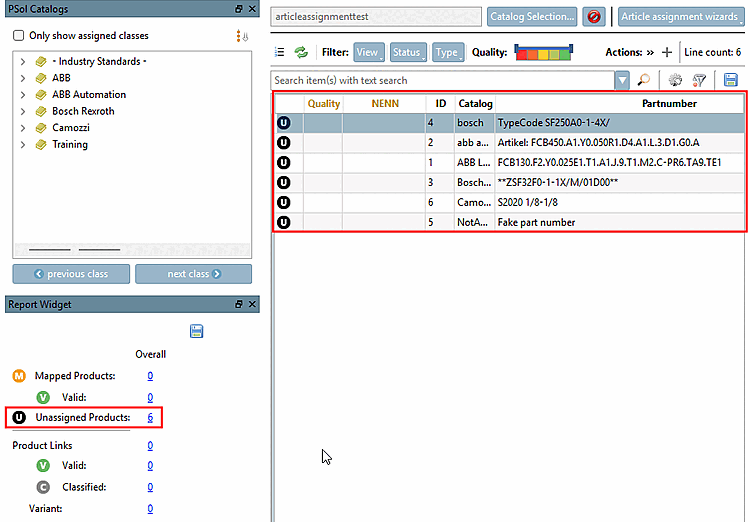
Click on the link under " Unassigned Products [Unassigned Products]."
-> You can now see the individual products.
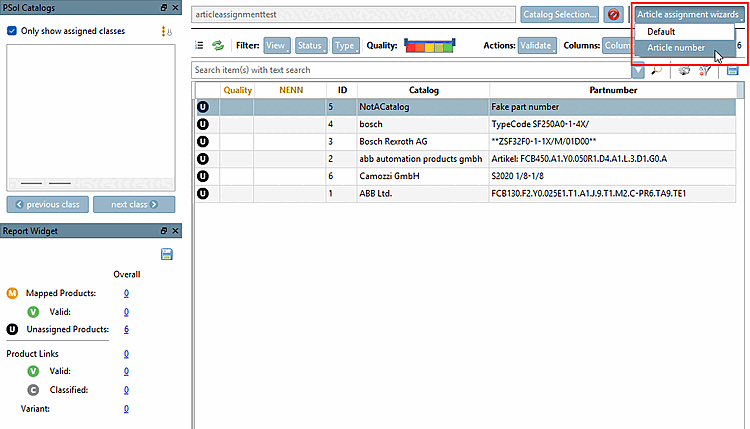
Click the " " button, and then select " Article Number."
-> The wizard ( Article Assignment Wizard [Article assignment wizard - article number] dialog box - article number [Article assignment wizard - article number] ) opens with the Source tabbed page displayed.