1.3.1.5.1.1. Favorites

You can use favourites to organize entire catalogs, sections of a catalog, individual components or table rows in different lists so that you can quickly access your individually compiled projects later via these lists.

To mark an element as a favorite, proceed as follows:

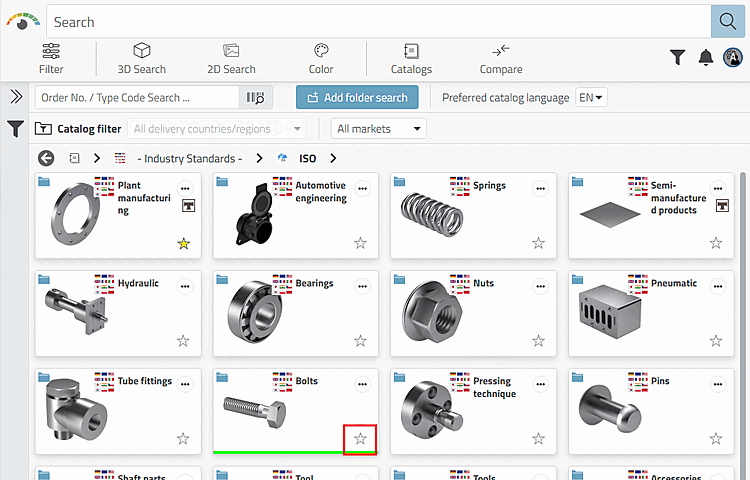
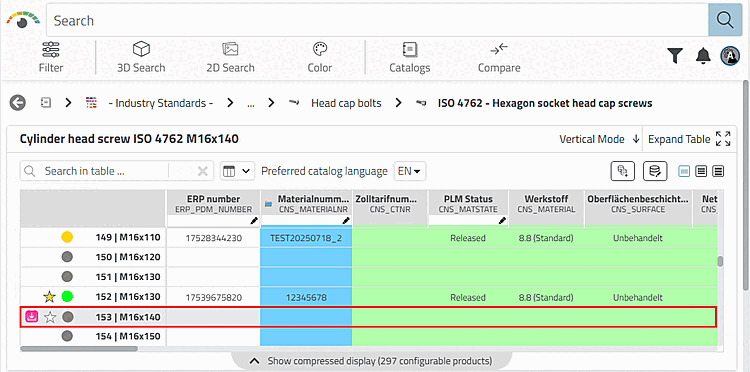
  1. Click at any level (catalog, directory, part family, or Table row) to the desired unfilled star .

    • Meaning of unfilled asterisk -> catalog or component is not Favourite.

    • Meaning of yellow filled asterisk -> is catalog or component Favourite.

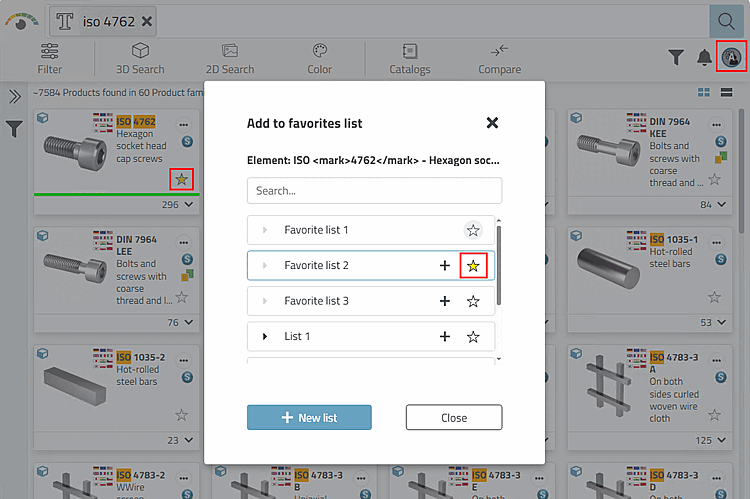
    Example: Mark directory as favorite

    Example: Mark directory as favorite

    Example: Marking a table row as a favorite

    Example: Marking a table row as a favorite

    -> The Add to favorites list window opens.

  2. Select the desired list (or several lists if necessary).

    -> The star symbol is now highlighted in yellow.

    -> The desired element is now added to the favorites list.

    Here, for example, the ISO 4762 parts family has been marked as a favorite and assigned to the "Favorite list 2".

    Here, for example, the ISO 4762 parts family has been marked as a favorite and assigned to the "Favorite list 2".
To use favorites that have already been set, proceed as follows:
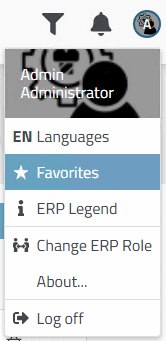
  1. Click on the Favorites menu item in the user menu.

    -> The Favorites lists dialog box opens.

  2. Click on the desired list to open it.

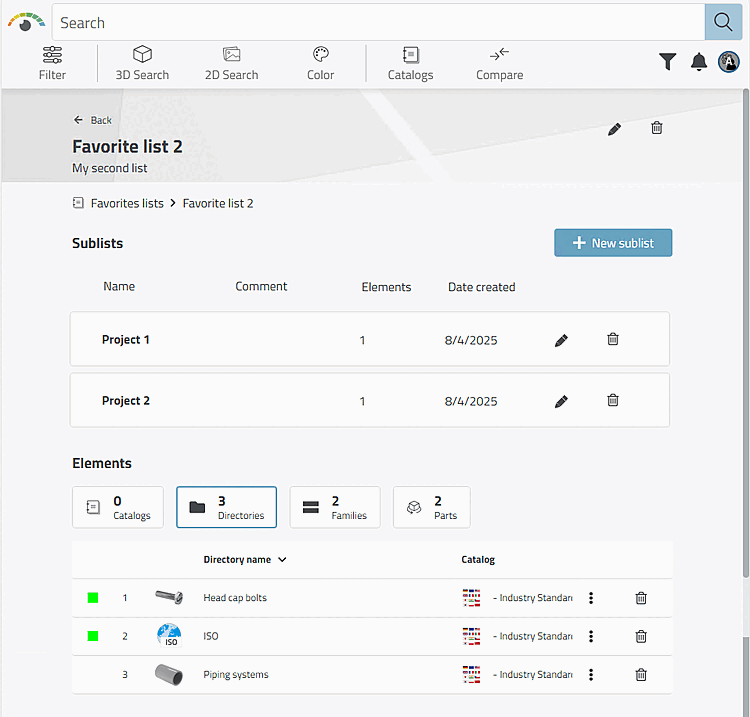
    The "Directories" category is selected here as an example.

    The "Directories" category is selected here as an example.

  3. For example, select the category Directories and then ISO (here as an example).

    -> The subdirectories of "ISO" are displayed.

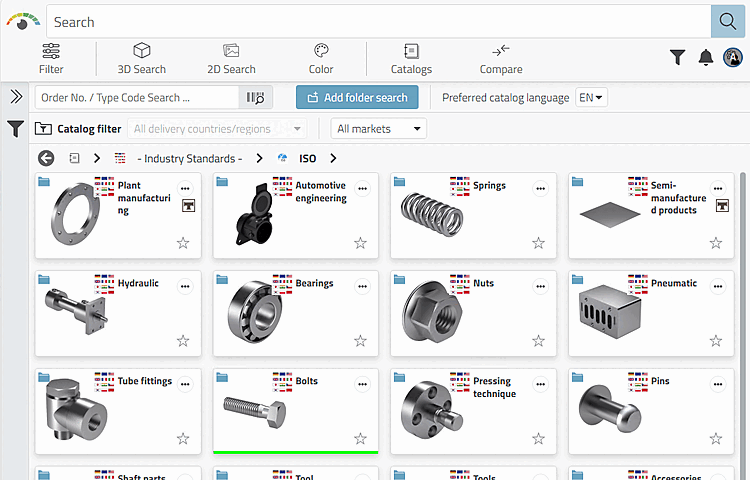
    Subdirectories of "ISO" are displayed

    Subdirectories of "ISO" are displayed

Create, view, edit and organize favourites lists:

If you want to create, view, edit or organize your favourites lists in a specific structure, proceed as follows:

  1. Open the Favorites lists dialog box via User menu > Favorites. All the necessary functions are available here.

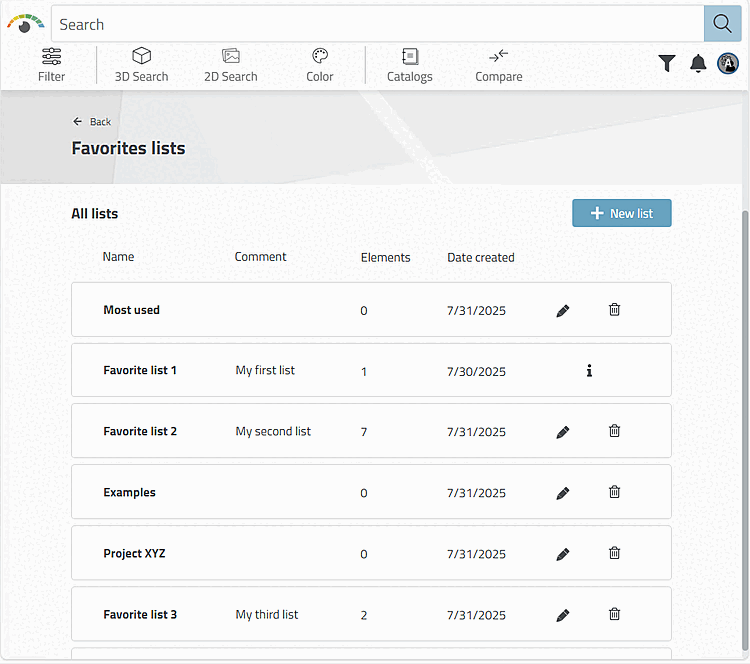
    "Favorites lists [Favorites lists]" dialog box with a list of all existing lists

    "Favorites lists [Favorites lists]" dialog box with a list of all existing lists

  2. Create any favorites structure, new lists, for example, using Button + New list.

Detailed user information on favorites can be found under Section 8.2, “ Favorites ” in ENTERPRISE 3Dfindit - User.

For information on the administrative setup of favorites, see Section 1.8.5, “3Dfindit - Favorites configuration ” in ENTERPRISE 3Dfindit (Professional) - Administration.