1.2.1.1. ENTERPRISE 3Dfindit 1.2.1.1.1. Redesigned navigation & start page - more modern, leaner, more focused |  |
| Prev | Next |
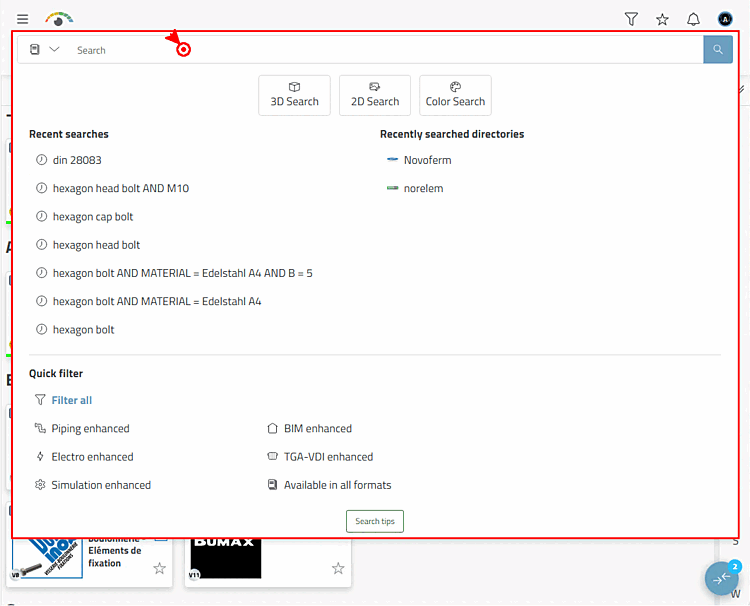
To make getting started with 3Dfindit as intuitive as possible, the entire top page structure has been redesigned. On the other subpages, the search bar remains at the top as usual, but is much slimmer and clearer overall.
The result: a tidy interface that focuses on the search.
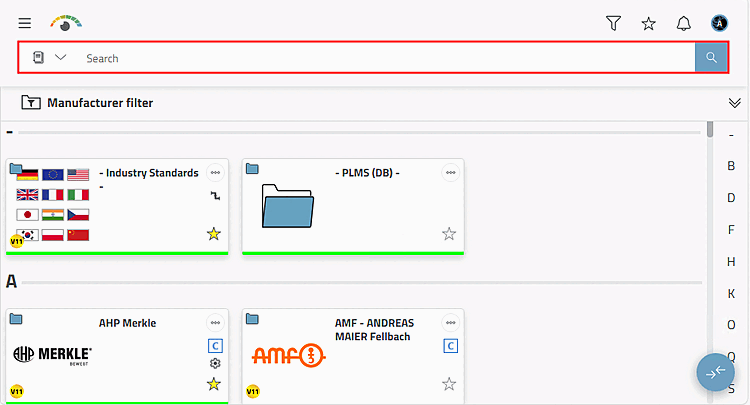
By clicking in the search bar, you have direct access to all other search methods in addition to the textual search: 3D search [3D Search], 2D search [2D Search], color search [Color Search]
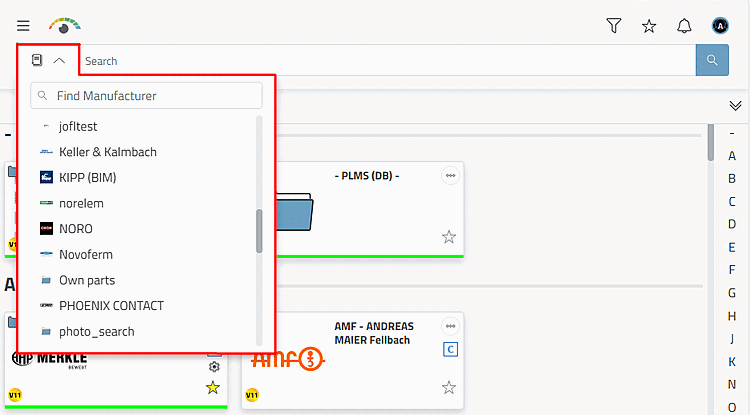
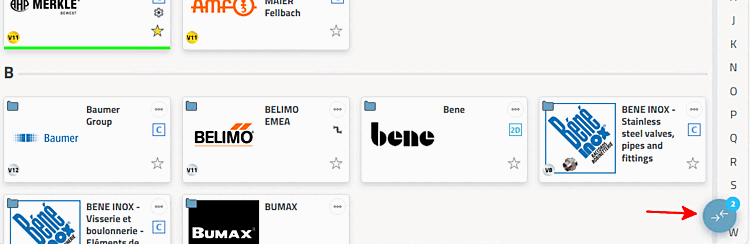
Manufacturer filter: If required, restrict the search to a specific manufacturer in the first step.
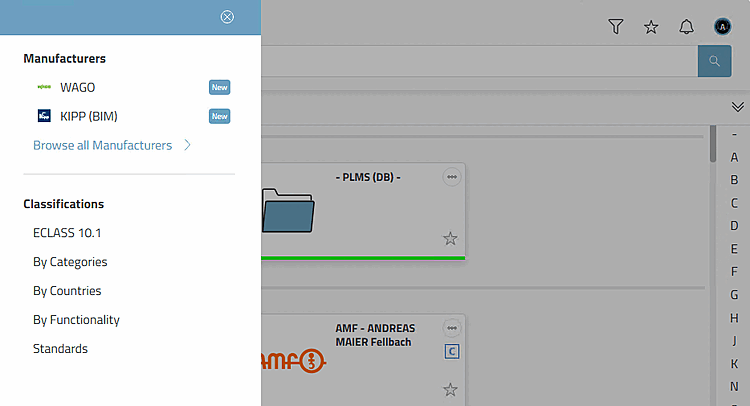
Browsing sidebar: Facilitates access to newly installed manufacturer catalogs and classifications
Click on the icon to open the menu area.
Click on Search all manufacturers [Browse all Manufacturers] to display all manufacturer catalogs.
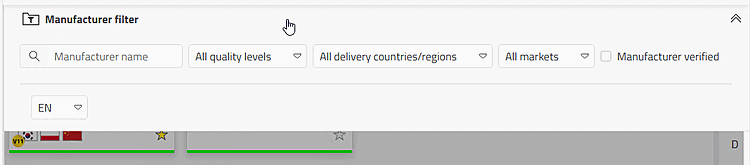
Manufacturer filter: The manufacturer overview follows a clear order: quality levels, supplier countries/regions, markets [Markets]
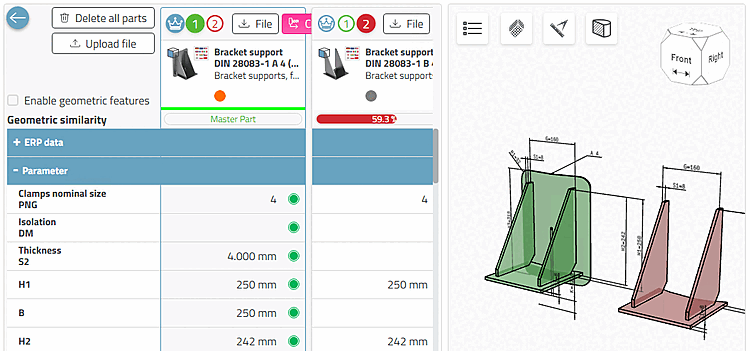
Comparison bar: The new comparison is much more efficient and easier to use.
Click on the button to open the comparison bar.
Click on the button to open the comparison dialog.
Details on the parts comparison can be found under Chapter 7, Compare products in ENTERPRISE 3Dfindit - User.