|
Draw rectangle
Click on a
corner point of the rectangle and draw it while holding down the
mouse button.
Alt: Ignore snap points
|

|
Draw ellipse
Click on the
desired center of the ellipse and draw it while holding down the
mouse button.
Strg: Draw circle
Alt: Ignore
snap points
|

|
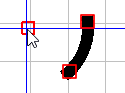
Draw circular arc
Strg: Only
allow multiple of 15° in relation to coordinate axes
Shift: Only
allow multiple of 15° in relation to starting angle
Alt: Ignore
snaps
i: Invert direction
|

|
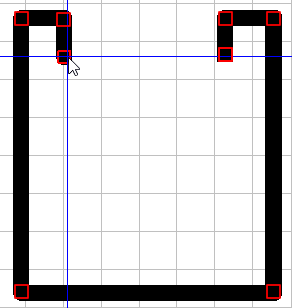
Draw polygon
In turn, click on the desired corned
points of the polygon.
Strg: Only allow multiple of 15° in
relation to coordinate axes
Shift: Only
allow multiple of 15° in relation to last edge
Alt: Ignore snap points
Return:
Terminate polyline
|

|
Draw polygon chain
Strg: Only
allow multiple of 15° in relation to coordinate axes
Shift: Only
allow multiple of 15° in relation to last edge
Alt: Ignore
snap points
Return: Terminate polyline
|

|
Freehand drawing:
For straight
lines use the polygonal chain.
|

|
Line thickness
The
line thickness of the paintbrush can be adjusted via the arrow
buttons.
|

|
Fill in sections
|

|
Select drawing color [Choose color for painting] / Select erase color [Choose erasing color]
You can switch back and forth between black and the erase color.
|

|
Cleanup
Deletes the
selected view.
|

|
Insert
The button
becomes active as soon as data that can be inserted (jpg, gif,
png) are found in the temporary storage location.
See Import drawing above for the procedure.
|

|
Import drawing
See Section 2.1.6.4.7.4.1, “Create sketch
from picture
”.
|

|
Draw in reverse
Removes
the last action. The button is activated as soon as actions are
carried out.
|

|
Draw repeatedly
Executes the last action again. The button becomes active as soon as Undo Draw has been used.
|


![[Tip]](https://webapi.partcommunity.com/service/help/latest/pages/en/partsolutions_user/doc/images/tip.png)