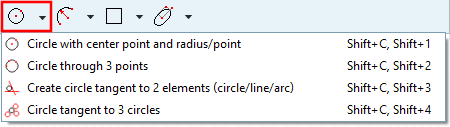
Circle with center point and radius/point
Determine circle via Center point and Radius.
Choose center point: Either click into the free space at the approximate location or use an already existing point of construction or explicitly set a Point as center point.
Choose point on radius: Drag the circle with the cursor to the desired radius and fixate it by mouse click.
If needed, adjust the values of the points of Center point X, Center point Y and Radius in the docking window Edit element.
For circles, the activation of "Snap to grid" is not performed under Quick settings -> Snap to grid, but under PARTdesigner -> Settings... -> Sketcher (feat.) -> Grid -> Scalar parameters. For example, if the width is set to 5, a circle will snap at radii with multiples of 5, regardless in which direction the mouse is moved.
Determine circle through three points (free points, end points of line, center point of circle, etc.)
Create circle tangent to 2 elements (circle/line/arc)
Create tangent circle at lines, arcs and circles.
Example: Circle between coordinate axes
In the docking window Edit element, you can put one, two or all three original circles into the tangent circle.
![]() | Note |
|---|---|
If you want to hide a Circle temporarily, please use the function
| |


![[Note]](https://webapi.partcommunity.com/service/help/latest/pages/en/partsolutions_user/doc/images/note.png)