

- 2.1.6.4.1. When to take which search method?
- 2.1.6.4.2. Filter (Faceted search)
- 2.1.6.4.3. Full-text search
- 2.1.6.4.3.1. Full text search example
- 2.1.6.4.3.2. Full text search: Detailed search options
- 2.1.6.4.3.2.1. Search with one single term
- 2.1.6.4.3.2.2. Singular - Plural
- 2.1.6.4.3.2.3. Multiple terms
- 2.1.6.4.3.2.4. Search with combination of terms and variable values
- 2.1.6.4.3.2.5. Search only with variable values
- 2.1.6.4.3.2.6. Exact search {}
- 2.1.6.4.3.2.7. Strict search!
- 2.1.6.4.3.2.8. Phrase search "" (specific order of terms)
- 2.1.6.4.3.2.9. Wildcard search *
- 2.1.6.4.3.2.10. Leading zeros in part numbers
- 2.1.6.4.3.2.11. Search for negative values
- 2.1.6.4.3.2.12. Number search for a range
- 2.1.6.4.3.2.13. Number search with units (explicitly and implicitly)
- 2.1.6.4.3.2.14. Logical operators
- 2.1.6.4.3.2.15. Mixture of AND and OR - Parentheses
- 2.1.6.4.3.2.16. Topological measures of length
- 2.1.6.4.3.2.17. Search options with ERP integration
- 2.1.6.4.3.2.18. Wildcard query for a whole directory
- 2.1.6.4.3.2.19. Background information
- 2.1.6.4.3.2.19.1. Automatic splitting of search terms
- 2.1.6.4.3.2.19.2. Toleration of wrong divisions in strings
- 2.1.6.4.3.2.19.3. Ranking
- 2.1.6.4.3.2.19.4. Find order numbers with empty spaces and special characters
- 2.1.6.4.3.2.19.5. Extraction of zeros from search terms
- 2.1.6.4.3.2.19.6. Search for values of value range fields
- 2.1.6.4.3.3. What is searched?
- 2.1.6.4.3.4. Automatic phrase completions
- 2.1.6.4.3.5. Full-text search in link database using ERP integration
- 2.1.6.4.4. Search by order number or type designation
- 2.1.6.4.5. Variables search
- 2.1.6.4.6. Geometric search (3D)
- 2.1.6.4.6.1. PARTdataManager: Actions in the search result list
- 2.1.6.4.6.2. PARTdataManager: Further actions in the " Geometric search (3D) " dialog box
- 2.1.6.4.6.3. Geometric search (3D): The most important things at a glance
- 2.1.6.4.6.4. Projects tab page
- 2.1.6.4.6.5. 3D files tab page
- 2.1.6.4.6.6. Settings
- 2.1.6.4.6.7. Search results
- 2.1.6.4.6.8. Perform a geometric search directly in CAD
- 2.1.6.4.6.9. Quality of topology information/features
- 2.1.6.4.7. Sketch search (2D)
- 2.1.6.4.8. Color Search
- 2.1.6.4.9. Search for unmachined parts
- 2.1.6.4.10. Partial search
- 2.1.6.4.10.1. Partial search: The most important information at a glance
- 2.1.6.4.10.2. Projects " tab page
- 2.1.6.4.10.3. 3D files " tab page
- 2.1.6.4.10.4. Partial search in CAD
- 2.1.6.4.10.5. Partial search: Examples of use cases
- 2.1.6.4.10.5.1. Partial search: Search for a combination of planar surfaces and their relationship
- 2.1.6.4.10.5.2. Partial search: Search for a surface including inner contour with a complex shape
- 2.1.6.4.10.5.3. Partial search: Search for a hole pattern by selecting an area
- 2.1.6.4.10.5.4. Partial search: Search for negative parts
- 2.1.6.4.10.5.5. Search for raised characters (pattern recognition)
- 2.1.6.4.10.5.6. Partial search: Search for a 3D text
- 2.1.6.4.10.5.7. Partial search: Ignore cylinder lengths
- 2.1.6.4.10.5.8. Partial search: Different result similarities with and without consideration of the geometric arrangement
- 2.1.6.4.11. Topology search
- 2.1.6.4.11.1. Topology search: The most important things at a glance
- 2.1.6.4.11.2. Topology search: Search results
- 2.1.6.4.11.3. Topology search - Settings in detail
- 2.1.6.4.11.3.1. Size
- 2.1.6.4.11.3.2. Area/Volume
- 2.1.6.4.11.3.3. Symmetry
- 2.1.6.4.11.3.4. Material
- 2.1.6.4.11.3.5. Cylinder
- 2.1.6.4.11.3.6. Cone
- 2.1.6.4.11.3.7. Torus
- 2.1.6.4.11.3.8. Sphere
- 2.1.6.4.11.3.9. Hole
- 2.1.6.4.11.3.10. Rectangular Slot
- 2.1.6.4.11.3.11. Slotted Hole
- 2.1.6.4.11.3.12. Curved Slot
- 2.1.6.4.11.3.13. Linear Hole Pattern
- 2.1.6.4.11.3.14. Linear Slot Pattern
- 2.1.6.4.11.3.15. Linear Rectangular Slot Pattern
- 2.1.6.4.11.3.16. Circular Hole Pattern
- 2.1.6.4.11.3.17. Curved Slot Pattern
- 2.1.6.4.11.3.18. Distance between Planes
- 2.1.6.4.11.3.19. Angles between Planes
- 2.1.6.4.12. Part selection via directory structures
- 2.1.6.4.13. "Country of delivery " as filter
- 2.1.6.4.14. Filter wizards (provided by the manufacturer)
By default, only the full text search [Full-text search] is visible and activated. The other search methods are "collapsed"  . However, the area can be expanded at any time
  and other search methods can be added or used alternatively.
Enter a search term in the input field and click on .
![[Note]](https://webapi.partcommunity.com/service/help/latest/pages/en/partwarehouse/doc/images/note.png) | Note |
|---|---|
You can combine textual and numerical terms. Both the table (ERP columns and characteristic attributes) and topological values are searched. | |
![Search with the "Full text search [Full-text search] "](https://webapi.partcommunity.com/service/help/latest/pages/en/partwarehouse/doc/resources/img/img_6801090d86ea48ad855885c10988ddcc.png)
In addition to the full text search [Full-text search], several other search methods are available, which can also be combined with each other:[37] [38]


Beside or instead of the full-text search other search methods can be used.
Expand the search methods area using the arrow button to open it.
-> Then you will see a listing of all search methods.
Click on the link of the desired search method.
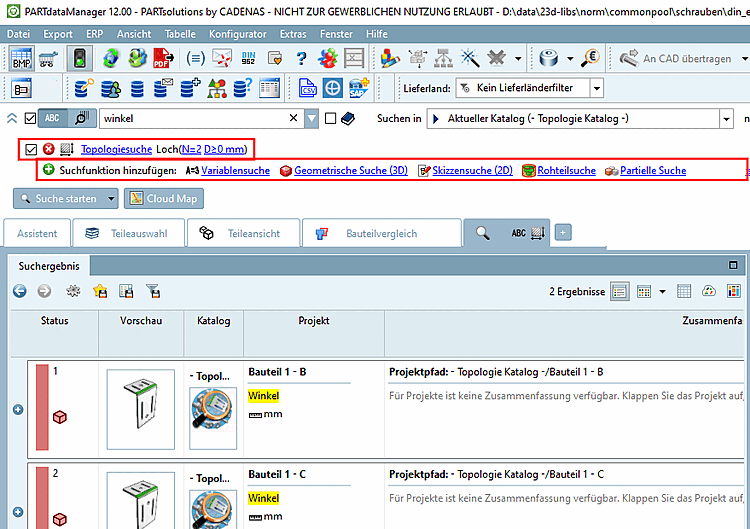
-> The respective settings dialog opens. Once the settings have been accepted, the search method is displayed below the full text search [Full-text search] with a checkbox and remove button  button. In addition to the search method, you will also see the setting parameters used.
![In this exemplary illustration, all search methods have already been used once and are therefore listed. The full text search [Full-text search] and the topology search [Topology search] are activated and will be used during the next search run.](https://webapi.partcommunity.com/service/help/latest/pages/en/partwarehouse/doc/resources/img/img_be8c891263f14110ba279141273997a7.png)
In this exemplary illustration, all search methods have already been used once and are therefore listed. The full text search [Full-text search] and the topology search [Topology search] are activated and will be used during the next search run.
Click on the
"Remove" button .

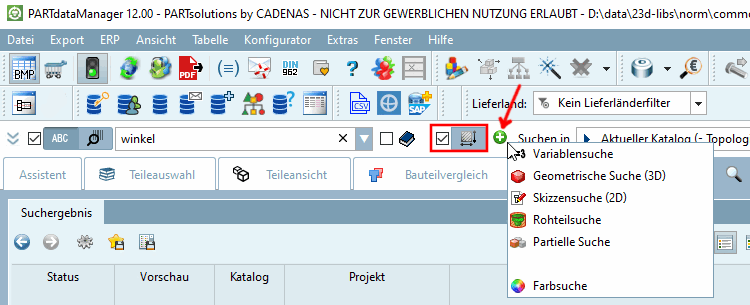
In order to add a
search method click on the green plus button  and then on the desired method.
-> The respective settings dialog opens. Once committing the settings the respective icon of the selected method is displayed with activated checkbox.
Beside using the search functions, of course you can manually search the directory structure.
For example, select the sub-item Catalogs or Classifications on the Parts selection [Part selection] tab page and search the respective directory structure for the desired part.
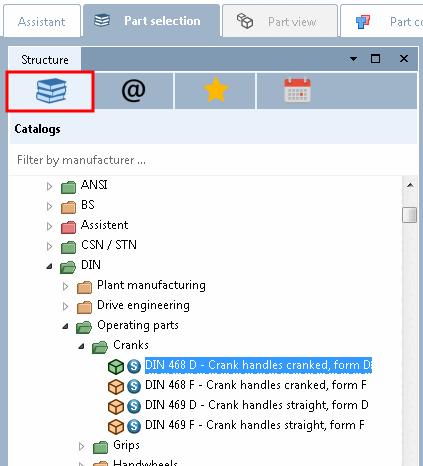
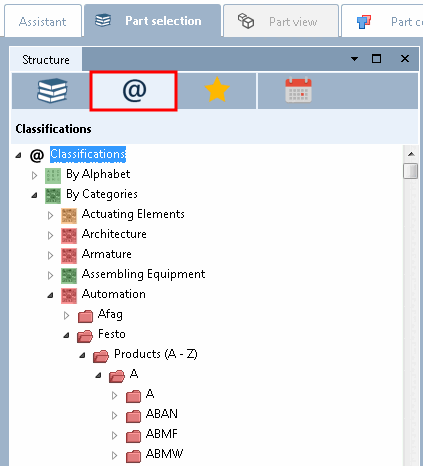
Detailed information on the individual sub-items (Catalogues [Catalogs] | Classifications | Favorites | History ) can be found at Section 2.1.6.4.12, “ Part selection via directory structures ”.
[37] only sketch search (2D) [Sketch search (2D)] and geometric search (3D) [Geometric Search (3D)] not with each other
[38] Full text search [Full-text search] and variable search [Variables search] are always available as standard. The "CNS200x*PSADDONS*COMPLEXSEARCH" license is required for the other search methods.
Information on how to check whether a specific license is available can be found at Section 3.5.1, “ License information ”.